
2 – LR AND PS EXPLAINED
What is Lightroom Classic and Photoshop, how do they differ and what are the benefits of each?
LIGHTROOM
Lightroom Classic (v14 at time of writing) is a Raw Processor and a Library Catalog, also referred to as a DAM (Digital Asset Manager). It has two versions, Lightroom (not Classic) which is a cloud based application and has somewhat limited tools compared to the other version, Lightroom Classic, the desktop version. For this guide we are only using Lightroom Classic and will refer to it as Lightroom.
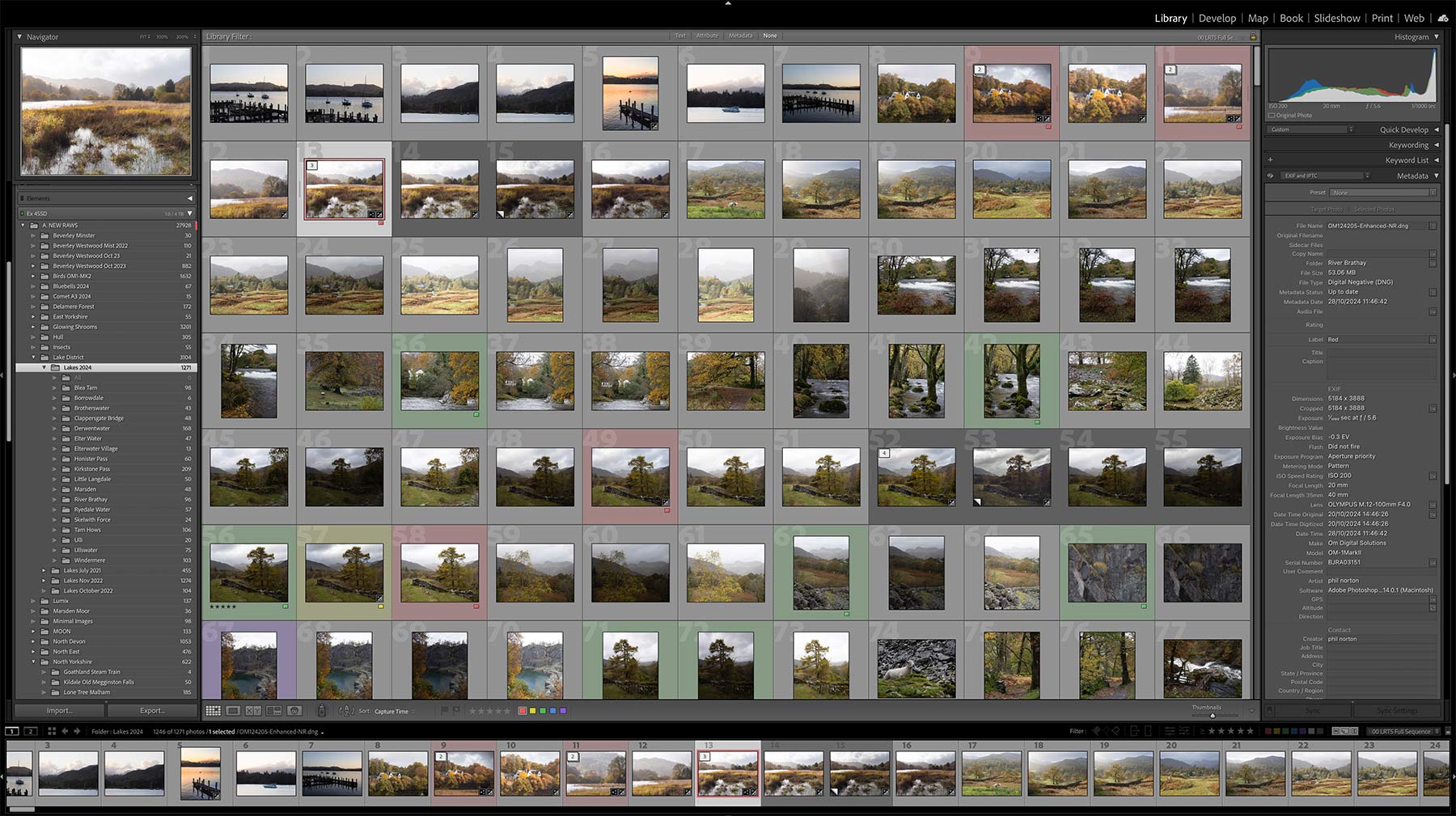
Lightroom Classic Library – We will explore the Develop Module in the Interface section.
It consists of Modules (or sections), of which we will use the Library and Develop Modules. Organise, sort, rate and cull your images and check Exif data, add keywords, and build Collections in the Library, then process your image in the Develop Module. Think of Lightroom as a ‘digital darkroom’. It is also appropriate to think of Lightroom as a Global processor, processing the whole image, with some very flexible but limited ‘local’ editing capabilities. Importantly it has a compete History of all edits which are preserved with the image.
Lightroom is ‘Non-Destructive’. This means your raw images are never changed, any edits applied are not actually applied until you export the image and your raw image is always preserved on disc; in fact your images only exist in Lightroom as data, which also has the benefit of keeping your Catalog data quite small compared to the actual image data.
Lightroom is basically built on Adobe Camera Raw and Bridge.
PHOTOSHOP
Photoshop (2025) by comparison is an Image Editor, not a processor. It does not have a Library and none of the functions such as sorting and rating. Photoshop is incredibly powerful and sophisticated, and is not just used by photographers, it is also used by digital artists, graphic designers, web developers and other creatives. Crucially what Photoshop does have is Layers.
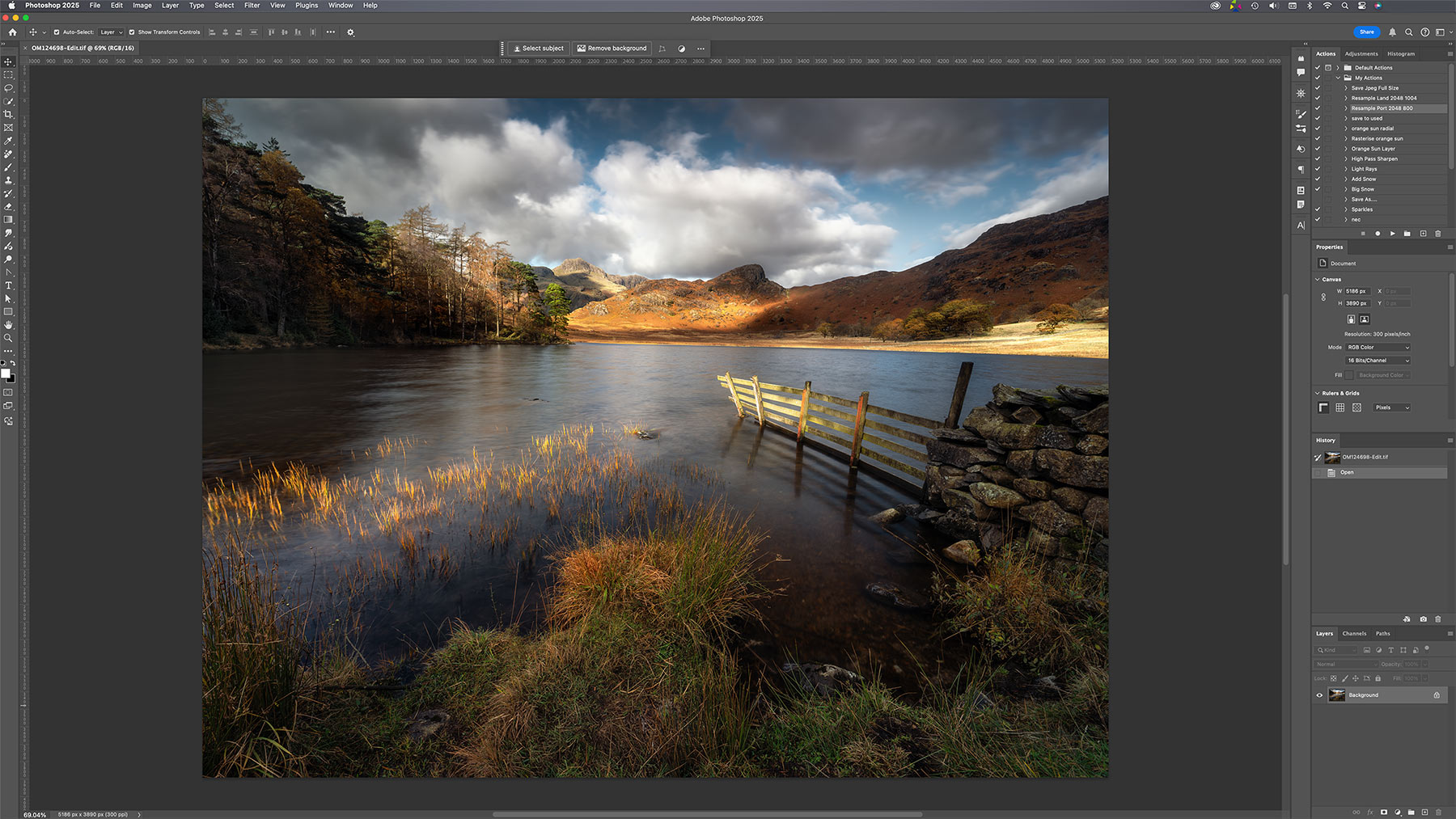
Photoshop Interface
Layers are incredibly powerful and offer much greater flexibility for combining images, such as focus bracketed shots, exposure bracketed shots, or different areas of light or detail. Imagine you take 5 or 6 images of a landscape, the light on the lake in the foreground is perfect, and the light on a tree is great too. In another image the light hitting a mountain in the background is more desirable. You can combine these using Layers in PS. Another example, you have a waterfall shot where the image is perfect for the light but the shutter speed for the water was too slow or too fast. You have another image which is better; these can be combined in PS.
Using Selections in Photoshop we can create Masks, which can then be used to selectively edit areas of an image or combine parts of another image. Lightroom does have masks too which are not as flexible as Photoshop and a little clunky to use, but it cannot blend images together (other than HDR). Photoshop also has many tools which whilst very similar to Lightroom can be easier and more effective. Lightroom has for example many tools to alter and correct colour, whereas Photoshop has the same tools and more which can be used more precisely.
Photoshop is ‘Destructive’, meaning it alters the actual pixels in your image and once saved it is a final image. This is only true in one sense, your raw image will always be available in its purest original form because you cannot overwrite a raw file, and adjustments can be made as layers which are non-destructive. If your final work is saved as a PSD (a Photoshop file) all your layers are intact which can be altered or removed in the future. Photoshop does not have the same level of history as Lightroom.
Consider LR as the application to do most, probably 80-90% of your ‘Global’ processing (with some ‘Local’ edits). We can organise with the Library and view processing history, create and use Presets, create Virtual Copies for viewing different variations of an edit side by side, combine bracketed images into HDR, stitch Panoramas and many other things.
Consider PS as the application to finish an image, for more refined control and checking of lights and darks, colour balance, better ‘Local’ edits and combining images. Photoshop offers more flexibility and creative control on your images. For this reason using Lightroom and Photoshop together gives all the power and creative flexibility you need.
A useful analogy is to think of your image as a painting, Lightroom is where you apply your base colours and tones with a big brush, Photoshop is where you pick out the finer details with a fine brush.
WHAT ABOUT ‘BRIDGE’ AND ‘ACR’?
BRIDGE
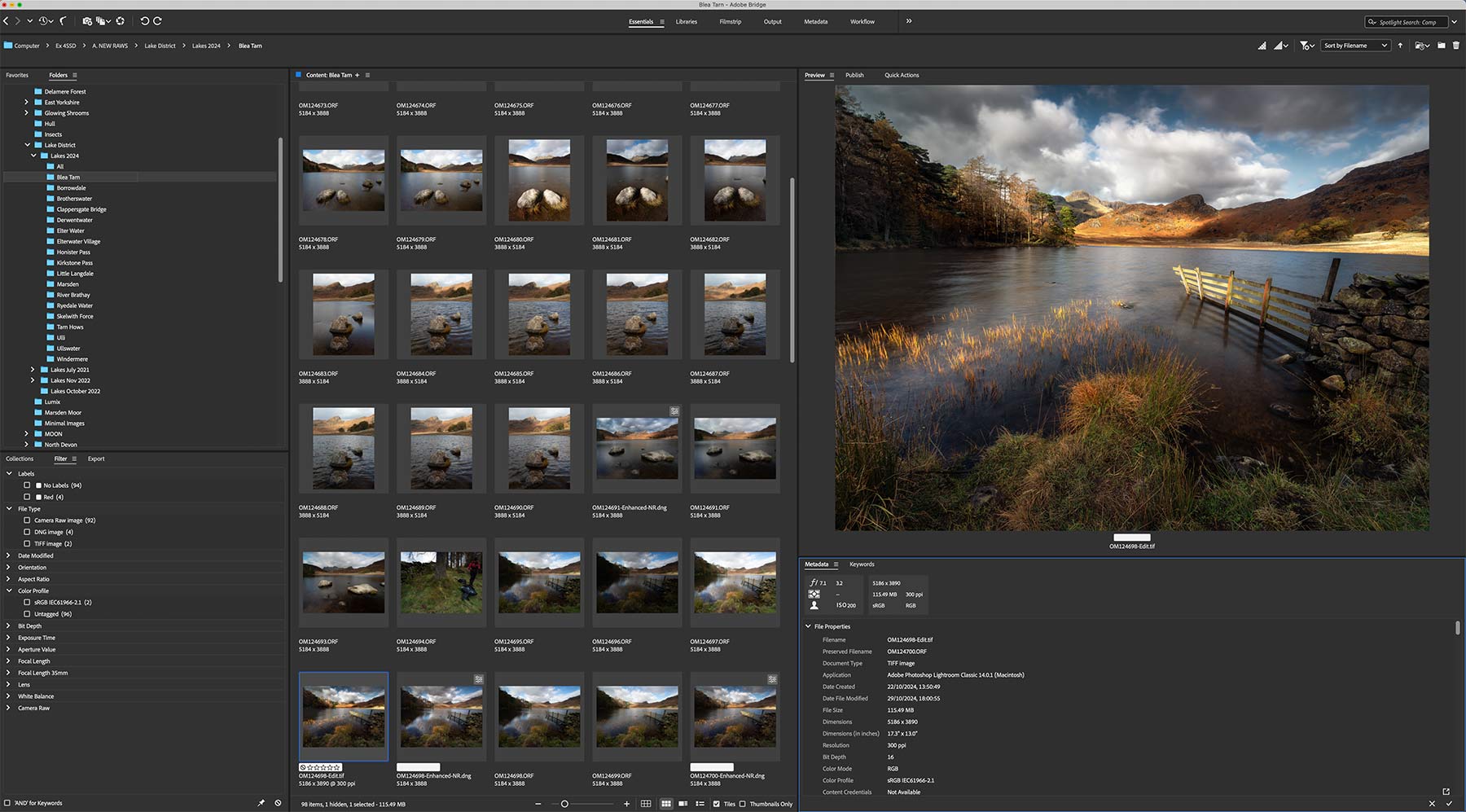
Bridge Interface – Shown with Library Folders, Filters, Thumbnails Preview Window and Metadata (Image Information)
This is where the story gets more complicated. The explanation above is probably all you need but if you want to understand Bridge and ACR (Adobe Camera Raw) read on.
Bridge is Adobe’s stand alone Digital Asset Manager application, or a Library. It is very powerful having all of the features of the Lightroom Library and actually more. Images can be rated and sorted in a variety of ways as in LR, Collections created, and more extensive Exif information can be displayed. Bridge is more flexible with its layout and windows, and it can display more file types not just images, hence the name Bridge because it bridges the gap and can be used alongside Photoshop and other Adobe applications such as Illustrator. It is included with your Adobe subscription.
I use Bridge but only for viewing some of my folders. For example all of my final images are save as Tiffs to archive which makes for quite a large library (Tiffs are big files) and Bridge browses such folders with ease, whereas my Mac Finder will struggle.
ACR (ADOBE CAMERA RAW) LIGHTROOM IN A DIFFERENT FROCK
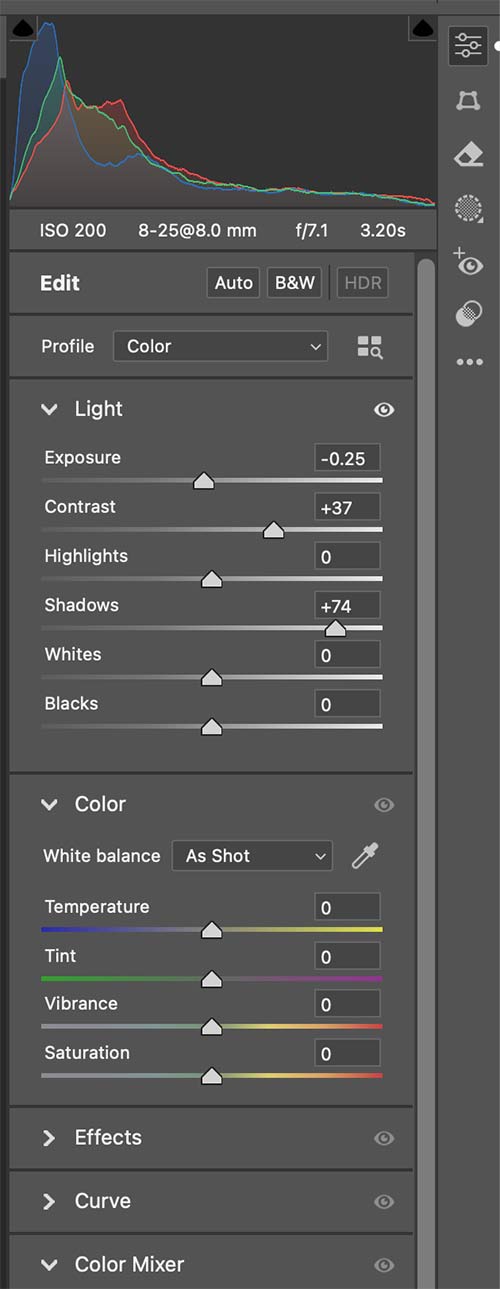
Photoshop is not a raw processor? Not strictly true. PS has Adobe Camera Raw built in and it is a raw processor. In fact LR is built on ACR. Confused? Open a raw file directly to PS and ACR will open as a new window on top of PS. Inspect it closely and you’ll see all all of the tools in LR inside ACR. Process your image just as you would in LR and accept it and the image opens in PS, ready for further edits.
When using Lightroom and sending an image to Photoshop, ACR can still be very useful. Perhaps you have done some edits in PS and realised there is something you forgot to do, like straightening a horizon. From the Filters menu just open ACR and do the task you want. It saves having to save it back to LR and then sending back to PS.
Image shows the ARC Editing Panel. Open LR and ARC and notice the panel is very similar to Lightroom. Lightroom is basically ACR just with its Sunday best on.
WHY DO THEY EXIST?
If LR is built on Bridge and ACR why does LR exist? And why do Bridge and ACR Exist? Flexibility.
Remember LR did not exist before 2007 and we still had Bridge and ACR. Bridge was used as the Library and ACR as the raw processor. Adobe realised there was a desire from many photographers, and therefore a market, for a more streamlined application that could bring together raw processing and a library in one. LR has steadily improved making it the number one raw processing app today.
The lines became blurred back in the day when applications were purchases because of cost. Many felt LR was all they needed and did not need PS which was very expensive, whilst others were already familiar with PS and Bridge and did not feel the need for LR. Now they are subscription based and all three are included, so you may as well use them.
If I have Bridge and PS do I really need to use LR? No, in fact you can just use just Bridge and PS. In fact many still do for their own reasons, usually because they are used to it. You have most of the features of LR available with a few minor exceptions depending on what matters to you. You cannot create Virtual Copies; in LR a Virtual Copy is a duplicate image allowing you to make different edits or styles and compare them, but it is not real and therefore takes little memory. In PS you would need to create a real duplicate, doubling up on disc space. LR has Presets, sets of edits that can be downloaded or created yourself to apply to many images at once. More importantly PS does not have a full history of edits saved with each image.
EDITING HISTORY
In the Develop Module LR has a full linear History of every change made which can be important if you want to review at a later date. Perhaps you want to make changes to a previous image, or view what you did to learn from it, even copy and apply to another image.
PS does not have such an extensive history. Edits to a raw in ACR will be preserved and recalled if the raw is opened again, inasmuch as sliders you changed and masks you created will be saved, but not a step-by-step history. Conversely PS has a History Panel which shows every edit made during a session and it can be used to help editing, but it is not saved when a document is closed. We will visit the History Panel in the Processing section because it is very powerful and flexible.
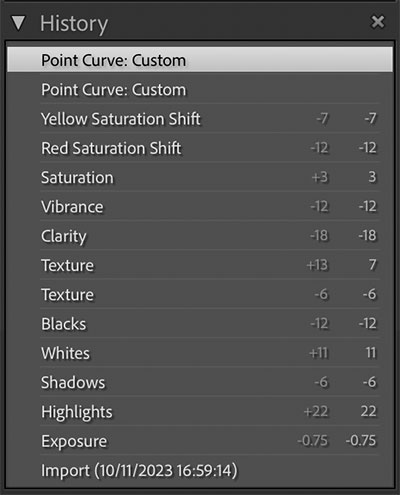
Lightroom History panel
→ TIP A full raw processing history is saved in LR but not in PS. In this guide we will use LR and also PS. I would suggest until you are confident in PS that you save your work as a PSD which will retain all the layers created, a full history is not preserved but at least layers will. Selections can also be saved. You can then refer to them at a future date but remember PSD’s can be very large. Most times when I am done in PS I just flatten all the layers and save as a Tiff, unless it is a complicated image with lots of masks.
To sum up we can safely say using Lightroom will allow you to do most of your raw processing and editing, and Photoshop will allow you to take those edits just one step further to refine your images. It can be as simple as just using PS to finely tune colour balance or remove some distracting rubbish which is a much better user experience. Or it can be to blend multiple images together, focus stack or make more detailed selective edits. The power is in your hands once you know how.
NEXT – 3 LIGHTROOM INTERFACE
Next we will explore the LR and PS interfaces, discuss the layout and in PS make some changes to make it easier to use.