

OLYMPUS SETTINGS
This section deals with shooting Glowing Shrooms using Olympus cameras which is my main camera, with some useful tips and tricks. Any camera that has the ability to focus bracket can be used although Olympus cameras do have some features that are worth noting. If you are not using an Olympus camera you may still find a few tips that could be useful. Adding Peaking to a button for example is a great way to use show it without touching the focus ring.
OM-1 GUIDE
I wrote a Guide for the OM-1 which you will find very useful if you use this camera. It’s full of tips and tricks, with a full Menu walkthrough, advice on settings, suggestions for Customs Modes, and details for all of the in-camera features such as Live Time, Live Composite and others with examples of how to use them.
It also covers all you need to know about photography including composition, exposure, depth of field, planning and research and processing workflow.
More information is available here.

OLYMPUS FOCUS BRACKETING / STACKING
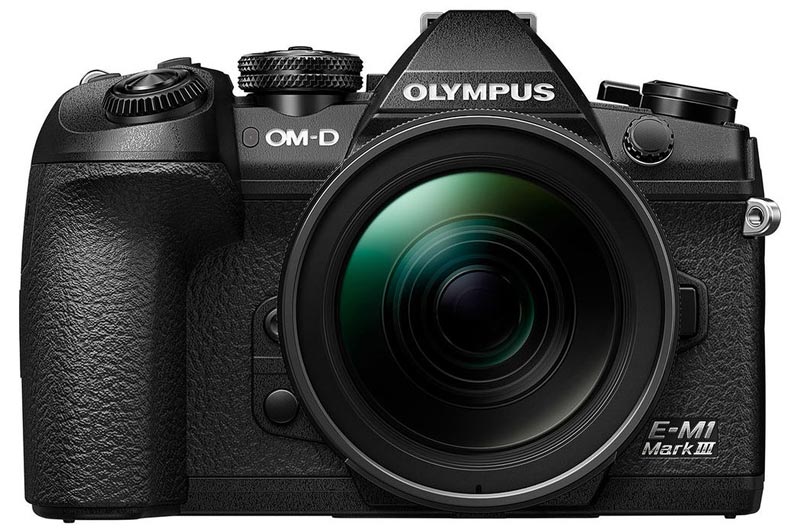
Olympus cameras are fully featured and most support Focus Bracketing/Stacking. Not all lenses support focus bracketing although the 60mm f2.8 Macro does, and this is the lens I suggest you use, along with the 30mm Macro. Other lenses can be used such as the 12-40 f2.8 Pro if you don’t have a macro lens and want to try although you will not get 1:1 macro.
Cameras supporting Focus Stacking:
OMD EM-10 (MKII MKIII, MKIV)
OMD EM-5 (MKII, MKIII)
OMD EM-1 (MK1 firmware v4, MKII, MKIII)
OMD-EM 1X
OMDS OM-1
FOCUS BRACKETING / STACKING BASICS
Not all cameras support Focus Stacking, which is different to Focus Bracketing, but what are the differences?
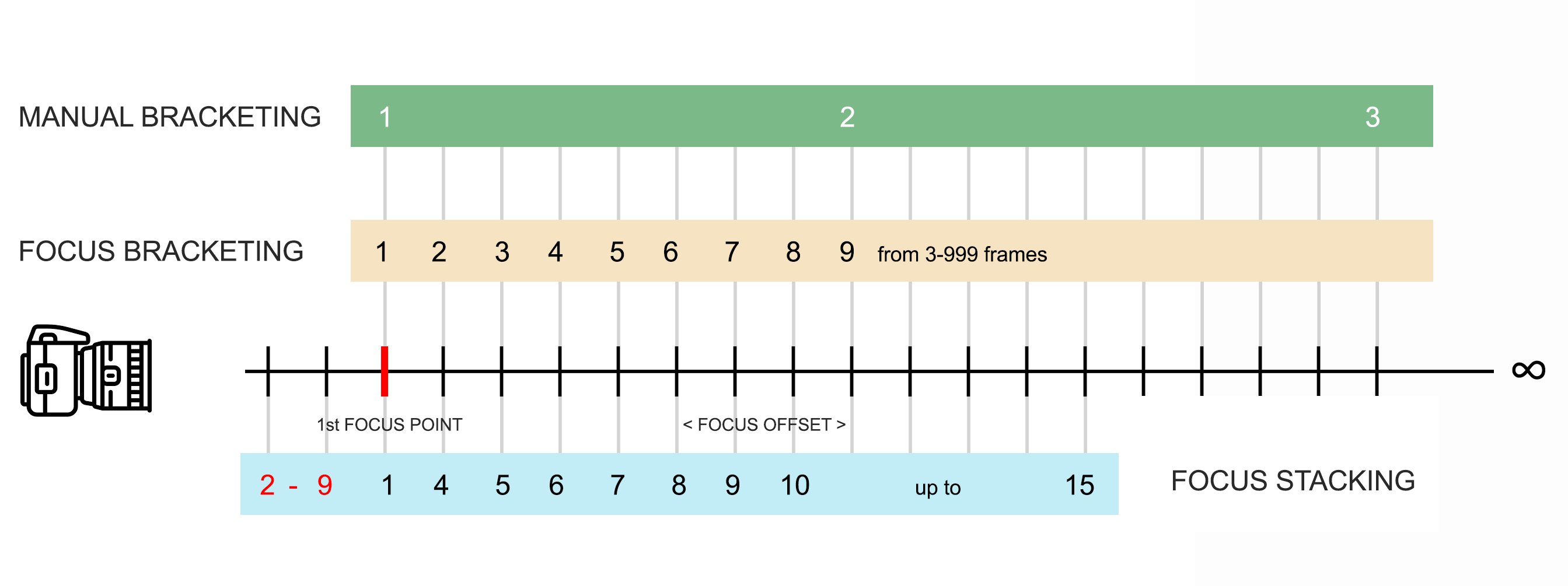
MANUAL BRACKETING, OLYMPUS FOCUS BRACKETING AND FOCUS STACKING
Manual Bracketing as required. Focus Bracketing from first point back. 2-9 Number of frames in front of 1st Focus Point when Focus Stacking, depending on Focus Differential, Aperture and number of frames.
MANUAL BRACKETING
Raw/Jpeg according to your settings.
You choose number of frames and where to focus. ‘Focus Offset’ or distance between is your choice and the order of frames is under your control.
Used mainly for landscapes. Will require blending afterwards.
FOCUS BRACKETING
Raw/Jpeg according to your settings.
User selected 3-999 frames, with Focus Offset user selected from 1-10. Frames will recede from the first focus point back into the scene.
Will require blending afterwards.
FOCUS STACKING
Raw/Jpeg* according to your settings.
User selected 3-15 frames with Focus Offset user selected from 1-10. Further frames are captured in front of the 1st focus point in the order show.
In-camera stacked image is Jpeg only* and will cropped by approx 10% but will have the original pixel dimensions. Raws are saved but not stacked.
Manual Bracketing – Not recommended for Macro as we have built in features, but let’s not forget back in the day all the images we shoot now were still being taken with manual skills. For macro a slider would have been used to move the camera minute steps rather than the focus point. I have included it here because for landscapes if I do need to focus bracket I will just do it manually, moving the focus point where I need for 2 or three frames ad then blending them in Photoshop.
Focus Bracketing – (Recommended for Glowing Shrooms) Automated in-camera, set the number of frames and the Focus Offset, the camera will enter Continuous Silent drive mode and you’re good to go. make sure you shoot in Raw for processing later. The challenge is to make sure the Focus Offset is correct, or how far apart the focus will shift to cover the front and back of the subject. There are no set parameters for this, considering all the variables it would be impossible to have a chart expressing distances, offsets, frames, etc, so it’s guesswork and experience. The number of frames and the offset depends on how big the subject is and how close you are. Considering we are dealing with subjects that may be just a few mm diameter, or a few inches, you will only need to consider a step size of 1 or 2, rarely 3.
Practice and take test shots as outlined in the Shooting section, I tend to use Step Size 1 for small subjects and Step Size 2 if the subject is larger. Next is the number of frames, you may need 10 or 20 or more. What matters is capturing the front and the rear details with enough frames in-between to include the detail of the steps and the gills. Too many frames is fine, they can be delated back home, not enough is a problem.
Focus Stacking – As above, set the frames, the Offset and the camera will take all the shots in Continuous Silent. There are some major differences to Focus Bracketing, the main being that the camera will produce an in-camera stacked image of all the frames but in Jpeg only and the available frames are reduced to 15 as a result (all the frames are saved according to your settings Raw and/or Jpeg). The image is also cropped slightly to around 90% of the original but is then resampled back up to the original pixel size, and at the time of shooting a frame will show on the screen as a guide for composition. This is to account for ‘Focus Breathing’ where as the focus is moved objects in the scene can change in size due to the field of view changing, which is more apparent in very close focus subjects such as Macro. It’s the reason it is important to ‘align’ image sets in post before they are blended. As Focus Stacking produces a stacked image the frame shows how the image will be cropped to remove the edges that will not align successfully. With Focus Bracketing there is no such guide frame so you need to be aware of it when composing your scene.
Note that a number of images in total is limited to 15, with a number receding from the focus point and a number in front of the focus point with the second shot stepping forwards first. The number of images in front of the focus point, 2-9, depends on the focus differential or how wide the ‘steps’ are, aperture and total frames set. Focus Stacking can be a little unpredictable, trial and error are needed and experience will guide you.
You are better to shoot Glowing Shrooms in Focus Bracketing and not Stacking mode. The stacked image is Jpeg and we want raw so it is redundant, although the frames will be recorded in Raw (make sure you have Raw set). The frames are limited to 15, which may be enough, but the second frame will step forwards with a number of additional frames (depending on the number set and the step size) captured forwards of your focus point. This works fine in many Macro images but can cause us a problem for Glowing Shrooms. Your focus point will need to be set into the subject to compensate for the forward focus frames, but where? An amount into the gills, on the stem? What if your shroom is sideways on and you can’t see the gills? And if you do focus partly into the subject there is a danger that the forward frames will not capture the front edge. Try it by all means but it is much easier just to use Focus Stacking.
MANUAL FOCUS
As I said in the Shooting section we need to manually focus on the subject on the front edge. There’s nothing wrong with auto-focusing but do switch to manual to fine tune it and make sure you have Peaking (edges in focus are highlighted) enabled. The 60mm Macro lens doesn’t have a manual focus switch or a clutch so we need a way to enable manual focus. Luckily there are a number of ways.
→ TIP If you are using a non macro lens such as the 12-40 f2.8 Pro do not rely on the clutch to switch between auto and manual focus and retain the same focus, if often disturbs it. I often auto focus, I find it easier the shooting landscapes, but then if I want to enter manual I never pull the clutch back, the focus more often than not is disturbed. See below:
Super Control Panel – Your rear screen makes it very easy to adjust settings, just select the focus mode and change it.
Back Button Focus – You may already use BBF. Back Button Focus separates the shutter button from focus, using a rear button for focus instead. It means you have manual focus and easy access to auto focus. It can be quite handy because it means the shutter will not disturb focus when pressed, useful in this situation and others such as when using external ND filters or shooting panoramics. The EM-1 MKIII shipped with BBF already set up (AEL/AFL button) and the OM-1 has the dedicated AF-ON button. Once in Manual Focus these buttons act as an auto focus button. Set your camera for BBF if not already and if it sounds like a feature you’d like.
Fn Lever – The Fn Lever is often overlooked and can be set for various focus modes and the focus target size can be set for each too. For instance in Position 1 you could have a small AF target size and Single AF, then in Position 2 have a cluster target size with Continuos AF plus Tracking. Therefore if you don’t have or want to set BBF you could just set MF (Manual Focus) to Position 2. Setting it is very easy, just set the lever to the position required, change the relevant settings and it will be stored in the camera memory. Check your lever though, on some cameras there can be a difference in stiffness and you really do not want to have to push hard. My MKIII was fine but the MKII was quite stiff. The OM-1 Lever is much smaller and quite stiff so I am glad it has a dedicated AF-ON. Note the E-M 10 never had an Fn Lever so mapping MF to a button is the only way or just use the Super Control Panel.
Map a Button – Set MF to a button. Since the days of the E-M 10 and E-M 5 I have always customised the rear Direction Pad. Instead of it just moving the focus point it can be customised for additional functions without losing the original function. Once customised the right direction actives the AF Target function and then they all return to their default ‘left, right, up, down’ status. In the Button Function Menu go to the D Pad and set it to Direct Function, then set each to what you would like. I usually set White Balance to one, Drive Mode to another and MF to the right direction button. It’s handy to have quick access just using my right hand to functions I want to use often. Note in the E-M 1MKIII the option for MF was strangely removed, so use one of the other options above.
CUSTOM MODES / MYSETS
Before we look at settings for shooting Glowing Shrooms a word about Custom Modes and My Sets. Depending on your camera they may be My Sets or CM’s and they do the same thing, saving a group of settings for use in particular situations for quick recall. The advantage is obviously quick recall, and any settings you change will return back to the original saved set once you switch off and on again. It removes the chance of for instance setting a high ISO only to find you used it again unnecessarily on your next session.
This is not a guide on setting up Custom Modes, I covered it in the OM-1 Guide but the principles are the same. I set up the basics for each CM depending on the genre or situation and set up Custom Buttons too. When setting buttons I have a master set which I set first and then only change them for each Custom Mode if I really need to, one thing to avoid is making things too complicated or you just end up confusing yourself.
Above are a few suggestions to think about. My Custom Modes on the OM-1 are different to this and very similar to how I had them set on the E-M1 MKIII. I have a General Landscapes CM, a General Manual Mode CM with Live ND mapped to AEL because Live ND is only available in M or S, and a Wildlife CM I use when the opportunity arises with high shutter speed saved, Auto ISO and SH2 drive mode set.
I also have a Live Time CM, which may sound odd at first. Olympus made Live Time even easer to access when Bulb was added to the Mode Dial along with Manual, so using it is just a case of setting B and using the front wheel to set Live Time. In most cases when I use Live Time I just set B, but there are times when I do not want noise reduction enabled. Setting a long exposure of a few minutes at sunset means time is precious if I want to get a few shots so I’d rather deal with noise in post processing. As I use Live Time much more than I use macro settings (just Autumn) I have a CM saved with Live Time and noise switched off. I can switch easily between the two knowing I’m not going to forget to check if noise is on or off.
This means I don’t have any more space for an additional Macro CM, but the standard APSM setting on the Mode Dial I rarely use because I have all I need saved on Custom Modes. This means I can set things up how I want for the session in hand, knowing that any changes to buttons etc will be reflected across all the APSM modes. But for most situations I am using a Custom Mode, so as long as you are aware any changes you make in APSM will be global across each, you can actually expand your saved settings because the camera remember settings set in APSM.
For example, I already said I save Live ND (one available in M or S) to the AEL button (a button I have little use for) in Manual Mode and have this saved along with other settings as a Custom Mode. I generally shoot landscapes in Aperture Priority (never let anyone tell you a ‘proper’ photographer uses M because it’s rubbish, there’s little difference), but when I want to use Live ND I just swap to my Custom Mode which was save as M.
Now on the Mode Dial I have little use for APSM so for shooting Macro I swap to M and then have AEL set to Magnify (I explain why below). AEL is now set to Magnify across A, P, S and M and also B. But as the only mode I use is B it doesn’t matter at all.
MYSETS
Mysets are still current on E-M5’s and they are a little different in that there is no specific location they can saved to on the Mode Dial. And they are a little more complicated to set up. First set your settings and then save them as a Myset in Shooting Menu 1 > Reset/Myset. Set each of the 4 available as required, but don’t select Reset for obvious reasons. Next you have to tell the camera how to access them in Custom Menu > Button/Dial/Lever > Mode Dial Function. Select the Myset and save it on the Mode you want to access it. The Scene Mode and Collage Mode are also available, you may want to preserve Scene Mode but who the Collage Mode is aimed at I have no idea. Do keep any Mysets you have saved to the relevant Mode, for instance don’t save an Aperture Priority Myset on Shutter Priority, otherwise you could get conflict.
Changing any settings in a mode that isn’t saved as a Myset will still reflect across others PASM modes so be aware of it.
BUTTONS & SETTINGS
We can set up a few buttons and settings ready for the session and to make things a little easier. You can also save this as a Custom Mode or a Myset if you wish. I won’t list the menu positions because they have changed across different camera bodies but the naming remains the same.
RAW – Make sure you have RAW set for the image quality, we need the Raw files for processing, and set the Aperture to f2.8.
Focus Peaking – Set Focus Peaking on to highlight edges when manually focusing. Set the colour you prefer, I prefer white, set Highlight Intensity to Normal, and leave Image Brightness Adj off. Then in MF Assist set Magnify to ON. When manually focusing the view will zoom in to enable detailed inspection.
Focus BKT – Set Focus Bracketing. These are the OM-1 screens and the settings are the same. Set it to 10 shots and set the Focus Differential to 1. These are just basic and you’ll change them for each situation.
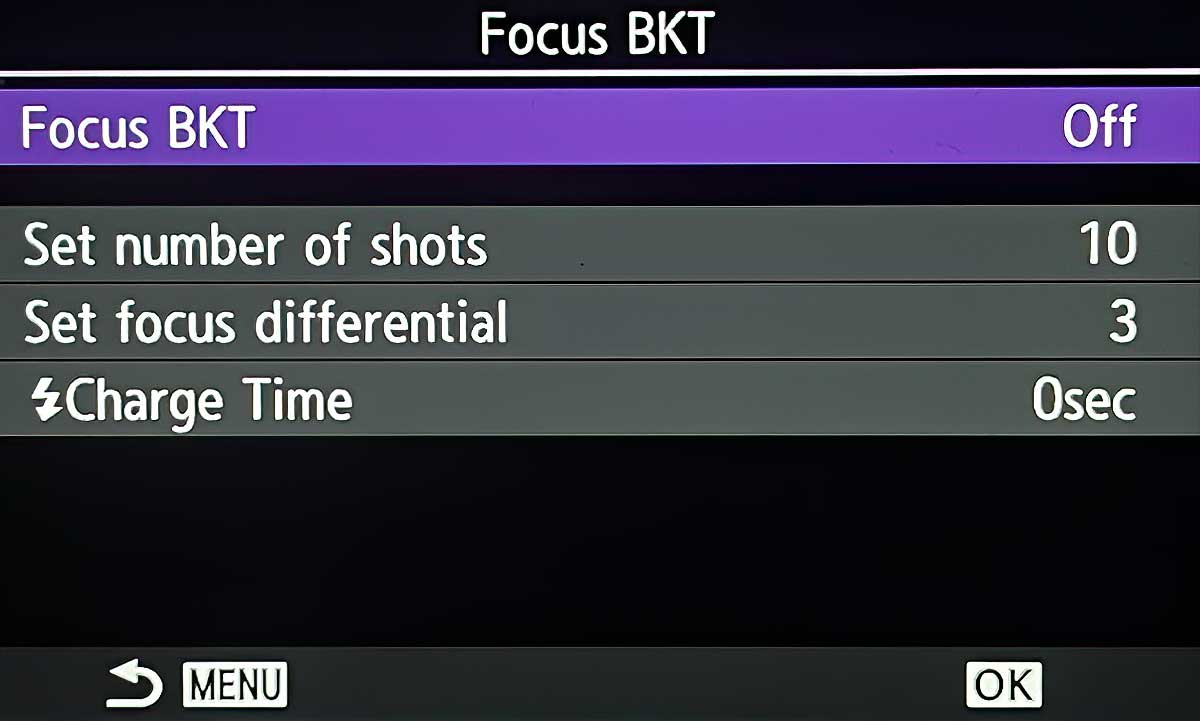
Focus Bracketing Screen
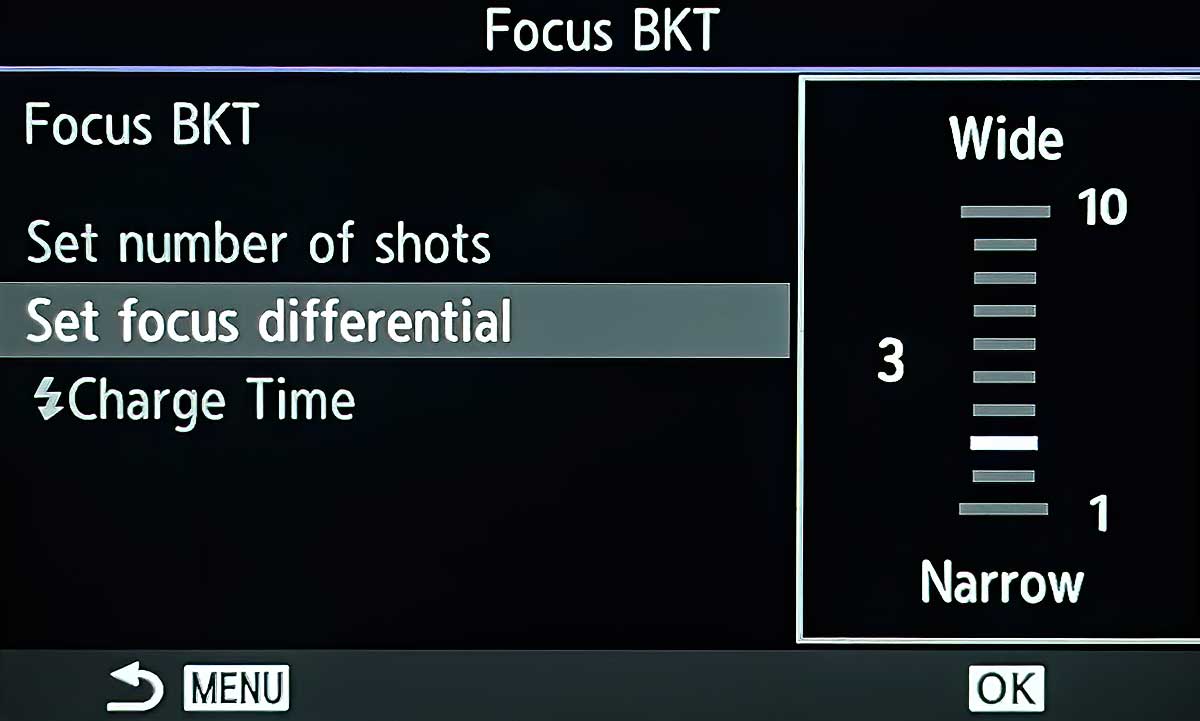
Focus Differential Screen.
Next we can set some buttons which will be very simple. The actual menu location is different again but the name is similar Button Function (E-M5 Custom Menu>B Button Dial Lever> E-M1 MKIII Custom Menu >B1>Button Function OM-1 Cog>1.Operations>Button Settings)
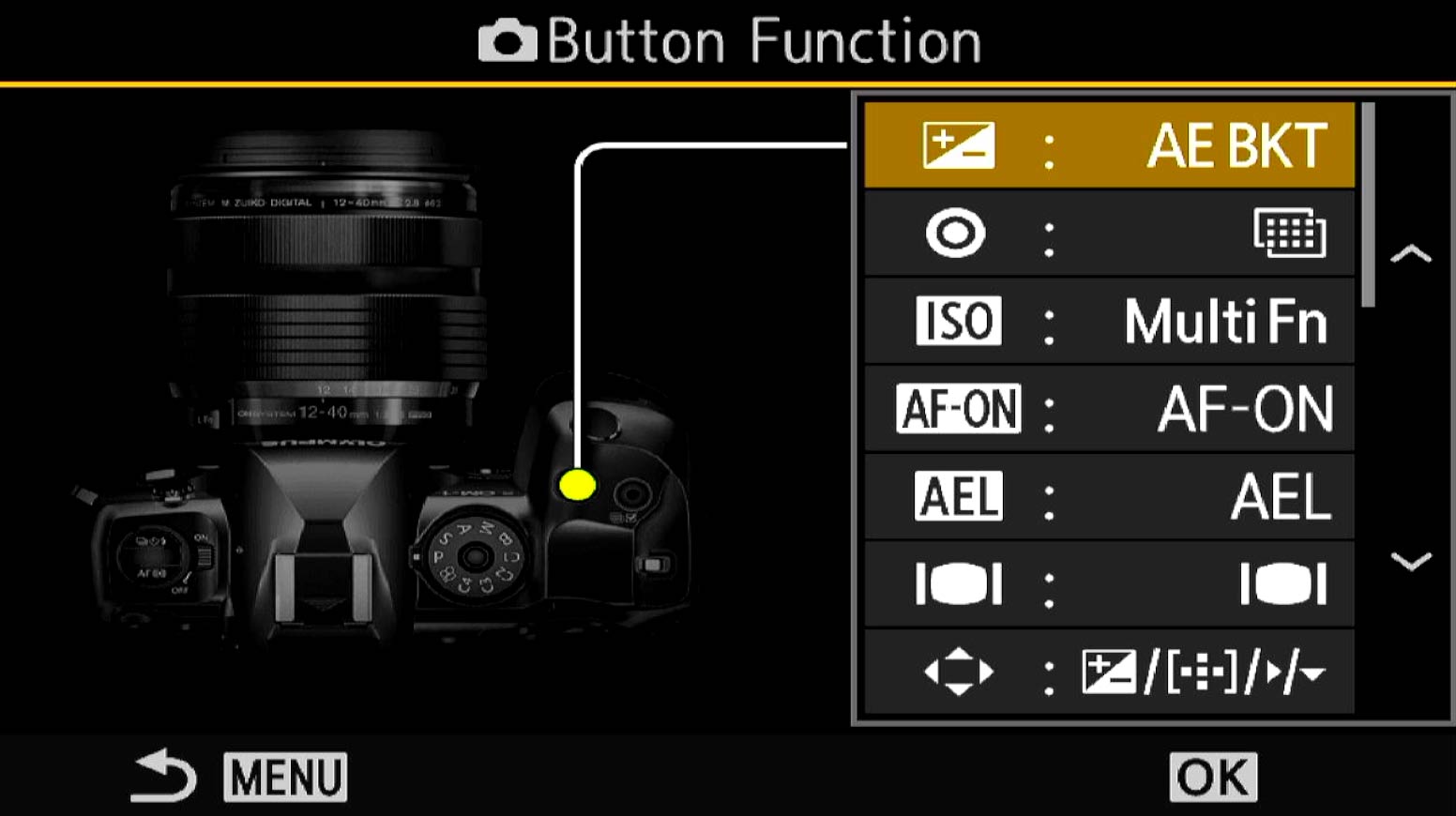
Custom Buttons example screen for the OM-1
The buttons you choose to customise depend on what Custom Modes you decide to set, and your camera body, so below I list the buttons I have set on the OM-1 and they can be set on other Olympus bodies too. If a button is listed as (this CM only) I applied this just to this Custom Mode for Macro set. (Global) means I have it set as default across all modes and Custom Menus and (Suggested) means these are options. I am presuming you will use these as a CM or a MySet.
Remember I just set it up on Manual Mode because I have used all my Custom Modes. I changed the Record button to Focus BKT which removes the default Hand Held Hi-Res function. This is a function I use often, but as I use it for landscapes and I have a CM saved already for this it doesn’t matter to me that I change the default PASM settings. In other words I will set up settings on PASM for given situations temporarily, knowing all my main settings are saved and protected on Custom Modes.
| BUTTON | FUNCTION |
|---|---|
| RECORD (this CM only) | Focus BKT |
| AEL (this CM only) | Magnify |
| FRONT BODY TOP (Global) | Night LV |
| FRONT BODY BOTTOM (Global) | Peaking |
| LEVER 2 (Suggested) | Manual Focus |
| D PAD RIGHT > (Suggested) | Manual Focus |
These are fairly simple and all I need to help me when shooting Macro. I’ll go though them to explain a little more.
Focus BKT – Applying it to a button gives quick access to switch it on and off, and pressing/holding the button down reveals the settings menu for Focus Bracketing. Of course you could instead save this to My Menu instead for quick access. On the OM-1 I’ve changed the default Hi Res setting but tat doesn’t matter because its still saved as default in my Custom Modes.
Magnify – Magnify as the name suggest allows me to zoom into the scene to inspect details. Focus Peaking does the same but the important difference is I can do it without touching the focus ring after I’ve painstakingly set focus.
Night LV – (Boost on other bodies). This boosts contrast which can be handy to for better visibility in lower light. I have this set as a Global default button.
Peaking – A Global default button. This is very useful to separate peaking from the manual focus. When manually focussing the camera has been set to zoom the view which is needed, but sometimes it can be annoying too. If I’m shooting a landscape and just want to view the whole scene and what is in focus without zooming in I can just press the Peaking button. Also, press Peaking first and then manually focus and the view will stay as the normal view. Activating Peaking first disables the zooming in feature which can be really handy. Note the E-M5 has only one button on the front so I would ignore Boost and give Peaking Priority.
Manual Focus – Optional, as already discussed above. A way to focus to Manual is needed, and you can use the Lever if there is one, the D Pad, or indeed just the Super Control Panel.
CONCLUSION
Those are all the settings you need. Once you set up the basics, set up Focus Bracketing, set a few buttons and then save as a Custom Mode if desired, and you’re all set to start shooting. Follow the guide in the Shooting Technique and the Processing Technique and you’re sure to get some great images.
Happy Shrooming.