

WILDLIFE
An overview of using the OM5ii for Wildlife
The OM5ii is in no way as advanced as the OM1ii which raised the bar with focus, tracking and subject detection modes, however wildlife photographers were managing back in the day with SLR cameras and no fancy features at all. The OM5ii still has plenty of features that will assist, especially with focus target settings and continuous drive modes. There is also the unique Pro-Capture mode which attempts to remove hesitation allowing you to capture the shot just at the right moment.
FOCUS AND TRACKING OPTIONS
Probably the first thing to consider is what focus mode should you use, standard AF, Continuous AF, or CAF plus Tracking. Continuous AF is the best to use for obvious reasons, it will constantly focus on the subject depending where you place the target point, and adjust as needed.
Tracking on the other hand although useful can be a little hit and miss depending how fast the subject is moving and how much clutter there is in your scene. It would be great if there were a way to quickly swap between the two, and luckily there is using the the rear lever. By programming the lever we can have two focus modes available just by flicking it from position 1 to 2.
Ensuring you have enabled AF+M (AF>1.AF>AF+MF) is handy because the lens focus ring can be used at the same time as Continuous AF for fine tuning. And do ensure Peaking was also enabled.
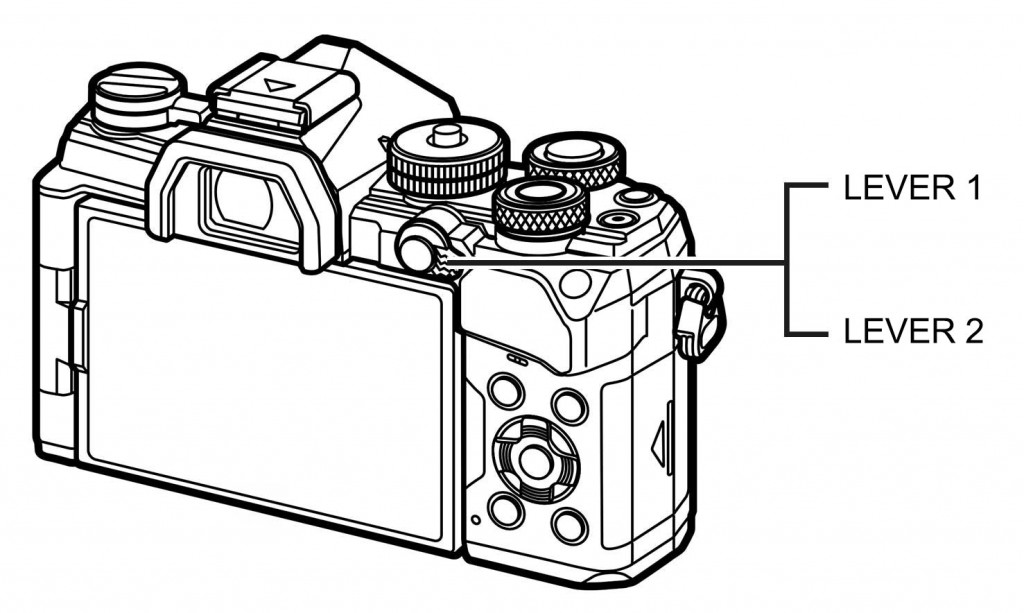
Remember in the Buttons Section we customised all the functions of the buttons and the lever to set up back Button Focus and in the Custom Modes Section we set up a CM for Wildlife. Hopefully you followed it and now is the chance to review it.
There are multiple possibilities for using the Lever, for example setting standard AF, Continuous AF, and Tracking. Whatever is set you may decide to change later which is fine, just remember to resave the Custom Mode to make it permanent. We can also change the Target size, the size of the actual focus area, from small, medium, cross, large, or full screen.
What suits my needs it having C-AF+TRACKING with a Cross target size to L1, and C-AF+TR with a Large target size to L2. Another very useful option is to have standard AF on L1 for static subjects and C-AF+TR on L2. It is impossible to cover absolutely everything so set the two you find most useful and get used to using the Super Control Panel to alter settings on demand.
FULL-TIME BACK BUTTON FOCUS
→ TIP Full-Time BBF is optional. We have already created ‘part-time’ BBF using the lever, if you prefer to have it permanent see below.
Using Back Button Focus for Wildlife is a function many Wildlife photographers rely on. We set up the camera to use Part Time BBF (See the Buttons Section) where the shutter button still activates AF in L1 and moving the lever to Lever2 recalls Manual Focus and the AF-ON button activates AF. It works great for most situations but for wildlife this approach will not allow continuous AF and we cannot simply us the lens MF clutch ring because it disengages the AF motor, meaning AF-ON is also disabled. We have to set up full-time Back Button Focus. I am not a fan of full-time BBF but that is just me, and remember it doesn’t have to apply to all custom modes, it can be set to just the Wildlife CM.
To set up Full Time Back Button Focus first set Half Way AF to Inoperative to remove AF function from the shutter button:
Menu AF>1.AF>AF By Half-Pressing – Set both options to No.
Now set your chosen AF modes and target sizes to the Lever, and resave the CM to make these changes permanent.
CUSTOM MODES
The Custom Mode we set up for Wildlife gave access to many functions for quick selection and flexibility, changing the AF mode as above, allowing quick access to the AF Target sizes, giving more access to the drive mode and setting up some of the Sequential settings. We also set a button for quick access to changing Stabilisation settings too, all of which are designed to make it as easy as possible to change on the fly. Now we will have a closer look at the settings and how we can actually use them.
AF TARGET AREAS
AF Target Areas are crucial for achieving focus on you subject and there are many options to help, from a single small target for pinpointing a stationary subject, to larger grids
AF > 6.AF TARGET SETTINGS > AF TARGET MODE SETTINGS
Some important settings to check and alter in the Menu. Some of these we have already addressed in the Menu Walk Through section.
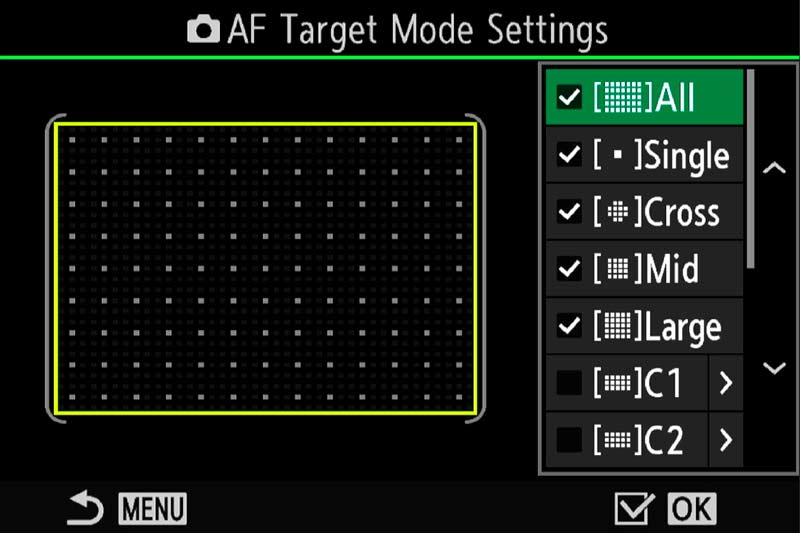
AF Target Mode Settings
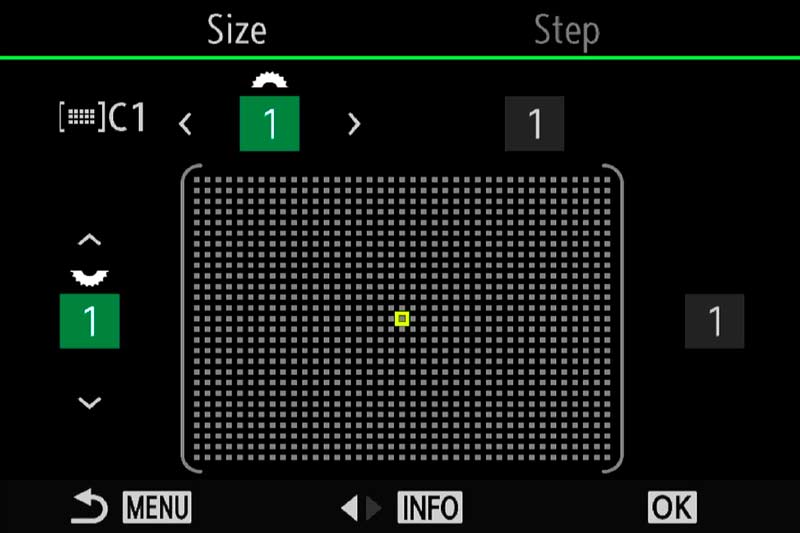
Custom Target Mode Settings
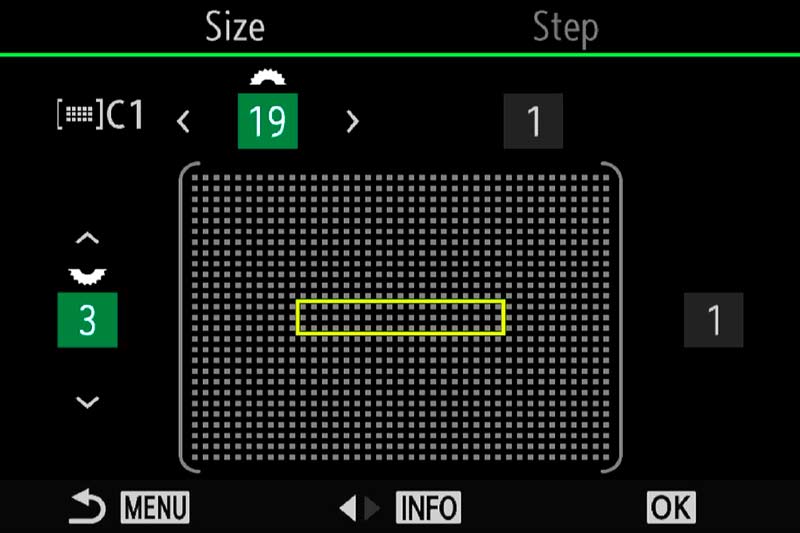
Custom Target Mode Settings
Screen 1 shows the AF target Mode Settings. There are 5 ‘standard’ target modes and four modes that can be customised, C1 to C4. Activate as many as you need and customise the settings. I only have two, C1 as shown here for the one used in the Landscapes, and C2 as a standard letterbox. Select the number of points wide and high to set your own target grids, and set the Step too, the smaller it is the finer adjustment there is for setting the AF point. The letterbox example is a classic AF Target used when a background and foreground is cluttered.
In the same menu AF>6.AF>Select Screen Settings make sure the Dials is set to Target Mode, and the D-Pad is set to Position. This means when you press the rear D-Pad left button the AF Target is activated and the position can be altered using all four direction buttons. Scroll the front or rear control wheel will alter the AF target size, making it quick and easy to change.
THE IMPORTANCE OF TARGET MODES
Target Modes are extremely useful but not fool proof and they can easily get it wrong. Remember some of the more sophisticated features from the OM1ii are absent, so we have to use what is available.
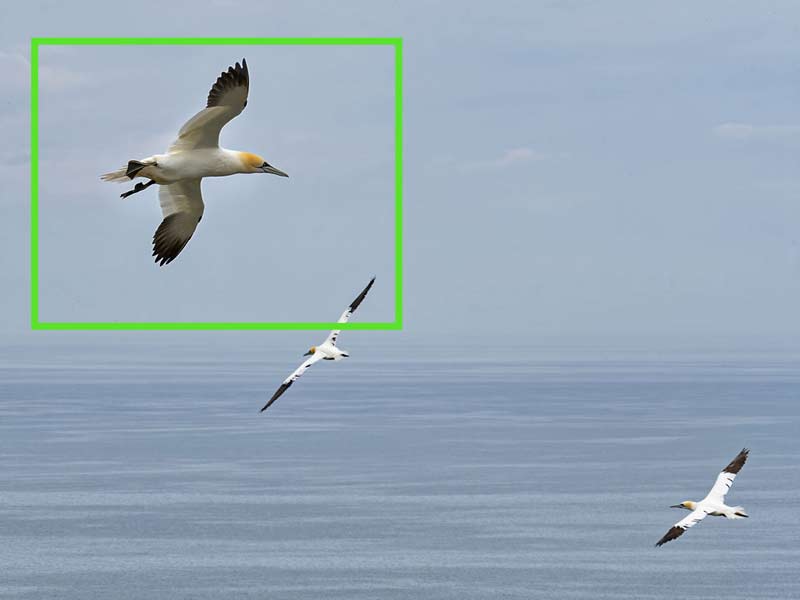
AF Target Large
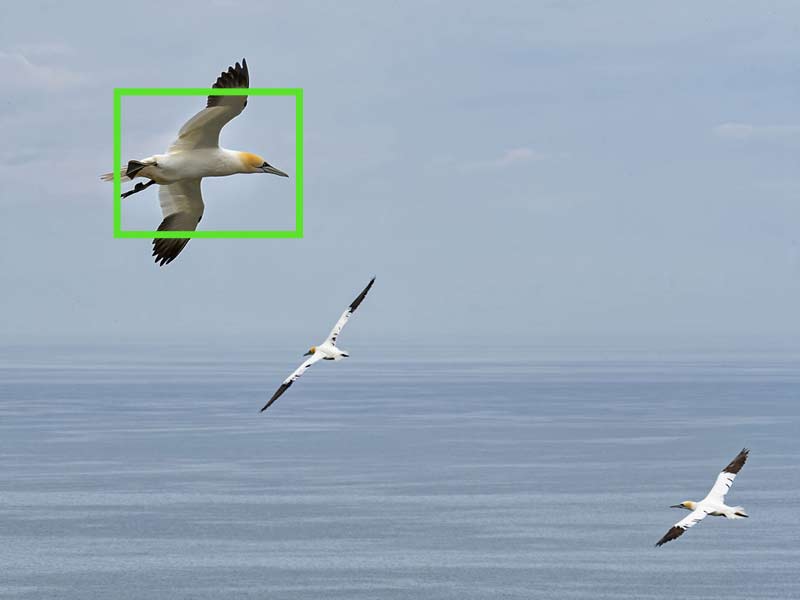
AF Target Medium
Setting a large target will usually pick up your subject such as in these examples. We do not know if the focus will be on the wing, the head or the tail, in which case more precise smaller targets would be needed, or leave it to chance. For a quick reactions a large target can be very successful. The issue arises when another subject enters the target area and the focus point jumps to the other subject, it does not know what is priority. In a situation like this it is far better to use a smaller target, unfortunately we do not have Subject Detection and Subject Selection found on the OM1ii. AF Sensitivity can also be adjusted so the target point is more ‘sticky’, see below.
SUGGESTED TARGET MODES
LARGE OR ALL – When there is one subject such as a bird in flight. Tracking will follow the subject across the frame.
MEDIUM – When there is more than one subject and refining of the main subject is needed.
SMALL – When there is more than one subject or a busy background such as a bird on a perch or in trees, or stationary animals to get precise focus.
CROSS AND CUSTOM – These are useful to further refine the target area for you subject. For instance a rectangle LETTERBOX grid can help when the AF focusses on a busy background or foreground.
EXAMPLES
A cute Puffin on the Farne Islands in Northumberland.
A small focus target with CAF will cope well enough with an image such as this, with little point in tracking. Reactions need to be quick because the head is moving constantly so setting the focus point in position and manually framing the shot is best. Using f6.3 gave enough sharpness and depth for the eyes of the eels and the eye of the Puffin.
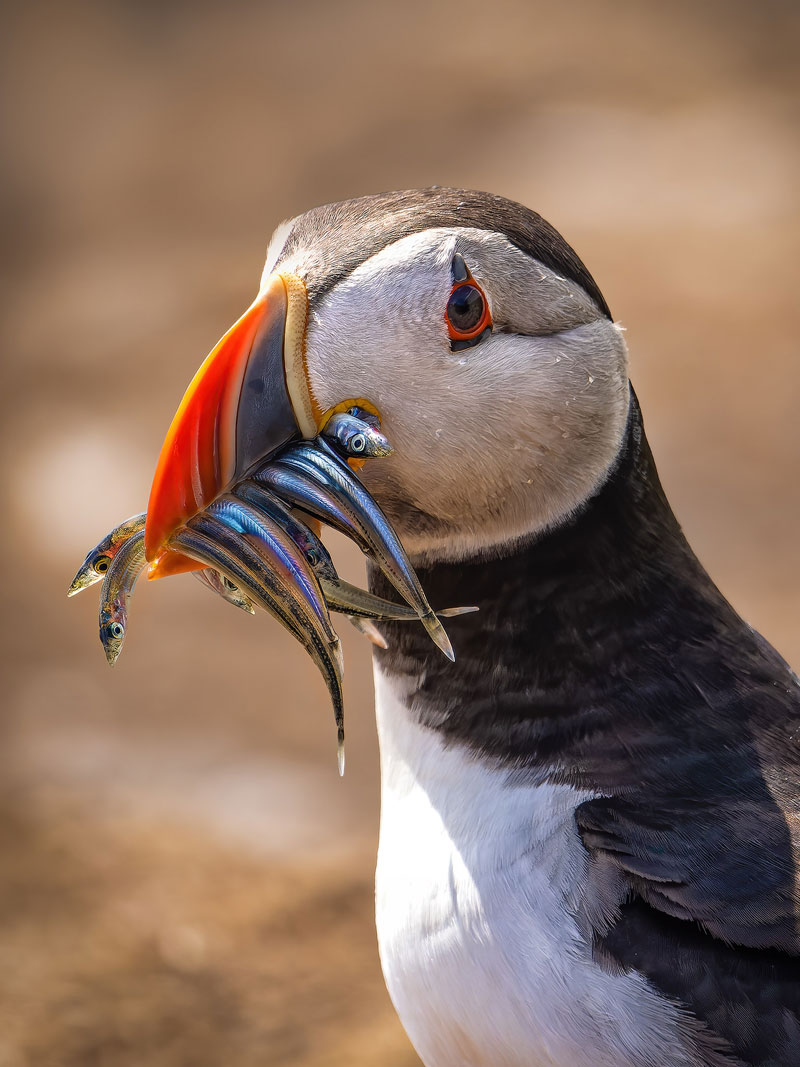
100-400 @ 400mm ISO 640 f6.3 1/3200s
This image however was different and shows what can happen if the focus target is too large, with the gull being out of focus and the focus point selecting the foreground.
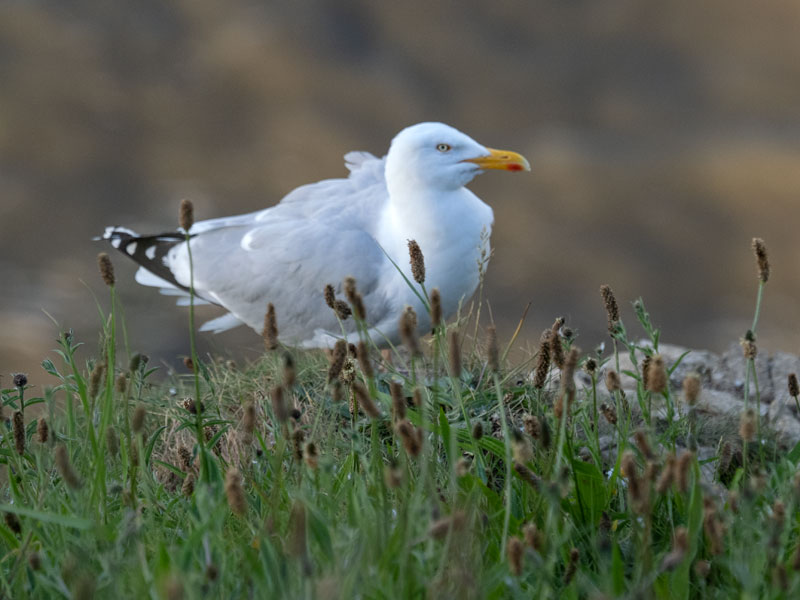
40-150 Pro 1000 f4.5 1/500s
LENS I.S. PRIORITY
Setting In Body IS or Lens IS Priority.
Custom Menu>C2
This is a setting which causes so much confusion, whether Lens IS Priority should be on or off, so it is worth trying to clarify more. The setting only has an impact on third party lenses or lenses with built in IS with no IS switch. From the Manual:
“If [On] is selected, priority is given to the lens function operation when using a lens with an image stabilisation function. This option has no effect on lenses that are equipped with an image stabilisation switch.”
Therefore the 12-100 Pro which has OIS (Optical Stabilisation) and an IS switch is not affected; stabilisation in both lens and body is synchronised and turned on or off completely by the switch. The Olympus 100-400 will use the body roll axis IS and the lens pitch and yaw axis together. Note that the release of the 100-400 mk2 now uses full sync IS.
Third Party lenses with OIS but no switch will have priority given to the lens OIS. The Panasonic 100-400mm is a popular lens for wildlife so it is important to see how I.S. works.
| LENS IS PRIORITY | IBIS | LENS OIS SWITCH | ACTUAL STABILISATION |
|---|---|---|---|
| On | On | On | Optical Stabilisation |
| On | On | Off | In Body Stabilisation |
| Off | On | On | Optical Stabilisation |
| Off | On | Off | In Body Stabilisation |
| On | Off | On | Optical Stabilisation |
| On | Off | Off | NONE |
| Off | Off | On | Optical Stabilisation |
| Off | Off | Off | NONE |
Lens IS Priority On & Off / IBIS ON – Using the Lens OIS switch, on will engage Optical Stabilisation, off will engage In Body Stabilisation.
Lens IS Priority On / IBIS Off – Using the Lens IOS switch, on will engage Optical Stabilisation, off disengages all stabilisation.
Lens Priority Off / IBIS Off – Using the Lens IOS switch, on will engage Optical Stabilisation, off disengages all stabilisation.
We can see from this that Lens IS Priority has no effect at all. There are a few things to consider, the Panasonic 100-400 has a reputation for better stabilisation at the long end (200-400 approx) with Optical Stabilisation engaged. At the shorter end (100-200) In Body Stabilisation is more effective. These are easy to achieve, with lens Priority on or off and IBIS on use the lens switch on for Optical Stabilisation, and off for In Body Stabilisation. When using a tripod switch IBIS and the Lens switch off.
In The Menu Walkthrough I suggested setting Lens IS Priority On. It has no effect as shown above for the Panasonic 100-400, and no effect with Olympus lenses with a lens switch, when it will have an effect is with third party lenses with OIS that do not have a switch and do not use IBIS, so priority is best given to the lens.
OTHER SETTINGS
Other settings which are important and should be considered.
AF SENSITIVITY
AF Sensitivity can be altered plus or minus 1 or 2. When would you want or need to alter it?
Fast moving subjects can benefit from having sensitivity increased to allow the AF to react faster. This does mean if another subject enter the frame the AF can switch more easily so setting the AF less sensitive could help. Conversely setting it to a minus value helps to keep it more ‘sticky’.
It’s unfortunate this function cannot be mapped to a button so the best solution for quick access is to save it to you My Menu.
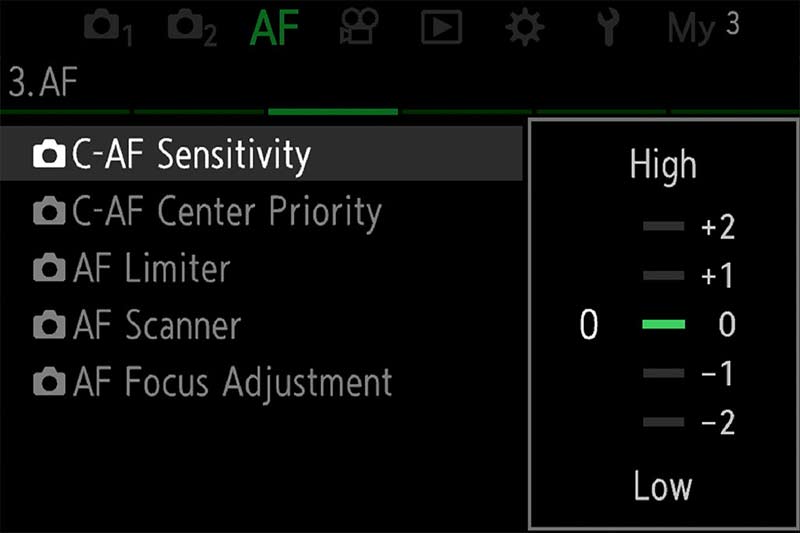
AF>3.AF>AF Sensitivity
AF SCANNER
Longer lenses can sometimes struggle when contrast is low. AF Scanner will force the AF to try and rescan to acquire focus. It can lead to the lens ‘hunting’ where it scans from near to far focus, but disabling it can mean out of focus images. I tend to leave it on Mode 2 by default and revert to MF if there is an issue.
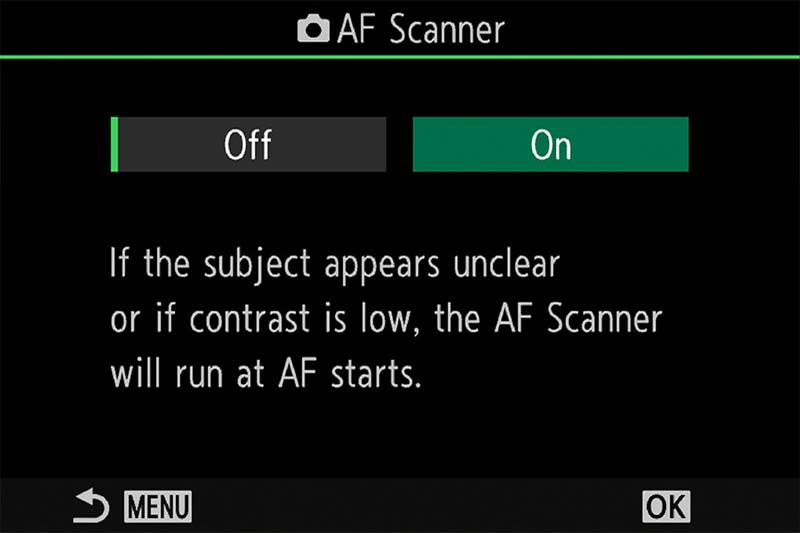
AF>4.AF>AF Scanner
AREA POINTER
Note that AF sensitivity is not the same as Area Pointer which does seem to confuse some.
Area Pointer has two modes ON1 which show the green AF Point inside the Target Area when focus has been achieved, and ON2 will show multiple green AF Points when using C-AF or C-AF+Tracking and larger Target settings.
I prefer to set it to On1 because I find it less distracting but it is worth experimenting with to suit your own preference.
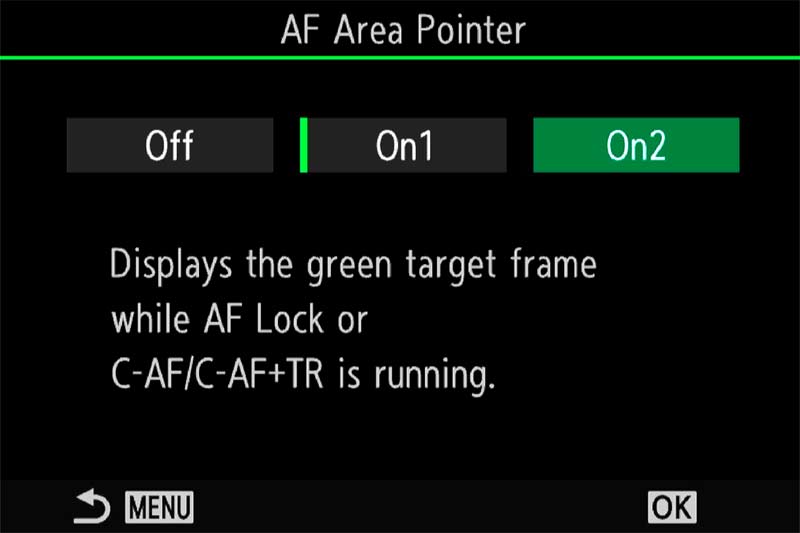
AF>3.AF>AF Area Pointer
AF-LIMITER
There may be times when the lens struggles to gain focus or focusses on a background or foreground element instead of the subject.
AF Limiter allows you to save three presets with a minimum and maximum distance to control the range the AF will try to focus in. Make sure a wide enough range is set.
You have to guess the distance or use the PRE-MF ‘hack’.
Go to PRE-MF, press info and focus on the area you want to exclude such as the background. The screen will show the distance instead of guessing it. Do the same for the foreground if needed. Now in AF Limiter set a range between these distances.
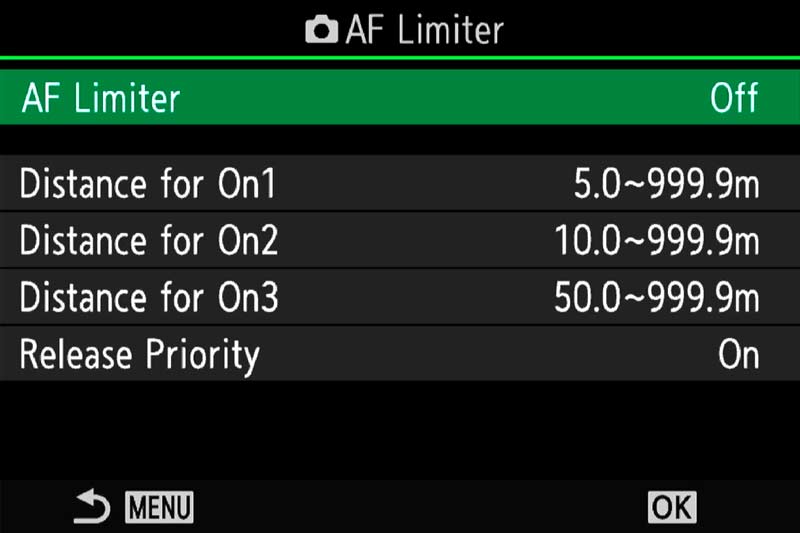
AF>4.AF>AF Limiter
An advantage of having this saved to a button in a CM not just for quick access is it will not be active for your next session once the camera is turned off and on again, thus avoiding problems wondering why your AF is limited. Do remember if you set up ON1, ON2 and ON3 and want to save them as part of your CM you must resave the CM again. As with all CM’s any changes you want to make permanently must be resaved.
PRESET MF DISTANCE
Preset MF is exactly what it says and is used for setting a fixed distance for focus. If for example you’re taking images in a fixed spot it can be useful to program the focus to the exact distance and prevent the lens from hunting.
Remember this is for Manual Focus. There is no ability to add this to a button so for quick access the best way is to save it into My Menu. It can also be accessed from the Super Control Panel by selecting the AF Mode. Scroll to Pre MF. Press Info and focus on the distance you want and then save it as a preset.
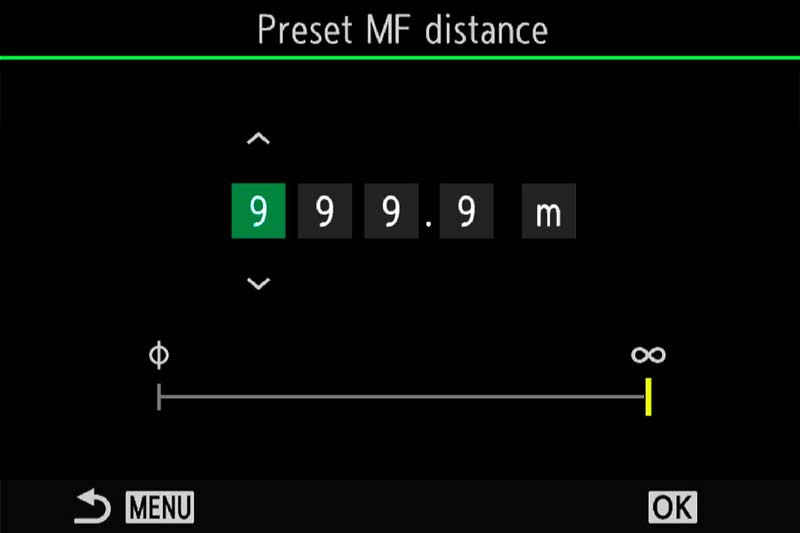
AF>7.AF>Preset MF Distance
RELEASE PRIORITY
Release Priority determine whether the camera will take an image even if focus has not been confirmed. Set to off means it will be set to ‘Focus Priority’ which is much more sensible. The camera will not take an image if focus is not confirmed, but in continuous drive modes it is effective on the first frame only.
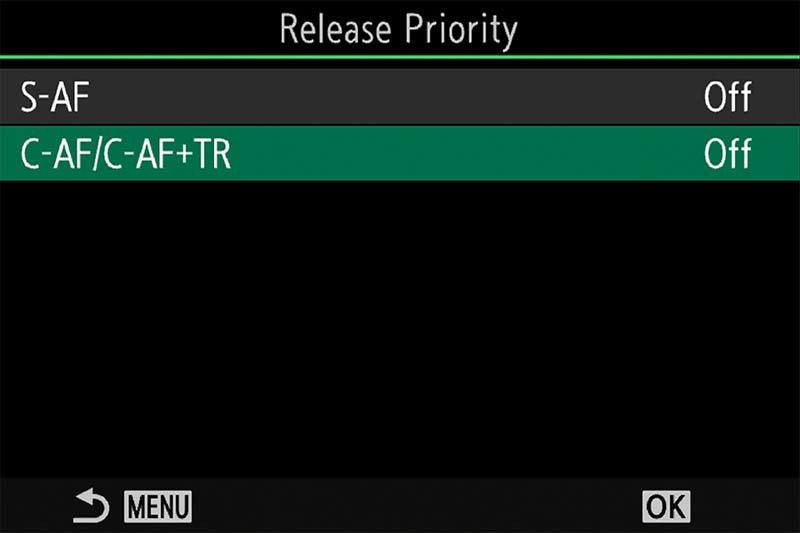
AF>1.AF>Release Priority
SEQUENTIAL SHOOTING
When considering AF Modes for wildlife it’s also important to consider which drive mode to use.
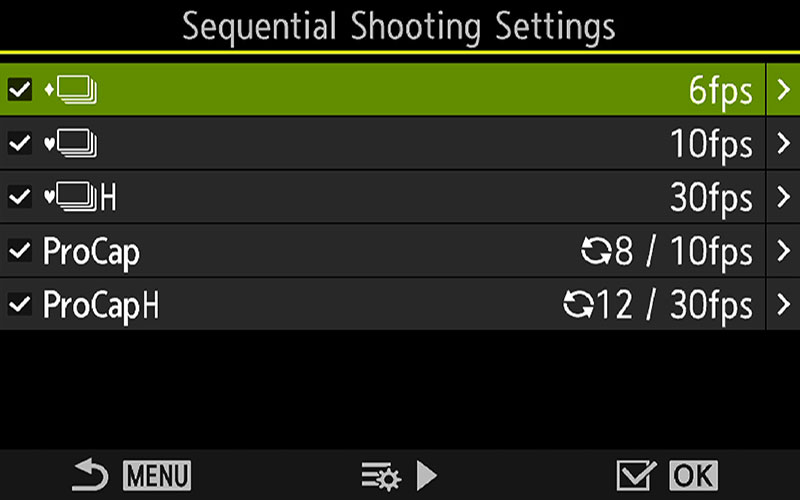
Camera1>7. Drive Mode>Sequential Shooting
Sequential Shooting settings, or Drive Mode will affect your chances of getting the shot just at the right time obviously, but there is no point setting a drive mode that will capture too many images, your card will quickly fill and the scene may not warrant it. Equally a drive too slow means you miss the shot. Birds in flight for example, some dart all over whilst others are more sedate; a perched bird may be relatively still whilst a Kingfisher diving for food would need precise timing.
The same is true for other subjects, how you choose the drive mode can affect your keeper rate.
SEQUENTIAL COMPARISON
| SEQUENTIAL MODE | FRAMES PER SECOND |
|---|---|
| STANDARD MECHANICAL | 1-6 FPS |
| STANDARD SILENT (ELECTRONIC) | 1-10 FPS |
| HIGH SILENT (ELECTRONIC) | 15, 20, 30 FPS |
| PRO-CAPTURE | 10 FPS |
| PRO-CAPURE HIGH | 15, 20, 30 FPS |
| PRE-FRAMES | Pre-Shutter Frames 0-14 |
| *FRAME COUNT LIMIT | 99 Max |
Listing out the different drive modes in a table and we can clearly see the pros and cons of each. Mechanical shutter has the slowest FPS obviously because it is a physical shutter which has to open and close. It is best to avoid Mechanical shutter anyway, just to save wear and tear on the thousands of shots that can be taken. Using Electronic (Silent) is also better to avoid disturbing your subject.
There is a significant difference also between Standard Silent Sequential which tops out at 10fps and High with a max of 30fps. Therefore if Standard is set to 10fps and High to 15 or even 20fps we can very quickly switch between the two using the Drive Button (D-Pad Down). 10fps and 15fps or 20fps is ideal, 30 is too much.
PRO CAPTURE
Pro-Capture is designed to reduce the delay between half pressing the shutter to achieve focus and a full press to take the shot. Using the Kingfisher diving into water as an example, how well could you anticipate and press the shutter at the exact moment its beak is mm’s away from the water? Not easily. Pro-Capture aims to assist by capturing a set number of frames the moment the shutter is half pressed and thus reduce the delayed reaction between a half press and full press. Images are stored in the camera buffer and then written to the card.
Note Pro Cap uses Standard Silent Sequential with a fixed 10fps. Pro Cap H uses the same settings as Silent Sequential H with selectable frames rates up to 30fps.
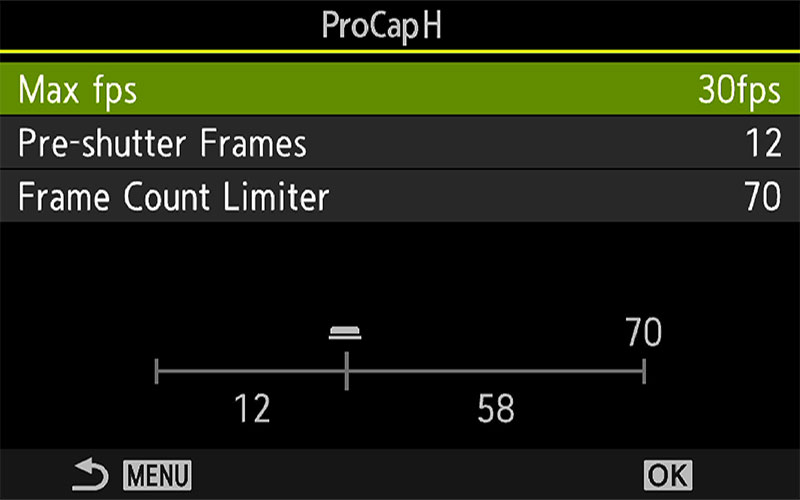
Camera1>7. Drive Mode>Sequential Shooting
PRE-SHUTTER FRAMES / COUNT LIMITER
An important distinction from frames per second, the drive speed, is the number of Pre-Shutter Frames. This can be set up to a maximum of 14 and is the number of frames the camera will record as soon as AF is achieved and before you press the shutter. Set it to whatever you feel suits the situation but remember you need fast cards. Also note Frame Count Limiter obviously limits how many frames are recorded, including the Pre-Frames, up to a max of 99.
In the screenshot above the Pre Frames is set at 12 and the Frame Count limited to 70. A simple graph updates live and shows there will be 12 pre-frames and 58 frames after the shutter is pressed. Turning off the Limiter is also possible if you don’t want a limit. How you set this is dependent on the situation, you may want to max out the pre-frames to 14 and reduce the Frame Limiter to reduce the overall number of images.
OTHER CUSTOM MODES
In the Custom Modes Section we reviewed how to set up CM’s with suggestions for each of the four available. Only one was dedicated to Wildlife or any action. For me personally it is enough, with buttons set for access to the many options and with quick access to drive modes I don’t feel I need more, but I am a Landscape photographer; what if you want more?
OTHER MODES
You could set up additional Custom Modes which differ from the main one we have created for wildlife. Options to consider are only limited by what you can think of, and usually come from experience. Personally I would keep buttons as close to your main set as possible and just change what suits the additional CM, otherwise it will get very confusing. A few items to consider setting for a new mode could be, just to get you thinking:
Pro-Capture High 14 Pre-Frames for fast moving subjects
Shutter Priority with a high shutter speed saved and high ISO (Not Auto)
Stabilisation set to IS2 for Vertical Stabilisation, not horizontal, for panning
Further options for the Lever with different settings, different target sizes or Back Button Focus
FACE DETECT
Another useful feature is Face Detect which will as the name suggests detect a face, detect eyes or even detect the left or right eye.
Face Detect can be useful especially when you want to shoot a spontaneous portrait, and having it mapped to a button for quick access makes it more convenient. You could also save it into My Menu. I tend to have it disabled for landscapes because it can often find what it thinks is a face in ground or rock patterns. For wildlife it has limited use, it will not detect a bird’s head but it can sometimes detect an animal’s face if distinct enough so it is worth having quick access to it.
Face/Eye Detect can be enabled from the Super Control panel. However there are two functions, Face/Eye Detection and Face/Eye Selection and they are very different. Detection is obvious, a white box appears over a face and eye when detected, but what if there are more than one face? The AF does not know which to select and will use the closest or the most distinct, which may not be the one you want to have priority. Selection allows you to use the front wheel to move to the preferred target, but it is only available when assigned to a button.
In the Custom Modes I suggested having Face Detection and Face Selection applied to the Drive button and Monitor button. This means being able to quickly enable Face Detection without using the Super Control Panel
FACE/EYE OPTIONS
When Face/Eye Detection is mapped to a button is can quickly enabled and disabled. Another advantage is the options can be accessed quickly by long pressing the button and scrolling with the front wheel:
Face – Focus on the face only
Face i (Eye) – Focus on face or detected eyes, nearside eye is selected.
Face iR – Focus on face or detected eyes, right eye is selected.
Face iL – Focus on face or detected eyes, left eye is selected.
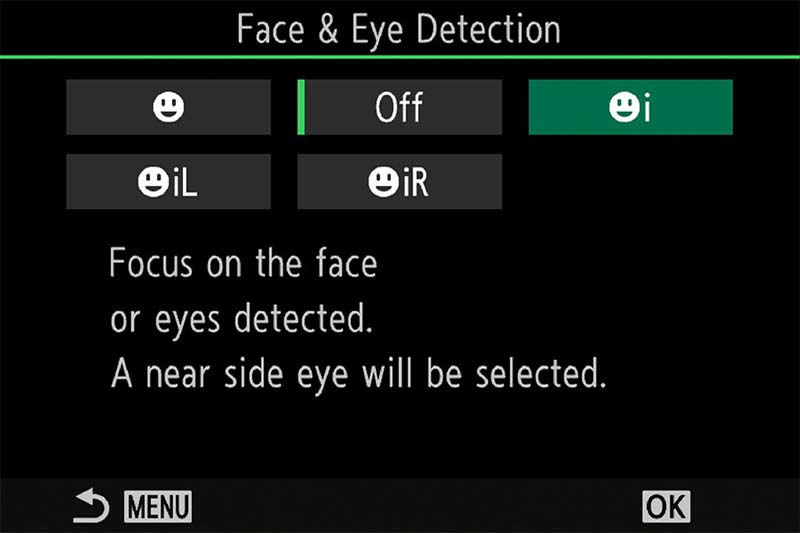
Menu AF>2.AF>Face & Eye Detection
AF-ON
Another important setting to consider is the priority given to the AF-ON. By default it is given normal AF Priority as would be needed for Back Button Focus (see the Buttons Section). Remember we created a CM for People in the Custom Modes section, but what if you do not want one?
An option is to change the AF-ON to Face Priority in the Wildlife CM. Also change the Drive/Monitor buttons to Face Detection and Selection instead of AF Limiter, and you can have the Wildlife CM also useful for people. The downside is the sequential setting is enabled by default but it is quicker to set it to single shot in the Super Control Panel rather than setting Face options.
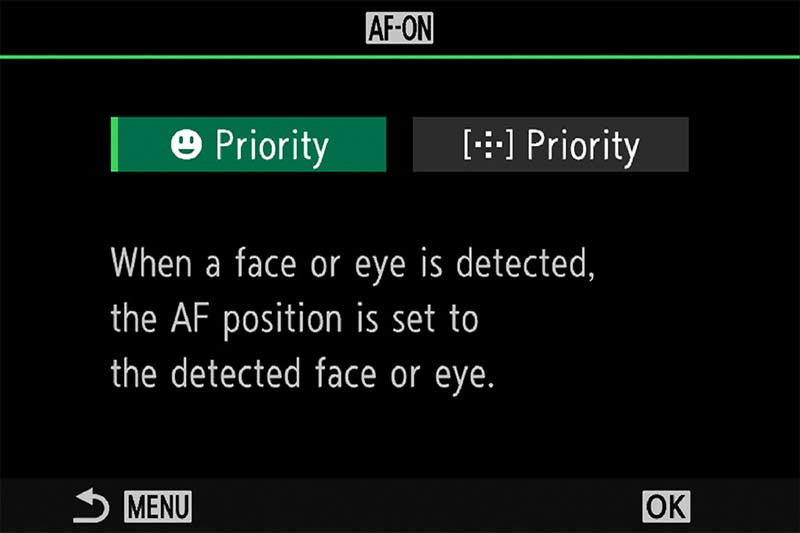
Menu AF>2.AF>Face & Eye AF Button
→ TIP FACE SELECTION
Face Detection is really designed for spontaneous portraits, not studio or posed portraits where you have more time to consider the focus point, so for this reason I have Face Detect mapped to a button as a useful ‘just in case’. If you do find yourself using Face Detect often when there are groups of people you would need Face Selection mapping to a button too.
EXAMPLES
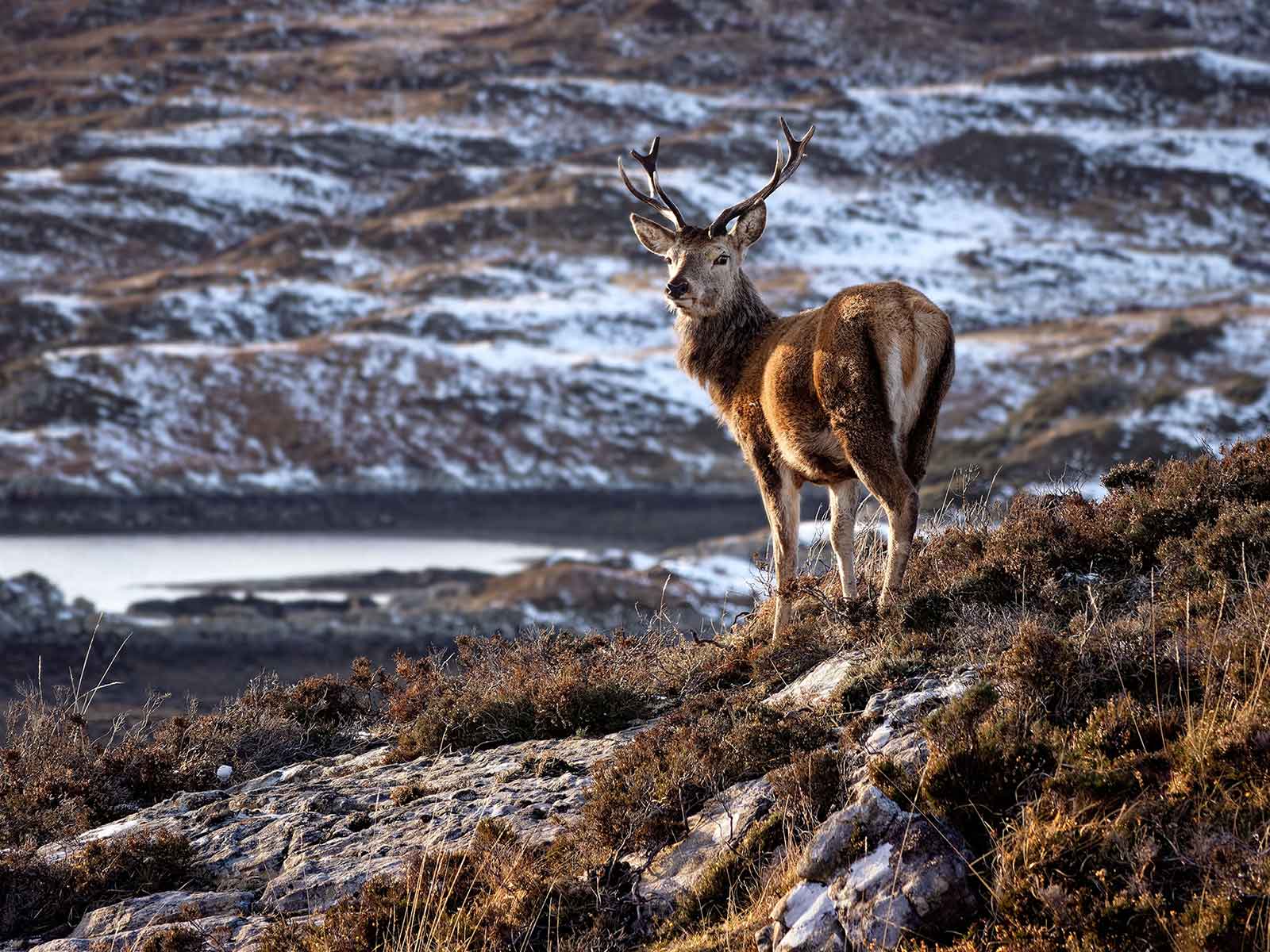
40-150 Pro @ 150mm ISO 640 f4 1/250s
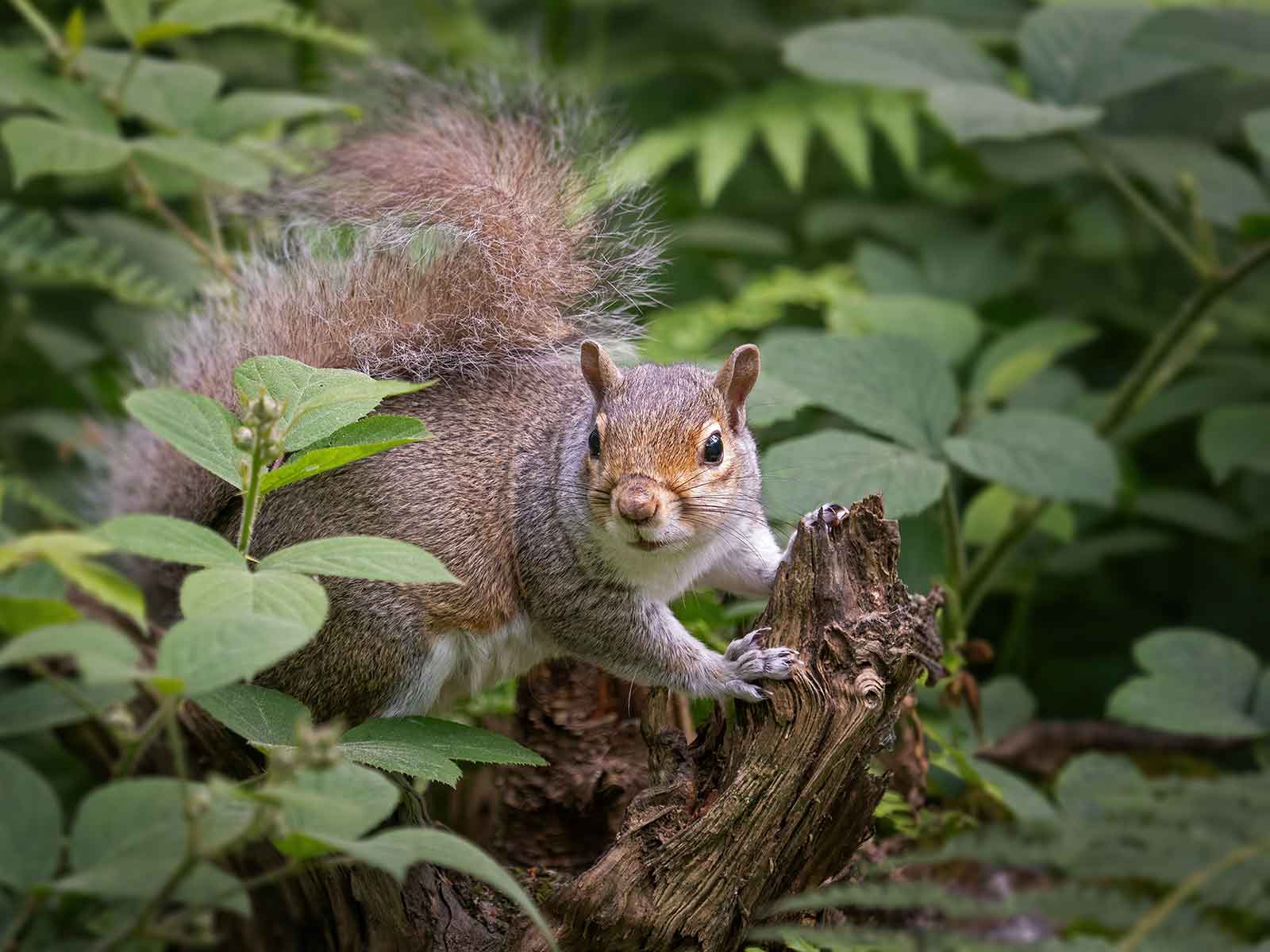
100-400 @ 210mm ISO 800 f4.5 1/160s
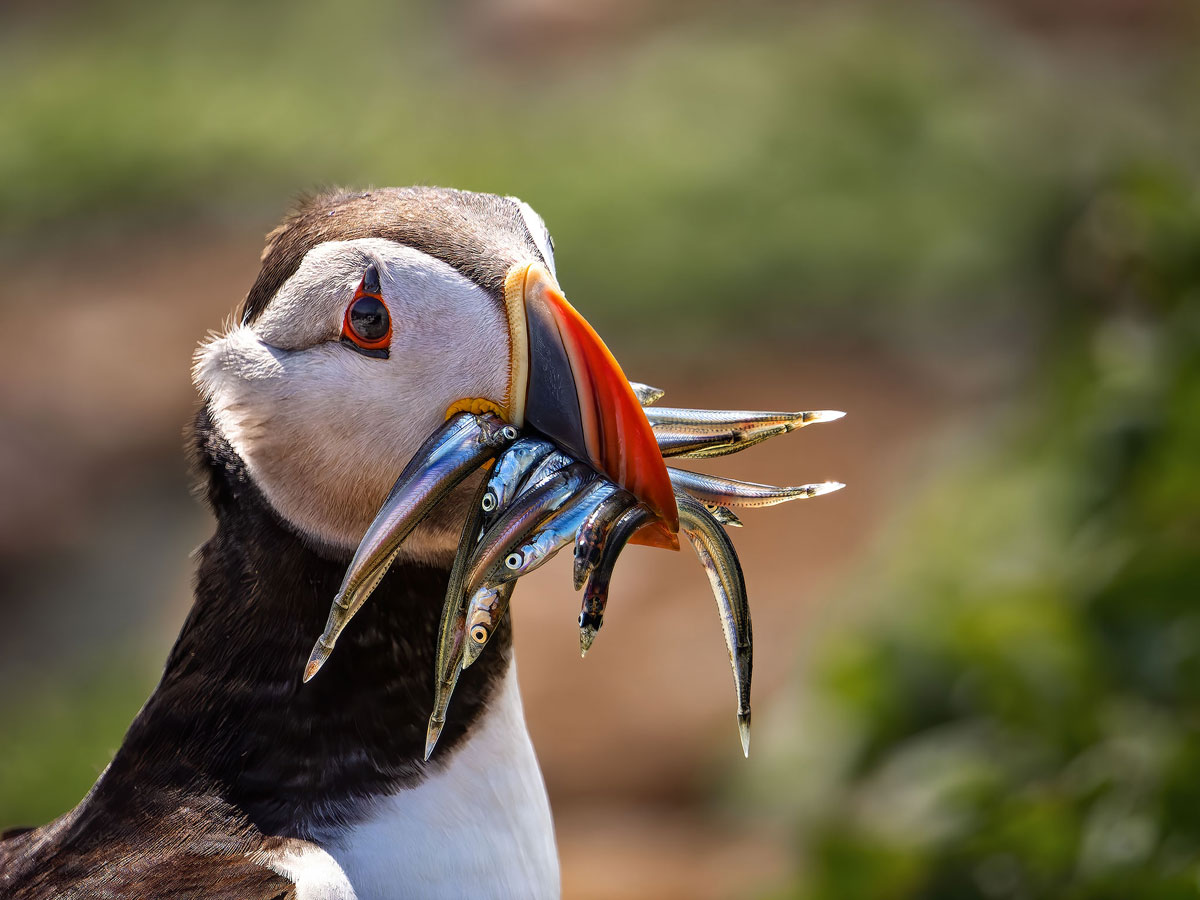
100-400 @ 400mm ISO 640 f6.3 1/3200s
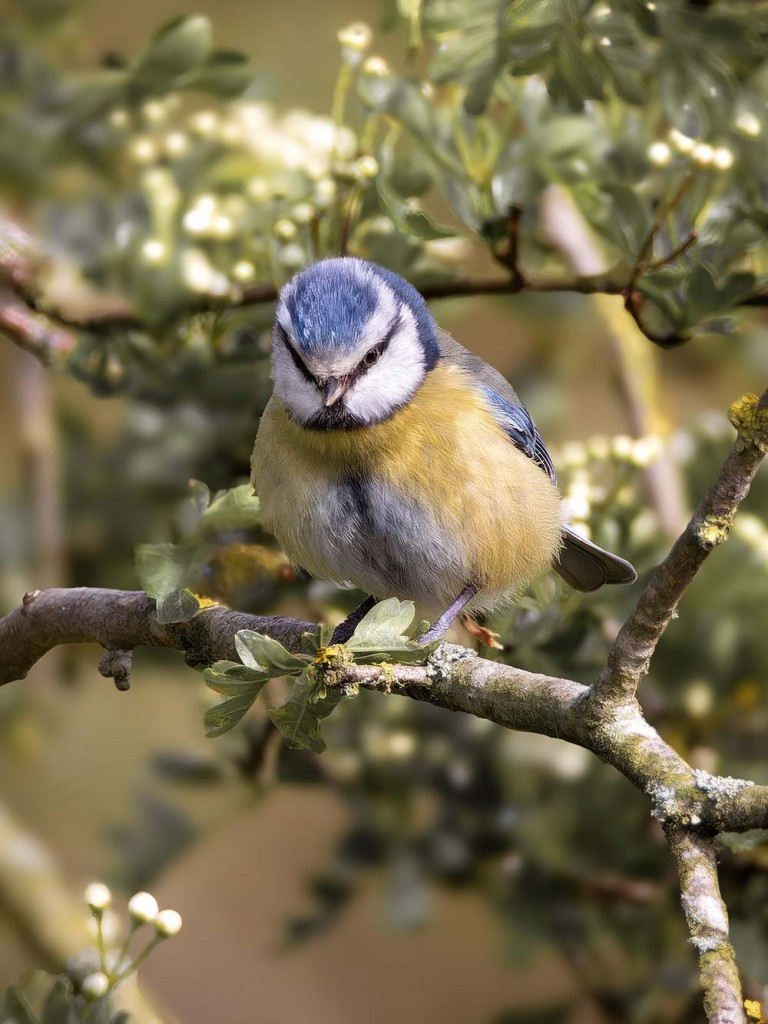
300mm Pro+1.4TC f5.6 1/1600s ISO200
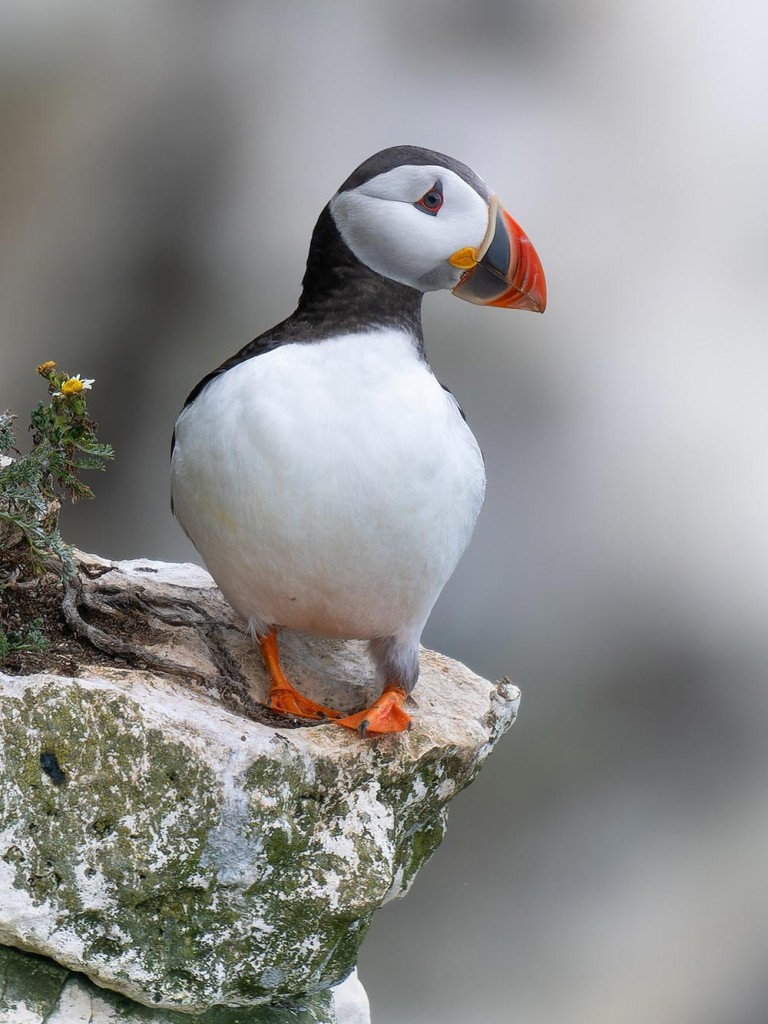
300mm Pro f4 1/640s ISO1000
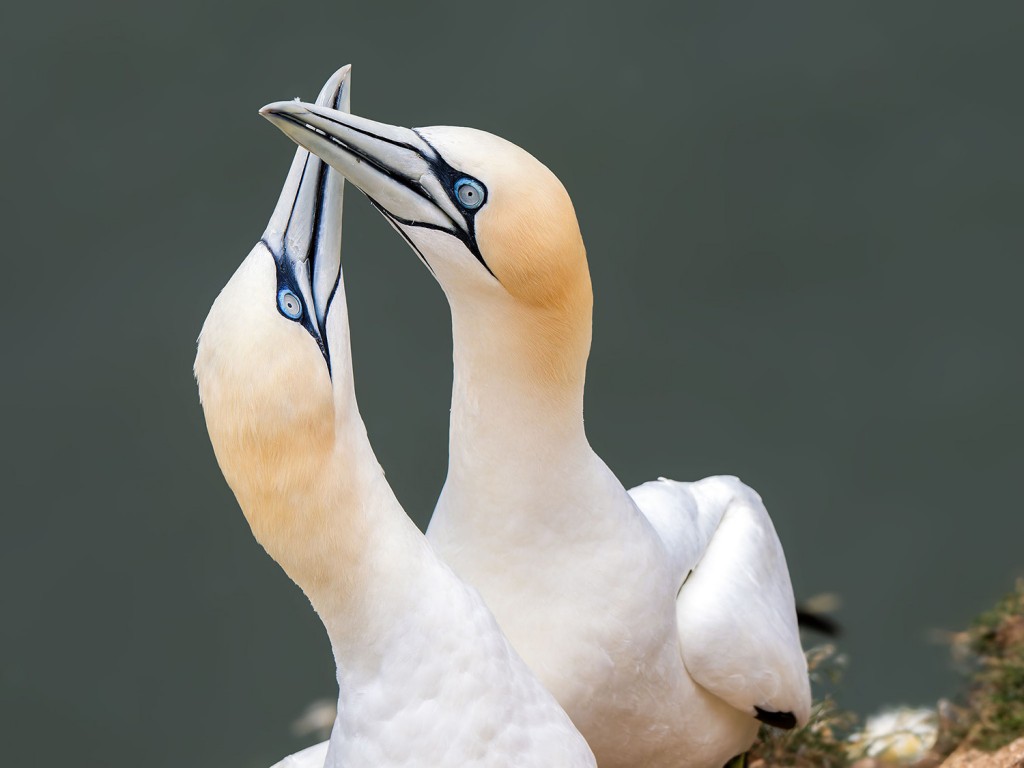
300mm Pro ISO 800 f6.3 1/1600s
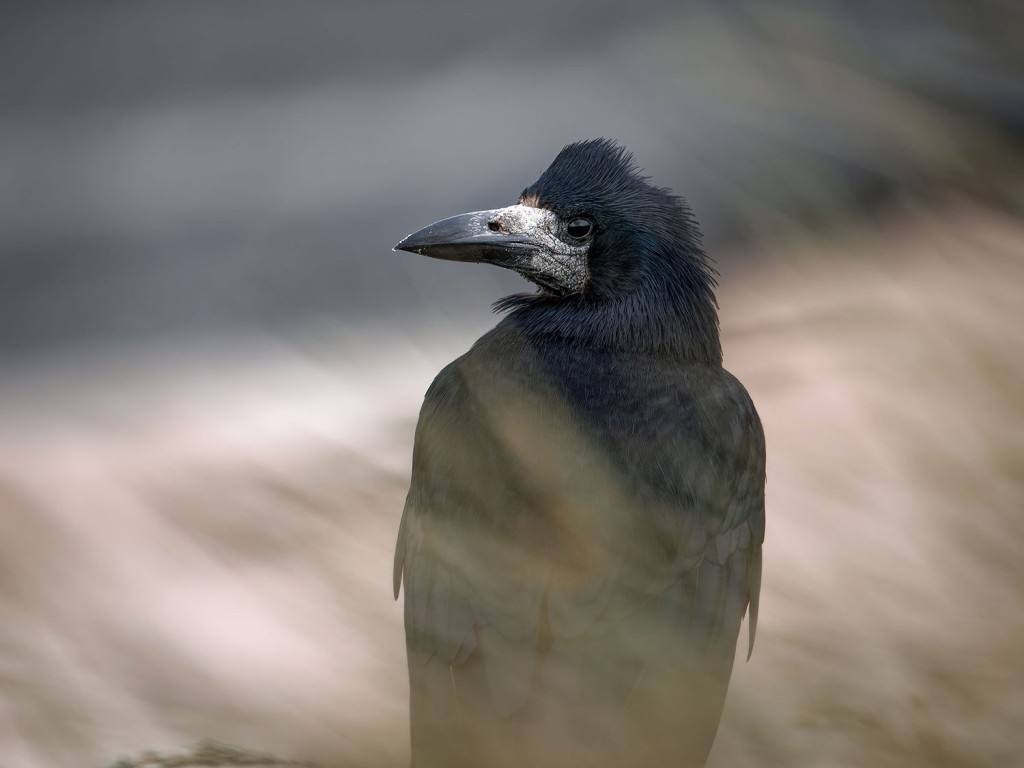
40-150mm @ 150 f2.8 ISO 400 1/320s