

HIGH RESOLUTION MODE
Using High Res Mode for highly detailed images
How and when to use High Res Mode and other benefits it offers.
Olympus High Res Mode was first introduced back in 2015 in the E-M5 MK2 and shortly after to the E-M1 Mk2. Since then it has gone through a number of iterations and improvements to the point now that we have a High Res 80mp Tripod Mode and 50mp Hand Held Mode that work incredibly well.
WHAT IS HIGH RES MODE?
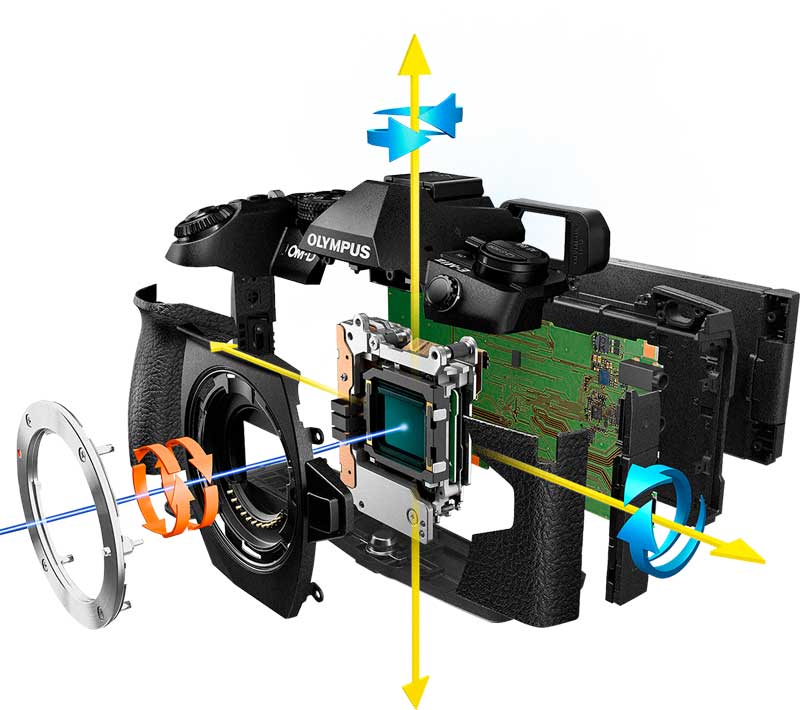
Olympus (now OM System of course) have always led the field with class leading in-body Image Stabilisation. A sophisticated mechanism moves the sensor to account for movement thus eliminating it. This same mechanism moves the sensor in High Res Modes to create Pixel Shift.
The sensor is not made of pixels, it is actually photosites which in the case of Olympus sensors are Bayer Matrix. The actual science behind this gets complicated, all we need to know is that the sensor is moved in minute increments of one photosite per shot and for the next is moved horizontally or vertically. The sensor is moved 4 times clockwise and then repeated and each time it moves a true RGB (red, green, blue) signal is captured per photosite. In normal resolution one signal is captured, R,G or B and the resulting image is interpolated by guessing the other signals from adjacent photosites, which also accounts for slightly less detail.
In Tripod Mode 8 images are captured, 12 for Hand-Held. These are then combined into one Raw and/or Jpeg image which have better colour accuracy and higher detail. As an additional benefit as the images are combined it will also reduce noise and increase dynamic range, so we end up with a file that has better colour, more detail and less noise.
ACCESSING HIGH RES
Accessing High Res is easy with the new CP button:
- Long Press > CP Button and scroll with the front wheel to High Res Tripod or Handheld.
- Short Press CP again to quit.
- From the Super Control Panel options can be set for the resolution/file type depending on the mode you select, eg 80mp or 50mp for Tripod and Raw and/or Jpeg.
If you forget a cable release for tripod use enable the self-timer or use the Waiting Time feature to set a delay.
RESOLUTION OPTIONS
We have various sizes available to use as Jpeg only or Jpeg + Raw.
Raw 80mp Tripod Mode or 50pm Hand Held Mode
Jpeg 80mp Fine, 50mp Fine 25mp Fine
(80mp 10360x7776px, 50mp 8160x6120px, 25mp 5760x4320px
Tripod Mode: Jpeg 80F, 50F and 25F available
Hand Held Mode: 50F and 25F available
*Note that the Jpeg file resolution is independent of the Raw file resolution. For instance shooting High Res in Tripod Mode 25F + Raw, the Raw will still be 80mp, it is just the Jpeg that will be 25mp.
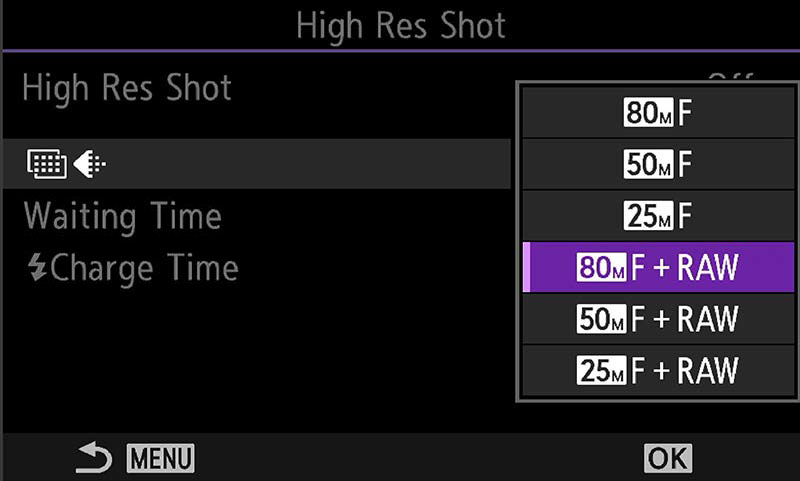
High Res Screen Menu>Camera2>1.Computational>. Waiting Time can be set to delay the shutter if you do not have a cable release. Charge time only applies for flash.
HIGH RES & SLOW SHUTTERS
One ‘Hack’ (it’s a trendy word now) I use often is shooting slow shutter images in High Res to create a long exposure. We cannot use Live ND with High Res which really is a shame, nonetheless we can still exploit features. Milk it for all its worth I say.
This image below taken at twilight in very low light had a shutter speed of 3 seconds, with a polariser fitted. I wanted it to be longer than 3 seconds, so I could switch over to Live ND, instead I chose High Res because it does a better job of capturing the dynamic range and reducing noise, and the effect can be similar to using an ND. If you have some ND filters try using them in High Res, you will be surprised and impressed with the results.
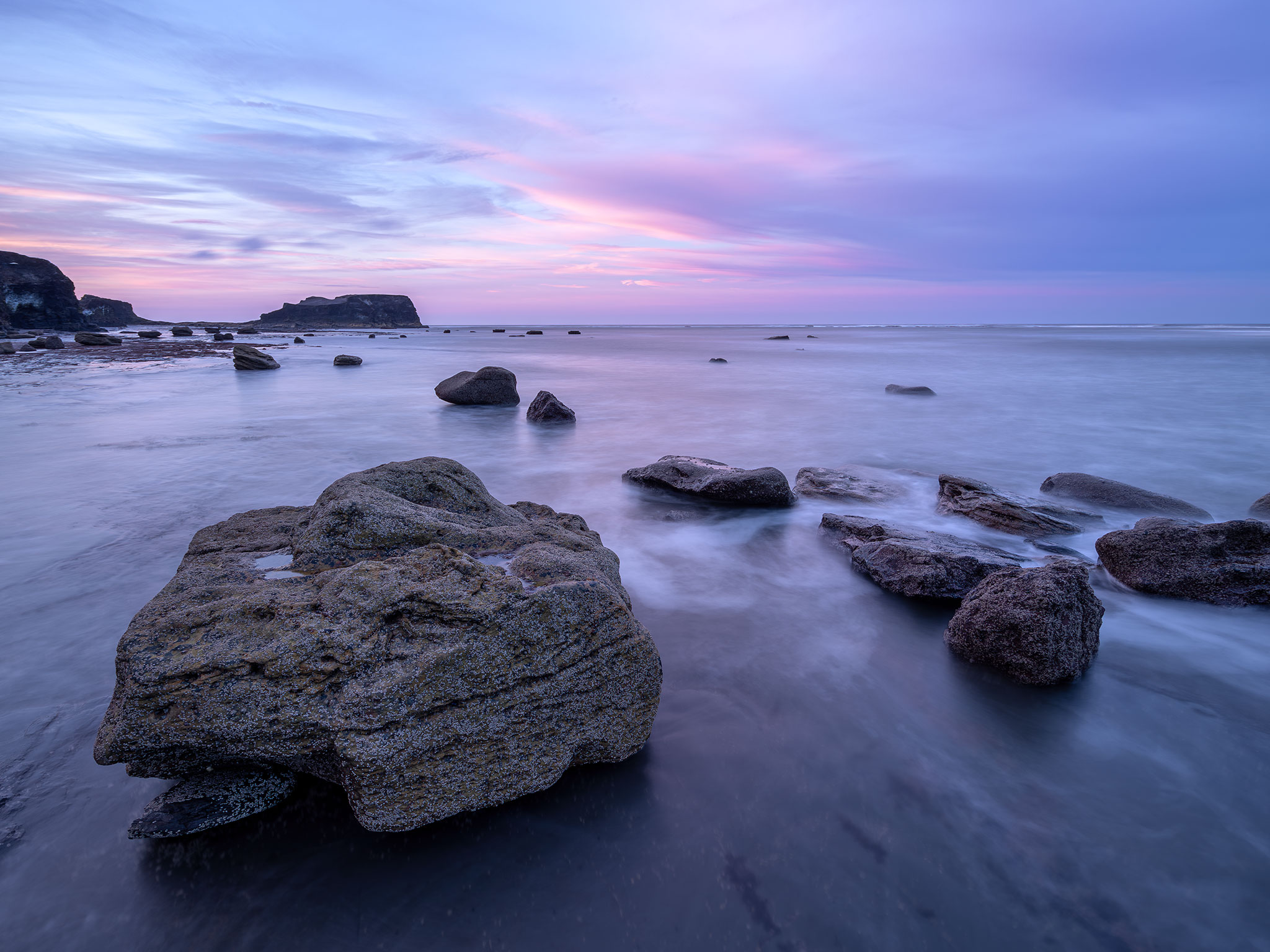
8-25mm @ 8mm f6.3 3 seconds (12×3, 36s exposure time) High Res Handheld (on Tripod)
The exposure was only 3 seconds, and using High Res it captured 12 images of 3 seconds so 36s exposure time. The final result does look like a much longer exposure than 3 seconds with the almost completely flat and soft water, it has more detail and noise has been reduced all at the same time. Does it look the same as using an ND with 36 seconds exposure? Who knows, my experience tells me not quite but it is worth trying it. See below for more examples.
Another point to be aware of, Tripod Mode takes 8 images and yet this was 12, so how come? Because it was on a Tripod and I set Hand-Held Mode for more frames. Hand-Held Mode can work on a tripod, it produces more frames albeit at 50mp and not 80mp, and goal here was more frames, better dynamic range, less noise and the impression of a longer exposure. It does sometimes fail though; Hand-Held Mode is expecting some movement, when there isn’t any it can fail to stack the images. With that in mind sometimes Tripod Mode will fail if it detects movement because of wind, so a trick is to switch to Hand-Held Mode on the tripod and fool the camera.
THE MYSTERIOUS .ORI FILE
Along with the Raw and/or Jpeg files recorded you’ll also see a strange .ori file. This is actually a standard resolution Raw image and is the first frame from the sequence. Previous versions suffered when there was movement in a scene such as water, grass or trees and could result in artefacts resembling a cross hatch pattern. The computational process of High Res would look for this and try to replace artefacts by merging in problem areas from the original file, quite but not always successfully.
Artefacts are largely no longer an issue now although movement still is. But, as multiple images are being combined movement will always be blurred; instead of trying to avoid it I go with it to express the actual scene, blurred grass will express a windy day and moving water will appear as though an ND has been used.
TIP→Olympus Workspace and DXO will recognise the ORI file but Lightroom will not. Change the extension from .ori to .orf and import into your processor and it will be compatible. Rename the file too to avoid conflict, if your Hi Res Raw file is 12345.orf change the Ori to 12345B.orf, 12345original.orf, or anything that makes sense to you. You then have the original Raw file just in case you are not happy with the High Res.
HIGH RES MODE DETAIL
A closer look at the detail produced by Hi Res Mode.
The image below from Tarn Hows in the Lake District was an obvious candidate for High Res. With the beautiful golden light at sunset side lighting the fells and the Autumn trees there is a great deal of detail in the scene. For this reason I decided to use the 80mp Tripod Mode.
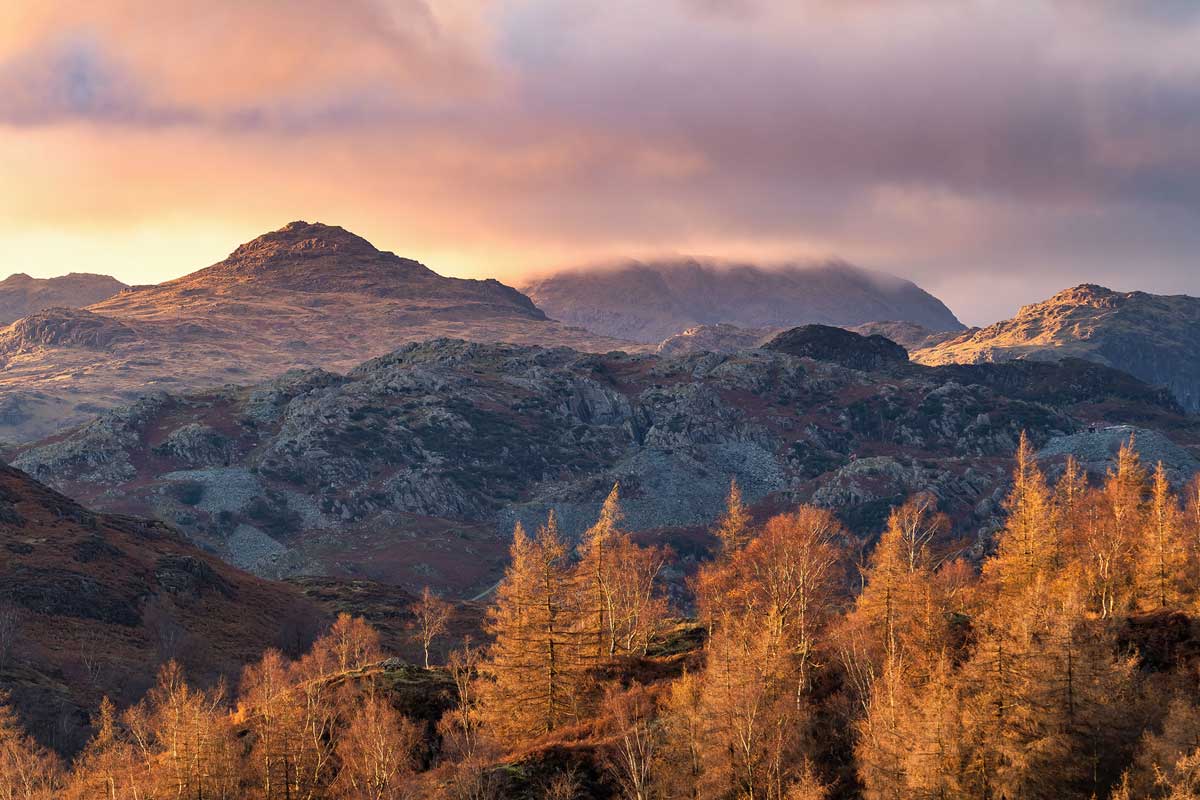
Tarn Hows, Lake District, 80mp High Res Mode, 12-100 Pro
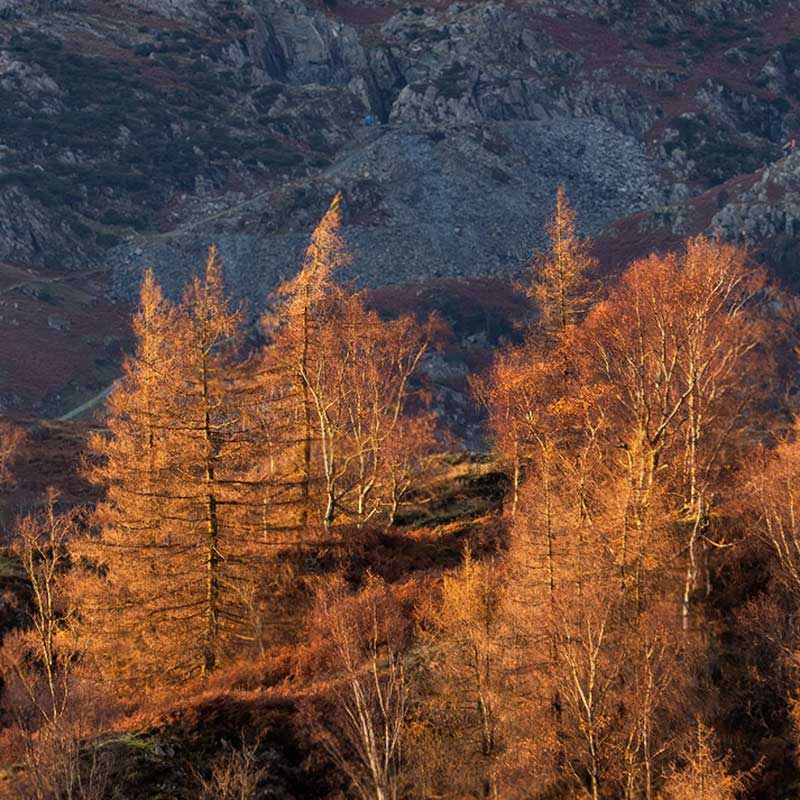
Standard Resolution 20mp
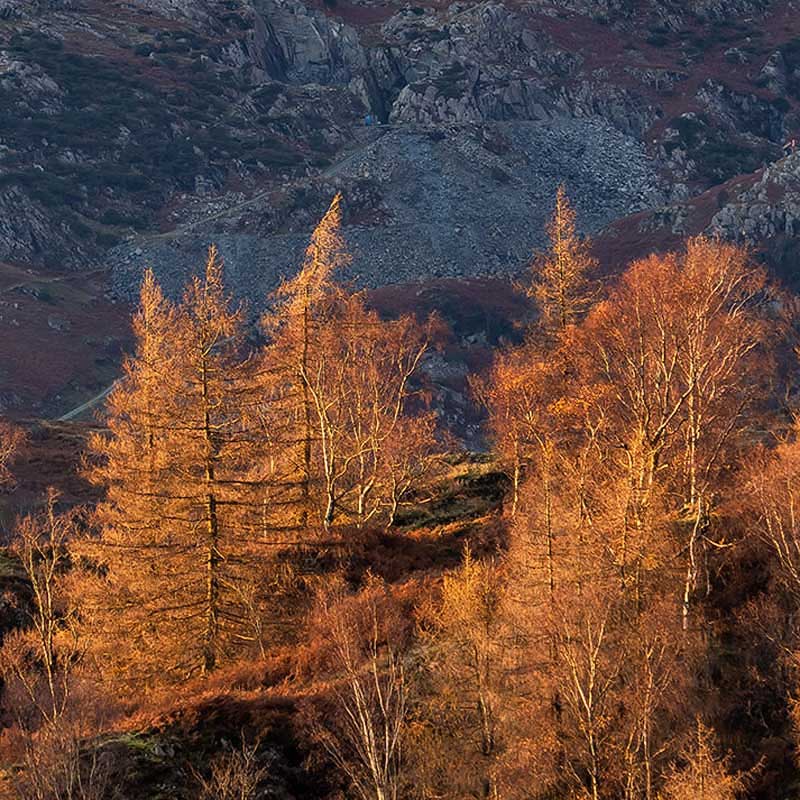
80mp High Res
We can see compared to standard resolution there is additional detail in the High Res image. Both of these images are taken from the High Res file and the standard ORI file with the same processing settings. That is not to suggest standard resolution is inferior, far from it. Remember that to create the High Res the sensor is moved over a number of images taken for each mode 8 for 80mp and 12 for 50mp. The frames are combined, analysed and then stacked into one image hence why it is ‘computational’, but in a sense it is still a 20mp image that has been interpolated.
The standard resolution image still has the detail but in High Res it is more refined and clearer, with less noise, better colour accuracy and increased dynamic range. The standard file will sharpen more to enhance the detail with the consequence of being over-sharpened and creating halos. Don’t expect too much, it is easy to anticipate huge differences with High Res being 4x the size of standard resolution but in actual fact the pixel dimensions (what really matters) is just under twice the size. For online viewing you will not see any difference, where it matters is for larger prints.
Note when processing a High Res Raw image it will look softer and sharpening applied to a standard res image will not be enough. It is much higher resolution and does need more sharpening. Workspace does a better job of sharpening but it is so slow, even on higher end Mac.
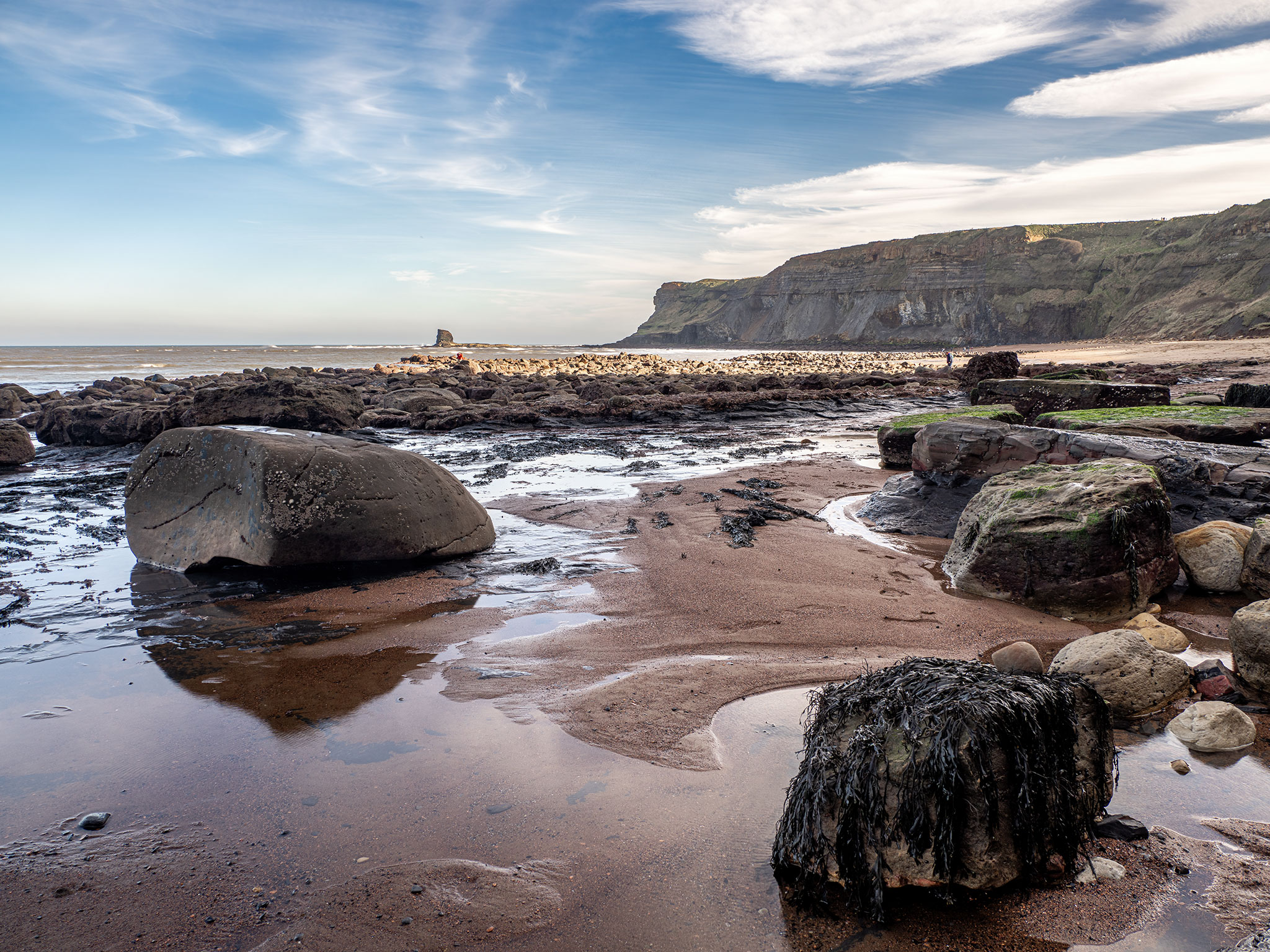
Saltwick Bay, Yorkshire, 80mp High Res Mode, 12-100 Pro
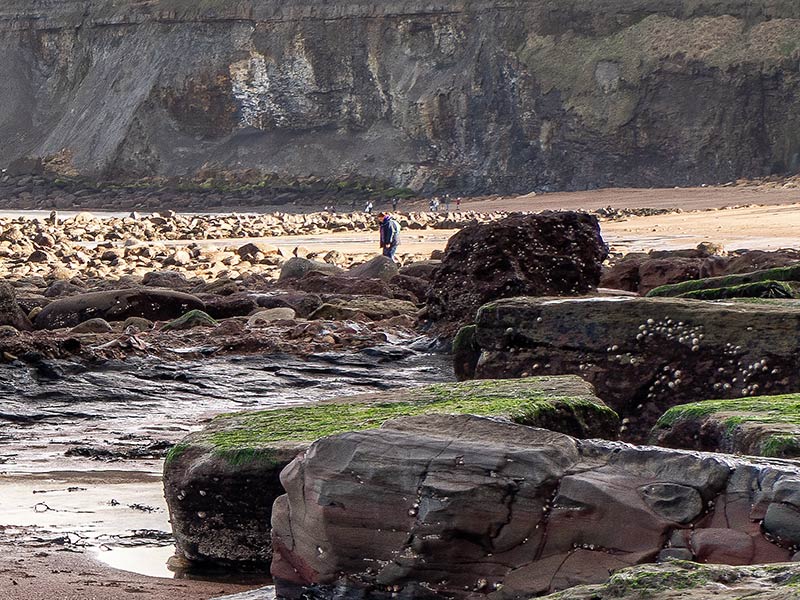
Another example from Saltwick Bay taken on a bright sunny day. It is a little bit of a nonsense trying to show the benefit of High Res on a website or small prints. See the crops below. This image is the highest possible quality I can get online and may load a little slower. Even at this resolution there is some very good detail, however the standard image would look just as good.
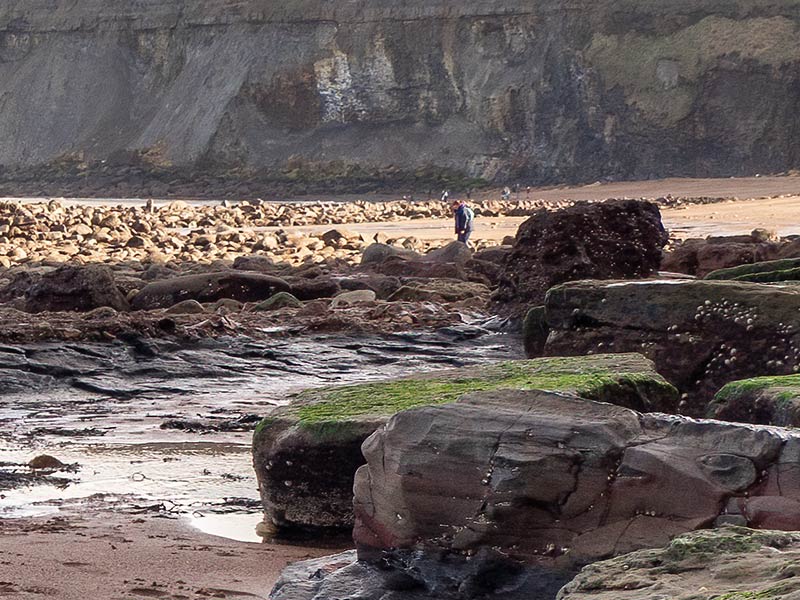
Standard Resolution 20mp
80mp High Res
Both of the images above are huge crops, around 180%. To make a fair comparison both were cropped to the same area. Considering the perception is our little M4/3 sensors do not have the capability for detail the standard resolution image (the .ORI converted to .ORF) is not bad at all. The High Res image does have more detail, evident in the texture of the cliff and the people in the far distance are more distinct. Compare the crop to the full image for just how far away the cliff and people are. High Res does have an issue with movement, however if the movement is subtle it will be fine. There were two people in the frame, both looking I presume for cockles or fossils, filling plastic bags.
WHEN TO USE HIGH RES MODE
Hi Res Mode is very good for all the reasons above, therefore why not do all shots with it? There are a number of factors to consider, one of the main being file sizes, they are significantly bigger. What is the scene and does it warrant High Res, what benefit is there using it? Another which is harder to define is your intended use, will you produce large prints, or just use online where such high resolutions are redundant? Do you use High Res for every image only to post on Instagram?
I use High Res quite often, but not all the time. I recognise when a scene may benefit from the cleaner detail such as in the example above of Tarn Hows, or when there are creative benefits for longer shutter speeds. Let’s compare the file sizes of 80mp and 50pm High Res Modes, considering that in standard resolution we have 20px.
FILE SIZES
Standard Resolution: Raw 18MB, Jpeg 12MB, Tiff 120MB
80mp High Resolution: Raw 64MB, Jpeg 33MB, Tiff 242MB
50mp High Resolution: Raw 37MB, Jpeg 20M,B Tiff 143MB
Note a 25MB Jpeg is approx 14MB. Raw would be either 80mp or 50mp depending on the mode you have selected and file sizes thus as above.
The OM1ii introduced 14Bit High Res for better colour fidelity resulting in even bigger file sizes.
TIFFS
I always save finished processed images as Tiff files. My workflow typically is Global processing in Lightroom and final adjustments in Photoshop, including de-noising and sharpening as needed.
Tiffs offer the highest quality which I save as a master file and from these I produce additional files for their purpose, full resolution Jpeg for prints, low resolution for Social Media etc. After making the effort to produce a High Res image would you then save your processed files as a Jpeg? No.
But look at the file sizes, they are huge. For this reason I split how images are stored on separate external drives and cloud backups. See ‘Workflow’.
Given the information above we can see High Res does have a significant impact on files sizes, and therefore storage and the processing power of your computer. An older system with low memory and graphics is really going to struggle, whereas a newer system should handle them well, until you want to browse a catalogue full of High Res images. There is no real answer to ‘When to Use High Res’; perhaps the question is wrong and it should be “What are the Best Situations to use High Res Mode?”
LARGER PRINTS AND CROPPING
80mp Tripod Mode
Producing larger images for print and the ability to crop more.
CREATING LONGER EXPOSURES
80mp Tripod Mode
Creating longer looking exposure images than the actual exposure time.
INCREASING DYNAMIC RANGE
80mp Tripod or Hand Held Mode
Increasing Dynamic Range in challenging situations.
LARGER PRINTS
PPI (Pixels Per Inch) and DPI (Dots Per Inch) are two completely different things and often confused. DPI is the number of dots of ink used in a print and the higher the better quality the print will be, as a standard 300dpi, but this assumes the image has a high enough resolution. Dividing the size of an image in pixels by the print resolution gives the print size. Olympus Standard Resolution 5184 divided by 300dpi would give a print of 17.2″
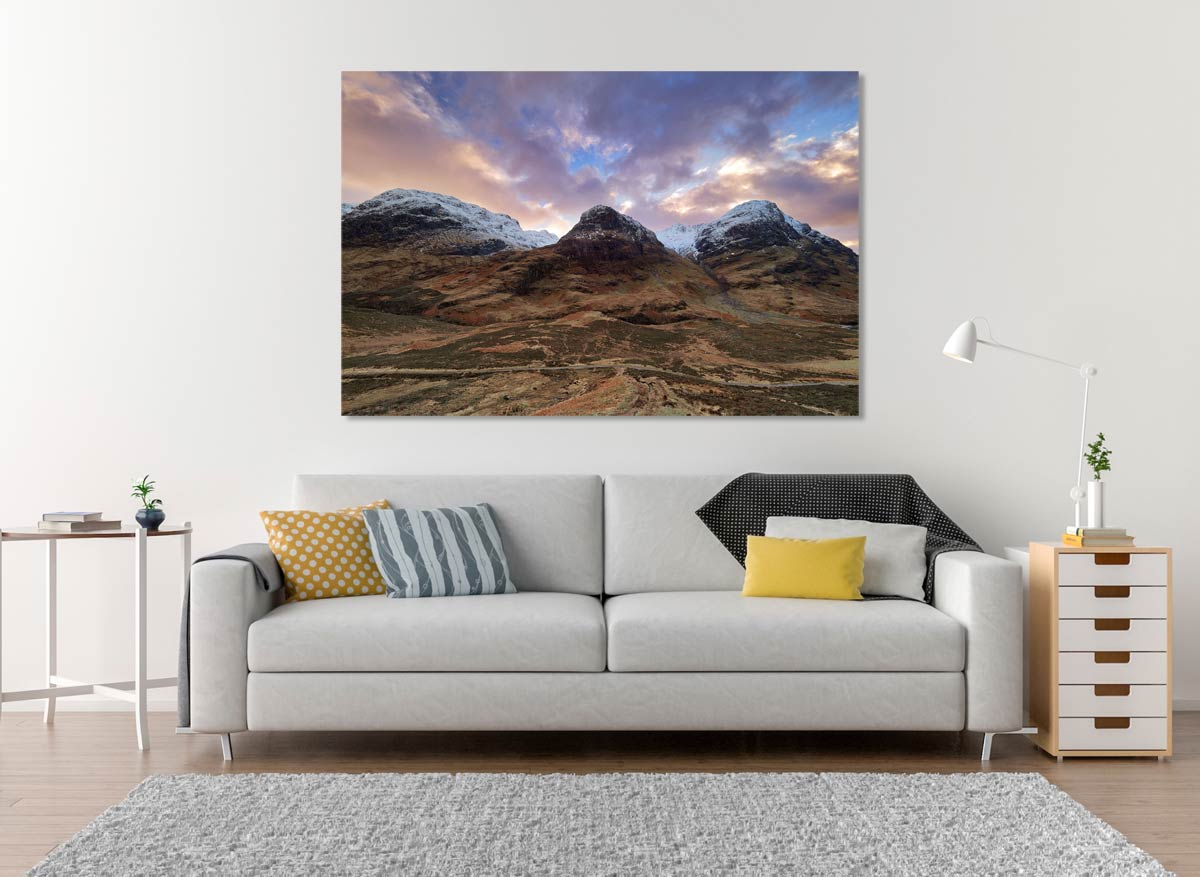
A 42″ Canvas in a home in the USA.
As someone fortunate enough to sell prints regularly I do not have an issue with prints at 24″ in standard resolution and even 32″ are easily produced with some up-sampling from Topaz Gigapixel. Above this another factor that should be considered is viewing distance which indicates a comfortable viewing distance for larger size prints.
The human eye has a horizontal field of vision of 135 degrees and a vertical field of vision of just over 180 degrees which influences the ideal viewing angle and, therefore, the minimum viewing distance at which a print of a certain size can be viewed as a whole, rather than details. With viewing distance being approximately 1.5-2 x the diagonal of a print, a 32″x24″ print diagonal is 40″. Therefore the comfortable viewing distance is 60″-80″ or 1.5m-2m.
With the pixel size of an 80mp High Res file being 10360, a 300dpi print will easily produce an image of 34″. Factor in Viewing Distance and reducing the DPI slightly to 200dpi and we now have a print size of 42″. And this is before using apps such as Topaz Gigapixel. So High Res will obviously give bigger prints, but should you use it for every shot just in case of a large print sale? Personally I use High Res for other reasons and use Gigapixel if I need to for larger prints.
CROPPING
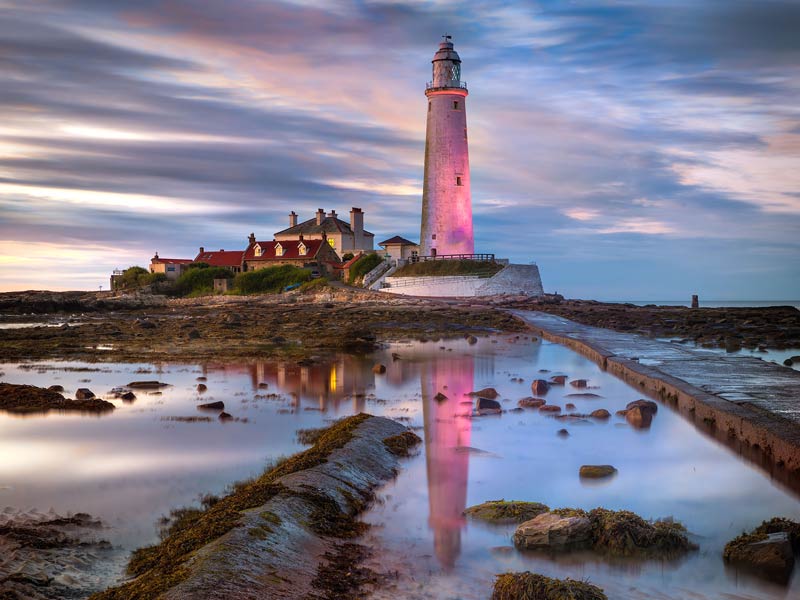
This image of St Mary’s Lighthouse in Whitley Bay started off life as a portrait orientation. I shoot very often in portrait having a fondness for how lead-in lines can be used but in this case I got it wrong. I imagined the textures of the sand in the foreground adding interest but in hindsight it was just empty space. Luckily I had used 80mp High Res so a crop provided an image of 7776 pixels wide, still higher than a Standard Resolution.
80mp Tripod Mode, 12-100 Pro f7.1 @18mm 8 minute Exp (8x60s)
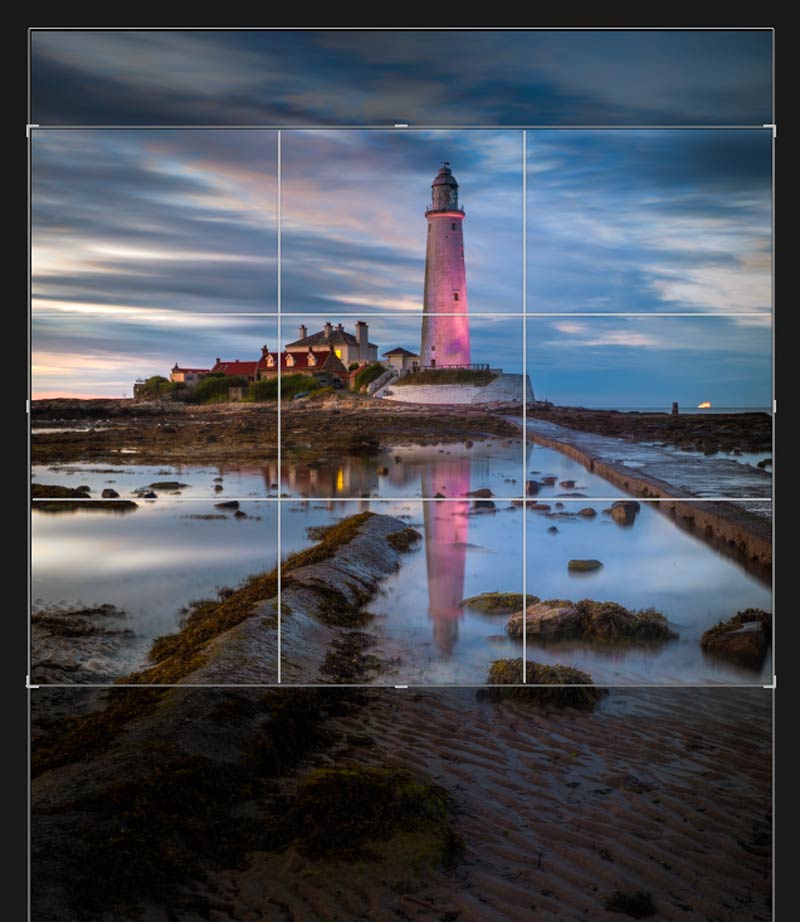
The reason I used High Res was not to have a larger file or increased resolution, it was to create a long exposure with reduced noise. The exposure was 60 seconds with a 6 stop ND. Over 60 seconds there was virtually no cloud movement, High Res gave the effect of a longer exposure and with much lower noise than an 8 minute exposure with a 10 stop would have in Live Time, if I could have pushed it to 8 minutes. It was pure luck I later decided to change the composition.
CREATING LONGER EXPOSURES
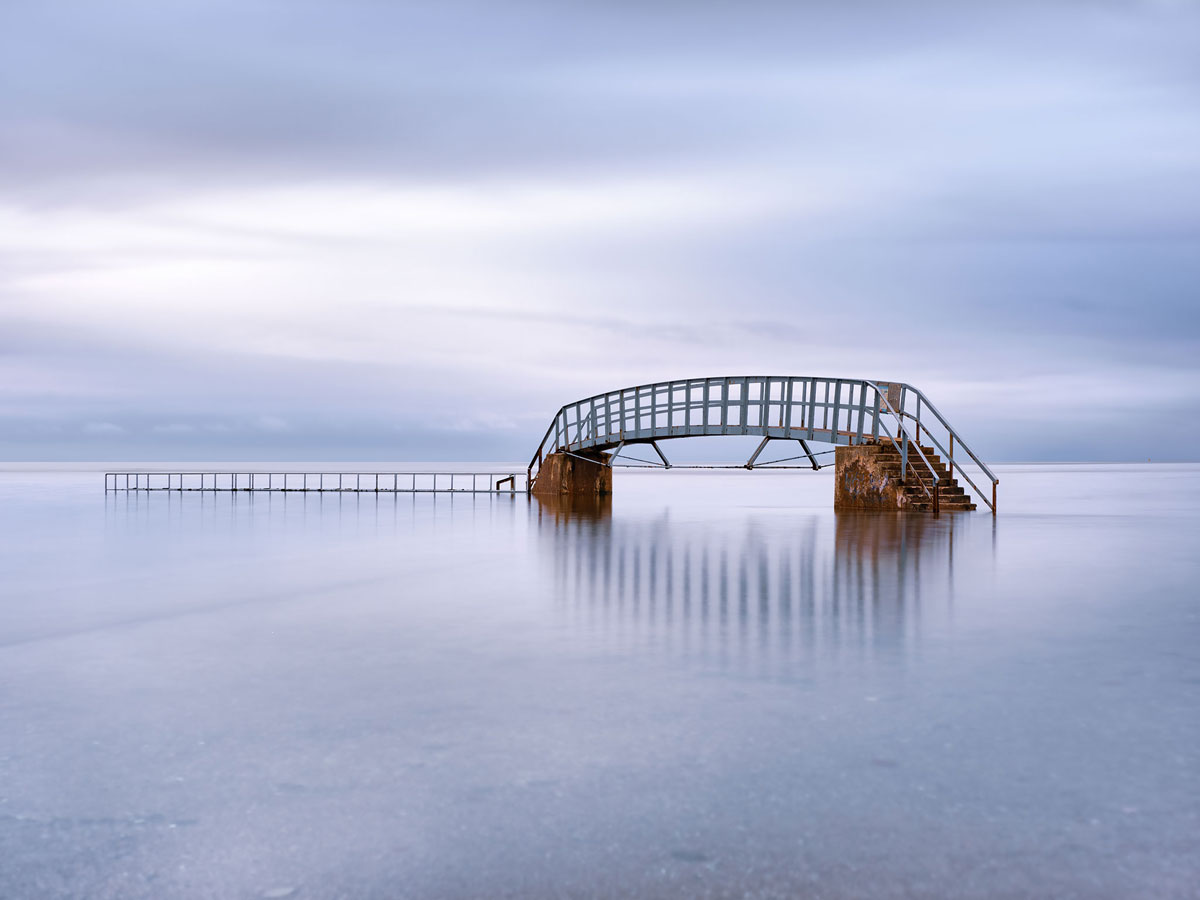
This image of the aptly named ‘Bridge To Nowhere’ in Dunbar, Scotland was a slow shutter image. Arriving just before high tide I waited for the path leading up to the steps to be completely submerged; the lack of detail was important to create the feeling of solitude.
Using a 6 stop ND the exposure was only 4 seconds, which means 4 seconds per 8 frames, a total of 32 seconds. As you can see it produces an effect which looks longer than just 4 seconds, and longer than a 32 second exposure with an ND, and with virtually no noise.
I could have used the Live ND, but the most I would get would have been 8 seconds, and I gained increased detail and textures in the bridge.
High Res Tripod Mode 80mp. 12-100 Pro f6.3 32s Exp (8x4s)
INCREASING DYNAMIC RANGE
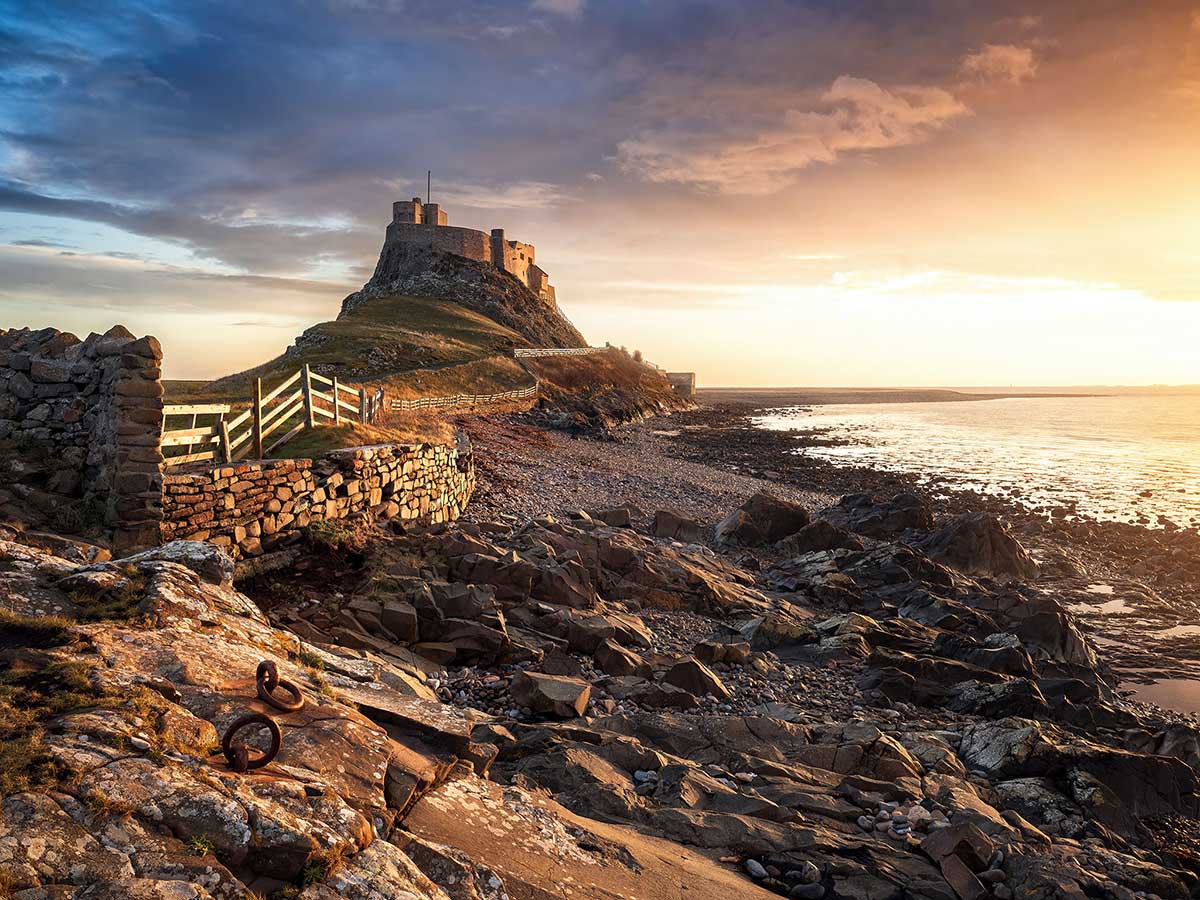
This image taken on Holy Island of Lindisfarne Castle at dawn was going to be a challenge because of the light.
I chose to use 80mp Tripod Mode partly because of the light and also because of the textures in the foreground.
With the increase in Dynamic Range I was able to actually under-expose by 2/3rds of a stop to protect the highlights in the sky. As the ground was well illuminated I only had to worry about the shadows, which opened up well enough. With less noise in the file and using LR AI Noise reduction there was virtually no noise even after opening the shadows.
High Res Tripod Mode 80mp. 8-25mm Pro f6.1 1/320s ISO200
→ TIP Try High Res Mode on waterfalls, it is surprising effective. It will be more successful blending the water movement when shutter speed is reasonably slow to start with such as 1/15-1/20th. Of course it is personal opinion, you may like water with faster shutter speeds. This raises the obvious question, why use High Res for longer exposures when Live ND is available? The simple answer is you don’t have to, it is just another option and one to bear in mind. The advantage is higher detail, the disadvantage is the effect of a longer exposure is harder to predict than Live ND. But it is fun!
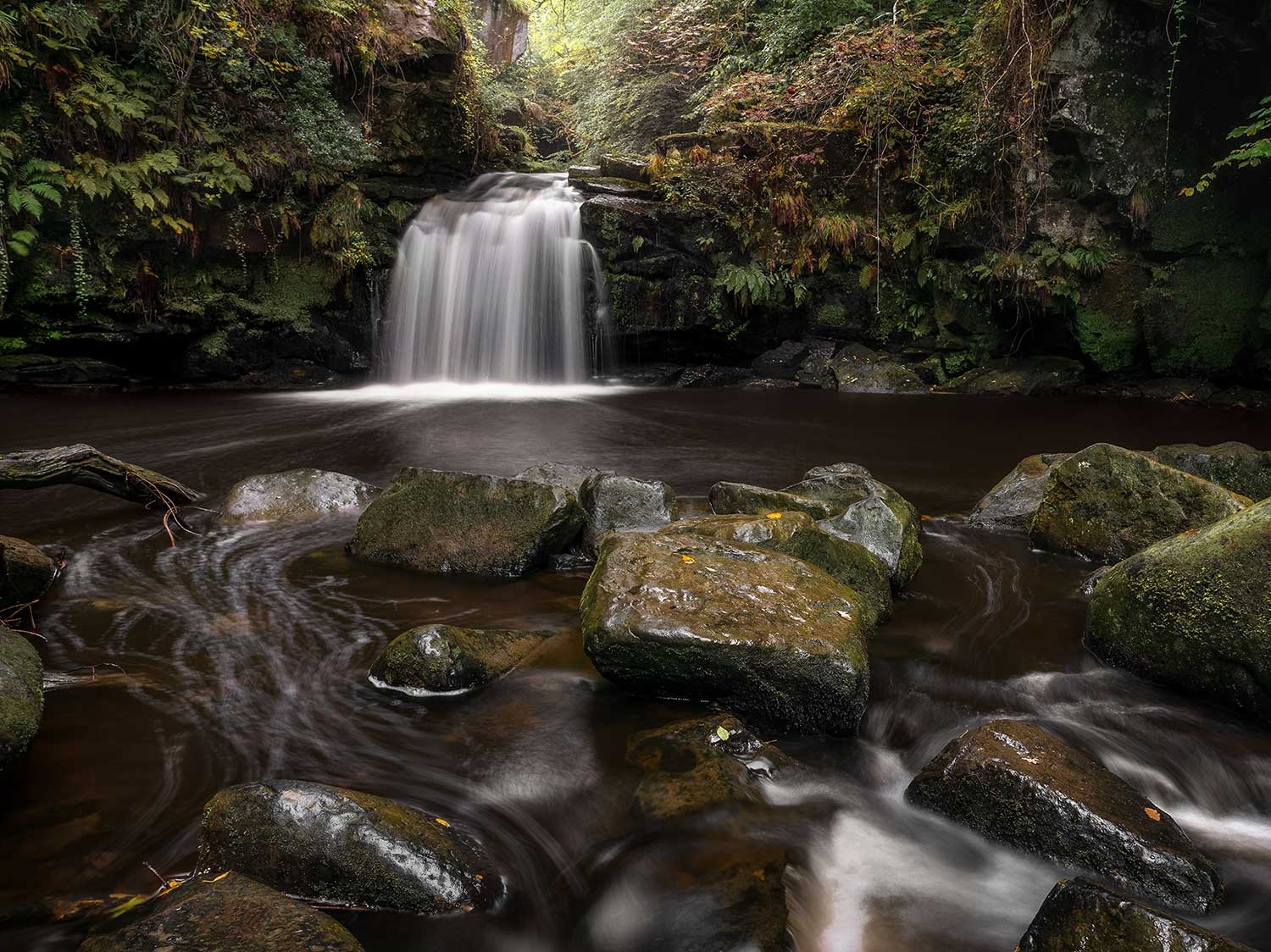
High Res Tripod Mode 80mp. 8-25mm Pro f6.1 1/4s ISO200
LIMITATIONS
There are some limitations to be aware of although they are largely not too restrictive. The highest ISO is 1600, which does limit use for night photography although you probably would not want to use it in this situation anyway because of movement. For longer exposures there is a limit of 60s. As this is the maximum the camera can meter for using longer shutter speeds would mean using Live Time/Live Bulb which are Computational Modes and not available to combine. But a 60s exposure merged 8 or 12 times is still going to 8 / 12 minutes, and it will look longer that that. Standard Bulb is also not available. ISO LOW is usually best avoided too unless really necessary. LOW settings are computational and have lower dynamic range so you may find highlights blow out more than a native ISO such as 200.
Note – Hand Held mode takes more frames (12) than Tripod mode (8) which does mean it can give better results with noise reduction. Don’t be afraid to try Hand Held on a tripod, I have and it has worked out just fine.
EXAMPLES
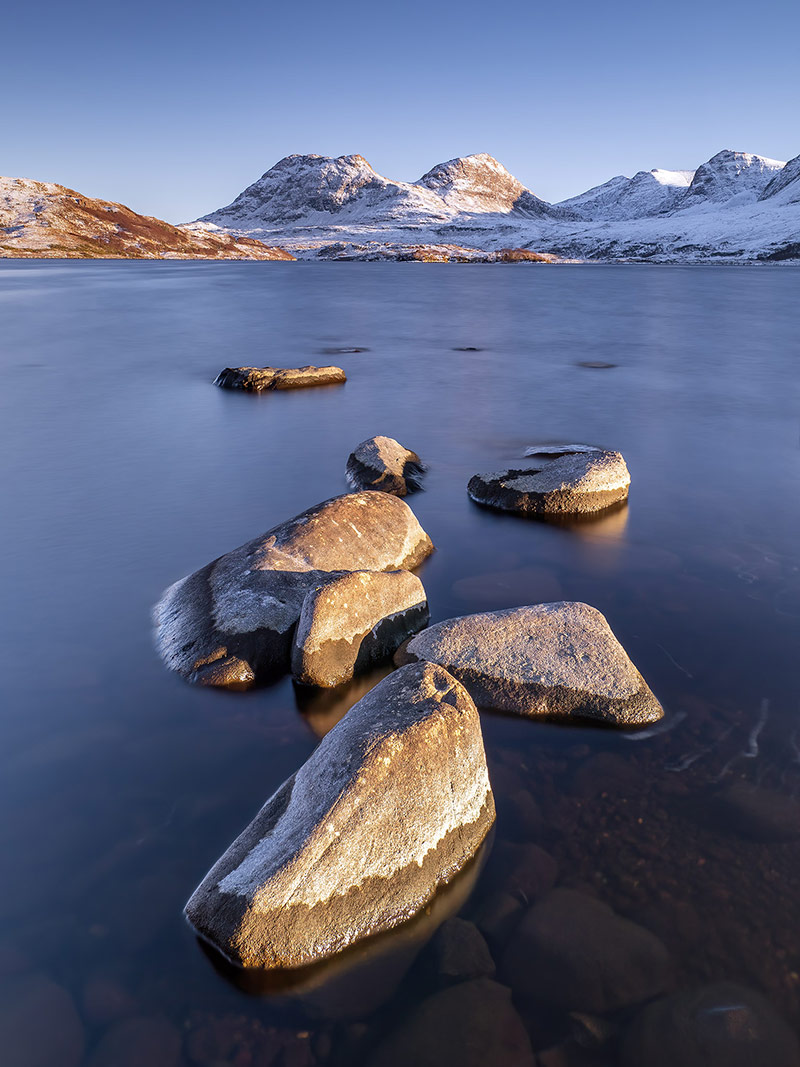
80mp Tripod Mode 8-25mm Pro @8mm f7.1 48s Exp (8x6s)
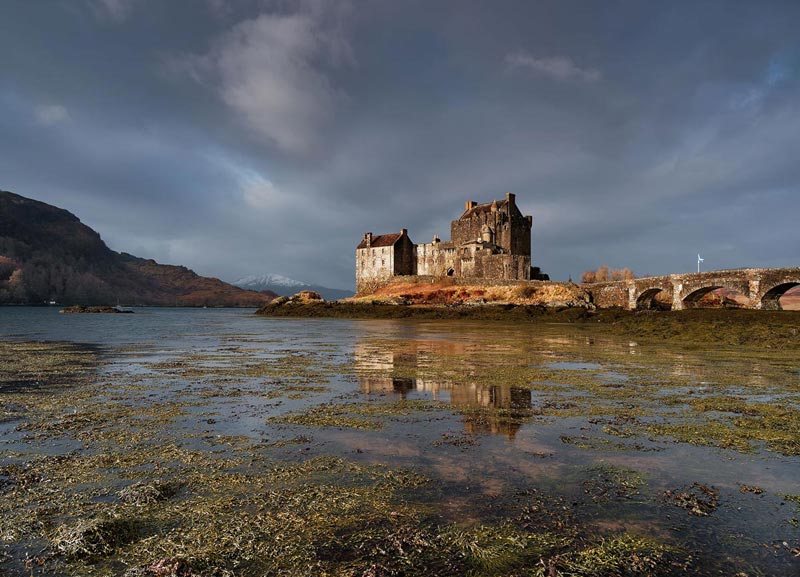
80mp Tripod Mode 12-100 Pro f7.1 2s Exp (8×1/40)
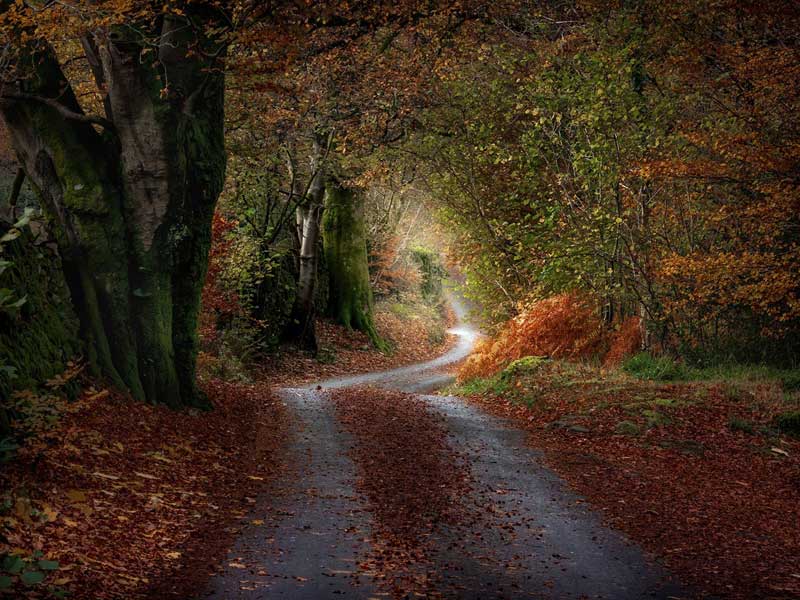
50mp Hand Held Mode 12-100 Pro @60mm f6.3 (12×1/13s Exp)
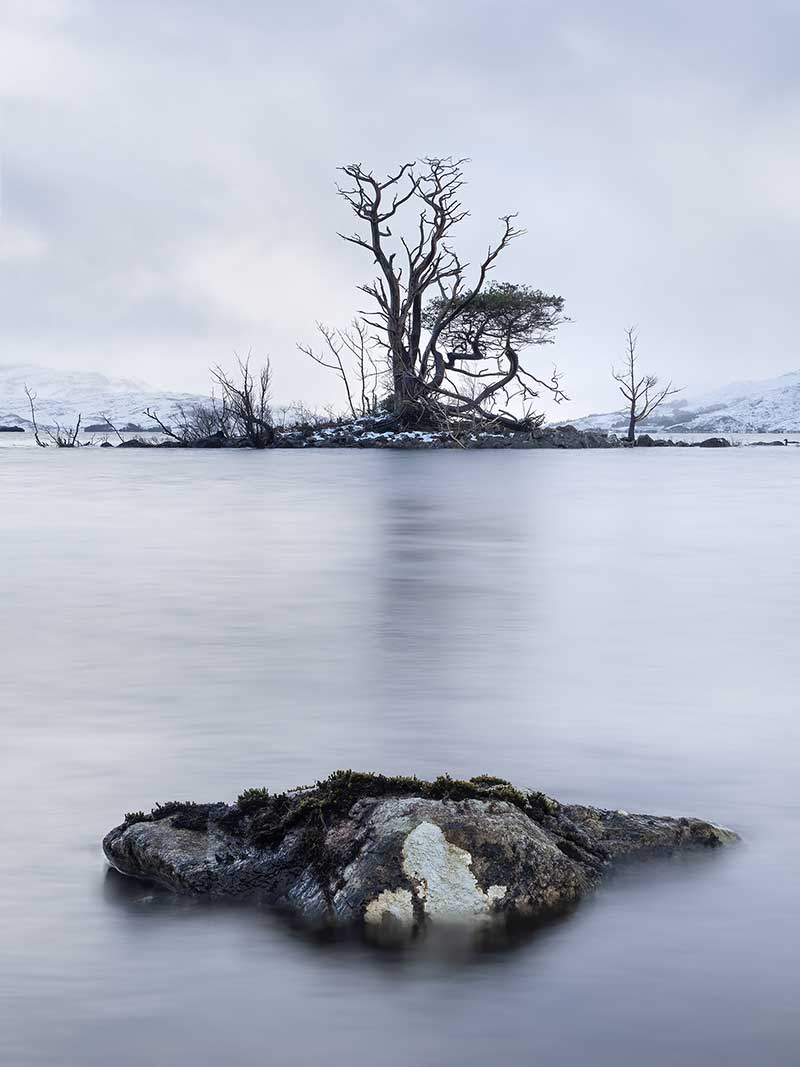
50mp Hand Held Mode (used on a tripod!) 12-100 Pro @26mm f6.3 7s Exp (12×0.6s Exp) Focus Bracketed manually 2 shots and blended in Photoshop.
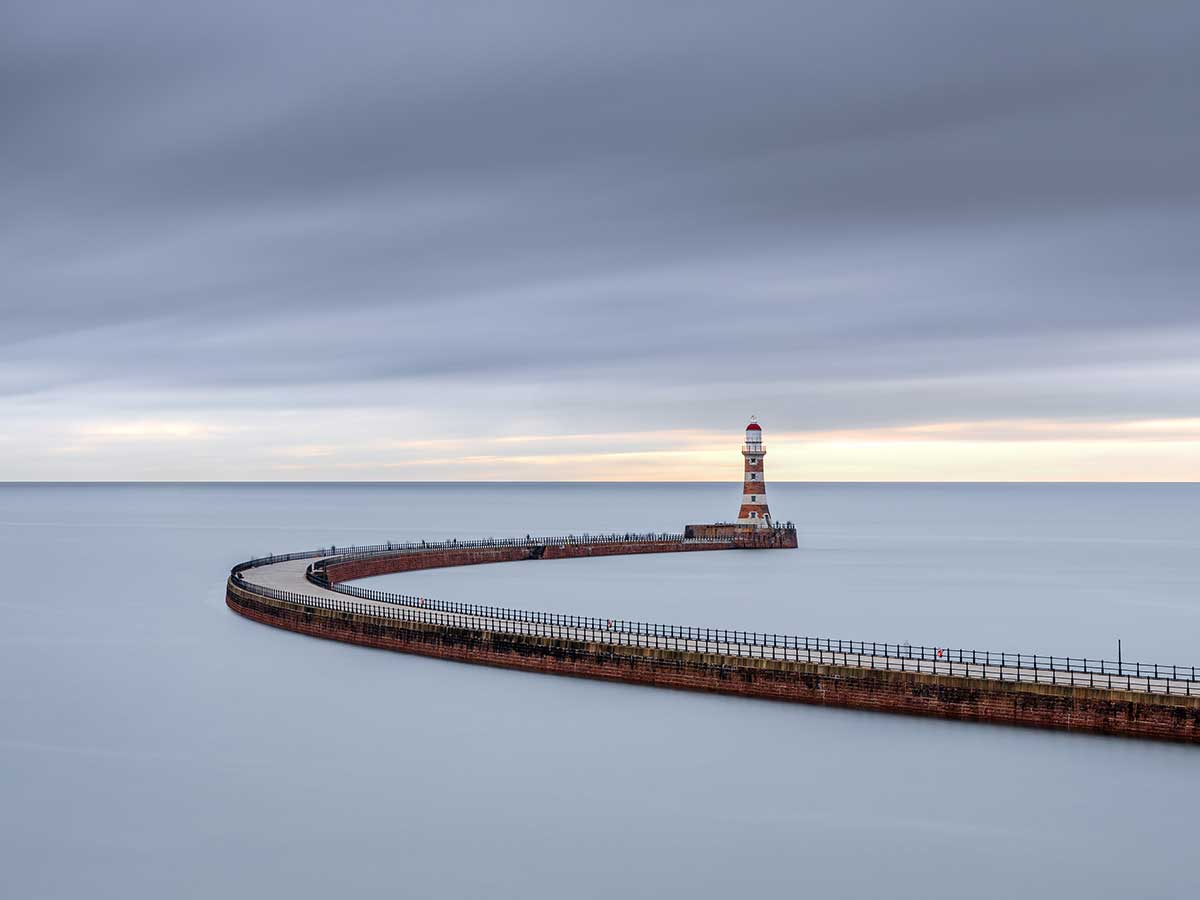
80mp Tripod Mode 12-100 Pro f7.1 @40mm 160s Exp (8×20 Exp)
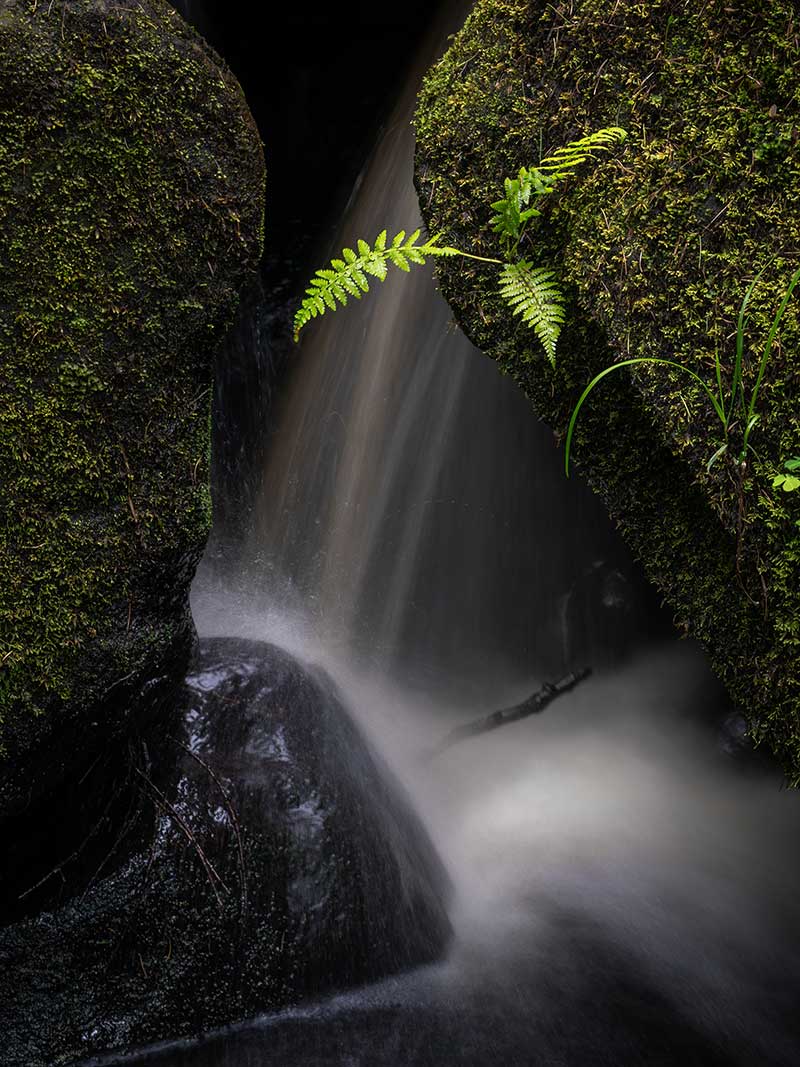
50mp Hand Held Mode 12-100 Pro @50mm f5.6 1.2s Exp (12×1/100 Exp)
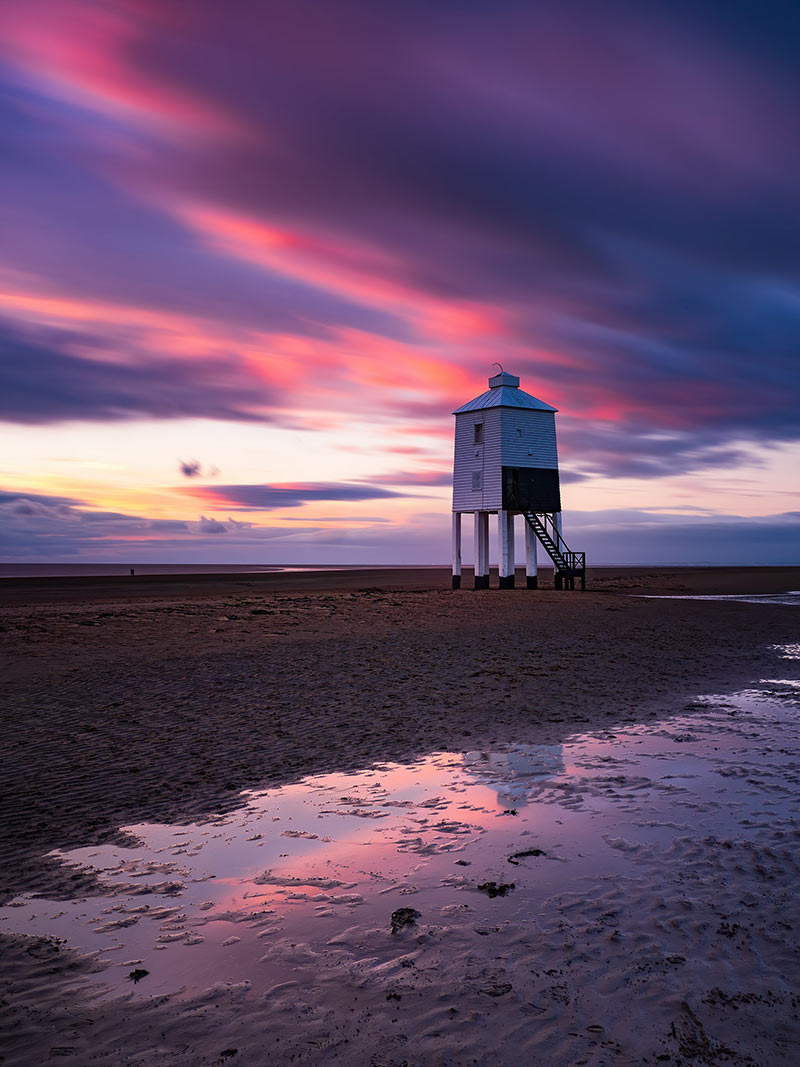
80mp Tripod Mode 12-100 Pro @7mm f6.3 80s Exp (8x10s)
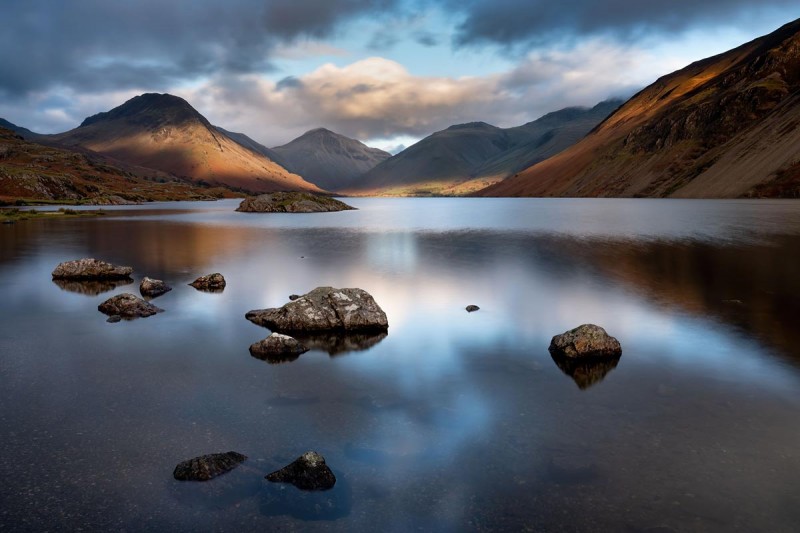
80mp Tripod Mode 7-14 Pro @10mm f6.3 16s Exp (8x2s Exp)
CONCLUSION
High Res Mode is not just for increased detail in images, we have seen there are other benefits such as better dynamic range and lower noise. Deciding when to use High Res is personal choice and if you feel you will benefit from it. It is certainly a great feature to have and one I use often.