ABOUT THE GUIDE
Overview of the guide and how it may help you.
WHY A NEW GUIDE?
Originally my first thought was to update the guide for the OM5 (Mark I) to cover both. But with the introduction of the new Menu it makes it very difficult because the location of some items has changed and screenshots are completely different. Whilst features have not changed, the OM5ii now has the new CP button and an AF-ON button which changes Custom Modes significantly. Imagine how messy and confusing it would be to incorporate two different options in one guide.
Also available as a downloadable PDF for offline reading.
To access the PDF please click the link below which will either download automatically or open in a new window, select ‘Saves As’ on the browser menu bar and save it to your computer.
You can of course open this page on your mobile and then just save it from there. Depending on your mobile device you may be asked to save it or open in in your PDF Viewer, iOS for example I recommend opening it in Apple ‘Books’.
Please view this guide as a reference with plenty of tips and plenty of detail too. It should help to give you a quick way to refresh your memory and encourage you to get out and shoot.
The PDF is quite a large file because of all the images. If a message shows that it is too large to be scanned please click ‘Download Anyway’ and please have internet access.

IPHONE / IPAD
After clicking the link above on your iPhone/iPad a window will open. Tap ‘Download’. Then tap the ‘Download’ icon (a down arrow) next to the address bar of your browser. Then tap ‘Open Downloads’. You will then be presented with another option ‘Open in Books’. I suggest this as the best option, where it will be saved for future access. It will also be located in your ‘Files’ app.
ANDROID
After clicking the link above on your Android device a window may open. Tap ‘Download’ if you are prompted to. The PDF may just open directly without the download prompt. Tap the shortcut menu at the top (3 Vertical Dots) and tap ‘Download’. It will then be saved to your ‘My Files’ app on your device and you will be able to open it with your default PDF Reader such as ‘Drive PDF’.
CUSTOM MODE PLANNER
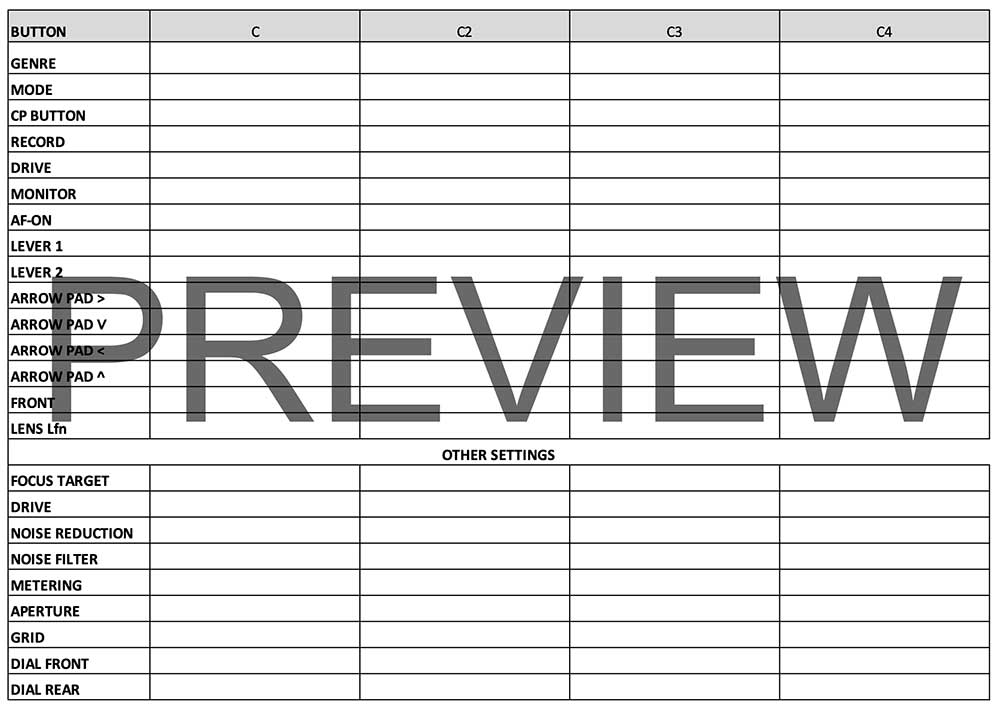
In the Custom Modes section I show various suggestions for Custom Modes in a spreadsheet. To make it more convenient you can access a PFD version to download and print yourself. The settings are left blank so you can copy them or add your own.
Languages
Although the PDF is English, the Guide is also provided as an online version, which can be translated* into many different languages including among others French, German, Spanish, Italian and Portuguese using Google Translate.
Select Websites and your chosen language on Google Translate
*Translation is by Google and I cannot verify the accuracy.
Divided into sections, it covers the menu and how to set up your OM5ii. I include how I set my cameras up, tips and tricks, and suggestions for how you can ‘design’ your own settings. Once you understand my settings and my thought process you should be able to apply the same approach to your own settings.
Photography 101 covers the technical theory of camera settings, the Exposure Triangle, Depth of Field and Hyperfocal Distances before moving on to the aesthetics of landscape photography and Composition. I also give plenty of tips on Planning Locations and an overview of some of the best applications available to use.
In In-Camera Features we will look at how to use some of the features of your OM5ii camera for creative photography, including Live Time, Live ND, Exposure and Focus Bracketing, High Res and Live Composite. It covers all the main features and from these you will understand a great deal about your camera. We will also explore Art Filters, Picture Modes and Video Settings.
Processing Workflow shows you how to develop your own workflow. When processing your images it is crucial to organise the ‘work’ step by step so that you have a ‘flow’. I show you my own, suggest how you can explore one for yourself and suggest applications to use.
Lastly, I will suggest Gear to use, what is essential, what to look for and what to avoid. I include many of the items I use myself and not one single item is something I do not have or do not find useful.
A kind request, please don’t share this with others, for all the hard work that goes into producing my Guides it is nice to get something back for them.
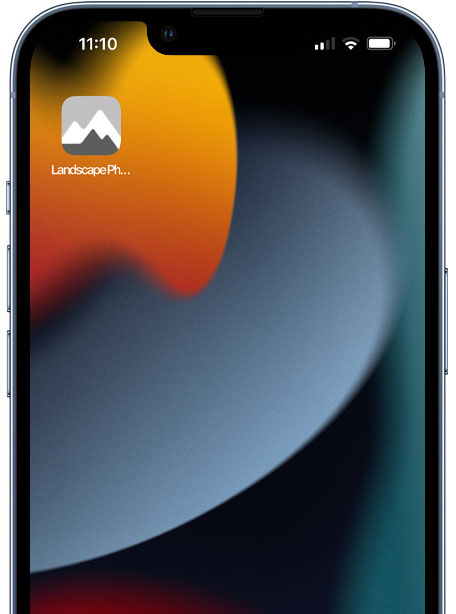
→ TIP Save the online version to your mobile phone for really quick access.
When viewing in your mobile phone browser on IOS and Android select the ‘Share’ menu and tap ‘Add to Home Screen’. It will then be saved with a square icon just like an App. Alternatively simply bookmark it.