

OM5ii CUSTOM MODES
Exploring and creating Custom Modes
The final step in making the OM5ii your own, setting it up entirely to suit you. We will explore Custom Modes, how to create different sets and apply to the camera, and how buttons can be changed to suit each one.
WHAT ARE CUSTOM MODES?
Put simply, they are a group of settings which are then saved to the camera in C, C2, C3 or C4 positions, to allow you to very quickly recall those settings without having to change everything each time.
They can be as simple as you like, or as complicated as you like, it is really up to you how you ‘design’ your Custom Modes. Creating Custom Modes is very simple, just change the settings you want to change, then go to the Custom Menu section and save them to the position you want. Do make sure you press ‘ok’. We can now rename them too!
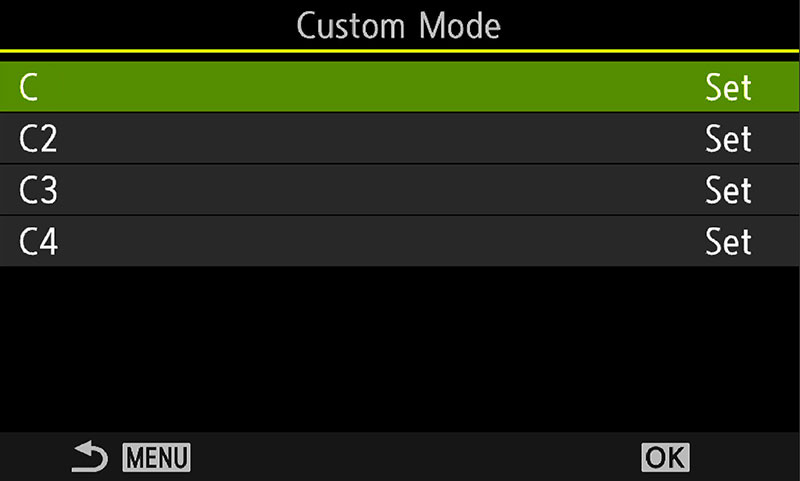
Camera1 > Basic Settings > Custom Mode
→ TIP Custom Modes can be updated automatically if required, but do note if this feature is enabled any changes you make will be saved to the CM. One of the main advantages of CM’s is being able to change settings and return to the original settings without losing them, so I recommend not updating them automatically. Any changes you want to make permanent just resave the CM.
RECALLING CUSTOM MODES
Recalling Custom Modes is a little different on the OM5ii to the OM1 and it is inherited from the EM5iii / OM5. Previous EM5’s used Mysets which could be saved to the Mode dial, overwriting less used modes such as Art, Scene, or the Montage function. The EM5iii / OM5 changed this with just one ‘C’ Custom Mode position, no Mysets, and no ability to save them to the dial. It does make things a little awkward and not quite as easy to get to your Custom Modes. They are still worth using despite this.
Now when you save CM’s you have CM, CM2, CM3 and CM4. The ‘1’ denomination is removed from the first CM because when the Mode Dial is set to C the very first CM is recalled. To recall CM2, 3 or 4 you have to go to the Menu and recall it from the Custom Menu Settings.
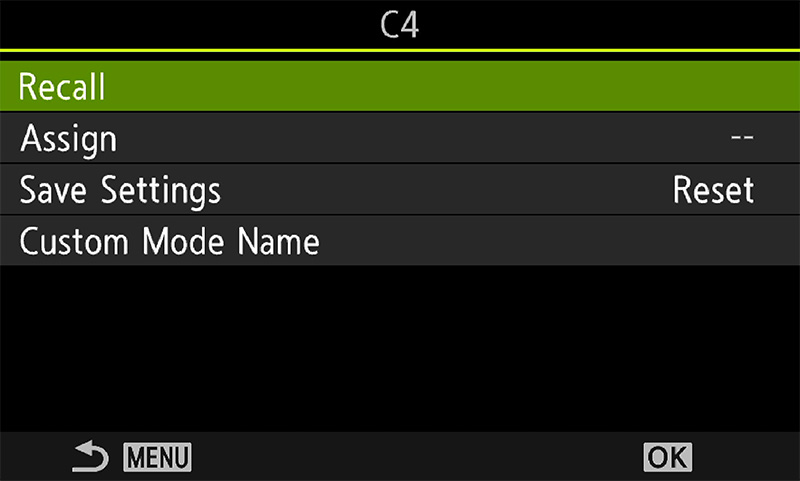
Camera1 > Basic Settings > Custom Mode>Recall
Not quite ideal, a way to speed up the process is to save ‘Recall’ to My Menu. Arrange it as the very first item in the first tab, and as already mentioned set the Menu to recall so if this was your last position it will recall it straight away.
When recalling CM’s set the Mode Dial to C and all settings will be recalled with a small icon on the screen to show which CM is active. Inherited from the OM3 we now have the ability to name the Custom Mode which is a huge benefit. Select the CM and then select Custom Mode Name. The name only shows briefly on the screen but it is enough to jog your memory.
→ TIP Custom Modes can be updated automatically if required, but do note if this feature is enabled any changes you make will be saved to the CM. One of the main advantages of CM’s is being able to change settings and return to the original settings without losing them, so I recommend not updating them automatically. Any changes you want to make permanent just resave the CM.
SAVING CM’S TO A BUTTON
We already looked at saving CM’s to buttons in the Buttons Section. Whilst it is so much more convenient than having to recall CM’s from the Menu there are disadvantages, as already pointed out. The main disadvantage is we simply do not have enough buttons to sacrifice to recalling CM’s. However, if you only need two, I would use The left Drive & Monitor buttons, otherwise I personally would just get used to having to recall them.
SAVING A CUSTOM MODE
Setting a Custom Mode means first deciding which Shooting Mode (P, A, S, M) is needed which is largely personal choice. Changing settings on one of these before saving as a CM is reflected on all because they largely share settings other than the mode, so save a Mode first to the CM position you intend to use.
There are ways to save all the work of starting from scratch, editing a CM and saving to a new position, but you cannot change the Shooting Mode. Another way is to Recall a CM and edited it, but the cleanest way and the one to avoid any conflict is to save the Shooting Mode to a CM and start from the beginning. As we created a Fist Button Set, these will be saved until you change them for each CM.
MAKE A PLAN
The hardest part of setting up CM’s is what to set up? This often comes from experience, so don’t worry if you don’t use them all, you may not have to.
What do you tend to shoot, and will setting a CM save you time? Are you a wildlife/action shooter? If so you may want more than one set of settings, or you may be happy to change them on the fly.
Are you predominantly a landscape photographer like me, or a macro photographer? The suggested settings in the table are aimed at a landscape / general photographer, but you can save whatever sets you like.
Start off with a pen and paper and start to jot down some notes, making note of the genres of photography you are interested in, what main settings you think you would use and how they will differ from each other. This way you will start to make sense of how you can utilise the modes.
→Tip 1-Although there are 4 modes, save your basic settings to one. We already did this in the last section. This becomes your default ‘go-to’ mode, and you have the security of knowing no matter what you change during a shoot it will default back to the saved settings next time. Switch the Mode Dial or reboot the camera to escape back to your defaults quickly.
→Tip 2-Remember to utilise the MY Menu. You may find you’re running out of CM’s, or the difference between one and another is just one setting or variable which you don’t want to set a CM for. Add the function to My Menu and set My Menu to the Start Position when you press Menu. This will give you fast access to the variable without needing to set up another CM. See the Section “Menu” and “My Menu”.
A FEW IDEAS
If you’re having difficulty thinking of CM’s to set, it could mean you don’t need to. Keep it simple, you can always set more up when you need to and as your photographic journey evolves. Here are a few ideas, just with very basic settings to get you thinking about the possibilities.
1- STREET B&W Create a CM for black and white art minimal images with a 1:1 square crop, or for street and architecture. Setting a crop or a black and white profile is not applied to RAW’s, but seeing the effect as you shoot is better for composition. Changing the profile and indeed ratio are simple enough to access, but the point here is you can set up a CM for just about anything you like.
2-ASTRO/MILKY WAY A CM for Astro/Milky Way using Starry Sky AF. Although these settings are easy enough to set without a CM, if you shoot the night sky often a CM would be useful for you.
3- MACRO. If Macro is your thing a dedicated CM can be a real convenience saving access to features and most frequently used settings.
4- WILDLIFE. We will save a CM which forms the basis for a wildlife setting, you may wish to have another if this is your genre. Perhaps an option for ProCapture with additional default settings saved, with a fast shutter saved as default.
SUGGESTED CUSTOM MODES
The table below shows the Custom Modes I have set on My OM5ii, and in a very similar fashion on my OM1. In fact when using multiple bodies I try to make settings as similar as possible for familiarity, other than features specific to different models. Note which settings are default across all modes, and where settings have changed for specific reasons.
The Shooting Mode for each CM is denoted in brackets, (B=Bulb), (A=Aperture Priority) etc, and under each one a title is given to denote what the primary function of the CM is for.
On a mobile swipe to view all sections ↔
CP BUTTON & MANUAL
The new CP Button really does make accessing Computational Modes much easier, using less buttons! But Live ND can only be used in M or S. Therefore the last button set we saved was M (Manual). People fear M, but don’t let the name fool you, these days manual is not fully manual, it is no more difficult to use than A. In M we set the aperture and shutter speed and the Exposure Meter tells us if it is good or not (0 is good, + or – is over or under exposed). In A we set the aperture, and then set the Exposure Compensation and watch the Exposure Meter. Exposure Compensation alters the shutter speed! Guess what, A and M are the same, its just a different name.
| Button | C (M) | C 2 (A) | C 3 (A) | C 4 (M) |
|---|---|---|---|---|
| LANDSCAPES | PEOPLE | MACRO | WILDLIFE | |
| CP BUTTON | COMPUTATIONAL | COMPUTATIONAL | COMPUTATIONAL | COMPUTATIONAL |
| RECORD | AE-BKT | RECORD | DIGITAL ZOOM | RECORD |
| ISO | ISO (200) | ISO (200) | ISO (200) | IS MODE |
| DRIVE /
MONITOR |
DEFAULT
NIGHT VISION |
FACE/EYE DETECT
FACE/EYE SELECT |
FOCUS STACKING
FOCUS BKT |
DEFAULT
AF LIMITER |
| AF-ON | AF-ON | AF-ON (FACE PRIORITY) | AF-ON | AF-ON |
| LEVER 1 | C1 S-AF/MF | MIDDLE S-AF/MF | C1 S-AF/MF | CROSS C-AF/MF+TR |
| LEVER 2 | MF | MIDDLE C-AF+TR | MF | LARGE C-AF/MF+TR |
| DIRECTION > | WB | WB | WB | WB |
| DIRECTION ∨ | DRIVE | DRIVE | DRIVE | DRIVE |
| FRONT | PEAKING* | PEAKING | PEAKING | PEAKING |
| LENS Lnf | D ZOOM | D ZOOM | D ZOOM | D ZOOM |
| OTHER SETTINGS | ||||
| FOCUS TARGET | SMALL C1 | MIDDLE | SMALL C1 | CROSS/ALL |
| DRIVE SPEED | SINGLE | SINGLE SILENT* | SEQ SILENT | H SEQ SILENT 15fps |
| NOISE | AUTO | AUTO | AUTO | AUTO |
| METERING | ESP | ESP | ESP | ESP |
| APERTURE | f6.3 | f4 | F2.8 | f2.8 -1/1600 |
| GRID | #3 GREY | #3 GREY | OFF | OFF |
| DIALS |
FRONT>SHUTTER REAR>APERTURE |
FRONT>EXP. COMP REAR>APERTURE |
FRONT>EXP.COMP REAR>APERTURE |
FRONT>SHUTTER REAR>ISO |
You will notice how many of the settings are consistent across each of the CMs and I only change it if there is value in doing so for the particular mode. In many cases I do not need to make too many changes because I thought about it first and made a plan. I have the main settings I use most often saved on the first CM so it is quickly recalled from the C Mode Dial position.
C – LANDSCAPES / GENERAL
My Main Mode with all the buttons and menu options I want as default saved. No matter what I change during a session I know it will return to default the next time I change the Mode Dial or switch the camera off. Ever changed a setting only to find it still set the next time and ruined the shot? CM’s solve that issue. I tend to prefer Aperture Priority over Manual because there is actually little difference between the two with Olympus. However as Live ND (available from the CP Button) is only available in M or S, I use M. As said previously there is no need to feel intimidated by Manual, just don’t use it like a badge of honour as some people do.
Note Peaking has been set by mapping the Multi-Function feature and then setting it to Peaking.
I often Exposure Bracket so having this as an option suits me. Metering is ESP, or evaluative, in most modes. Image Stabilisation is so good now that it is more than possible to bracket even hand held, but it is best to use a tripod and a cable release.
Metering Mode is ESP. To me there is little point using any other because I make judgements myself and use Exposure Compensation along with the Histogram to set exposure.
I set the focus target to the smallest possible with small steps, 1×1, as already said in the Buttons Section. Menu AF>6.AF Target Settings>AF Target Mode.
Note ‘Grid’. I set it to Grid 3 which is the closest to Thirds in an unobtrusive Grey (Preset 1-R38, G38, B38 a75%) which I find more useful than the on screen Levels.
Also note the Dials, for some reason A and M always have them swapped opposite. It makes more sense to always have aperture on the rear dial. Shutter and Exp Compensation should be on the front dial (note Exp. Comp just changes the shutter speed anyway). They can be swapped in Cog>1. Operations menu.
→ TIP Using Custom Self Timer as a Continuous Drive.
A neat little trick, using Custom Self Timer allows for a delay to be set as normal, and also a user selectable number of images. A delay between each frame is required which can be set to a minimal 0.5s. Set this up and then enable Bracketing, find yourself out of luck with a cable release and this becomes a neat way of bracketing without having to hold down the shutter button.
C2 – PEOPLE
You may or may not be interested in a CM for People, however the Face/Eye Detect has been greatly improved and a new feature added, Face Selection. Face Selection is only accessible when it is applied to a button, so it makes sense to set both functions to the left hand Drive/Monitor buttons for convenience.
Press Face/Eye Detection and a box will appear around the detected face allowing the AF to focus either on the face or the eye if one is detected clearly enough. The problem is when there is more than one face, the camera doesn’t know which is priority. Long Press the Face/Eye Selection button and use the front dial to move it to the face that should have priority. Brilliant.
Note the differences with the AF targets and the AF Modes on the lever. In this case we have on L1 a Middle target size, considerable bigger, in single AF or S-AF. On L2 it is C-AF+TR. This means with a quick flick of the lever we can now be in continuous focus with tracking enabled, great if your person in the frame is moving around. Unfortunately we cannot set two options for the drive mode, but with easy access to it on the D-Pad Down Arrow is is simple enough to change it to Sequential. Silent is best with people, plus it saves wear and tear on your mechanical shutter.
AF-ON can be given Face Priority (Menu AF>2.AF>AF-ON) meaning it will force the AF to look for faces.
C3 – MACRO
We have Focus Stacking and Focus Bracketing available for Macro. Stacking is available from the CP Button and produces an in-camera stacked Jpeg and has some limitations with the number of possible frames, whilst Bracketing is much more flexible but only saves individual frames which have to be stacked on a PC. Which you use is up to you and no doubt you will use both (see ‘Features-Focus Bracketing/Stacking’).
Although Stacking is available from the CP Button, it makes more sense for convenience to have stacking and bracketing applied to the left Drive/Monitor buttons. The drive mode will change to Silent Sequential automatically.
Digital Zoom can be useful to enlarge your macro shot. As Digital zoom only affects jpeg images your raw bracketed images will have an indicator box to show the zoom, but they will still be the full raw image. The zoom was mapped to the Lens Fn button which fine for the 90mm Macro which has an Lfn. But the popular 60mm Macro doesn’t, so if you want to use Digital Zoom you’ll need to map it somewhere else.
Peaking is really useful for macro. Remember we mapped it to the front button and also enabled MF+Assist in the Menu. Use MF and the image will magnify and show peaking, press the Peaking button first and it will not magnify. Sometimes the magnified image can be a hinderance when you want to see the full scene. Once you are happy with AF press Peaking any time to show the highlighted edges without having to touch the focus rings.
The Lever and AF-ON comes in very handy here. There is nothing wrong with using AF in Macro. Once you have it set, flick the lever to L2 and your focus is locked and will not alter when the shutter is pressed. AF-ON will enable AF again without having to move the lever back to L1, one more advantage of Back Button Focus. How cool is that!
C4 – WILDLIFE
The OM5ii is not a wildlife camera, it doesn’t have any of the advanced Subject Detection Modes or other features of the Om1. That does not mean you cannot use it for wildlife, photographers were doing so long before any advanced features and had to rely on skill. Sequential drive speeds are also more limited, however a max of 30fps is still more than capable. And there is a reason the OM5ii still has Pro Capture.
Using Manual Mode the shutter is saved as a default at 1/1600s with Auto ISO at an upper limit of 12800. Auto ISO means the camera will change ISO depending on the shutter speed you select, which is the most important factor with wildlife. Do not be afraid of high ISO, in good light and with modern processing applications these days Noise is much less of an issue. And a noisy sharp image is better than a blurred image with no noise. You may also decide to save this mode as Shutter Priority, or Aperture Priority, what matters is you select the shooting mode you are most comfortable with.
The main parameter to observe here is the change with the front and rear control wheels, the front is now set to Shutter Speed and the Rear is ISO (Cog>1.Operations>Dial Settings. Select the desired shooting mode and change the wheel settings). Using Auto ISO, set the shutter speed desired and the ISO will update to a suitable setting. With ISO on the rear wheel we have the ability to self select a fixed ISO faster than using the ISO button, which means it is easy to regain manual control by setting the ISO you want and setting the shutter speed manually, perhaps to under or over expose a little.
Setting ISO to the control wheel means we lose the ability to change Aperture, but we have access to it on the rear D-Pad Up button. It is not as convenient to change as on the front wheel, however for wildlife Aperture is a setting you will change less frequently and it will be set to mostly wide open depending on your lens.
Drive Mode is still accessible from the left top button and the D-Pad. If there is another setting you want, save it to the top button. For wildlife your left hand will be cradling a long lens so the more we can use the right hand for settings the better.
The Drive speed is High Sequential Silent at 15fps. (Menu Camera1>7.Drive Mode>Sequential). By accessing the Drive Mode from a button we can quickly change between Single, Silent Sequential, Sequential High, and Pro-Capture, but check the settings first and set what you think you need. Mechanical Shutter is limited to 6fps and is best avoided. I would set Silent Sequential to 10fps, Silent Sequential H to 15fps, and Pro Capture to 20 or 30fps. With these options set you can quickly set the number of frames you think you need from the Drive Mode. 15 frames per second I find is enough for most circumstances, and Silent Mode is preferable. Silent is electronic shutter so it also reduces wear and tear on your shutter. Remember that the higher the number of frames the faster you will fill a memory card, just a short session can easily result in a few thousand images to review.
In a situation such a Kingfisher diving into water Pro Capture is useful. Check the settings and set what you think best, 10fps to Pro Cap and 30fps to Pro Cap H. You also have the option to set the number of pre-frames that will be saved but remember we do not have the buffer of the OM1 so recording will be slower and you should also have fast memory cards. Pro Capture attempts to remove the delay of your reaction time between half pressing the shutter and fully pressing to take the shot. As soon as focus is achieved the camera starts saving images to the buffer, and only stops when you fully press the shutter to record your shots. You will get ion essence the pre-shots, and the shots you took, so with luck the pre-shots will reduce the number of beak shots and tail shots you get because you were too slow.
Notice also that I have AF Limiter saved to the Monitor button. For wildlife the ability to limit the range a lens will focus over and prevent it hunting can be useful.
ISO is saved as IS Mode for quick changes between stabilisation settings when hand holding or tripod use, when it is essential to have IS off. Some lenses have an IS switch on the lens and some do not, so it’s useful to have quick access. It is also useful to be able to change IS Mode when panning, in which case case being able to swap to IS 2 Vertical shake only is useful.
Lever 1 and 2 are both set to C-AF/MF with Cross Target size set to 1, and Large set to 2, allowing for quick changes between settings. You should consider what suits you more and whether you tend to shoot a mixture of wildlife, or mainly birds. Perhaps a small and medium target would suit you more but remember they are easy to change on the fly; once the target is active (press the D-Pad Right button) use the rear wheel to scroll through the various options.
Digital Zoom is mapped to the Lens Fn button. Some lenses such as the 100-400 do not have a Lens Fn which is awkward, so you may want to consider mapping it to the front button instead of Peaking, or the top Drive button. Digital zoom means cropping the image, even though the raw will still be the full size with a border to show the zoom, when cropping you do loose pixels and therefore detail. Photoshop have released their AI Super Resolution which seems to work very very well, and of course there are other Apps such as Topaz Gigapixel.
We will look at these settings in more detail in the Wildlife Section.
EXPANDING CM’S TO 5
Although there are only 4 CM’s there is a work around to expand it, in a fashion to 5 by using one of the standard PASM modes.
If like me you have covered everything you need with a CM but still need one more just use one of your standard modes instead. I have considered all my CM’s carefully and find that I only use those without needing to use any PASM Modes, so you can use that to your advantage.
If you have another CM you really wish you could set, set it up on the mode you need, S, A, or M. The settings are saved and you can recall them just by switching to that mode. The down side is any changes you make will be saved, such as ISO, aperture etc to each mode so be aware of it. It is still a useful feature to have.
IMPORTANT
Do remember any changes you make whilst using a CM will be lost when the camera is turned off, the whole point of CM’s. Any changes you want to preserve as part of the CM will need to be resaved to the CM, overwriting the original one. CM’s can be set (using ‘Hold’) so that any changes will update it, I find this pretty pointless and avoid it.
COMPLETE
Congratulations, you have now completed setting up your camera. I hope this has been useful and it will serve as reference for the future. Your settings will evolve and mature over time, change them as you progress and don’t forget to save them.
Next we will look at the technical aspect of creating images with your camera, the Exposure Triangle, Depth of Field and understanding apertures, and where to focus in a scene before moving on to Composition.