

OM5ii CUSTOMISING BUTTONS
Setting up your first set of buttons on the OM5ii.
In the previous section we went through the main menu and set it up accordingly. Now we will look at how to set up the various buttons on the OM5ii, the options available, and how to change them. They will form the defaults for the standard PASM modes and the base for your Custom Modes.
FAMILIARISE YOURSELF
First get to know which buttons can be changed and how to do it, it is actually very easy.
→(Gear)1. Operations> Button Settings.
From here you will see buttons we can change. Note the Lens Fn button (Pro Lenses) can be changed. Consider carefully, it is silly using a function you need if you also use lenses with no LFn button.
Also important to note are buttons and functions which are not available. Some would make little sense to change and others would be dangerous. Imagine changing “Menu” and then not being able to access it?
⊗ ITEMS NOT AVAILABLE TO CHANGE
Menu
OK
Info
Trash
Playback
Top Mode Dial
Direction Pad Up
Direction Pad Left
CP BUTTON
The new CP Button (computational photography), inherited from the OM3 is genius in my opinion. It allows direct access to all Computational Modes, Hi Res, Live ND, Live Composite, Focus Stacking, HDR and Multiple Exposure. It is a multi-function button and does in many ways save the need for 2 or even three customised buttons so all is not lost. It has been implemented very well too:
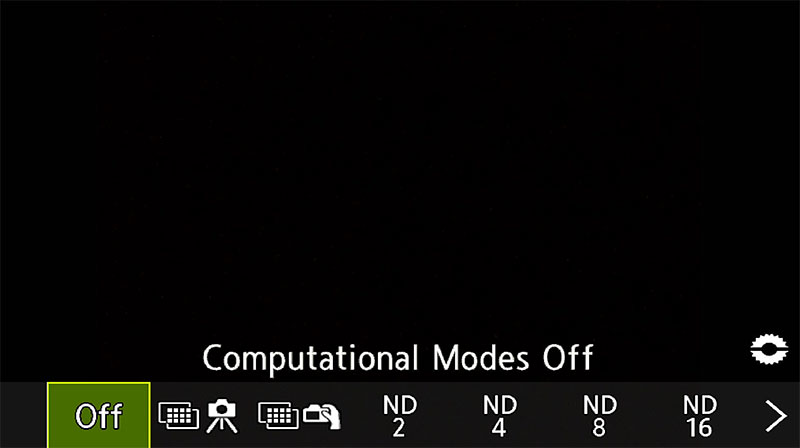
Press CP to activate and deactivate the last used CP Mode.
Long-Press/Turn Front Dial to scroll through CP Modes.
Some CP Modes have selectable options such as the number of frames etc in Focus Stacking. When active, Long-Press CP again to open the settings. Press Menu to quit out.
FIRST BUTTON SET
‘Direct’ Buttons are buttons that can be changed and the OM5ii has 5 in total. However 3 of them are buttons with valuable functions such as the ISO button, AF-ON and CP button, which means there are actually only 2 buttons that can be changed to more useful functions, the Record button and the Front button.
All is not lost though. The CP button does actually work as multi-function button; before it was introduced on the OM3 quick access to some of the computational functions would need two or more buttons. Indeed on the OM1.2 we have a dedicated button for Hi Res and would still have to use others for Live ND for example (if you are new to Live ND trust me, the only way to use it for convenience is from a button).
We do have two ‘Wild Cards’ though, the Drive button and Monitor button on the top left, and both can be assigned to other functions. I prefer to have as many functions on the right because my left hand is usually cradling the lens. To this end I always assign WB and Drive to the D Pad (see below), so the Drive button is redundant. The Monitor button is redundant, serving only to recall the Super Control Panel. We can already recall the SCP in Live View from the OK button, so the Monitor button is one we can change with no great loss.
Set your buttons up as below. Although you can change some of these suggestions to your own preferences, it’s important to keep a logical rationale. Don’t make them too complicated because we will change some of these further in Custom Modes. Read the section “Custom Modes” to get a sense of how this button set works and fits in with the overall scheme. You may want to make a plan of your own, planning is key.
View this first set as a starting point and remember that they are the buttons that will be active in standard modes such as A and S. Also see the Notes below. Set the dial mode to M and starting going through the button menu. Live ND is only available in M or S, so it makes sense to start of with M. Once you have set them, ensure you save them in the Camera1>1. Basic Settings>Custom Modes to C1.
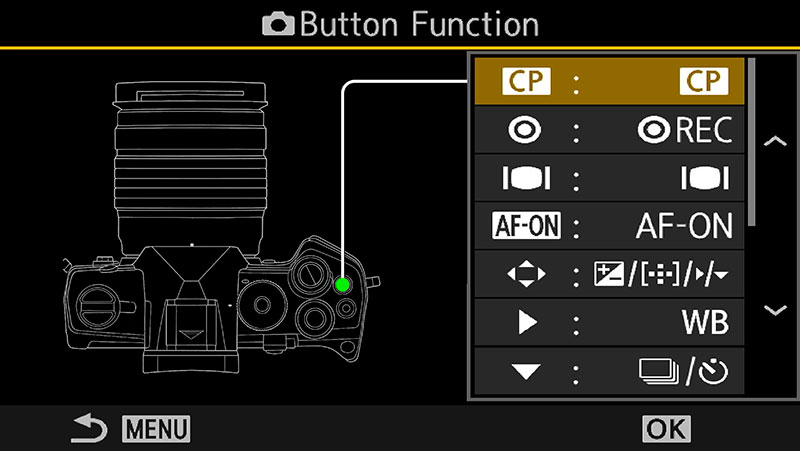
Cog Menu>1. Operations>Button Settings. Make a note of the default button settings just in case you want to reinstate them without doing a reset.
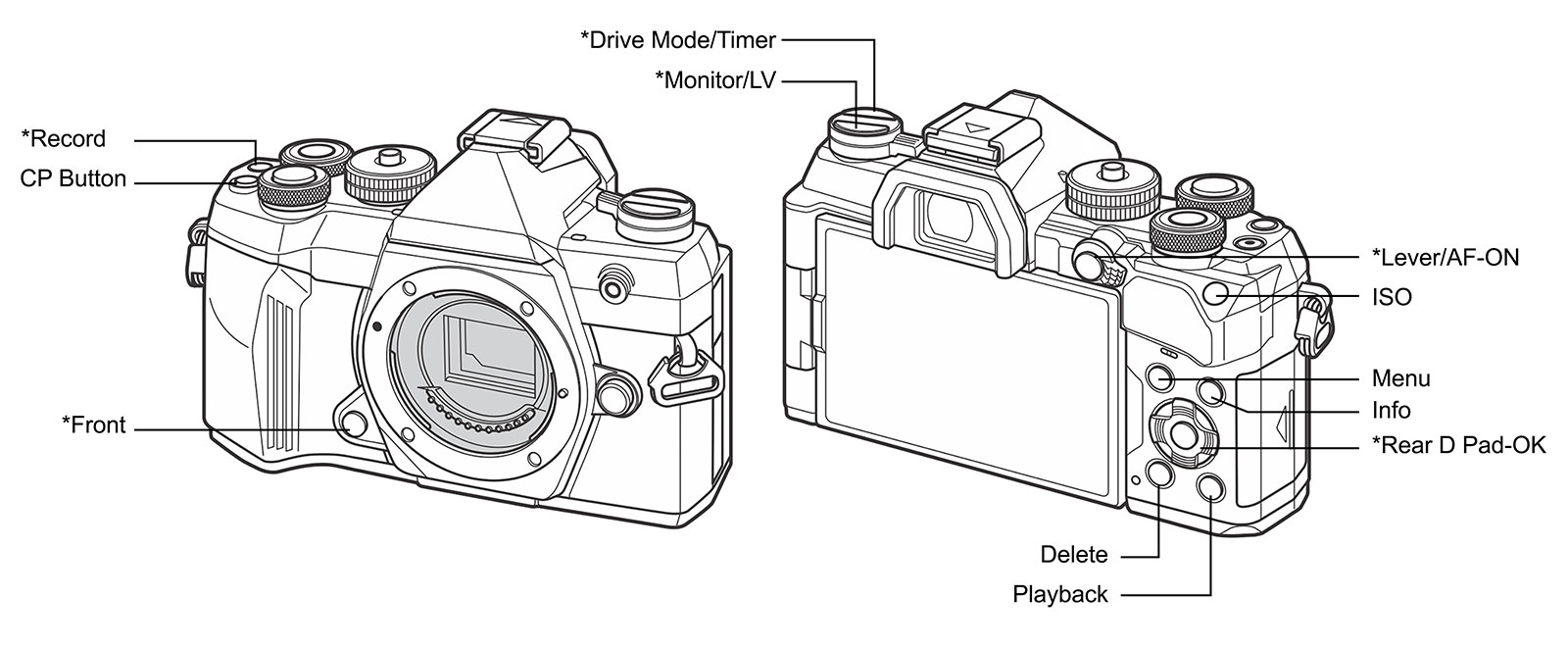
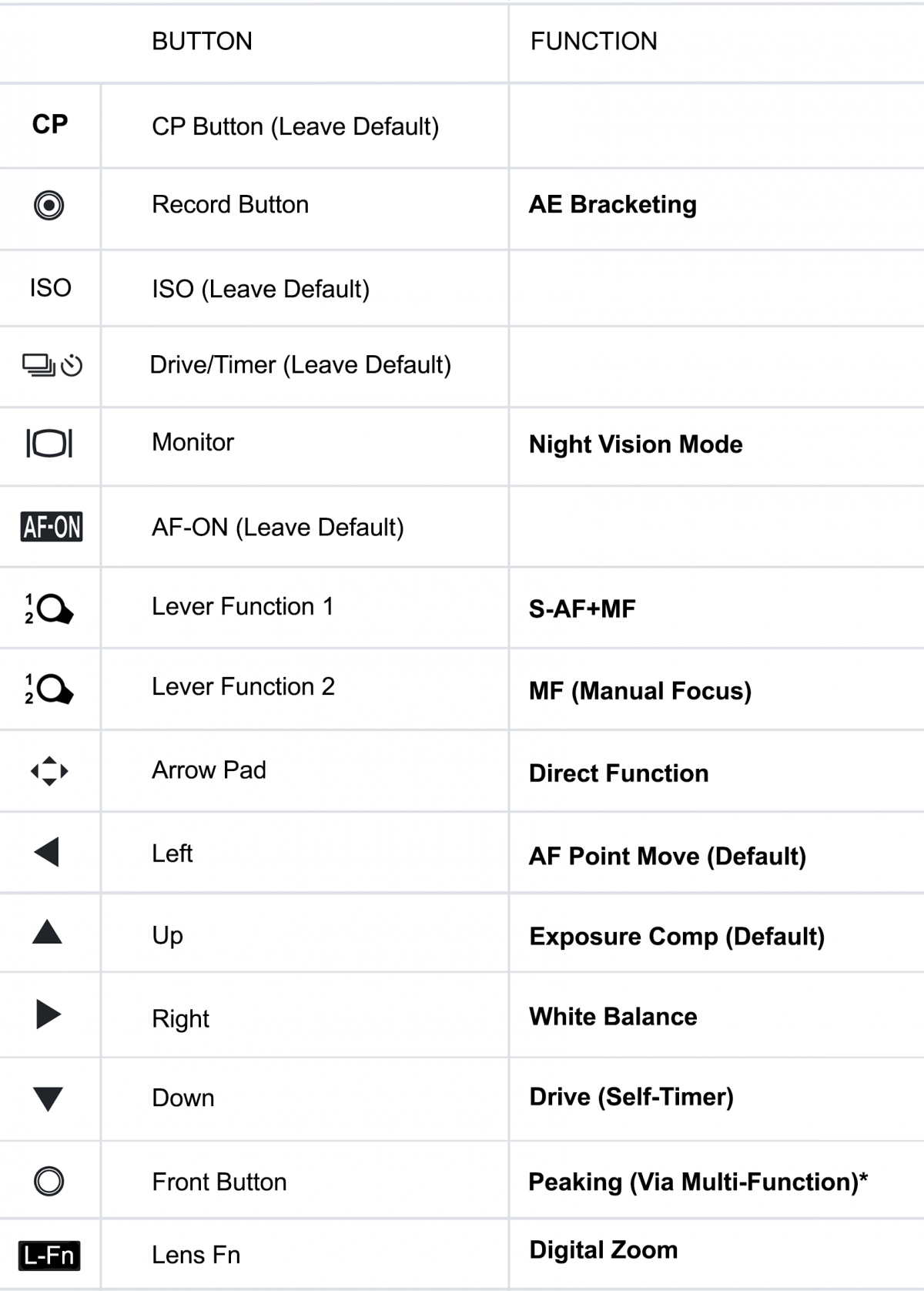
Only buttons shown with * will be changed. The others will stay as default.
USING BUTTONS TO RECALL CUSTOM SETTINGS (C1-C4)
You will notice C1 etc being available to map to buttons, and considering the OM5 and OM5ii CM’s have to be recalled by going into the Menu (not very convenient) why not use buttons instead? Simple. There are issues; suppose you use all 4 CMs and C1 can be recalled from the C Mode Dial. The other three would have to be assigned to three buttons and they are in short supply, and they have to be assigned in all Custom Modes so the buttons will do the same function in each otherwise it will not work. And CMs cannot be recalled from a button when the Mode Dial is at C, it has to be in any PASM shooting mode. That means switching to C for C1, then switching to PAS or M to recall others from a button.
This is the reason I tend to avoid using buttons for CMs, it uses up valuable buttons. Should you only have a couple of CMs by all means use the Drive and Monitor buttons and you can bypass the chore of having to recall CMs from the Menu.
NOTES
CP BUTTON
Leave Default, it is far too useful to mess about with.
RECORD
Set to AE BKT (Exposure Bracketing).
Once set, long press the button and turn the front wheel to set to 3 frames at 1EV (1 Stop), then turn it off by pressing the button again. Now each time the button is pressed it will recall Bracketing with 3x1EV frames. Sometimes this is not enough depending on how challenging the light is, in which case we can easily change to to 5 frames at 1EV, equivalent to two stops over and under which is more than enough. Note also that once set, it can be shifted up or down using the front wheel; in this way we can manipulate how many frames are over or under exposed which is very useful, (see the In-Camera Features-Bracketing Section).
Olympus/OM System have always had a curious approach to the Bracketing function which persists even now. If you set HDR from the Menu (not the CP Button), notice there are many more bracketing options available, all the way up to x5 frames at 3EV (3 Stops). 2EV is also available and yet not 1EV. And these bracketing options in the HDR function are not available from the CP Button. I have repeatedly called for them to be consolidated into one which would make more sense. It creates a conundrum, which do we use, the HDR Menu options or AE-BKT? Use AE-BKT, the other options are usually too much, it would be nice to have them all in one though.
ISO
Leave at Default.
DRIVE
Leave as default for now. We have enabled Drive on the D-Pad Down Button and we will find better uses for the main Drive button Later. Do look at the options and see if there is a function you would rather have though. It is much better to have frequently used functions on the right side of the camera, accessible from your right hand. Being honest, I forget those buttons are even there. I do the same on the OM1 and have drive on the D-Pad instead of on the left-shoulder button.
MONITOR
Set to Night Vision (Night LV)
This first set of buttons is going to form the basis of my Landscape / General Custom Mode. Having Night Vision accessible from a button is very convenient, I often shoot in low light. Doing night photography and even the Aurora which has been very active lately means I can use these same settings and just increase ISO and enable Starry Sky AF if needed.
AF-ON
Leave Default, again it is a very useful button which gives us the ability to use Back Button Focus without having to set it full time. See Below
LEVER 1 & 2
Set Focus Options. See the section below on BBF.
You will have already set this in the Main Menu Section. We will use the Lever to set a single auto focus point on L1, and on L2 set up Back Button Focus. First in Gear 1. Operations>FN Lever Settings ensure the lever is set to Mode 2. Now with the Lever in L1 set S-AF+MF from the Super Control Panel. In the Menu AF>AF6>target Mode Setting enable C1 and alter it by setting 1 and 1 to the size. Press Info and also set 1 and 1 to the Step. This gives the smallest AF point with the smallest step for more accuracy.
With the lever in L2 set MF from the Super Control Panel. We now have two options, in L1 a small target size with single auto-focus and in L2 manual focus, and the AF-ON button will still perform AF. The suffix +MF (S-AF+MF) means that when holding the shutter half pressed and holding AF, the manual focus ring can be used to fine tune focus if needed.
There are multiple advantages to this, by having two modes we can quickly switch between. Further, it stands to reason it is not limited to just these focus modes, we can also use it for Continuous AF, and Tracking, and we can even change the size of the focus target point to any of the available options. For now read the section below for BBF, and then we will change it for a Custom Mode to utilise Continuous AF with other settings for when it is really needed.
REAR DIRECTION PAD
Set to White Balance and Drive Mode.
When setting options to the 4 way Direction Pad on the rear of the camera first select ‘Direct Function’ to access other options. As default the D Pad controls the focus point position by pressing any direction button. When setting the D Pad to ‘Direct Function’ you do not lose the ability to move the focus point. Press the Left Direction and focus point position is activated again, returning each of the Direction buttons back to the original function temporarily. In other words the D Pad can be set to multi-purposes other than the default.It does have some limitations, only the right and down buttons can be changed and there are limited functions available, however there are still more useful options than the default.
Assigning White Balance to the Right button is useful for quick access, even though when shooting Raw we rely on Auto White Balance, but there are times when it is fooled such as Twilight and it is preferable to change it for something looking more pleasing in camera. When shooting just Jpeg it is important to set WB manually otherwise images will often have a colour cast.
Applying Drive Mode to the Down arrow gives quick access when hand holding and more often than not your left hand is preoccupied supporting your lens. In fact I rarely use my left hand at all, preferring functions to be accessible with my right hand.
FRONT BUTTON
Set to Multi-Function (Peaking) for showing high contrast edges in Manual Focus.
Once set Long Press and scroll to Peaking to set it. Press again to turn it off. Notice there are other options available such as S-OVF which tries to emulate an optical viewfinder, Magnify, Colour Creator and Image Aspect. You may not use these but it is good to capitalise on it rather than just setting Peaking from the buttons options.
We previously enabled Peaking and Magnify in the Main Menu Section, and as I said both can be useful and also annoying. Having Peaking set to a button can get around this. As the AF mode is set to S-AF+MF, turn the focus ring whilst holding AF on the shutter button (half-press), or in MF, and the view will magnify and show peaking at the same time allowing you to focus accurately, but you cannot see the whole scene. With Peaking set to the front bottom button where is is easy to press with a finger, press and hold it whilst focusing with the lens ring and peaking highlights will show but the view will not magnify, allowing you to see the whole scene. Release and press it again to return to the normal behaviour.
Enabling Peaking with the button effectively disables Magnify until you press it again. When using AF, pressing Peaking again will shown the highlighted edges without having to use the focus ring, which is very useful to show what parts of a scene will be in focus similar to Depth Of Field Preview. Keep in mind that as peaking shows high contrast edges it is not entirely accurate for DOF, but it is a good guide. The default DoF Preview is less than accurate, as with most modern mirrorless cameras so it is no sacrifice changing it.
LENS Fn
Set to Digital Zoom.
I set x2 Digital Zoom to the Lens L-fn button. Although it will crop the image it can be useful when in a situation that I do not have the focal length. Note that the Raw image will still be the full image with a frame showing the zoom level. Non-Pro lenses do not have the L-fn button so it’s important to not set anything here you need constantly. For wildlife and long lenses you may prefer to set another function to the L-fn button such as Focus Limiter. If Digital Zoom is a feature you would like access to and you don’t have lenses with an LFn, consider mapping it the the left Drive button instead.
BACK BUTTON FOCUS (BBF)
WHAT IS BBF AND WHY USE IT?
Back Button Focus is nothing more than removing the half-press Auto Focus from the front shutter button and using a different button for AF, usually on the back of the camera, hence the name, whilst retaining the full press shutter release on the front shutter button. In other words you press one button to Auto Focus, and the other to take the shot. The shutter button then acts as though the lens is in Manual Focus, except you still have access to Auto Focus for speed. There are advantages to this and also disadvantages.
ADVANTAGES
1 – Pre-Focus. Historically BBF was used by many wildlife and sports photographers who preferred to pre-focus on a given point and take the shot when the subject is in the right position, without the shutter button when pressed then trying to refocus again. Some still use this technique despite the advances in AF Tracking.
2 – Shooting Long Exposures with an external ND filter. Focus has to be set before inserting the filter and then locked to manual, otherwise the lens will try to focus again when the shutter is pressed. Many times it will be too dark and the lens will hunt being unable to achieve focus through the filter. By using BBF the rear button can be used to Auto Focus, the filter installed, and the shutter pressed without disturbing focus. Obviously a cable release is used instead of pressing the shutter, which will just trigger the shutter when BBF is used.
3 – Shooting Panoramic Images. When shooting panoramics is is preferable not to auto focus each shot because there is a chance the focal plane will move meaning images do not align correctly. Normally setting the focus point for one frame and then shooting the rest in manual focus will give the same depth of field. Obviously the same applies to setting the same Exposure and White Balance, so using Manual Mode is best, but the principle regarding focus still remains the same.
4 – Bracketing. The same can be said for exposure bracketing images and ensuring the focal plane doesn’t change for each shot, although in my experience it is far less an issue.
DISADVANTAGES
The disadvantage is immediately apparent, using two buttons to achieve the same thing as one button is slower, and this is where using the rear lever comes in handy. We can set whatever AF mode we like to Lever Position 1, Single AF, Continuous AF, and set MF to position 2 to achieve BBF, meaning there is a fast and flexible way to swap between the two. This way BBF is not full time and we get the best of both worlds.
Another disadvantage is it loses the ability to set for example S-AF to Lever1 and C-AF, or even C-AF+Tracking to Lever2, but we will deal with that in a Custom Setting for when it is really needed. See note below.
The obvious alternative is to just use manual focus which many do, but what if you prefer like me to auto focus? I rarely focus manually, I find AF faster, more convenient especially if like me you use reading glasses, more accurate, and despite what you may see online it does not mean I’m not a ‘proper’ photographer. Alternating between AF/MF with the lens clutch is erratic and best avoided, if you use auto focus and then pull the clutch to manual the focus is often disturbed. And what if using a lens without the clutch? For this reason I always avoid using the lens clutch and set BBF instead.
SETTING BBF
You should have already done this in the Basic Menu Section, but I we will visit it again just in case.
1 – In Gear 1. Operations>FN Lever Settings ensure the lever is set to Mode 2
2 – With the lever set to either position 1 or 2 set MF from the Super Control Panel. It is entirely user choice what other AF settings are applied as long as MF is set to one of them. For this first set of buttons I suggest S-AF+MF with a small C1 AF Target.
COMPLETE
That’s your first set of customised buttons applied and saved. Now it’s time to look at Custom Modes, what these are, how you can define them and how to further customise the camera button settings.