

OM5ii BASIC SETTINGS
Set up the main settings in the OM5ii Menu.
Before setting up any Custom Modes it’s important to set all the main settings first in the menu. These will be the default settings and will save a lot of work getting them correct to start with.
There are settings which are very simple such as Image Quality (Raw/Jpeg), whilst others can be quite confusing and are hidden away in the menu. Some of these may change depending on what you want for Custom Modes, but setting basics first is good management and will save a ton of work later. They will also be recalled to your main shooting modes (PASM).
SUPER CONTROL PANEL
The Super Control Panel (SCP) is your quick overview of all your main settings. It is useful for quickly changing settings without going into the menu.
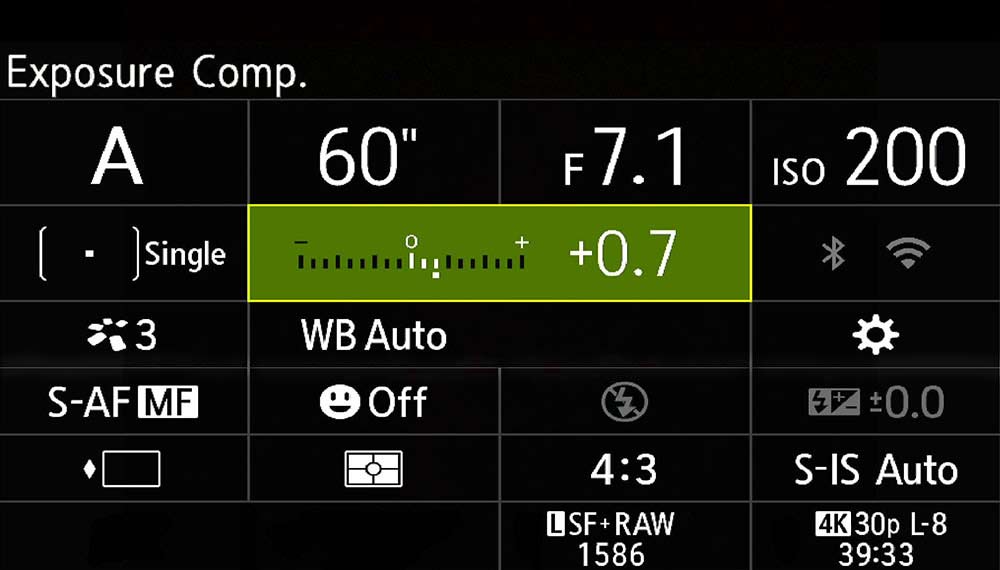
Access many settings using the rear screen SCP.
There are two ways to access settings, through the Menu and through the Super Control panel. The SCP is a quick overview of settings and has two modes, one by pressing the ‘Screen’ button (next to Menu) which disables Live View and can be useful to save battery life or if you don’t want Live View, the other is an overlay on Live View accessed by pressing ‘OK’.
→ TIP Both are touch enabled. Tap to select, use the Rear Direction Pad to move, and the dial to change setting.
Let’s start setting things up. Some options are personal preference. Items omitted are because default settings are fine. Items marked ‘Leave Default’ are to draw attention to default settings being acceptable. Go through your menu and starting making changes as shown below. This may look daunting but you’ll be surprised how quick it is to do, and you’ll learn the menu at the same time.
1 SHOOTING MENU
1-Basic Settings/Image Quality
Custom Mode
Image Quality
Detailed Settings
Image Aspect
Image Review
Shading Comp
Leave for now
LSF/RAW
Leave Default
4:3
*20Sec
Off
2-Picture Mode/WB
Picture Mode
Picture Mode Settings
WB
Keep Warm Colour
Colour Space
3
Enable All
WB Auto
On
sRGB-See Notes
3-ISO/Noise Reduction
ISO A Upper/Default
ISO A Lowest S/S
ISO Auto
ISO Step
Noise Filter
Noise Reduction
Low ISO Processing
**12800/200
Leave Default
P/A/S/M
1/3 EV
**Standard
**Auto
**Detail
4-Exposure-All Default
5-Metering
Metering
Metering AEL
AEL Auto Reset
AEL By Half-Press Shutter
Metering Multi Shot
Spot Metering
Evaluative
Auto
No
Yes
Yes
Enable All
6-Flash-All Default
7-Drive Mode
Drive
Sequential Shooting Settings
Single
***Enable All-Leave fps at Default.
We will change these in C Functions)
Self Timer Settings
Anti Shock Settings
Silent Settings
Enable All
****On
Set as desired
→Waiting Time 0
→Noise Auto
8-Image Stabilisation
Image Stabilisation
Image Stabiliser
Half Press Stabiliser
Handheld Assist
Lens IS Priority
S-IS AUTO
Fps Priority
On
¹On
Off
sRGB v AdobeRGB-These are two different colour spaces and you will find many conflicting opinions about them, not to be confused with Color Profiles, Vivid, Natural etc. AdobeRGB has a wider gamut of colours and some prefer to use this, however sRGB is the standard used by nearly all print labs. The internet doesn’t have a colour space as such although most websites use sRGB as do mobile devices. Processing an image in one colour space and then outputting to a different colour space can lead to colour shift. As there is so little difference between the two you will actually see I always use sRGB.
*Image Review Seconds-Controls how many seconds an image displays on the screen or Viewfinder when taken. This is personal Preference, I set to max 20s because the image will display in the viewfinder without having to press the ‘Play’ button and I don’t have to move my eye from the viewfinder. A quick half press of the shutter will dismiss it.
** ISO Upper and Default-Set the upper ISO limit for Auto ISO. This is personal choice and you can set whatever you like. I don’t need ISO so high so set 12800. ISO 200 should be default. Don’t set the lower limit below 200 as these are computational and result in reduced dynamic range.
**Noise Filter and Noise Reduction are two very different things. Noise Filter reduces noise in an image but will only affect Jpeg images. Noise Reduction reduces hot pixels in long exposures and does apply to RAW images. Leave at Standard and Auto for now.
**Low ISO Processing is best set to Detail. In most cases we want to preserve detail over drive speed. The obvious situation when drive speed is more important is Wildlife etc. You may want to change this to Drive when you save a Custom Mode for Wildlife, however you are unlikely to be using a low ISO.
***Sequential Shooting Settings-Enabling all gives access to all choices. Leaving the default fps means we can edit them later in Custom Functions.
****Anti Shock-If enabled the shutter will always default to electronic first curtain shutter when under 1/320s to prevent shutter shock. Make sure it is set to 0 seconds to avoid delays.
¹Handheld Assist-Displays a box which shows how steady you are holding the camera. A centre point moves to show steadiness and bars move to show levels. Test first because you may find it obtrusive, I find it too distracting. Adding this item to My Menu gives quick access if you would prefer to enable on the fly.
2 SHOOTING MENU
1-Computational & 3-Bracketing
All Off- Computational modes are now accessed from the CP Button. We will set up Bracketing in Custom Modes.
2-Other Shooting Functions
Bulb/Time/Comp→
Bulb/Time Timer 30min
*Live Comp Timer 3h
*Bulb/Time Monitor 0
Other Settings
Leave Off
*Live Composite Timer-Changed according to the shoot, however the default is too low, 3h is a better starting point.
**Bulb/Time Monitor-Rear Screen brightness set to -7 by default to save battery life, however it is too dark. Set to zero for standard screen brightness.
AF AF MENU
1-AF
AF Mode
AF+MF
Starry Sky AF
AF Half Press
AF-ON in MF
Release Priority
S-AF/MF
On
Add to My Menu
Yes All
Yes (we will set MF to a button)
Yes All
2-AF
Face & Eye Detection
Video C-AF Face
Face Eye AF Button
Eye Detection Frame
*Off
Yes
Shutter and AF-ON
On
3-AF
AF Illuminator
AF Area Pointer
On
Set to On1 (displays frame)
4-AF
C-AF Sensitivity
C-AF Center Priority
AF Limiter
AF Scanner
AF Focus Adjust
Default 0
Enable Cross/Mid/Large
Off Default
On Default
Off Default
5-Movie AF
All Default
6-AF Target Settings/Operations
AF Target Mode
Enable All/Single/Cross/Mid/Lg/C1
Set C1 with 1×1 for finer control
Orientation Linked
**Set Home
No
Enable
Target Point →Set all to centre
Select Screen Settings
Loop Settings
¹AF Target Pad
Leave Default
Leave Default
Off
7-MF
MF Assist
²Enable Magnify/Peaking/Indicator
Peaking
Set to Preferences-I prefer white.
Intensity Normal Brightness Off
Other Items
Leave Other As Default
*Face Eye-Leave off until needed, it has a habit of seeing faces in clouds, rocks etc and will move the focus point.
**Set Home/Target Mode All-Selecting centre means the focus point will return to the centre when the rear OK button is pressed. This is quite a useful feature.
¹AF Target Pad OFF-On allows the focus point to be set by dragging a finger over the screen when using the EVF. In practice not very convenient to use.
²MF Assist-Enable Magnify/Peaking/-Whist it can be annoying when manually focussing to have the view zoom in meaning you cannot see the whole scene, still enable them. We will use Peaking applied to a button to split the functions and give the best of both features. Magnify is personal preference.
VIDEO
Leave All Default-See Video Section.
PLAYBACK
1 and 2 All Default
3-Displays
Rotate
*Off
Video – See the Video Section.
*Rotate-Obviously personal preference, however setting On means portrait orientation images will display vertically when the camera is in landscape orientation. I prefer it to fill the screen and rotate the camera for a bigger view.
COG MENU
1-Operations
Buttons
Assign (map) functions to buttons. We will return to this later.
Dial Settings
Leave Default
FN Lever →
→Function *Mode 2
→Video *Mode 2
→Fn/Power FN
Other Settings
Leave Default
2-Operations
LV Close Up
Lock
Priority Set
Menu Cursor
Press & Hold
Mode 2
Off
No
**See Notes
Leave Default
Other Items
Leave Default
3-Live View
All Settings
Leave Default
4-Information
EVF Style
***Info Settings
Style 3
Image Only
(+ Screen Info Settings)
→Info1 – Histogram / Levels
→Info2 – Highlights / Shadows
Info by Half Pressing
Level Gauge
Video Info
On2
On
Leave Default
5-Grid/Other Displays
Grid Settings
→Colour Preset 1
→Displayed Grid 3rds
→****Colours Default
Video Grid
CP Button
Multi Function
Leave Default
Ensure all enabled.
¹Enable All. See Notes
Histogram
Leave Default
*FN Lever Mode 2-This appears quite complicated at first. Setting this allows additional options 1/Changes the front and rear dial to access WB/ISO 2/ Changes Auto Focus Target Modes 3/Swaps between the mode set on the top mode dial (eg PASM) or video mode. 1/ is redundant because we will set buttons to do this and there is already an ISO button. 3/ is redundant because there is a Video Mode on the dial. Default Mode 2 for Stills and Video because it is more useful to set different focus modes.
Set Focus Modes– With the lever in Position 1 set AF Target Mode (Focus Points) on the rear Super Control Panel to Anti-Shock Single. Now just below it set the AF Mode to S-AF+MF (Single Auto Focus + Manual Focus). Move the lever to position 2 and again on the Super Control Panel set AF Mode to MF. This has now set Back Button Focus, when in Lever2 and MF, pressing the AF-ON will still perform AF. This is incredibly useful as we will see. Once set the camera remembers the two settings for each lever position.You can set Target Mode and AF Mode to any you like, I recommend the two mentioned.
**Menu Cursor Settings – See “Menu Start Position” on the Menu Guide page. This setting allows the Menu page position and the highlighted item to be saved when the menu button is pressed. I recommend setting this as the last setting.
***Info Settings-There are two Info Settings, Image Playback and Rear Screen/EVF. In each menu select the items you want to have displayed with each press of the Info button. For instance no information for a clear view, Histogram, Highlights/Shadows. This is a very useful feature, experiment to see which suits you, try to get it right before moving on the Custom Menus. Settings I use are shown.
****Grid Colours-I recommend using Preset 1 grey so that it is not too dominant. Default options are grey or red which can be customised to other colours. Before experimenting with colour write down the defaults first to reset (Grey 38/38/38/75%-Red 180/0/0/75%)
¹Multi-Function-Allows various items to be displayed when Multi Function is mapped to a button. Press/Hold and turn the front dial to select different options. We will set a Peaking button using the Multi Function to give quick access to other functions.
SETUP MENU
1-Card/Folder/File
Card Formatting
File Name
Edit File Name
Save to My Menu
Auto
**Optional
2-Information Record
Lens Info
Dpi Settings
Copyright Info
***Off
Default 350
****On
3-Monitor/Sound/Connection
Leave All Default
I tend to prefer EVF with Auto switched off and set to 0. Auto brightening and dimming is annoying. Do not increase brightness of the screen or EVF, it will give a false impression of your image.
4-WiFi/Bluetooth
Only needed when pairing a device
Leave All Default
5-Battery/Sleep
Default other than below
Backlit LCD
Sleep
Auto Power Off
Quick Sleep
Hold
1min
1hr
Off
6-Reset/Clock/Language
Settings here are obvious allowing date, time and language to be set, along with information on firmware version. Other settings are as below.
Reset/Initialise
Level Adjust
Pixel Mapping
!Reset Settings
¹Recalibrate Level
²Remove Dead Pixels
**Edit File Name– Optional, default is fine however if if you have multiple bodies it can be useful to edit the file name so you know instantly which body the file came from. For instance I set OMS1 for the OM-1, OM12 for the Mark2, OM3 for the OM3, and OM52 for the OM5ii.
***Lens Info Settings – Used for non-m43 lenses when the camera cannot read the built in chip and stabilise effectively. Adding info for a lens will provide stabilisation. 10 lenses can be added. I have both of my Helios manual lenses added.
****Copyright Info-Amateur or Pro is irrelevant, you absolutely should have your name here. It is saved in Exif and proves copyright ownership of an image.
!Reset Settings-Caution. This will reset the camera. Select to reset all or leave basic info such as date and time. Use only if you need to reset camera.
¹Recalibrate Level-The in camera level can go out of true and does need recalibrating from time to time.
²Remove Dead Pixels-It is possible for the rear screen/EVF to develop dead pixels which you will notice. Running this utility generally removes them.
MY MENU
A custom menu that is user created. For more information see the previous section “Menus”
You should treat this as a place to save most frequently used items, items you do not use frequently but have difficulty locating, and as a way to supplement Custom Modes.
COMPLETE
We have set up all of the items in the menu, now we need to set each of the camera buttons to more flexible options.