

VIDEO
The Video or Movie Mode
Settings and features to be aware of.
The Video, or Movie mode as OM-S call it has had quite an overhaul with some new features and functions. It is worth understanding the features even if you only dabble with taking videos. Experienced multi-media creators will find settings very flexible.
NEW MODE DIAL
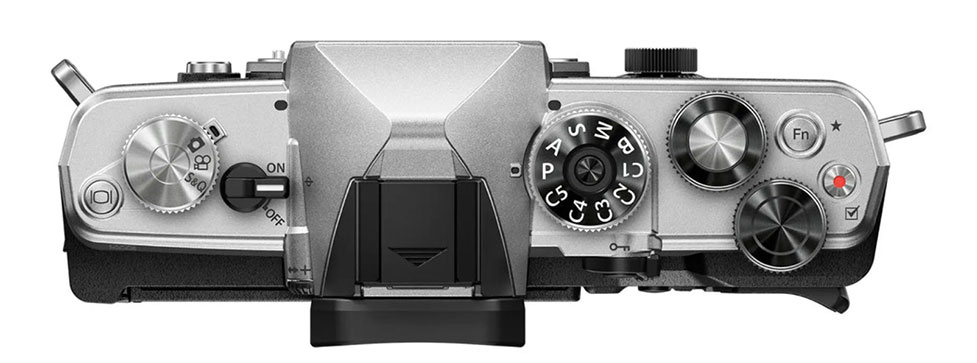
Standard PASM mode dial and new mode dial.
The first thing to notice is we have a new mode dial which has removed video from the standard PASM dial. This does not just allow quick access to the new Slow and Quick video options but also allows video to be filmed in any of the standard modes such as Manual, Program, Shutter or Aperture Priority without having to dive into menus or the Super Control Panel which is really really neat. And it allows quick access to the Custom Modes which can be set independently of the standard picture shooting mode. Just as with taking normal pictures where the dial is set to the camera icon, set it to Video, choose your options on the Mode Dial and away you go, or set it to S&Q. Video settings are very similar to S&Q except we also have additional settings for frame rates to alter how slow or quick the movie is.
SLOW AND QUICK
The new Slow and Quick video modes allow really fast access to shooting slow motion (more frames per second) and fast motion video (less frames per second). Fast motion is not the same as a time-lapse, but it can create a similar kind of thing even though we have time-lapse in Interval Shooting, so it is a function I will be using because of the convenience. No sound is recorded in S&Q which is not a bad thing, why would you want sound in slow motion or speeded up?
RESOLUTION, PLAYBACK RATE AND FPS
Study this part because it really matters. In both Standard Movie and S&Q we have options for resolution (C4K, 4K, FHD) and playback rate (denoted ‘p’). Resolution impacts the quality of detail, the difference between a rubbish SD movie we used to stream on poor internet, and high quality 4K, with C4K being more ‘letterbox’. Playback Rate is how many frames a second are played and how smooth the movie is, with 24p being the general ‘good’ quality acceptable to the eye. Note how they are rounded up/down when shown just to save digits (23.98p is 24p). You can therefore decide what resolution you want, and the frame rate. It doesn’t take a genius to figure out the higher the resolution and the more fps, the bigger the movie file is. Codec plays a roll in quality too and can be set in the menu to 8 or 10 Bit (see below).
In S&Q we also have frames per second (also called Sensor Frame Rate), which dictates if it will be a slow, or a quick movie. The playback icon updates to give an indication, with less than 1 being slow, above 1 being fast. But we can also alter Playback Rate. Confused? Not as simple as just Raw or Jpeg is it.
Think of it this way, 24p is a good all-rounder basic rate, whereas 60p is going to be smoother and better for fast action. Try changing a few settings on your camera to see; 24p@15fps is x1.6 fast. 60p@15fps is x4 fast. The video would play back faster and smoother, but you would have to record for longer to get the same length clip because you need more frames to play back per second (60 compared to 24). The really boring bit and I’m not suggesting you work it out every time, it is useful just to understand how one affects the other, imagine a 10 second clip you want as a Quick Movie, multiply the required length by playback speed, divided by the fps.
- 4K 24p@15fps-x1.6 Quick
- 10×24=240 / 15 equals 16 seconds recording for 10 second clip
- 4K 60p@15fps-x4 Quick
- 10×60=600 / 15 equals 40 seconds recording for a 10 second clip.
As I said, too boring and technical. It would be great if you could set the number of seconds you want and get a pop-up showing how long you need to shoot, as it is I would err on the side of caution and do longer if you can, you can always cut it in camera or in an app. If you are doing Slow Motion it is the same thing, alter the Playback Rate and fps, see what playback speed it will give and alter accordingly. They vary too depending on if you use 4K or FHD. As with everything it will be situation depended so have a play and get a feel for the settings you like.
→ TIP Quality matters. If you just intend to put a video on your socials or share with friends FHD is probably fine. But just as with images, shooting the highest quality you can means you can always export smaller and more compressed video and preserve the original. A 10 Bit 4K can be exported from many free apps to FHD, but you will need special paid apps to do it the other way around and they are not always great.
SETTINGS
With the Mode Dial set to S&Q it is a simple operation to select the video option you want, Slow or Quick. 3 Presets have already been created which I would leave as they are. Another option not shown here is C4K (Cinema) which as the name suggests is more of a letterbox (C4K 4096×2160):
- 4K 3840×2160 29.9p 60fps x0.5 Slow Motion
- FHD 1920×1080 60p 120fps x0.5 Slow Motion
- 4K 3840×2160 29.9p 15fps x2 Quick Motion

Press ‘OK’ to show the Super Control Panel. Use the Arrow keys to move to the video options or tap the screen. Using the front or rear control wheel will scroll through the 3 preset options allowing you to select the one you want.
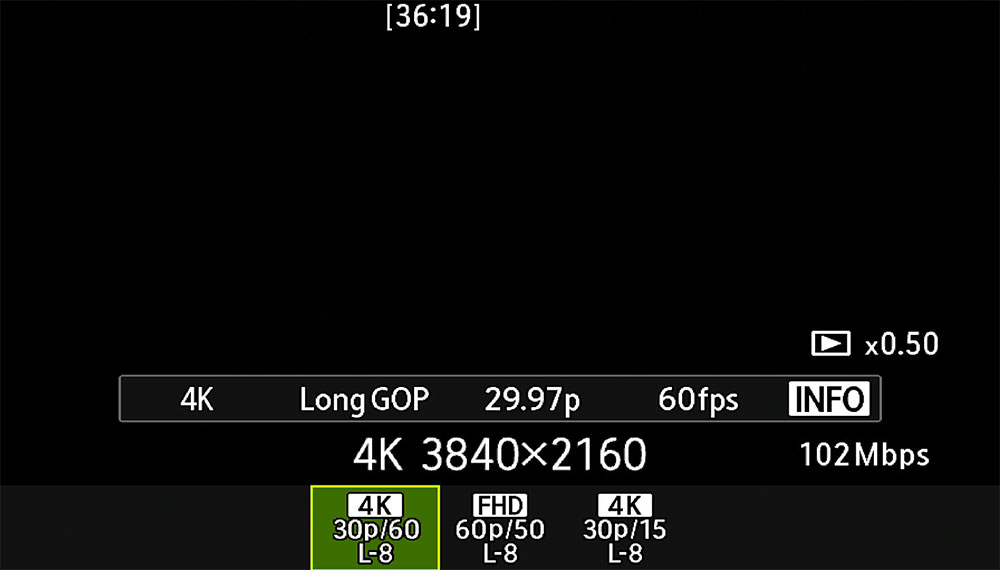
With the video option selected in the SCP press ‘OK’ again or tap to enter the detail settings. Here we can see there are 3 Preset options with the resolution, frame rate and frames per second already set. And very helpfully the actual function is shown next to the Playback icon; here it shows it will be x.5 Slow Motion.
Press the Info button and the screen changes to the edit options. Here any of the settings can be altered if you want to make changes quickly on the fly, alter the resolution, the playback frame rate of the frames per second that are recorded.
Note also that the Playback speed icon will update to show whether it will be a Slow or Quick video. Over 1 is Quick, less than 1 is Slow.
Frame rates and fps can be set according to your needs; generally the higher the frames per second the smoother fast action will play back. Cinematic movies are generally recorded in 24p for smooth realistic motion. Fast action such as sports is recorded with higher fps.

Diving into the menu allows you to set any of the presets in a similar way to above. You do not have to accept the three presets, change them to whatever suits your needs. It is a shame there are 3 and not 4, it would be neat to have two Slow and 2 Quick settings. Maybe you are not interested in Quick and would rather have 3 slow motion settings.
Note- Each of the presets depend on the Video Codec that is set. Here they are all L-8 or 8 Bit because the codec is set to H.264 bit. Change it to 10 bit and they will update, but read the sections below first for information on codecs first.

Menu Video>1. Basic Settings>S&Q
→ TIP Note that AF will be fixed at Single-AF with frame rates over 60fps and C-AF is not available. This is pretty obvious when you think about it, just as with Sequential Shooting settings at 120fps, the frame rates are just too high to permit focus to keep auto focussing. In such a situation when you wanted higher frame rates for good quality slow motion or fast action for example, you would need to rely on your depth of field and use an aperture that is suitable.
BASIC SETTINGS
There are quite a few settings that apply to both Picture Modes and Video Modes such as choosing which PASM mode to use, ISO etc but also quite a few options in the menu which we need to explore. We will just explore the options that need to be addressed.
P, A, S, M
Most times you are probably happy to just use P and let the camera do all the work for you. Note there are a couple of default CMs already saved which use P (see CMs below). If you do want to use other modes there are a few differences to be aware of:
- SHUTTER PRIORITY Shutter speeds are limited to between 1/24s and 1/32000s
- MANUAL Uses the same shutter speed restrictions as above. The display will flash if exposure is exceeded by 3EV.
Computational modes cannot be used in Video Modes which is a shame, it would be great to use Live ND to reduce shutter speeds. Many videographers use Variable ND filters for the to ‘drag’ the shutter speed and make movement smoother.
CREATIVE EFFECTS
Creative effects can only be applied H.264 8Bit and not H.265 10Bit. Picture Modes such as Mono, Vivid etc and Art filters can be applied in 8Bit Video Codec. See below.
COLOUR GRADING / CODECS
If you are new to video you will probably have heard of Colour Grading and Codecs. Codecs are really confusing and difficult to understand, they will start to make more sense if you try to think of them in a similar way as Jpegs and Raws, what you can do to process them on your computer and what the camera can actually apply to them to. Think of all the movies you have seen with a real ‘cinematic’ feel to them, deep rich colour and dramatic tones like ‘Lord of the Rings’, and gritty grain with subdued colour and high contrast like ‘300’. This is because of the codecs that are used and therefore what can be done with them. An overview is below, also see the table for Menu 2:
H.264 8 Bit
- Lower Quality, in-camera Colour Grading or post production.
- Can use Slow and Quick Mode
- Picture Modes as Camera (Vivid, Natural etc)
- Can utilise Creative Dial (except S&Q cannot)
- OM-Cinema 1 and 2
H.265 10 Bit
- Higher Quality, needs Colour Grading or post production.
- Can use Slow and Quick Mode
- No Picture Modes
- Cannot use Creative Dial
- Only Flat, OM LOG400 or HGL
Grading is very similar to applying a Preset to an image for a colour effect and it matters because it will influence the video codec you use. H.264 8Bit has more flexibility with the creativity you can do in camera but it is lower quality and and the picture quality is quite soft. If just shooting for yourself for fun or to make behind the scenes movies for Instagram it would be fine, but for a serious vlogger you would want the higher quality of H.265 10Bit. 10Bit will only record in Flat or OM Log400 which are designed to be colour graded for creativity in post-production applications.
LUTs (Look Up Tables) can be applied to either 8 or 10Bit but 10 gives greater quality and the difference is that 10Bit has to be processed. There are many apps available, Final Cut Pro for Mac, Davinci Resolve for Mac and Windows which is free but limited to 8Bit, Pro for 10Bit. Adobe Premier Rush is free but limited. If you have an app that will allow LUTs to be applied download the free OM System Rec709 LUT to enhance Flat videos.
VERTICAL VIDEO
Your OM3 is capable of shooting vertical video too, if you want to put clips onto Youtube Shorts or Instagram. And you don’t have to do anything, just turn the camera.
MENU SCREENS
We will explore the Video Menu settings and look at what the options are and what needs to be changed.
MENU 1
- CUSTOM MODE – See CMs section below.
- SEPARATE SETTINGS – Allows Aperture , Shutter, ISO, Ex. Comp, WB and AF to be set separate to Stills. Leave at default.
- VIDEO CODEC – H.264 8Bit or H.265 10Bit. We Will set in Custom Modes.
- VIDEO QUALITY – Many options here allow settings to be set for qualities such as 4K, Full HD, C4H resolution and frame rate, higher frames mean smoother quality. Set your default and set additional options for CMs. I have 4K 3840×2160 30p set as a default for high quality. It is also 10Bit because I have H.265 set. For 8Bit and more creative options as mentioned above set the Codec to H.264 and then set the quality.
- FLICKER SCAN – Only used under LED lighting. Leave off
- DIGITAL TELECONVERTER – Obvious what it is for, leave off.
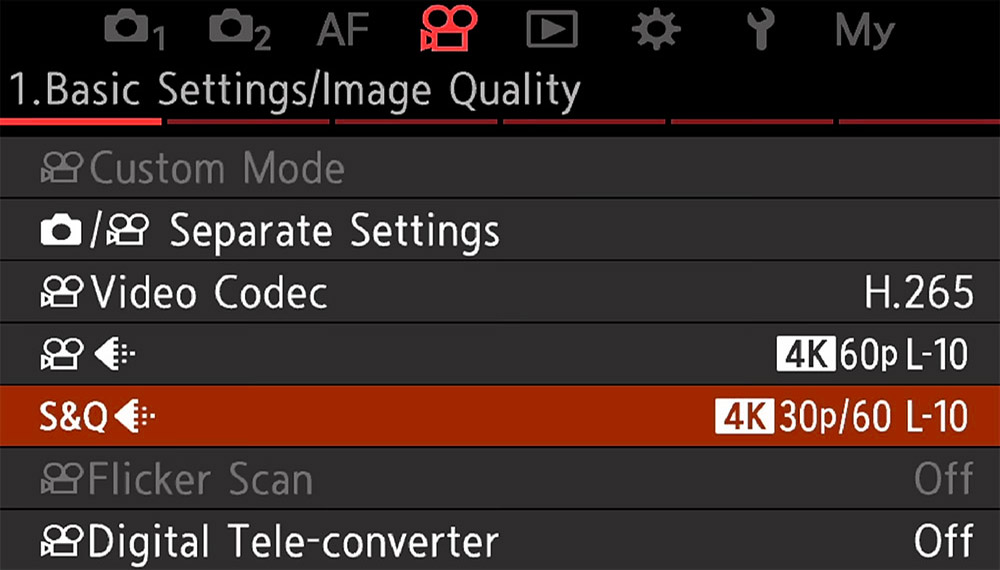
Menu Video> 1.Basic Setting/Image Quality
MENU 2
- PICTURE MODE – See TABLE below.
- VIEW ASSIST – Helps viewing on screen when recording in Flat or Log400. Set as desired, add to My Sets or include in a CM if set with Flat.
- WHITE BALANCE – Set to Auto. We will set WB to a button for quick access.
- WB ALL – Allows creating a custom setting for WB. I tend not to use this, but you may find it useful if you want to create really funky tones.
- KEEP WARM COLOUR – A personal choice, set on or off.
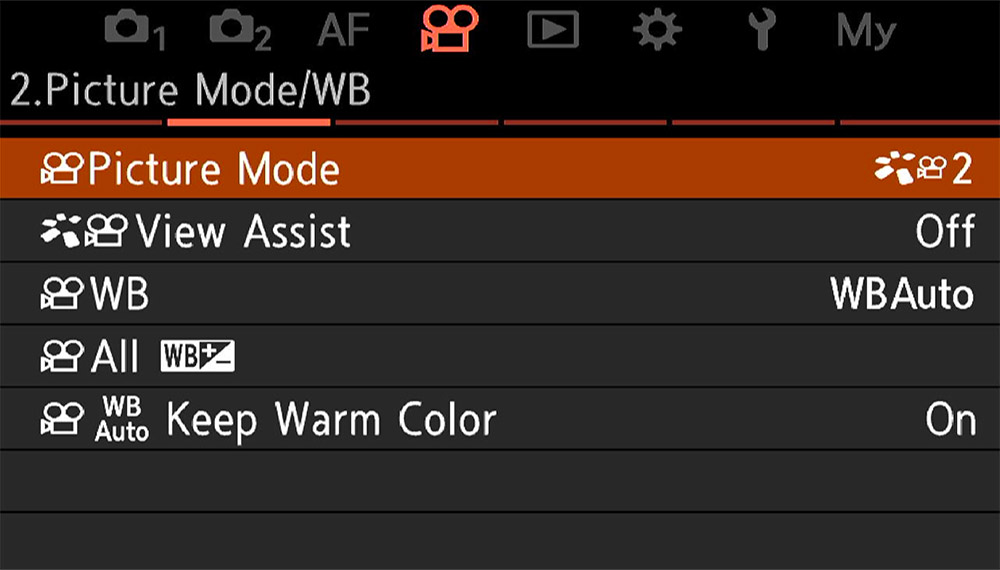
Menu Video> 2.Picture Mode/WB
| PICTURE MODE | DESCRIPTION | CODEC |
|---|---|---|
| SAME AS CAMERA | Video is recorded using the same settings as used in the camera Picture Mode*. | H.264 8Bit |
| OM CINEMA 1 | Videos recorded with a cinematic colour grading of yellow in highlights and blue in shadows. Recommended frame rate is 24p. | H.264 8Bit |
| OM CINEMA 2 | Videos are recorded with a cinematic low contrast and soft colours. Recommended frame rate is 24p. | H.26 8Bit |
| 1-FLAT | Videos are recorded with a flat tone curve best suited for colour grading. | H.265 10Bit |
| 2-OM LOG400 | Videos are recorded with a log tone curve best suited for colour grading. | H.265 10Bit |
| 3-HGL | Videos are recorded with high dynamic range capturing tones as seen with the human eye, needs compatible playback equipment. | H.265 10Bit |
Same As Camera* – What does this actually mean? The red Record button allows for quickly recording video even whilst the Video/Picture mode dial is set to Picture (when set as default to Record in Camera Buttons Menu). Setting ‘Same As Camera’ allows for the Picture Mode (Mono, Vivid etc) to follow what has been set from the Creative Control Dial or from the Super Control Panel without having to go diving into the menu. You may find it convenient so that your video has the same settings, or you may want them to be different. However, the Record button is better being repurposed for other settings as we have done in the Buttons and CMs sections already and it is not such a difficulty to set the mode to video anyway. If you are the type who likes to shoot video and pictures constantly swapping between the two you may want to retain the Record button function. Also, add Picture Mode to My Menu.
MENU 3
- ISO-A UPPER/DEFAULT – Sets default ISO and Auto ISO upper limit. Set 200 and personal choice for Upper, I set 12,800.
- ISO-AUTO – Set to On.
- NOISE FILTER – Reduces grain from High ISO. Set to Standard.
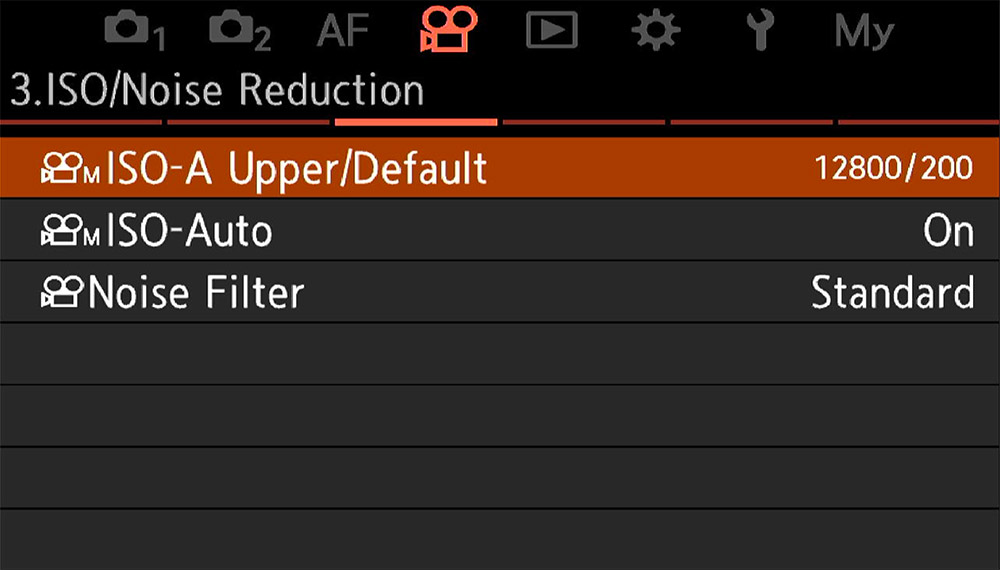
Menu Video> 3. ISO/Noise Reduction
MENU 4
- IMAGE STABILISATION – Video uses VCM (Voice Coil Motors) for very smooth stabilisation. Add to My Menu or consider using a button for quick access if needed. Options are:
- M-IS 1 – Sensor and Digital stabilisation, for even more stabilisation but gives a slight crop.
- M-IS 2 – Sensor stabilisation only and suitable for most situations. Set as default.
- IS LEVEL – IS level or amount can be altered for instance reduced when panning if needed. When using stabilised gimbals it is best to set to -2 to avoid conflict.
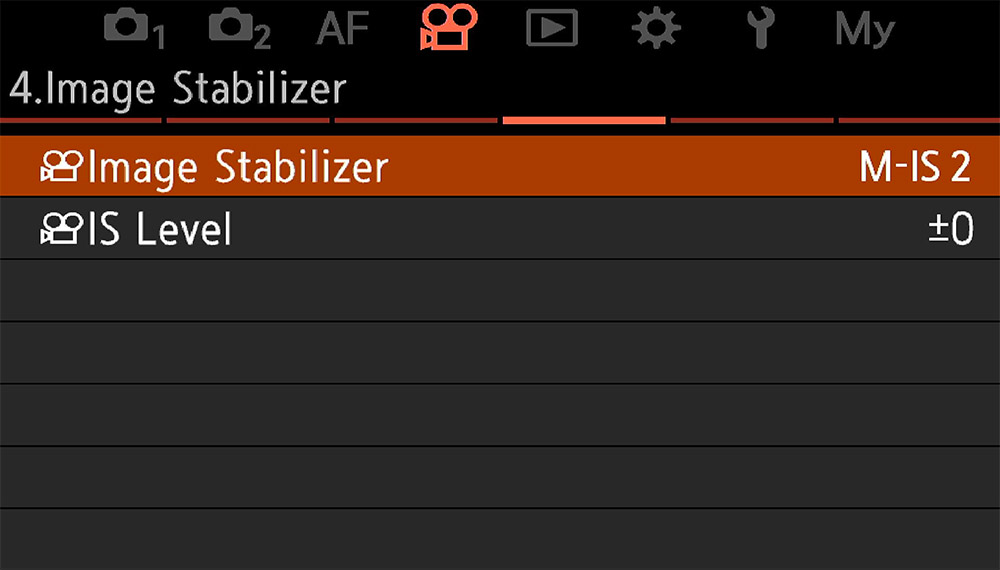
Menu Video> 4.Image Stabilisation
MENU 5
- SOUND RECORDING – Various settings, set volume limiter On, Wind Noise Reduction On and Recording Rate suitable to the external Mic you are using. External devices can be mounted on the hotshoe and will give better quality.
- HEADPHONE VOLUME – Obvious what this means. Set as required.
- TIME CODE SETTINGS – Settings here are used to make sure sound and video are synchronised during editing. Leave at default, they only need to altered if you need to make corrections or edits.
- HDMI OUTPUT – Settings for when outputting to an external monitor, either for viewing or for editing. Select the option as needed and check HDMI settings in Spanner Menu>3. HDMI for the output quality (4K, 1080p etc) and Frame Rates.
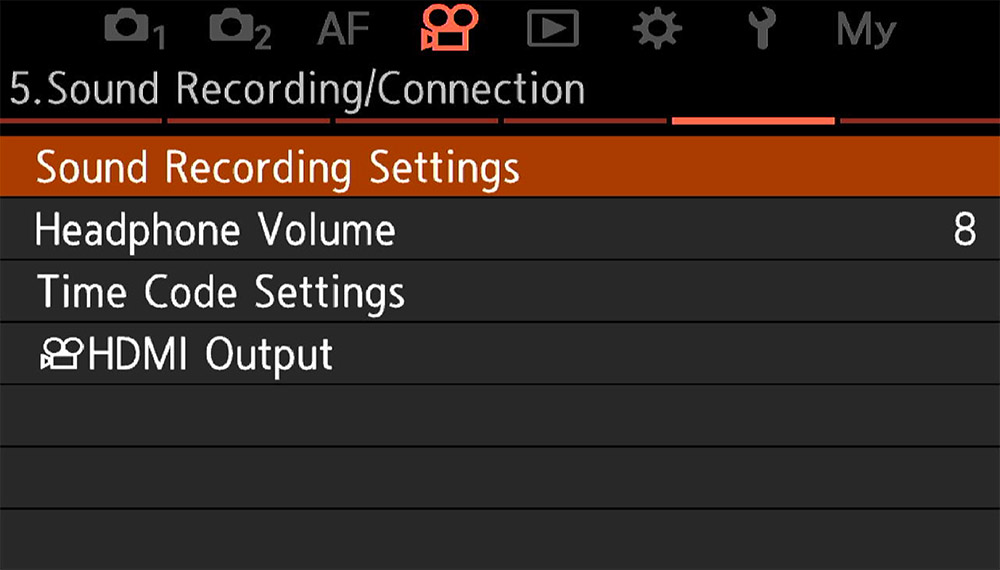
Menu Video> 5.Sound Recording/Connection
MENU 6
- CENTRE MARKER – Shows a marker so you know where the centre of the screen is. Generally it really is not necessary, leave off.
- ZEBRA PATTERN – Shows a pattern of stripes to indicate areas that are blown out, similar to using a Histogram. It can be very useful and also distracting. I leave off by default and have it saved in My Menu for access when needed.
- RED FRAME – A convenience setting. When on you know video is being recorded. It serves no other function other than a visual cue and is useful, set to On.
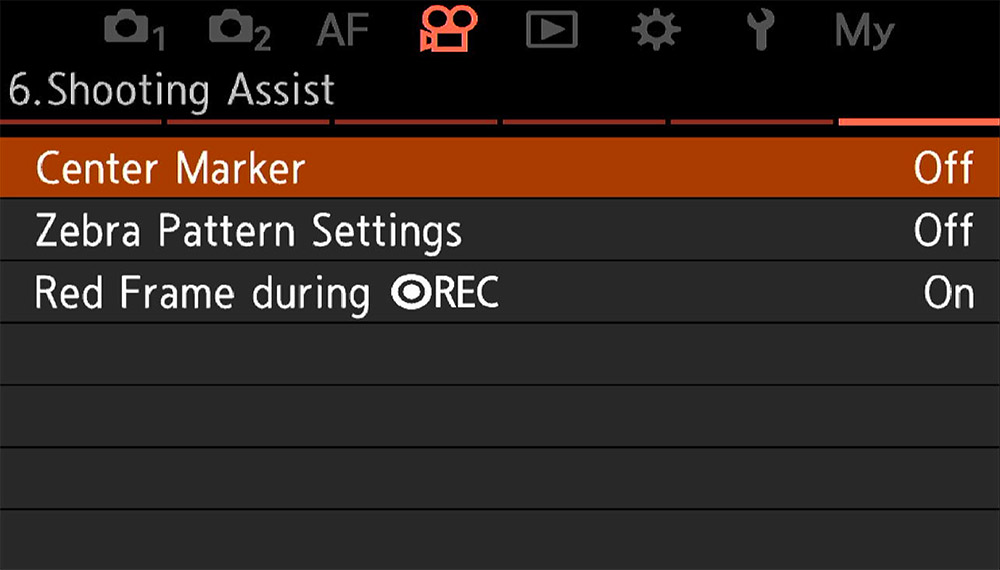
Menu Video> 6.Shooting Assist
CUSTOM MODES & BUTTONS
Just as in the camera picture mode settings we can assign Customs Modes which are completely independent, and also change buttons too for settings more suited to video. These will only take effect when the Mode Dial is set to Video or S&Q, and remember in the Custom Modes menu there are separate sections to save them.
- Video Custom Modes – Menu Video 1. Basic Settings>Custom Modes
- Video Buttons – Cog Menu>1. Button Settings>Video Button Function
Note in Button Settings the Video Shutter Function item. By default the red Record button activates video recording and the shutter is redundant. We can make better use of the Record button, it is only useful for recording when the camera is in picture mode, but other functions such as Subject Detection are more useful.
Set Shutter Function > Record.
| CM1 (Default) | CM2 (Default) | CM3 | CM4 | |
|---|---|---|---|---|
| DESCRIPTION | Shooting Mode:P
Video Quality: 4K 24p L-8 S&Q Video Quality: 4K 24p/50 L-8 Picture Mode: OM-Cinema1 |
Shooting Mode:P
Video Quality: 4K 24p L-8 S&Q Video Quality: 4K 24p/50 L-8 Picture Mode: OM-Cinema2 |
Shooting Mode:P
Video Quality: 4K 24p L-10 S&Q Video Quality: 4K 24p/50 L-10 Picture Mode: FLAT |
Shooting Mode:P
Video Quality: 4K 24p L-10 S&Q Video Quality: 4K 24p/50 L-10 Picture Mode: OM-LOG400 |
| NAME | OM-Cinema1 | OM- Cinema2 | FLAT | LOG400 |
| CODEC | H.264 8Bit | H.264 8Bit | H.265 10 Bit | H.265 10 Bit |
| BUTTONS |
|
All as CM1 | SEE MY CUSTOM MODE BELOW | |
| AF | C-AF | As CM1 | ||
| LEVER SETTINGS | 1. S Target 2. M Target | As CM1 | ||
| ISO | Auto ISO | All as CM1 |
These are basic Custom Modes, only 4 are shown and a CM5 can be created for anything you want made using a different Picture Mode or Art Filter (in normal Video Mode). Buttons are the same for all CMs, there is no need to vary them unless you have a specific need.
IMPORTANT Notice that for each CM there are settings saved for video and for S&Q. The settings for each can be changed to what suits you, AND, you can also access three different settings for S&Q just as above. In fact if you check the default settings in the two pre-saved CMs you will see one of the frame rates for the slow-mo is 12 instead of the default 15. It means there is a great deal of customisation possible and in some ways maybe too much. If you change settings make sure you have a good reason and that you can remember. Although settings can be changed you cannot change the codecs used between video and S&Q in each CM. If it is 8bit it will be 8bit for both.
Custom Mode 1 and 2 are already preset as defaults. We can see in each one they are 4K high resolution with 24p frame rates and both are 8 Bit because they use the Cinema1 profile with yellow and blue colour grading, and Cinema 2 for soft colour grading respectively. Remember these are 8 Bit which is fine for most situations. Personally I leave these as default but you do not have to accept them, get creative and change the profile to something you prefer if you wish like Mono.
Custom Mode 3 and 4 are both higher quality using Flat and Log400, which will need colour grading afterwards. If you just want video straight out of the camera change these to more creative settings in 8Bit, it is up to you to experiment. These give quick access to different qualities, perhaps you are more interested in quick access to saving styles instead.
Buttons have been changed for functions more useful for video. The Record button is redundant because we have shifted it to the shutter button.
CP Button is set as AEL by default because Computational Modes are redundant in video. AEL is useful for video to stop exposure changing dramatically unless you use Manual so it can be repurposed to a more useful function, perhaps Image Stabilisation or Zebra Patterns. IS is easy to access from the SCP whereas Zebra is buried in the menu, so choose whichever more suits you. I have Zebra enabled.
Set the Arrow Pad to Direct Function. The > and ∨ arrows can now be set to more useful functions such as ISO and WB.
Subject Detection is useful, it can be enabled quickly from a button and the subject type quickly changed from Birds to Humans for example. Remember subject detection can be fooled when there is more than one subject so having Subject Selection on a button near it is also useful.
C-AF is saved as default. With video obviously we need continuous focus for moving subjects, and notice the Lever functions: we can set a small target and a medium target or any you want to each position by setting the lever and changing the target size. Do note in video there is no need to press the AF-ON button, focus will hunt as it tries to find the focus point and it will show in the recording. However, moving the focus point will force focus to move where you want it to be and will shift smoothly. You can also just tap the screen. AF-ON is left as default and target sizes are changes to allow a specific focus to be set at the start of a movie when needed.
MY VIDEO CM3
I am predominantly a landscape photographer and I am enjoying using S&Q, but I want a CM more suitable for this, quick settings I can get to without too much thinking.
I have a CM saved in Aperture Priority so that I can set the aperture I want for depth of field. The buttons are all the same as above apart from the Lever which I have as C-AF on L1, and S-AF on L2. For a Landscape I do not need C-AF, a single fixed point is better. With S-AF on L2 I can press AF-ON to get focus (or just manually focus), and it is not disturbed by the shutter because it has been set to Record, instead of the red button. Back Button Focus in other words.
The quality is 4K H.264 8 Bit which means I can use any of the in-camera Picture Modes, I have Vivid set. They are easy to change from the SCP. I have Video.2>Picture Mode set to ‘Camera’. if you wanted Cine1 or Cine2 you would need to change this, they are good for a cinematic feel for street/urban, but not so much the effect I want for a landscape.
Mode: Aperture Priority
Buttons: As above. Lever 1 set to C-AF Mid Target, Lever 2 S-AF Small.
Video: Codec H.264 8 Bit – Picture Mode Vivid- 4K Quality.
S&Q: Codec H.264 8 Bit – Picture Mode Vivid- 4K Quality.
Stabilisation: M-IS 2 to avoid the crop. Change to Off on tripod from the SCP.
WHY CM3 AND NOT CM1?
Why have I saved this Custom Mode to 3, and not CM1 if it is the one I will use the most? Because if you remember from the Custom Modes section I have my main ‘Landscape’ settings saved on CM3. Therefore when I want to do video for landscapes, a slow motion or a quick motion, or even just a standard normal motion, all I have to do is change the Picture/Video dial on the left and I am already in CM3 on the Mode Dial. Less changes. It just takes some logical thinking and adapting your settings over time.
Also, the settings above are all set for 8 Bit (Video Menu 1. Basic Settings>Video Codec). I have exactly the same settings saved on CM4, just with the Codec changed to H.265 10 Bit. This does mean being limited to OM-Log400 or HGL requiring processing with colour grading, but it also means with one click of the Mode Dial I can change to the highest quality when needed.
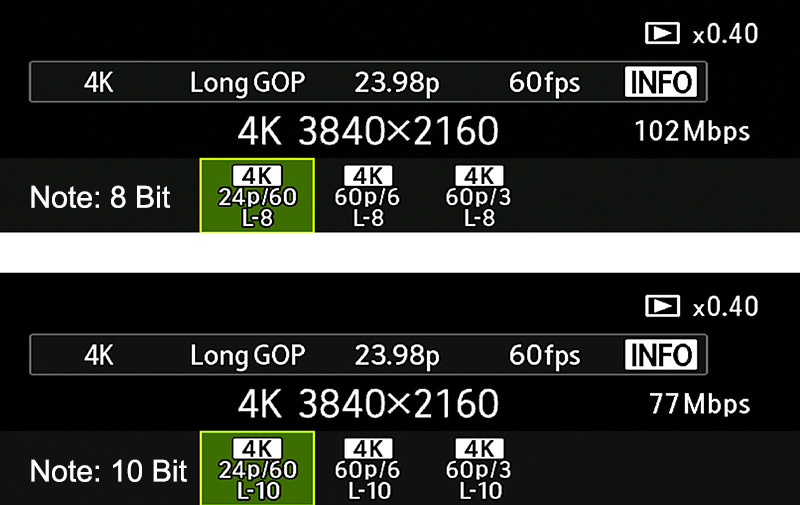
The two screenshots show my settings for S&Q, which we can actually set three. Each one I have at 4K and I have one slow motion (24p/60fps x0.4) and two Quick Motion (60p/6fps x10 and 60p/3fps x20). The great thing about these is they are easy to change just by pressing the Info button and I can go back to default just by changing the CM dial away and back again, or rebooting the camera.
The top screenshot is 8 Bit, saved on CM3, the bottom is 10 Bit saved to CM4. With Custom Modes now being enabled for Video we can create just about anything we want for quick access and changes.
SAMPLES
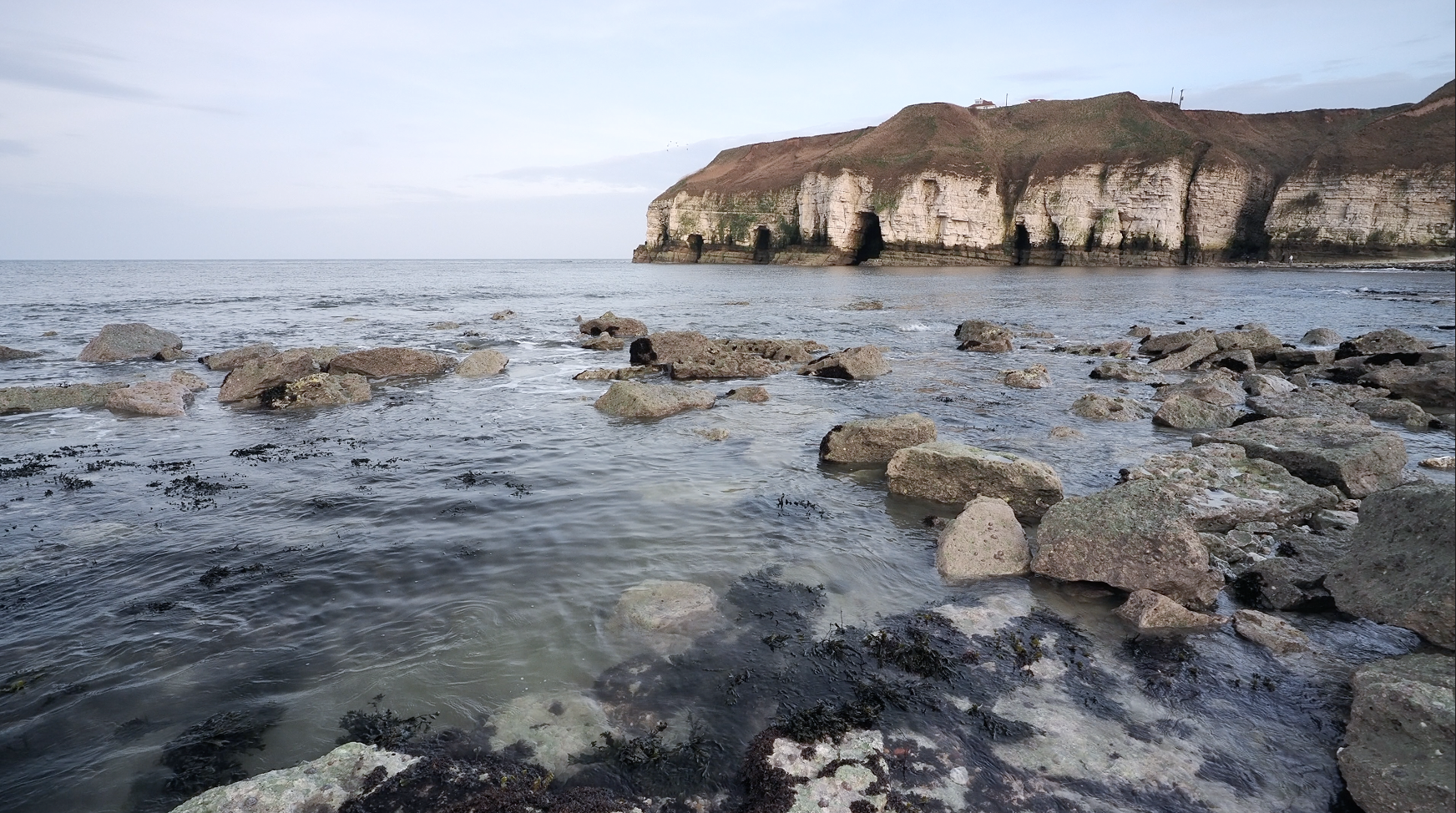
I have uploaded a short sample video taken in S&Q to Youtube.
The Quick motion was in the standard movie mode from S&Q, 60p and frames changed to 2fps. The Slow was 30p and 60fps. I will add more over time to my Youtube rather than in this guide for convenience.
Youtube Phil Norton Photography
Please do not expect much from my Youtube channel, I am not a Youtuber and prefer to be the other side of the camera.
COMPLETED
Section completed and hopefully now you will have a better understanding of the video functions, settings and possibilities. The OM3 is not the best camera available for recording video and it has not tried to be. Instead is is a general all-rounder for producing quality video with creative possibilities, with some features available for more professional output. In that way it performs very well, especially for someone who wants to just dabble like me.