

OM3 CUSTOM MODES
Exploring and creating Custom Modes
The final step in making the OM3 your own, set up entirely to suit you. We will explore Custom Modes, how to create different sets and apply to the camera, and how buttons can be changed to suit each one.
WHAT ARE CUSTOM MODES?
Put simply, they are a group of settings which are then saved to the Mode Dial in C1, C3, C3, C5 or C5 positions, to allow you to very quickly recall those settings without having to change everything each time. And they can now be renamed too!
With the OM3 we now have the ability to save Custom Modes for Pictures and for Video separately (see the Video section), further enhancing the creative control. In this section we will concentrate on Picture CM’s. Make sure the Picture/Movie dial is set to Picture first.
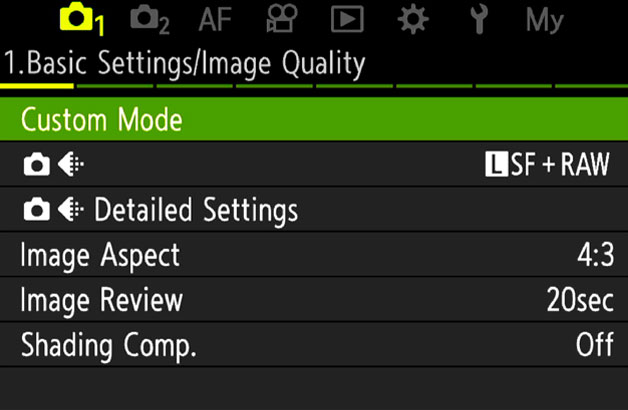
CM’s can be as simple as you like, or as complicated as you like, it is really up to you how you ‘design’ your Custom Modes. Creating Custom Modes is very simple, just save a shooting mode (PASM) to Menu 1>1Custom Mode, then change the settings you want and resave it. Do make sure you press ‘ok’. Set the dial to the CM, then away and back again to check settings are saved.
1-Shooting Menu>1.Basic Settings>Custom Mode
Once you set a CM, if you make any additional changes to it afterwards you want to retain you must resave it or changes will be lost.
MAKE A PLAN
The hardest part of setting up CM’s is what to set up? This often comes from experience, so don’t worry if you don’t use them all, you may not have to.
What do you tend to shoot, and will setting a CM save you time? Are you a wildlife/action shooter? If so you may want more than one set of settings, perhaps one for birds in flight and one for wildlife using different focus point settings and tracking modes, or you may be happy to change them on the fly.
Are you predominantly a landscape photographer like me, or a macro photographer?
Start off with a pen and paper and start to jot down some notes, making note of the gentres of photography you are interested in, what main settings you think you would use and how they will differ from each other. This way you will start to make sense of how you can utilise the modes.
→Tip 1-Although there are 5 modes, save your basic settings to one. Whichever shooting mode you favour (A, M, S), save it along with the buttons we set up, usually to C1. This becomes your default ‘go-to’ mode, and you have the security of knowing no matter what you change during a shoot it will default back to the saved settings next time. Switch the Mode Dial or reboot the camera to escape back to your defaults quickly.
→**Tip 2-Remember to utilise the MY Menu. You may find you’re running out of CM’s, or the difference between one and another is just one setting or variable which you don’t want to set a CM for. Add the function to My Menu and set My Menu to be the start position when you press Menu. This will give you fast access to the variable without needing to set up another CM. See the Section “Menu” and “My Menu”.
SAVING A CUSTOM MODE
Setting a Custom Mode means first deciding which Shooting Mode (P, A, S, M) is needed which is largely personal choice. Changing settings on one of these before saving as a CM is reflected on all because they largely share settings other than the mode, so save a Mode first to the CM position you intend to use. First start with your default settings that will be saved in C1. It does not matter how few changes you make, what matters is that your default basic settings are saved; no matter how much you alter it after it is saved you can always go back to the defaults just by switching the Mode Dial position or rebooting the camera. Set the Mode Dial PASM to the chosen mode you want, make the changes and then save it to the CM position by pressing Assign.
Further CM’s are following the same procedure as above. Note the mode you are set at on the dial will be saved (P, A, S, M). If for example you just saved an Aperture Priority CM and the next you want is Manual, switch the Mode Dial to M, save it to the CM position you want, then start to change the settings. A handy feature in the menu is ‘Recall’ which allows settings to be recalled from any CM to the shooting mode you have the dial set at. I have found sometimes there can be conflicts so the best and cleanest way is just to save the shooting mode first, then change settings. If you choose to recall settings to another CM do make sure you check everything.
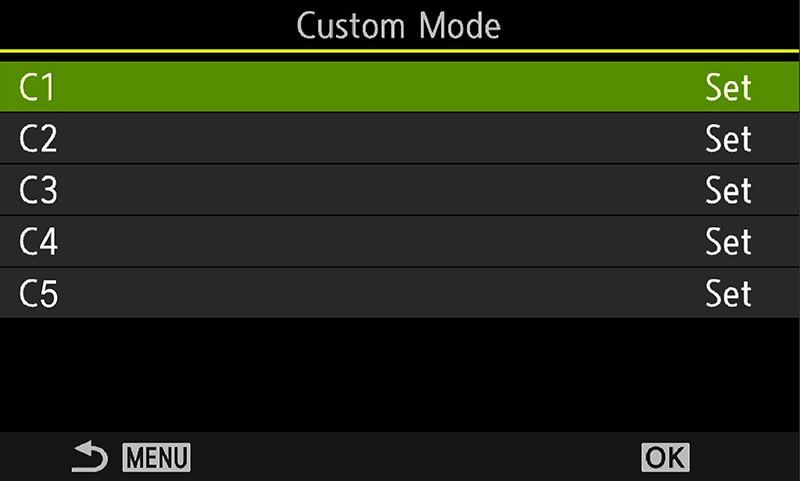
Custom Modes Menu 1.Basic Settings
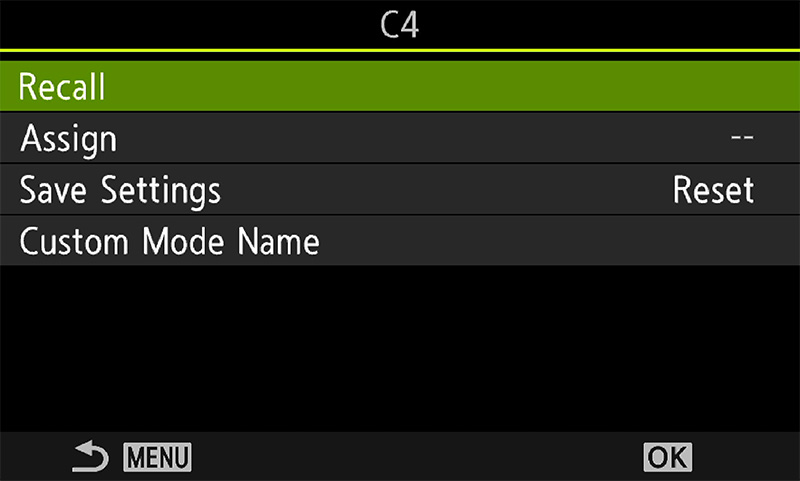
Detailed Settings for the CM
CMs are saved by Assigning them to the number required, as shown in the first screenshot. Press ‘Ok’ to enter each CM and make sure ‘Save Settings’ is set to Reset and not Hold, otherwise any setting you change whilst using the CM will be saved, meaning your settings are updated and overwritten. Ignore it and stick to Reset to discard any changes you make, eg you have a CM saved with ISO 200, but then use ISO 800 for a shot, when the camera is turned off it will default back to ISO 200. The last thing you want is shooting at 800 and not realising.
Recall allows settings to be recalled from one CM to a different position on the Mode Dial, but they are temporary until the dial is changed or you reboot the camera. Remember that the shooting mode (PASM) saved will also be loaded. It is not something I ever use, although this is the way Custom Modes are loaded on the OM5 with it only having C1 on the Mode Dial.
RENAMING CUSTOM MODES
The OM3 now finally allows Custom Modes to be renamed which is fantastic, and I hope it is brought to the OM1. Whilst the dial will not reflect names obviously the screen will. 12 character per name can be set. The custom name does not show on the screen constantly, rather when a CM is selected the screen shows the name temporarily and then reverts back to just the CM number. To rename enter the Custom item, select Custom Mode Name and rename it with the alpha-numeric screen that shows using the touch screen. Select End and OK when done.
SAVING CM’S TO A BUTTON
You may have noticed in the Buttons menu that CM’s can be saved to a button. You can absolutely do this, but I tend to avoid it. Firstly, a set of settings have to be saved to a CM mode on the dial, C1,2, etc. There is no way around it, so it’s there and easy to access by the dial. Secondly, saving one to a button when it is already on the dial is a waste of a button and they are a precious resource if you have utilised them all.
Also there are times when accessing a CM via a button can cause conflict, for instance you may have the camera in one mode, then press a button to recall a CM that has settings applied and the mode will change.
Although there are some situations when a CM applied to a button can be useful I tend to recommend avoiding it. It can be a devil of a job to trouble-shoot why a setting has not been recalled and you may miss the shot.
However, if you specialise is a genre such as wildlife you may prefer CMs accessed by a button, I know some wildlife photographers do this. By setting it to a button a chosen set of functions can be recalled quickly such as frames per second and Target size, or even swapping to ProCapture.
The OM3 is far more of a do-it-all creation camera so I doubt very much if there would be any great benefit from it.
EXPANDING CM’S TO 6
Although there are 5 CM’s which is more than enough there is a work around to expand it to 6 in a fashion, by using one of the standard PASM modes. If like me you have covered everything you need with a CM but still need one more just use one of your standard modes instead.
There are some suppositions here, let’s suppose you have set all your CM’s and then find those are the only modes you use. The PASM modes become more or less redundant because the Mode Dial is always on a CM. You can therefore set the settings you want on the Mode Dial, even changing buttons if needed, making it another set of shooting settings. If you have for example a CM for Manual and want another but do not have a spare CM, set what you want in Manual on the Mode Dial instead.
This is not actually a CM, and the down side is any changes you make will be reflected across all the modes (change to a high ISO in M, then change to A and the same high ISO will be set). The other disadvantage is when you reboot the camera any changes you made will be preserved, unlike CM’s where your original saved settings will be recalled.
IMPORTANT
Do remember any changes you make to a CM after it is saved will be lost when the camera is turned off, the whole point of CM’s. Any changes you want to preserve as part of the CM will need to be resaved to the CM, overwriting the original one. CM’s can be set (using ‘Hold’) so that any changes will update it, I find this pretty pointless and avoid it.
A FEW IDEAS
If you’re having difficulty thinking of CM’s to set, it could mean you don’t need one. Keep it simple, you can always set more up when you need to and as your photographic journey evolves. Here are a few ideas, just with very basic settings to get you thinking about the possibilities. Did you print my Planner? You will find it invaluable for planning your button configuration and custom modes. Find it on the Custom Buttons section or ‘About’ section.
Note that one of the beauties of the OM3 and where the engineers have been very clever is designing in flexibility. The CP button allows Computational Modes to be recalled very easily in one place, and the Creative Mode dial allows plenty of creative options too all on the fly; one reason I suggest keeping a basic setting on C1 so you are not constrained by specific settings.
1- Create a CM for black and white art minimal images with a 1:1 square crop, or for street and architecture. Setting a crop or a black and white profile is not applied to RAW’s, but seeing the effect as you shoot is better for composition. Changing the profile and indeed ratio are simple enough to access, but the point here is you can set up a CM for just about anything you like. Note that although any creative styles are only recorded in the jpeg, if raw is also set profiles can be added to the raw in OM System Workspace in post processing.
2-A CM for Night Sky using Starry Sky AF. Although these settings are easy enough to set without a CM, if you shoot the night sky often a CM would be useful for you.
3- Wildlife. We will save a CM which forms the basis for a wildlife setting, you may wish to have another if this is your genre. Perhaps an option for ProCapture with additional default settings saved, with a faster shutter saved as default. Remember the Pre-Frames and frames per second will also need to be configured to suit.
4- Portraits. Perhaps you often shoot portraits with a particular style such as the Picture Mode: Portrait or Soft Focus Art Filter. Saving a CM with Human Detection and Eye Detection enabled can make it an easy go-to. Saving spot metering for skin tones and perhaps changing the drive mode to sequential will help.
The possibilities are endless, these are just a few suggestions to show how easy it is to save settings you could find useful.
SUGGESTED CUSTOM MODES
The table below shows the Custom Modes I have set on my OM3, and in a very similar fashion on the OM5, OM1 and OM1-MK2. In fact when using multiple bodies I try to make settings as similar as possible for familiarity, other than features specific to different models. Note which settings are default across all modes, and where settings have changed for specific reasons. I try to keep them as simple as I can with as few changes to buttons as possible to avoid complete confusion; muscle memory and being familiar with the camera body really is important. And as a visual clue, or a reminder, you could even enable the on screen grids and change the colour between CM’s.
It is impossible to give Custom Modes to suit everyone, and you may find these do not suit you. They should give you a sense of what they do and why I use these.
We have seen in the Buttons section how different they are on the OM3, there are less than the OM1-MKII. Then again we have the CP button to give easy access to computational modes. Some of the features I have included are items that are important to me such as Peaking, and White Balance. Another point to bear in mind is the ergonomic on the OM3 are completely different so you may find swapping some features to a different button better. Ergonomics matter, notice that I change the Monitor button, it is a function I simply do not use and I have better uses for it. But in Wildlife I ignore it, I cannot access it with my right hand and my left hand is supporting a long lens so it would be foolish to map an important function to it.
Below the table is more information to explain my reasoning behind each CM and functions included.
Note-As mentioned in the Buttons Section the Record button is a little close to the rear dial. It means when applying a function that also required the front/rear wheel to be turned for further options, such as Bracketing or Subject Detection it could be a little awkward. Depending on your fingers test it and see what you are comfortable with. For Street and Wildlife I like to have Subject Detection and Subject Selection enabled. However, which will I use least? Will I swap detection mode least and use selection more? They may be a case for swapping the buttons around, but test it for yourself, you may not see it as an issue.
The Shooting Mode for each CM is denoted in brackets (A=Aperture Priority, M=manual) etc, and under each one a title is given to denote what the primary function of the CM is for. Settings shown with (-) means the button function is default or not relevant.
On a mobile swipe to view all sections ↔
| CM & MODE | C 1 | C 2 (A/M) | C 3 (M) | C 4 (A) | C5 (M) |
|---|---|---|---|---|---|
| Button | DEFAULT | STREET/PORTRAIT | LANDSCAPES | MACRO | WILDLIFE |
| RECORD | – | SUB. SELECTION | AE BKT | FOCUS BKT | SUB. SELECTION |
| Fn BUTTON | (MFn*) PEAKING | SUBJ DETECT (HUMAN)* | (MFn*) PEAKING | (MFn*) PEAKING | PEAKING OR IS |
| MONITOR | WB | WB | WB | WB | |
| CP BUTTON | – | – | LIVE GND (OFF)* | FOCUS STACKING (OFF)* | SUBJ DET (BIRDS) |
| LEVER 1 | S-AF/MF+SMALL* | S-AF/MF+SMALL | S-AF/MF+C1 | S-AF/MF+C1 | C-AF/MF+ALL |
| LEVER 2 | C-AF/MF+SMALL | C-AF/MF+SMALL | MF | MF | C-AF/MF+CROSS |
| ARROW PAD > | ISO | ISO/MF* | ISO | ISO | MF |
| ARROW PAD ∨ | DRIVE | DRIVE/MF* | DRIVE | DRIVE | DRIVE |
| ARROW PAD < | AF MOVE | AF MOVE | AF MOVE | AF MOVE | AF MOVE |
| ARROW PAD ^ | EXP COMP | EXP COMP | EXP COMP | EXP COMP | EXP COMP |
| AF-ON | AF-ON | AF-ON | AF-ON | AF-ON | AF-ON* |
| LENS Lfn | – | DIGITAL ZOOM | DIGITAL ZOOM | MAGNIFY | AF LIMITER |
| OTHER | SETTINGS | ||||
| DIALS | FRONT>EXP.COMP
REAR>APERTURE |
AS LEFT | AS LEFT | AS LEFT |
FRONT>ISO REAR>SHUTTER |
| FOCUS MODE | S-AF/MF* | S-AF/MF | S-AF/MF | S-AF/MF | C-AF/MF+TRACKING* |
| DRIVE | SINGLE | SINGLE (SILENT) | SINGLE | SINGLE (SILENT) | SILENT SEQ 20fps |
| NOISE REDUCTION /FILTER* | AUTO/STD | AUTO/STD | AUTO/STD | AUTO/STD | AUTO/STD |
| METERING | ESP | ESP | ESP | ESP | ESP/SPOT |
| ISO | 200 | 200 | 200 | 200 | AUTO /LIMIT 12800 |
| SHUTTER | -* | – | _* | -* | 1600 |
| APERTURE | f5.6 | f5.6 | f5.6 | Wide Open | Wide Open |
| IMAGE QUALITY | RAW+JPG SF | AS LEFT | AS LEFT | AS LEFT | AS LEFT |
You will notice how many of the settings are consistent across each of the CMs and I only change it if there is value in doing so for the particular mode. Main settings such as ISO and Drive are set as the default, metering is Evaluative and Aperture is set at an appropriate value. In many cases I do not need to make too many changes because I thought about it first and made a plan.
There are also occasions when changing a setting become redundant. With Macro, why have Magnify set on the Lens fn when the 60mm Macro lens doesn’t have one? I use Magnify to check focus quite often. The 90mm Macro does have an Lfn, and what if I want to use a different lens like the 40-150 Pro or 300 Pro? Forward thinking…
AF MODE ACCESS (ISO/MF* DRIVE/MF*)
One of the most difficult decisions to make with this camera is access to AF Modes and it is where the lack of buttons becomes apparent. The most flexible approach is being able to have a couple of options for AF, single, continuous, different target sizes, and access to MF without using the Super Control Panel. Using the SCP isn’t a great problem, it just isn’t as fluid as being able to press a button quickly. Access to MF is important for many reasons already stated, for disengaging the shutter from AF and providing BBF. With the OM1-MKII we had dedicated buttons for ISO and Drive, and extra buttons so we could have access to all of them including WB.
In the Landscape and Macro CM’s I cannot give up access to MF, it is too important, and in both cases I use the Lever2 position for MF. Using lens clutches is no good because it disengages the focus motor and AF-ON will not work. If, as in Wildlife we use the Lever Fn for two different AF modes then MF can be applied to the rear > button, which works well because ISO is now on the front wheel where it is important, but what about other modes? The Street/Portrait CM has ISO/MF* and Drive/MF* indicated as options with an asterisk for this reason, consider carefully which is important to you; perhaps Drive is less important and you are happy to use the SCP in which case you could map MF here instead. Or you may be happy to use the SCP to swap to MF. Or indeed for Street/Portrait do you even care about MF and BBF? It is up to you.
NOTES
Some of these notes are repeated from the Buttons Section as a reminder.
White Balance – Despite shooting raw I often find I want to change White Balance. Light temperature changes drastically at different times of the day and I want the image to look like it should even though I can change it. Shooting in creative modes which will produce a jpeg means WB cannot be changed so it become more important to get it right. The Monitor Button is redundant to me so I use that.
(Mfn*) Peaking – Set button to Multi Function and then Peaking. It will provide an opportunity to switch to the other functions if needed. Functions available are Highlight/Shadow, ISO, WB, Magnify, Image Aspect Ratio, S-OVF, Peaking. Peaking is both a blessing and a curse. It is so useful to check what is in focus (actually not, it shows what edges have high contrast and should be sharp). After spending time ensuring I have good focus I sometimes want to check Peaking again without disturbing the focus, so having it mapped to a button means I can enable it any time in MF or AF. Note-In the AF menu under AF.7.MF>MF Assist Magnify can be enabled, which is very useful. However sometimes magnify is a curse when you want to see the full frame; press the Peaking button first and the frame will not be magnified. Cool!
S-AF/MF+Small* – Note that this shows the Focus Mode and the Target (AF Points) size, they are different things. Any combination can be used. I have shown both suggestions together for clarity, and listed the suggested AF Mode in the ‘Other Settings’ table.
Set a default target size you think you will use most. It is easy to change Target size on the fly by pressing the Arrow Pad < and turning the front dial.
S-AF/MF* – It is useful to set the focus mode together with /MF. Keeping the focus held with the shutter half pressed or AF-ON held allows fine tuning with the MF ring to over-ride the autofocus. If the shutter or AF-ON is released and the MF ring is turned it is effectively manual focus and will be disturbed again when the shutter or AF-ON is again pressed. The key here is to hold the AF focus. whilst using the MF ring.
Note this is different to BBF (Back Button Focus). To separate the shutter from AF and enter BBF press the rear Arrow Pad >MF (if set). AF is maintained with the AF-ON button and the shutter is now taking the shot only. Do not use the lens clutch to enter MF because it disengages the lens AF motors and AF-ON will be off, unless you want full MF.
Subj Detection (Humans)* – Set the button to Subject Detect/Human, then ensure it is off before saving the Custom Mode. This way it will not be on by default when switching to the CM and can be enabled with a single press. Unless you want it always on of course.
Live GND (Off)* – For Custom Modes with a Specific CP Function (such as Live GND), set it to the function, set default options such as GND8 Soft to enable it and then turn it off before saving the CM. When the CP button is pressed again it will default to the last used function, Live GND. You can of course switch to other functions such as Live ND, so choose the one you think you may use most as the default.
Noise Reduction Auto* – Note that Noise Reduction and Noise Filter are two different things:
Noise Reduction reduces the noise produced by sensor heat during long exposures.
Noise Filter reduces the grain created by high ISO shooting. Set this to Standard.
For Landscapes I often prefer to have Noise Reduction Off depending on the length of the exposure. For an exposure that is just a few seconds it is no great burden to wait the same amount of time for noise reduction to do its thing (taking another dark frame to compare and reduce the noise). But an exposure of 30, 40 or more seconds wating for NR to perform may mean I miss another shot with changing light and I don’t want that. I prefer to have noise off and deal with it in post-processing. Adding NR to My Menu is a quick way, but I am forgetful, as most times when I do a long exposure I am using Live Time in the B Dial position, I turn NR off by default. It will be off on all PASM modes too, which doesn’t concern me. A long exposure using Live ND does mean I have to remember to switch NR off if needed.
Shutter Speed* – Setting a default shutter speed is largely irrelevant because it only applies for a given shot obviously, we do not know what it is until we are using it, and it depends on if you are using A, S or M, hence why it is left blank. When saving the Custom Mode if you choose S or M I would just save a shutter speed not too high, or too low just as a starting point, it will change when the camera meters a live scene anyway. In Wildlife it is set at 1/1600 because in most cases this is a reasonable speed to start with.
Image Quality – Personally I would always use Raw and Jpg Super Fine. I set Jpg just in case there is a time I want access to it straight away and delete them when I import the Raw images. You may decide to have Landscapes just as Raw and perhaps the default just as Jpg in Street if you are not interested in Raw. Using both means you are not limited.
C1-DEFAULT
C1 is the default CM. Basic settings are saved to make this the default go-to mode when I want to play and be creative without having any specific settings saved that could be constraining, such as those saved in the other custom modes. It is saved as a CM to protect the basic settings, if I change a Picture Mode colour profile, change ISO or anything I do not want saving to the next session I know having a CM will return everything to what I actually want. There is nothing worse than getting a great shot only to realise you were shooting at ISO 5000 and did not notice.
Most of the settings here are default other than a few functions I want access to such as Peaking and White Balance. I changed these and then saved the CM so that the PASM modes also have the settings applied, the buttons will be the same. I also change the rear Arrow Pad to access other functions because it becomes much more useful.
Fn Button is set for Peaking. Peaking Is useful for checking what is in focus, and becomes more useful on a button than just having it enabled in the AF Assist. See the Notes.
The CP button will recall the last used mode, in other words one could be saved as default. I leave it blank because it doesn’t really matter which one is set, it will change according to what I am shooting anyway.
AF Modes are accessed with the Fn Lever with S-AF and C-AF set. Remember the AF Mode and the Target size are two different things, I set the target to small, you may wish to have one slightly larger. Target size is easy to change by pressing the rear < button and rotating the front wheel. The actual AF Mode shown in Focus Mode only matters if no settings are applied to the lever which override it.
The rear Arrow Pad is wasted at the default settings so after setting it to Direct Function the > and ∨ can be set to more useful items such as ISO and Drive. Pressing < still activates the focus point position and the other arrows temporarily default back to Move. The ^ arrow is unfortunately set to exposure compensation by default and cannot be changed.
Dials (front and rear wheels) are default with front being Exposure Compensation/Shutter and rear Aperture. Note that it depends on the shooting mode, in A it is Exposure Compensation (it actually controls the shutter) and in S and M it is Shutter. It is the same thing, just a different name.
Metering Mode is mostly set for ESP, when the whole screen is metered and the camera determines an average exposure. Generally it is the most useful and you will control the exposure yourself by reading the histogram and over or under-exposing. Spot and Centre Weighted are really only useful for specific circumstances such as a portrait or some wildlife scenes.
No specific shooting mode is listed (PASM), you can set which you feel most comfortable with. I use A.
C2-STREET/PORTRAIT
Similar to above except I have Subject Detection-Human mapped to button for portraits, but it is Off. When creating the CM enable it, then turn it off and it will be remembered as the last used setting in the CP button options. I leave it off because it suits me to enable it when I want, but if you are more likely to do more portraits that street perhaps leave it on.
Subject Selection is useful because with a group of people the detection cannot determine which should have priority. Pressing the button and turning the front dial allows the target to be cycled to the one you want. Subject Selection is a feature that can only be used when applied to a button.
No particular emphasis is given to functions in the CP mode. Perhaps I would want to use hand held Hi Res, or Live GND. If you think you may want to use Live ND consider the shooting mode you save this as because Live ND can only be used in M or S. Save it as A and you cannot access Live ND.
Lever Fn is set to provide a single small focus point on P1 and C-AF on P2. You may want to change this to a larger target.
The Creative Mode dial on the front gives full access to whatever style I want, be it a black and white or a funky colour for some moody street or architectural shots.
Silent mode is set for the shutter for obvious reasons. Note the Lnf function is largely redundant because I am unlikely to be using a lens which has that button unless I use the 12-40 Pro, in which case it is useful to get a little more reach with Digital Zoom, albeit a jpeg crop.
C3-LANDSCAPES
Quite a few functions are added here, or the options I find most useful like Exposure Bracketing, Peaking, ISO, WB and MF.
I often Exposure Bracket so having this as an option suits me. Long press the button and turn the front dial reveals options for number of frames and EV, mostly 3 or 5 frames at 1 stop. Sequential drive is enabled by default. HDR is available from the CP button which along with HDR1 and HDR2 (raw and jpeg). Unfortunately the bracketing options for HDR in the main menu are not available from the CP Button, but I find they are not needed. I have said many times I wish the Bracketing and HDR were merged into one, but again it has not happened.
Here the CP button really shows how useful it is. On the OM1-MKII multiple buttons are needed for access to the main features I would use in landscapes, Live ND, Live GND and Hi Res. Now they can be accessed just from one button. Only one can be used, they cannot be combined so just using one button is fine and actually better. I have Live GND as the default.
AF Focus Target is set as the smallest possible C1 for more accurate placement. In Menu AF>6>Target Settings enable C1, then change size and step to 1.
I set the Fn Lever to position 1. S-AF mode and position 2. MF. MF is incredibly useful not just in this CM, there are times when I need to have the shutter button separated from AF, when shooting panoramics, bracketing, and long exposures with an external ND, in fact any time I want to use AF but then do not want it disturbed. This is in fact Back Button Focus but it is not permanent, moving the lever back to position 1 returns it back to normal AF. In position 2 the camera is set to MF and pressing the AF-ON button performs AF, so it gives the best of both worlds. Setting it is simple, in each lever position set the mode required and it will be remembered. It can be utilised for different modes in the Wildlife CM.
Arrow Pad is set for Drive and ISO. Drive is less important being honest, before the OM1 using Bracketing did not activate continuous shooting and it stayed in single shot, now bracketing and continuous drive are linked. Access to drive is still useful though for setting a self timer or when speed matters such as catching a wave at the right moment.
Lnf is set to Digital Zoom. This is an odd one and only a setting that you do not always need should be applied, particularly considering many lenses do not have an Lfn (primes). Digital Zoom is actually a crop, and the Raw is unaffected, but it is useful if I haven’t quite got the reach, or I want to use the lens as a mini scope for a nosey.
C4 – MACRO
The two most useful features for Macro are obviously Focus Stacking and Focus Bracketing. Focus Stacking can be accessed by the CP button. I show it as Off however it is your choice because if you switch to Focus Bracketing then stacking is automatically disabled and vice versa.
They are two different things; Stacking is all performed in camera with a slight crop and only a Jpg is created, whereas Focus Bracketing is not stacked and will need stacking in post processing, but raws are created if raw is set. It can provide better results and gives more options for the number of images etc.
Focus Peaking is especially useful for Macro for checking what is sharp; again having the ability to check peaking after the fact using a button, and disable the zoom factor in MF assist pays dividends.
Having access to MF on the Rear Arrow Pad is useful too. Assuming you want to use AF, being able to switch it to MF to disable the shutter AF is useful. You can put the lever to MF and then use the AF-ON button, and whilst holding it fine tune with the focus ring. Or of course just use MF, it is your choice. Flexibility is king.
C5 – WILDLIFE (SUBJECT DETECTION)
My quick mode for action and wildlife. I am not a dedicated wildlife photographer, so I try to have a CM that does just about all I need as a main setting. Those that are more dedicated to this genre may want additional CMs for it. The OM3 by virtue of the ergonomics is not ideal for wildlife, but all the features are there so why not have a CM for it?
I have this set a little different to other modes, what really matters is being able to quickly change shutter speed and ISO, less so Aperture. Suppose you have a situation where the shutter is not fast enough and want to increase it quickly (normal for wildlife), Aperture cannot be changed because it may be wide open already, which leaves changing ISO. Setting Auto ISO will suffice for many situations, however there are times you will need to take control of it perhaps to increase shutter speed more, or to under or over-expose. Without an ISO button we can change the front and rear control wheels to give access to Shutter Speed and ISO, and use the few buttons we have for other features.
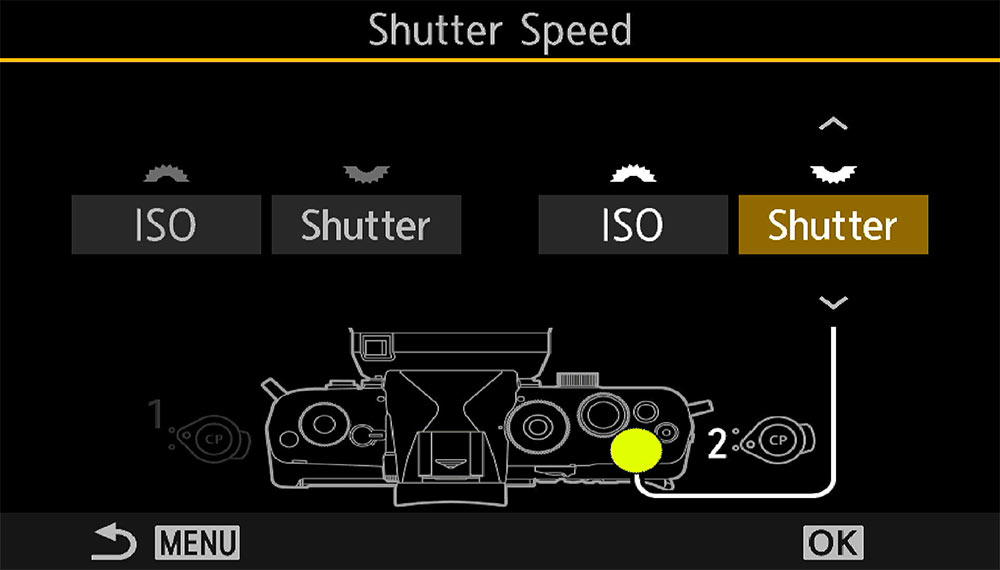
Changing Control Wheels Cog Menu>1. Operations>Dial Settings
Don’t change the wheels in the normal Mode Dial M position because it will change them for your standard Manual and Bulb modes. We only want them changing for the Custom Mode, so just save a Manual Mode CM to the chosen position (C5), then customise it and resave it again. That is of course unless you do want it changed in both.
Select Dial Function and scroll Down to M/B. In the next screen are options for setting the wheels to function differently on the Lever1 and Lever2 Positions. Set ISO to the front wheel and Shutter to the rear wheel for both. Setting them differently on lever1 and 2 is just getting complicated and you’ll get confused, trust me. Now the front wheel controls ISO and the rear wheel Shutter Speed. Full control with no other buttons to press.
Now we lose control of Aperture on the wheel. After setting the rear Arrow Pad to Direct Function the ^ Arrow has become Exposure Compensation. Press it and now you can control the Shutter and the Aperture with the arrows or the wheels. As you will need to change aperture far less than ISO and Shutter this give a convenient way to do it.
The CP button is pretty much redundant for wildlife, so set Subject Detection to it. Activate it and set Birds or Cats and Dogs whichever suits you. Birds does actually work pretty well for animals too. The reason animals is called Cats and Dogs is because the AI has only been trained on smaller animals, the animal world shape is far more diverse than birds which are essentially the same shape, so the name is damage limitation on the part of OMS.
We lose access to CP functions such as High Res, and does it matter? Well, no. True there may be a situation when you have an animal or bird which is very still and you want a high res image of it, in which case speed is not the name of the game here, you will not need Sequential Drive, a fast shutter or high ISO because there is no movement, so switch to any other mode! Just because a CM is called Default, Street or Landscapes does not mean you cannot use it for other things.
Subject Selection is applied to a button which is important. In a group of birds or animals Subject Detection will detect many but may give priority to the wrong one. Subject Selection allows you to press and scroll to the subject you want.
I use the Lever to set C-AF for continuous focus and set the Targets to Lever1 All and Lever2 Cross, which seem the most useful. Setting All means the focus will quickly pick up a bird moving across the frame, whilst Cross allows more specific placement. It is easy to change these by activating the AF Target on demand by pressing theArrow Pad < and turning the front dial.
Using Manual Mode the shutter is saved as a default at 1/1600s with Auto ISO at an upper limit of 12800. Auto ISO will suffice for many situations, but you have more control with changing the front wheel as above. If the light is bright and ISO goes higher than needed you can manually change it and change the shutter to suit. An upper limit of 12800 is quite high, noise control is very good at higher limits, in fact better than at lower base limits.
Metering is ESP, or Evaluative, for measuring the whole screen. There are times when the subject fills the frame and Spot would be better to meter for the subject and ignore the background. Generally ESP is more useful to stop the exposure readings jumping around all over.
Drive mode is Sequential Silent at 20fps (Menu 1.7 Sequential Settings). In SH1 and SH2 the number of frames can be set. I leave them at default so that if I do want to increase frames I can quickly change to SH2 50 fps. Remember that the higher the number of frames the faster you will fill a memory card, just a short session can easily result in a few thousand images to review. Metering and focus is maintained, whereas in higher settings such as 120fps in SH1 they are not, only the first frame will be metered and focused. See the Subject Detect Section for more details. Other Sequential settings include ProCapture. Again see Subject Detect for more information.
Lens Fn Button is useful, but what to set to it? I tend to use AF Limiter. Setting this means I can limit how much the lens hunts to find focus. A long press and turn of the front wheel provides access to presets that can be configured in Menu AF 4>AF Limiter. Obviously the difficulty here is knowing what distances to set; the default 999.9m is too far so apply some common sense and alter as needed. I have 5-50m, 50-100m, 100-300m.
C-AF+TRACKING* & AF-ON*
With previous firmwares (OM1) AF tracking and subject detection conflicted because the camera did not know which to give priority to, tracking or subject tracking, they are not the same. Tracking tracks the contrast in the AF frame with no identification of what the subject is, whilst Subject Detection tracks the subject according to the AI training.
Both are useful and as Subject Detection is not infallible Standard Tracking can be a useful fallback. With recent firmware updates setting the default mode to tracking means when Subject Detection is not active, tracking will be active instead. Press the subject detection button to enable it and ‘standard’ tracking is off, meaning you have the best of both worlds with a single button press. When setting up the Custom Mode set C-AF/MF+Tracking as the AF mode.
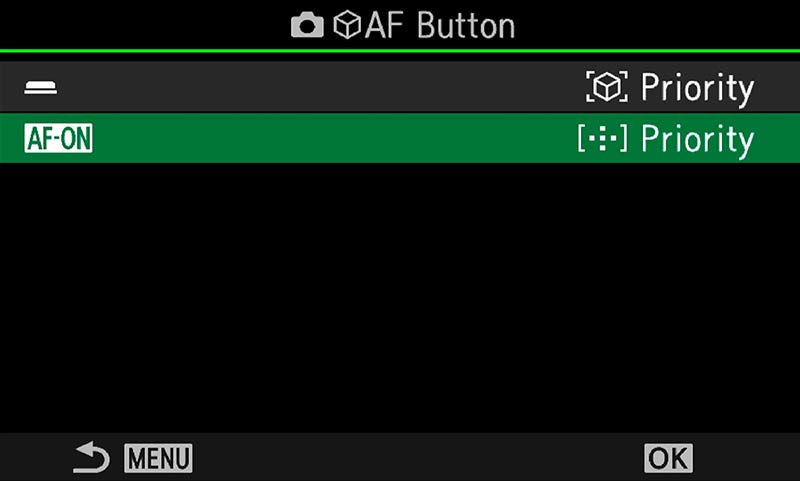
AF Button See Subject Detection Section
The AF Button option in Menu AF>2. AF Button give even more flexibility. It is a little confusing so it needs clarifying. The official manual says:
Option 1 Subject Detect Priority Tracks focus on the subject when it is detected at the selected AF target point.
Option 2 AF Target Priority Always tracks focus on the selected AF target point.
It means one can be assigned to the Shutter AF and one to the AF-ON, but it is badly worded. AF Target only tracks if the AF mode is set to C-AF/MF+Tracking.
Assign Option 1 Subject Detect Priority to the Shutter AF and Option 2 Target Priority to AF-ON.
You can set these both to Subject Detection if you wish. Subject Detection is not foolproof and can fail, so having AF-ON set to Focus target Priority will force it to focus where the focus point is instead. If a bird is in a tree and detection is failing you can use AF-ON instead to force focus where you want it. If using Cats and Dogs and the detection has failed, turn off Subject Detection and the AF will default back to the AF Mode set, in this case C-AF+Tracking. Pressing the rear AF-ON button will force focus where the focus point is, instead of the tracked position. It does all sound confusing but you will realise how flexible this approach is.
However, if you are a Back Button User you will need to set AF-ON to subject detection. It is worth exploring these to see which suits you. I use Shutter>Subject Detect and AF-ON>Target.
LEVER SETTINGS
Note also, when Subject Detection is turned off and the AF changes back to C-AF/MF+Tracking the target patterns can also be changed. Set the Lever1 target to Small, and Lever 2 to cross, or any pattern you find useful. Do be aware sometimes simplify is best and changing too mach can be a headache; the options are there if needed.
COMPLETE
Congratulations, you have now completed setting up your camera. I hope this has been useful and it will serve as reference for the future. Your settings will evolve and mature over time, change them as you progress and don’t forget to save them.