

SUBJECT DETECTION MODE
Subject Detection for shooting moving subjects
A look at Subject Detection, how it works and how to utilise it.
Olympus-OM System cameras are packed with features as you know reading this. In this section we will explore the AI Detection Modes in the OM3. The OM3 is not a dedicated wildlife/action camera evident by the lack of a grip. It is a take anywhere do anything camera and all of the features of the OM1-MKII are included, so if you have a suitable lens why not give it a go?
AI SUBJECT DETECTION
I decided when planning this guide to approach as a primary consideration Birds In Flight. Such a subject to photograph is demanding; it requires skill, a good understanding of the subject and the camera. Therefore having the camera set up in the most convenient way will help with quick reactions and improve keeper rate. It also means if you can deal with birds in flight out in the field you can deal with just about anything.
Olympus/OM System have been more than adequate for shooting moving subjects and the technology was improved even more in the OM1-MKII which has been included in the OM3. Wildlife for example is not a new genre and once relied on nothing but skill. Tracking in previous models was good but a little hit and miss which was improved in the E-M1X with better tracking and the introduction of Bird Subject Detection.
A.I. has been used to train the camera to recognise, focus and track cars, planes, trains, birds and animals, and it works very very well thanks to the improved focussing and faster processing power.
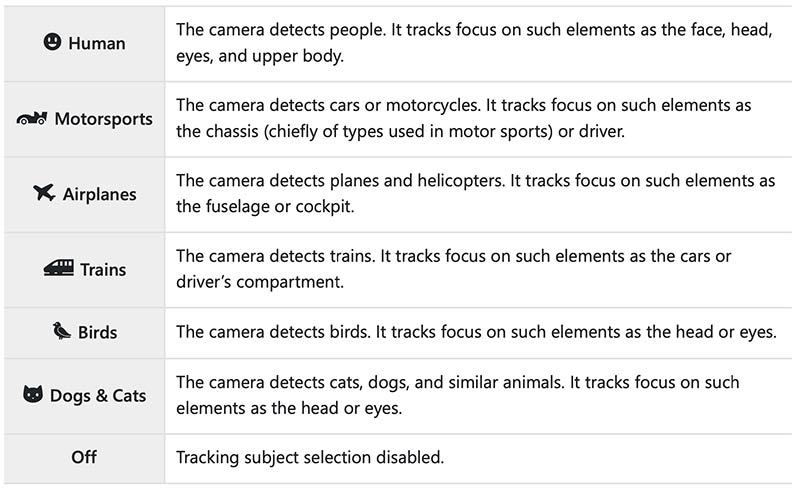
Setting the camera up for using Subject Detection Modes needs careful consideration depending on how often you you would use it. How you access the options and the general settings you have enabled will vastly increase your ‘keeper’ rate and enhance your reactions. If you have followed the Custom Settings section you will see I recommend a Custom Mode which I save to C5 with Subject Detection and Subject Selection saved to buttons.
There are also options for the AF Target mode, Drive Mode and FPS (Frames Per Second) Shooting Mode (A, S or M) and ISO to consider. Shutter speeds are a primary consideration obviously, so you may want to set Auto ISO, or save a Custom Mode with a default 1/1600s shutter speed in S and alter ISO yourself as it is easy to do.
There are so many ways to set the camera up, we will look at a few options. Thankfully you do not need to change the general settings for each Subject Detection Mode.
Each detection mode can be used for other subjects too so it is with experimenting. Birds works very well with dragonflies and damselflies and even some animals. Cats and Dogs works well with small animals but may not recognise some bigger animals; bird detection is easier to ‘train’ because a bird is a bird, whereas with animals a fox is very different in shape to a giraffe.
THE MAIN SCREEN
The main screen in Menu AF 2.AF>Subject Detection provides all the options that can be selected. This simply enables the mode, not any settings such as AF Targets, which are user selected. Select Birds and it will track from the settings already set but they need to be optimised for the situation in from of you. Note the new Human Detection. The screen says Faces and Eyes, oddly, but it does much more than this, also detecting human figures.
We saw in Custom Modes that this is set to a button which I strongly recommend for switching between a bird or an animal for example.
CAF+Tracking can no longer be enabled with any Subject Detect Modes, it actually conflicted with Subject Detection tracking.
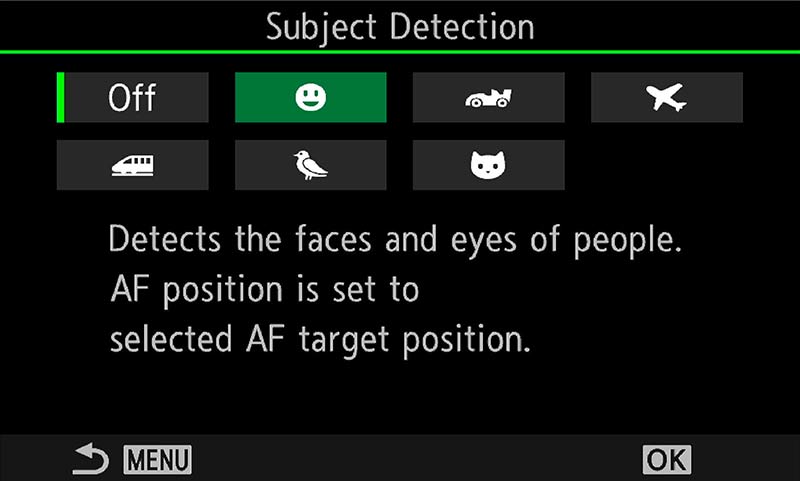
Menu AF 2.AF>Subject Detection
BIRDS IN FLIGHT
As I said above probably the most challenging Wildlife subject is birds in flight because of the speed. If you can learn the skills for capturing birds in flight you can capture just about anything. Perched birds are obviously easier, and animals will be less of a challenge because they do not move as fast, unless you’re in the Serengeti trying to capture a Cheetah.
Capturing Wildlife is a different skillset to other genres, it requires a knowledge of the ideal camera settings such as Sequential Settings and Focus Target modes, panning and understanding different IS Modes, and of course knowing the habits of the subject. Subject Detection allows for the focus to always find the eye where possible, of if not the head or body. What the camera cannot do is teach technique, that is something you have to learn out in the field, but you can practice at home with a pet, or out in the garden. A few tips:
- The Aperture doesn’t always have to be wide open. Consider the depth of field, a bird in flight may have considerable depth from one wing tip to another depending on how it is framed. A close up may need the Aperture closing a few stops for depth front to back.
- For movement always err on the side of a shutter being too fast, even if the ISO is high. A sharp shot with noise is better than a noise free blurry image. Shutter speed will vary enormously depending on the subject, a good place to start is 1/1600. of course it may be much less, or much much more.
- The smaller the subject the faster the shutter speed. Pretty obvious, a small bird or animal has much more manoeuvrability than a larger one.
- When all else fails try C-AF. Technology is great but remember the old masters didn’t even have AF.
CUSTOM MODES
In the Custom Modes Section we reviewed how to set up CM’s with suggestions for each of the five available. Only one was dedicated to Wildlife or any action. For me personally it is enough, with buttons set for access to the many options and with quick access to drive modes I don’t feel I need more.
Refer back to the ‘Buttons’ Section where we set up a set of options for use with Wildlife. Subject Detection was saved to the CP button because in this mode computational settings are redundant. Other important functions were added to make them easy to access. AF Limiter was mapped to the Lens button which allows you to enable or disable it quickly, and adding it to My Menu allows quick access to change the actual parameters in it too.
The Custom Modes you have do depend on the type of photographer you are; as a landscape photographer who sometimes shoots Wildlife I have only one CM and it covers everything I need. Remember being able to switch AF Target size, drive modes etc are all pretty easy and it is impossible to try and set everything up. However a dedicated Wildlife photographer may want 2 or 3 CMs.
However, this is the OM3, it is not intended to be a serious camera for one genre, rather a fun shoot anything camera with serious abilities. If Wildlife is important to you you may want to set other modes up, for example for Pro-Capture.
| Button | C4 (MANUAL) |
|---|---|
| WILDLIFE GENERAL | |
| RECORD | SUBJ SELECTION |
| Fn BUTTON | PEAKING/IS (Your Choice, I would favour IS) |
| MONITOR | Redundant, it is too out of place. |
| CP BUTTON | SUBJECT DETECTION |
| LEVER 1 | C-AF/MF+ALL |
| LEVER 2 | C-AF/MF+ALL |
| ARROW PAD > | MF |
| ARROW PAD ∨ | DRIVE |
| ARROW PAD < | AF MOVE |
| ARROW PAD ^ | EXP COMP |
| AF-ON* | AF-ON |
| LENS Lfn | AF LIMITER |
| CONTROL WHEELS | FRONT ISO / REAR SHUTTER |
| FOCUS MODE | C-AF/MF+TRACKING* |
| DRIVE | SILENT SEQ 20 FPS |
| METERING | ESP |
| ISO | AUTO / LIMIT 12800 |
| SHUTTER | 1600 |
Many wildlife photographers use buttons for Custom Modes, for really fast access such as switching between a Sequential Mode and Pro-Capture. I tend to advocate not doing this because the CM has to be saved on the Mode Dial anyway, and it’s a waste of a button. I tend not to do this because I shoot many different genres and I want to use my OM3 in many ways, not being dedicated to one.
AF TARGET AREAS
AF Target Areas are important for getting the best from Subject Detection. With these we can set various sizes of target areas or AF grid sizes whilst shooting. In Subject Detection Modes the grid acts as the area where the camera will try to detect the subject and will activate the focus point, detecting the best place to focus. For a bird for instance, it will try to focus on the body or if prominent in the frame the head or even the eye. But it is not infallible and when there are two or more subjects it will detect both, not knowing which to actually focus on. Subject Selection now gives us one way of dealing with this. We need to be aware of where it can go wrong, and what to do about it with ease.
Menu >AF>6 AF Target Mode Settings
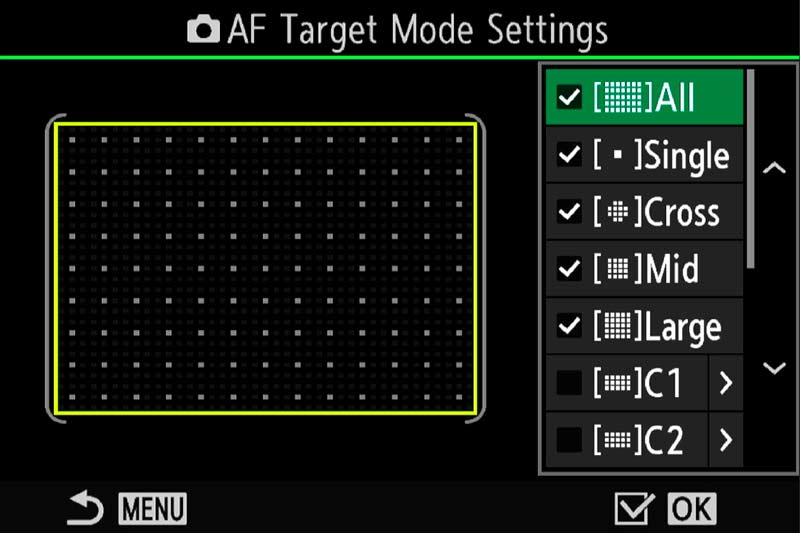
AF Target Mode Settings
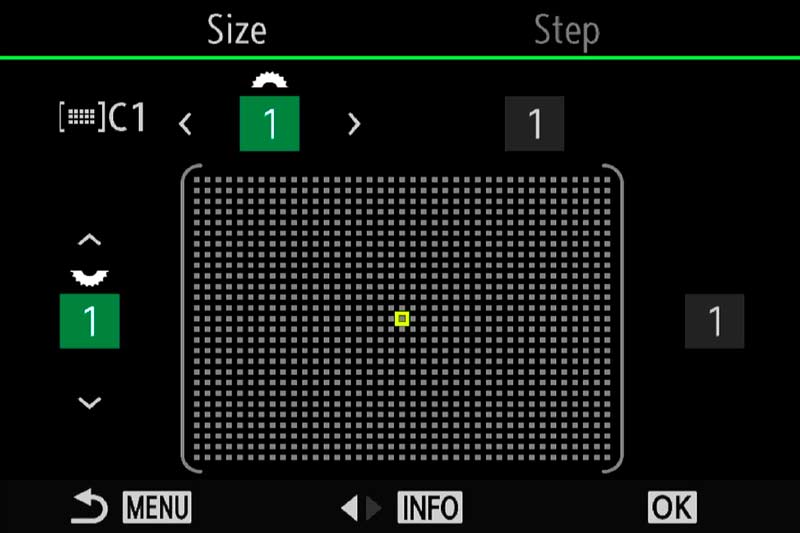
Custom 1×1 Target Area
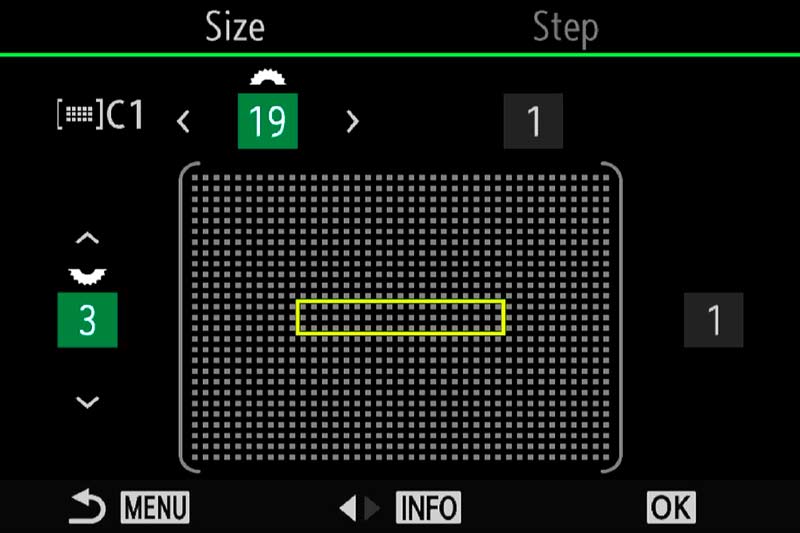
Custom Rectangular Target Area
Screen 1 shows the AF target Mode Settings. There are 5 ‘standard’ target modes and four modes that can be customised, C1 to C4. Activate all the standard modes by ticking them and customise the C1 and C2. C1 I have enabled with a Single 1×1 Point which I have enabled mainly for Landscape work to allow finer placement of the focus point. C2 is set for a standard Letterbox shape. Accessing them is easy, in most of my CM’s (Custom Modes) I simply activate the focus point pressing the < Arrow Pad and using the front wheel to scroll through.
SUBJECT SELECTION
Using Subject Detection is extremely good but as said above not infallible. Subject Selection allows you to select the subject that has priority but it can only be used via a button. Mapping it to a button, then press/holding and using the front wheel we can cycle through the detected subjects to find the right one. Pressing the button again will lock the AF to the subject.
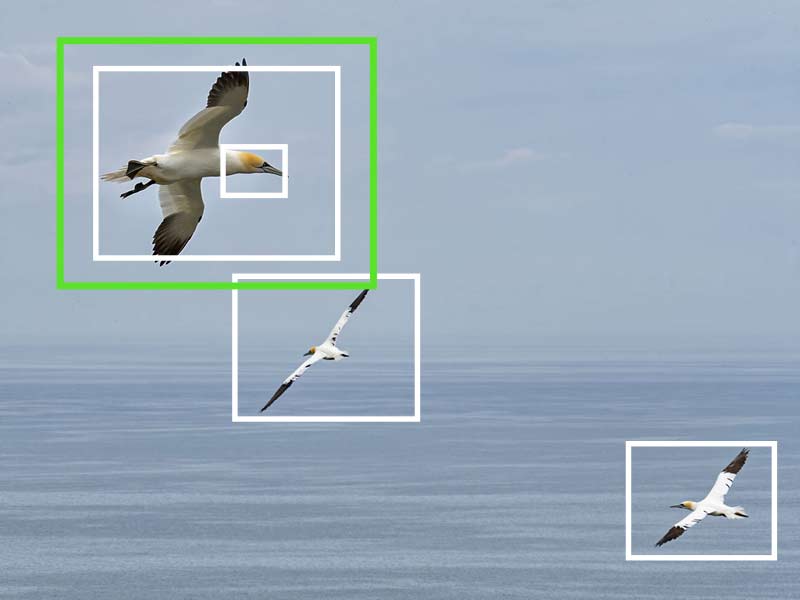
AF Target Large
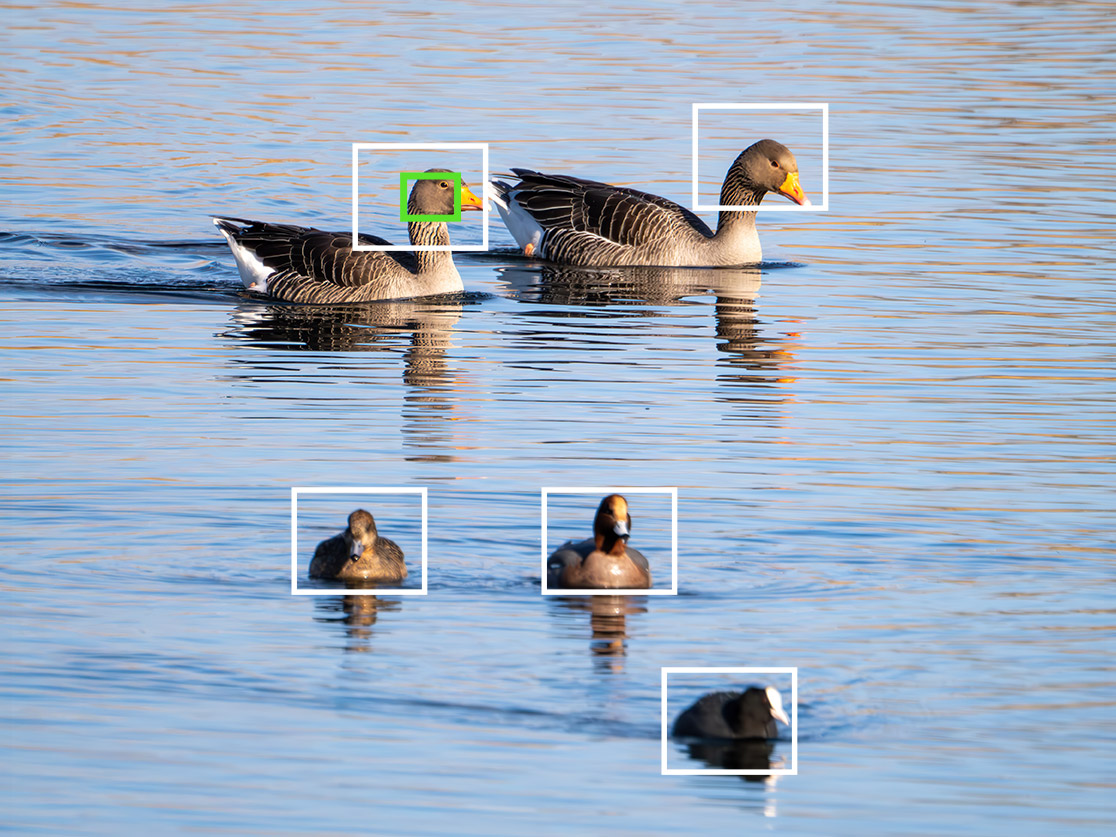
AF Target All
LEFT – Here the AF Target used is Large. The Bird Detect has detected the main subject and also other subjects in the frame but it doesn’t know which is priority. It will struggle even more if the subjects overlap. By changing the Target Mode to Medium or Small we could tell the system which subject has priority and the other subjects will be ignored. As said it is not infallible and Subject Selection can be used instead.
RIGHT – The second image the target set is All. The Subject Detection detected all the subjects in the frame, but again doesn’t know which is priority. Just by pressing the Subject Selection I have mapped to a button I can cycle through each one, and then have the AF lock onto the subject. If you’re wondering why not just reduce the target point give yourself a star; of course you can. Subject Selection is simply another option available and can make life easier.
TARGET MODES AND TRACKING
Note that C-AF is best to use obviously. As explained in the CM section +Tracking was an option with the OM1 and was subsequently disabled in firmware updates because it caused conflict with Subject Detection enabled, the camera just did not know what to do. Thankfully the OM3 has the latest OM1-MKII firmware. We can still set C-AF/MF+Tracking as the base AF Mode as a fall-back; Subject Detection is not perfect and it will struggle sometimes such as when a bird is partly obscured by branches or leaves in which case Subject Detection can be turned off and the camera will default back to the standard Tracking mode. This is actually very helpful, and the AF target sizes set on the lever will still be remembered. AF-ON can be configured in a similar way, see below.
If you followed the Custom Mode section you will have the Lever 1 setting set to C-AF/MF with All Target Area set and in position 2 C-AF/MF with optionally a Small or Cross Target Area set. You will have realised by now that saving settings gives many options, and the Lever can be used for quick access. Choose two you think you will use the most and save them on the lever.
LARGE OR ALL – When there is one subject such as a bird in flight. The Subject Detect will quickly detect and track the subject across the frame.
MIDDLE – When there is more than one subject and refining of the main subject is needed.
SMALL – When there is more than one subject or a busy background such as a bird on a perch or in trees.
CROSS AND CUSTOM – These are useful to further refine the target area for you subject. For instance a rectangle grid can help when the AF focusses on a busy background or foreground. I tend to use Cross more and find it very effective.
LETTERBOX – Setting a letterbox target grid is useful for situations such a bird in flight over a complicated foreground, when the focus gets confused by unnecessary detail. A Letterbox excludes the foreground. It could be a more sedate swan swimming with a complicated foreground too.
SPEED SPEED SPEED
Obviously the most important factor for wildlife and especially birds in flight is shutter speed. How fast is fast? The difficulty is there is no fixed guidline because it depends on how fast the subject is moving, and the available light. A bright day will provide more light and give faster shutter speeds, a hovering Kite will not need as fast a speed as a darting Swallow. Therefore your shutter speeds can vary from a sedate 1/250th or 1/5000th for fast action. Distance plays a part too, is the subject filling the frame or at a distance? The suggestions below are only suggestions, but it shows just how much it varies.
Suggestions
- Perched Bird – 1/200th – 1/800th
- Sedate (Gliding) Bird in Flight – 1/1000th – 1/2000th
- Fast Moving Bird in Flight – 1/2000th – 1/5000th
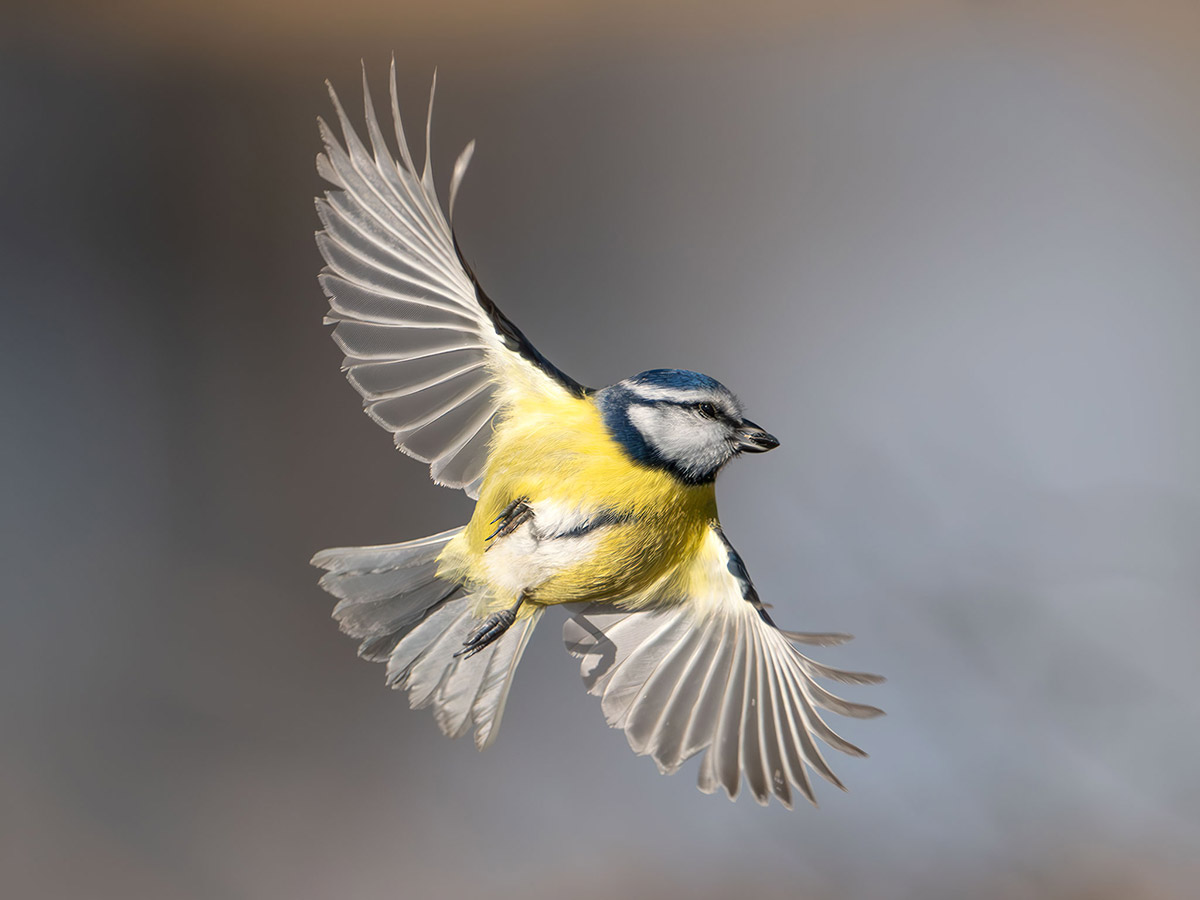
1/5000s ISO 1600 @ f6.3-300mm 100-400
This Blue Tit taking off from a perch needed 1/5000th shutter speed to catch the movement. They are fast! And unpredictable, when they decide to go, they go. Obviously drive mode plays a part too, they go hand in hand with the shutter speed, it’s no use having a fast enough shutter if you can’t catch it in the frame. I used Pro-Capture SH2, just with 20 Pre-Frames. The 100-400 lens is not the fastest, nor the sharpest. But with bright light, (notice the shadow of the leg on the wing) I was able to keep ISO to 1600 and use the new AI Denoise in Lightroom, with a little sharpening.
CAMERA SETUP
We can now start to understand the settings we set for the camera up. The CM was created in such a way as to make getting correct fast shutter speeds as easy as possible to set. The front and rear control wheels were changed to control shutter speed and ISO; now if your shutter has to increase, turn the rear wheel and Auto ISO will do the rest, or if you want to lower the ISO because speed is not so crucial turn the rear wheel and alter the ISO. Simple and easy to do. Aperture is not so important and you won’t change it as often. Having the Drive Mode set to a button (Arrow Pad ∨) means you can quickly change Sequential settings too. All the other buttons set are for convenience, the main settings here are what makes life so much easier.
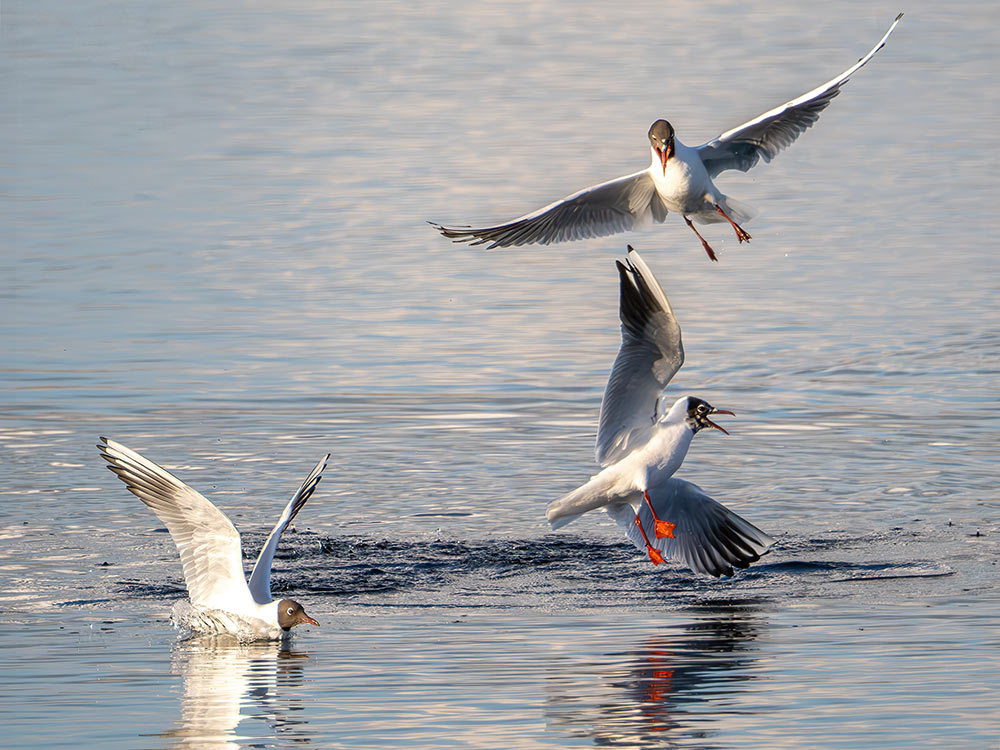
Both images needed fast shutter speed to capture Black Headed Gulls. The first image captures a Gull as it comes in to squabble with another, as they often do. AF was Cross Bird Detect. The second captures another as it takes off from water, with the the water splashes it creates, again with Cross C-AF and Bird Detect.
Neither image needed Pro-Capture, just SH1 and 20fps, with some patience and quick reactions
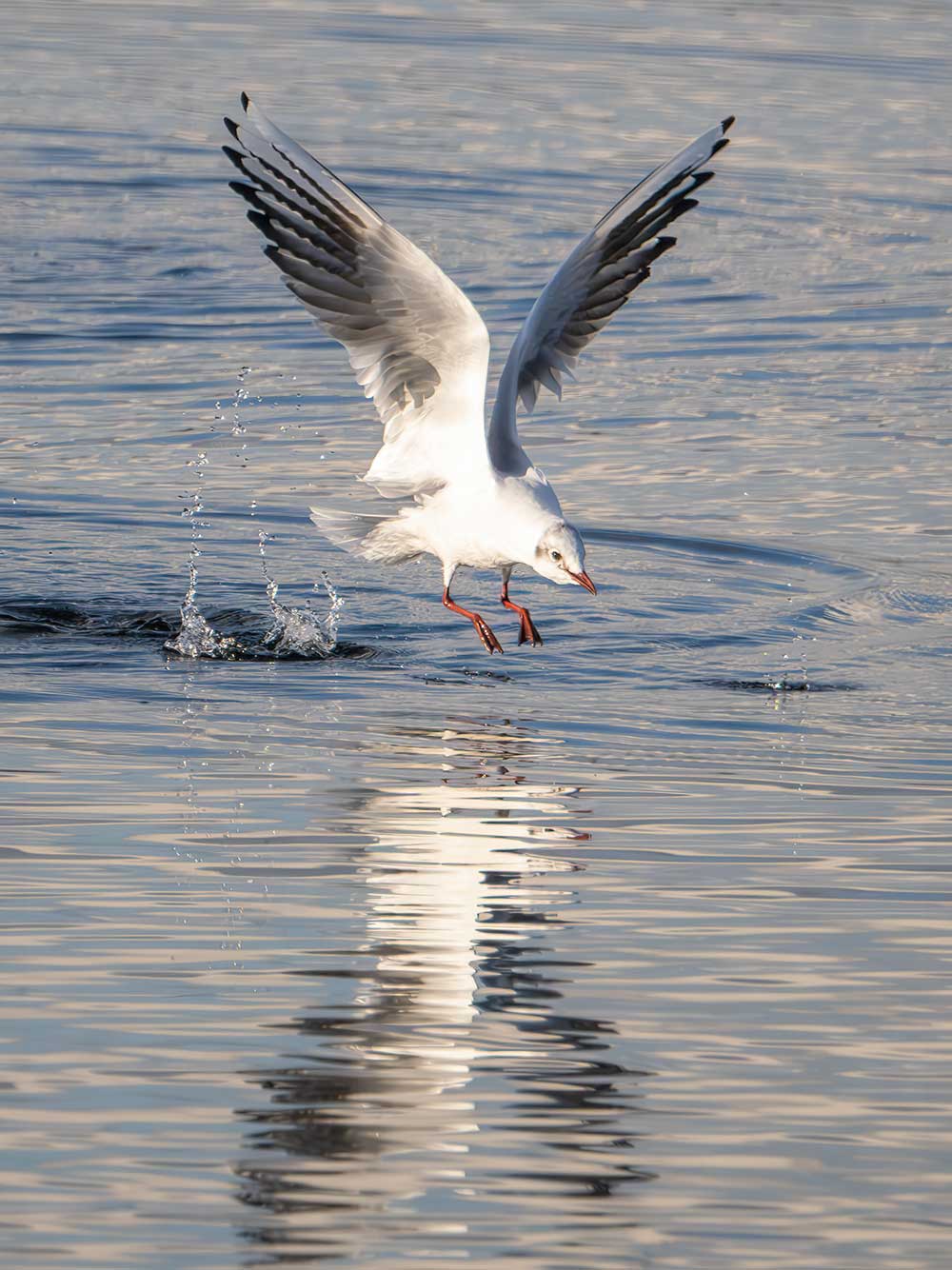
Both Images 1/4000s ISO2000 @f6.3 – 400mm 100-400
PERCHED BIRDS
Subject Detect Mode is superb for Birds In Flight, and the OM3 has all the improvements of the OM1-MKII for perched birds or stationary birds when foreground is in the way. A birched bird is obviously far easier than a bird in flight, but will often still need fast shutter speeds for subjects that move quickly etc.
Two Puffins at Bempton Cliffs, Yorkshire. The male is obviously being chastised and thinks flowers may just get him out of jail. ISO 2000 and a shutter of 1/1600 was enough to freeze the movement.

150-600mm @ 600mm Bird Detect ISO 2000 f6.3 1/1600s
A Goldfinch in a bush. It sat watching me just long enough for me to quickly bring the lens up and grab a few frames.
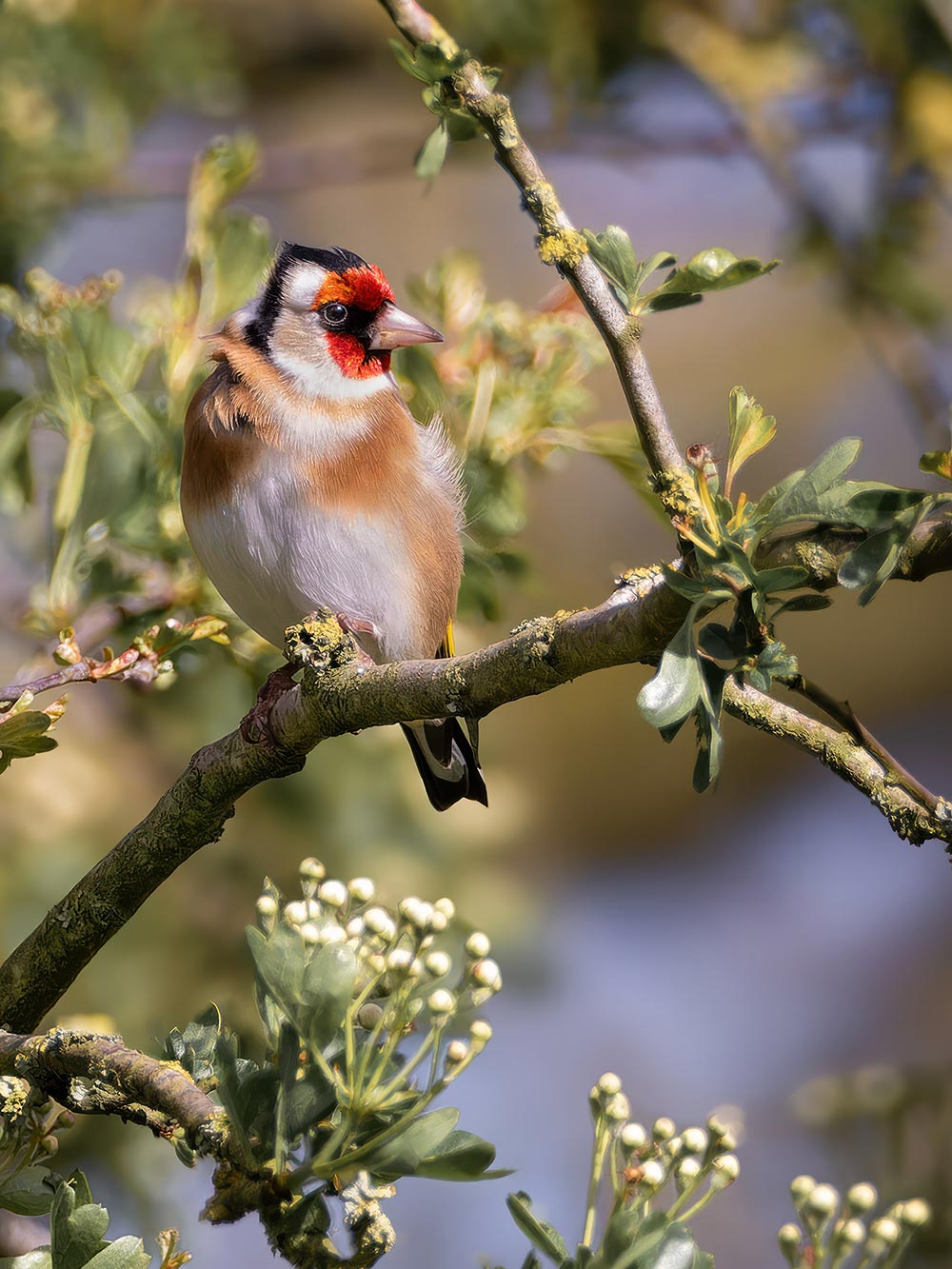
300 Pro+1.4TC Bird Detect ISO 800 f5.6 1/1250s
A classic Robin shot with some beautiful background lighting. The light gave a fast shutter speed, I probably could have reduced it because Robins are inquisitive and will stay a while, but ISO 1600 cleans up very well indeed.
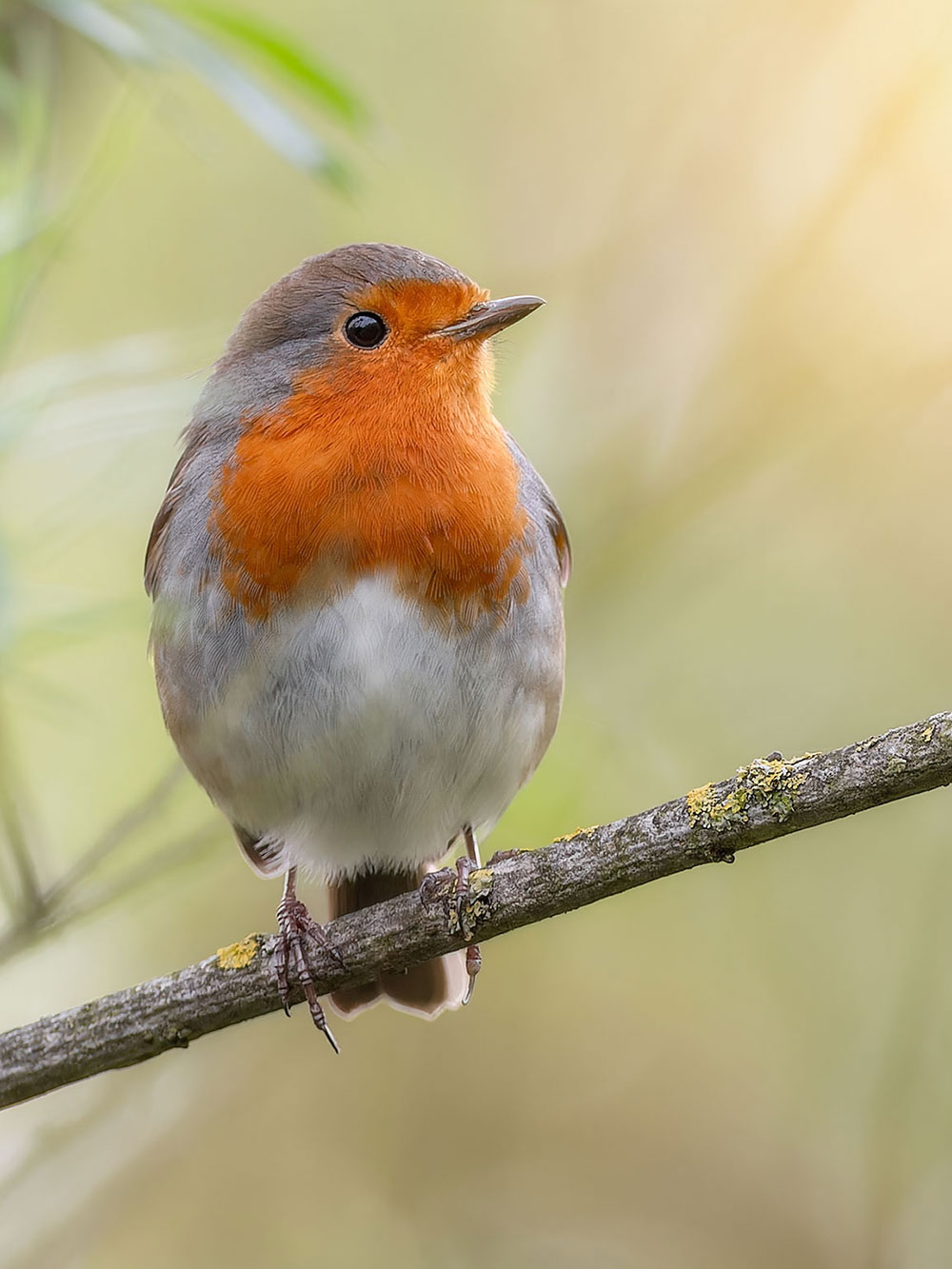
300mm Pro Bird Detect ISO 1600 f4 1/2500s
A cute Puffin on the Farne Islands in Northumberland.
Bird Detect worked flawlessly with this image using a Medium Target. The Detection found the eye and managed to keep locked onto it until it turned its head but quickly found it again.
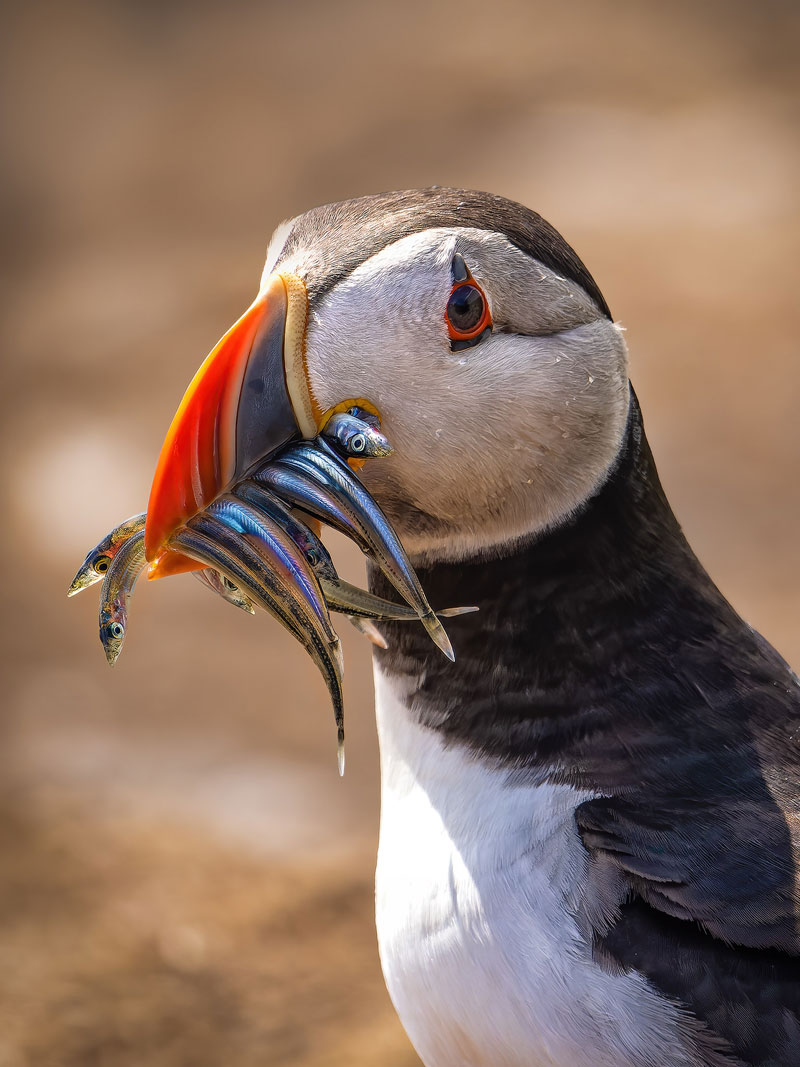
100-400 @ 400mm Bird Detect ISO 640 f6.3 1/3200s
OTHER SETTINGS
Other settings which are important and should be considered.
AF 2
Some important features we need to consider in this menu, notably C-AF Settings and AF Button, see below.
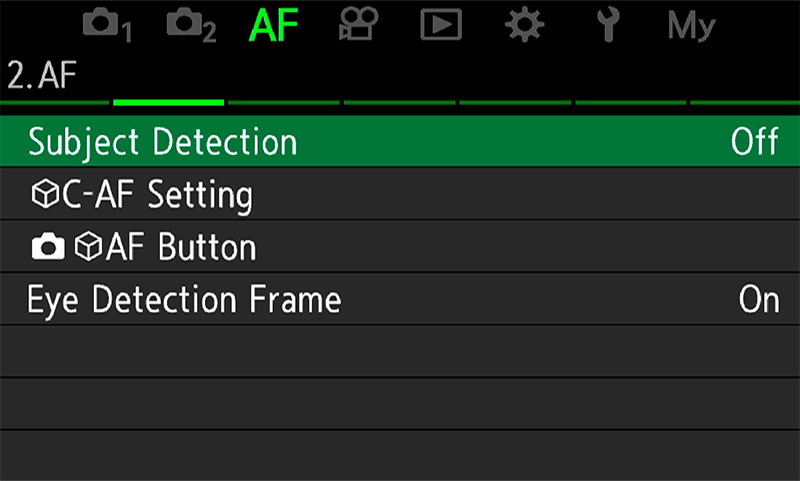
Menu>AF>2.AF>
SUBJECT DETECT C-AF AREA
Enter Subj. Detect C-AF Settings. Options here as shown allow the AF to focus on the subject and track it across the entire screen even if the subject moves out of the Target Area. This presumes obviously that a Target is set that is not All AF points. It is very effective.
The other option is to continuously focus and track just within the target frame, which will limit it for tricky situations. Set all, and use the fallback of C-AF+ Tracking with subject detect off instead, it is easier to manage.
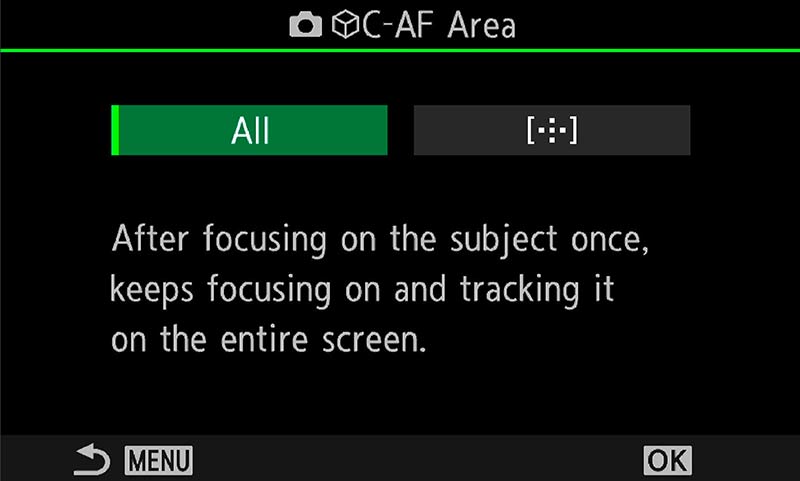
Menu>AF>2.AF>C-AF Area
There is no right or wrong with this setting, it is personal preference. The best approach is to be aware of it and test it out to set what suits you. Save it into My Menu so you can change it quickly when needed. I would set it to All to begin with.
AF BUTTON*
AF Button (or Priority) has been added to allow the Shutter AF (half press) and AF-ON to be assigned different functions, set Subject Detection to one and the active AF mode to the other.
Select the item and then in the screen shown select whether priority should be given to Subject Detection or the AF Mode that is active. In other words you could have Subject Detection on one and any AF Target Mode on the other (All, Small, Medium, Cross etc). The theory behind this is that should Subject Detection not operate as well as you expect, or you have a need to use ‘standard’ AF modes, you can do so quickly.
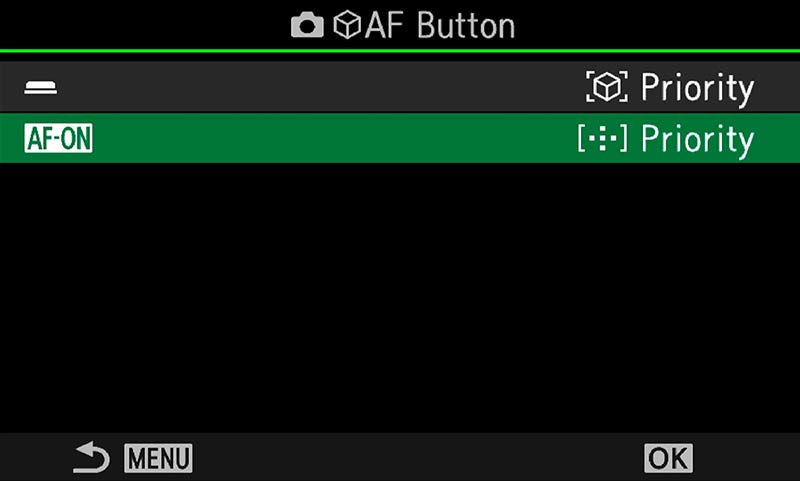
Menu>AF>2.AF>AF Button
C-AF/MF+Tracking mode was disabled in the OM1-MKII when Subject Detection is enabled because two tracking modes just caused conflict. That is not to say C-AF+Tracking is poor, it is very useful sometimes and it can still be set as an option to use.
There are times when you will want to use AF Tracking instead of Subject Detection. Perhaps it is an animal and Cats and Dogs detection does not recognise the subject, or a bird and Bird Detection does not manage to detect it, it is very good but not completely foolproof. Therefore we need quick way to be able to switch AF modes without going into the Super Control panel or Menu.
The AF Button option in Menu AF>2. AF Button give even more flexibility. It is a little confusing so it needs clarifying. The official manual says:
Option 1 Subject Detect Priority Tracks focus on the subject when it is detected at the selected AF target point.
Option 2 AF Target Priority Always tracks focus on the selected AF target point.
It means one can be assigned to the Shutter AF and one to the AF-ON, but it is badly worded. AF Target only tracks if the AF mode is set to C-AF/MF+Tracking.
Assign Option 1 Subject Detect Priority to the Shutter AF and Option 2 Target Priority to AF-ON.
You can set these both to Subject Detection if you wish. Subject Detection is not foolproof and can fail, so having AF-ON set to Focus Target Priority will force it to focus where the focus point is instead. If a bird is in a tree and detection is failing you can use AF-ON instead to force focus where you want it. If using Cats and Dogs and the detection has failed, turn off Subject Detection and the AF will default back to the AF Mode set, in this case C-AF+Tracking. Pressing the rear AF-ON button will force focus where the focus point is, instead of the tracked position. It does all sound confusing but you will realise how flexible this approach is.
However, if you are a Back Button User you will need to set AF-ON to subject detection. It is worth exploring these to see which suits you. I use Shutter>Subject Detect and AF-ON>Target.
LEVER SETTINGS
Note also, when Subject Detection is turned off and the AF changes back to C-AF/MF+Tracking the target patterns can also be changed. Set the Lever1 target to Small, and Lever 2 to cross, or any pattern you find useful. Do be aware sometimes simplify is best and changing too mach can be a headache; the options are there if needed.
AF SENSITIVITY
AF Sensitivity can be altered plus or minus 1 or 2. When would you want or need to alter it?
Fast moving subjects can benefit from having sensitivity increased to allow the AF to react faster. This does mean if another subject enter the frame the AF can switch more easily so setting the AF less sensitive could help.
It’s unfortunate this function cannot be mapped to a button so the best solution for quick access is to save it to you My Menu. As situations vary so much you will need to experiment. I find setting it to +1 is best for quickly locking onto subjects, and -1 best for tracking. Options vary so try it yourself.
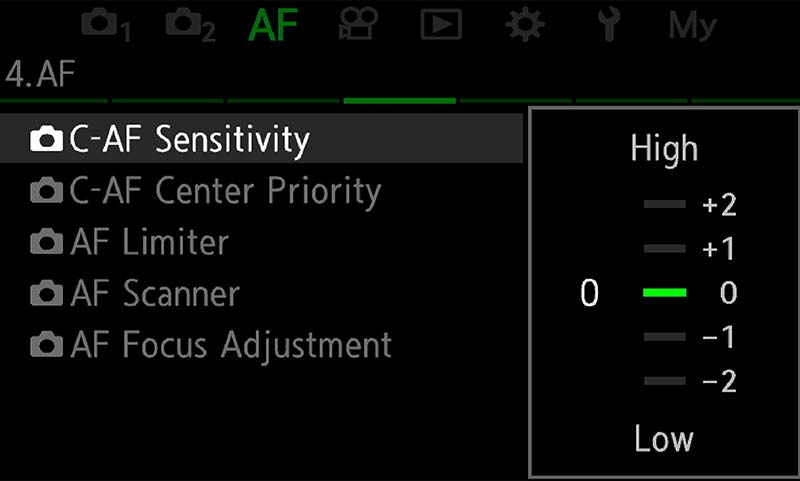
Menu>AF>4.AF>C-AF Sensitivity
AREA POINTER
Note that AF sensitivity is not the same as Area Pointer which does seem to confuse some.
Area Pointer has two modes ON1 which show the green box inside the Target Area when focus has been achieved, and ON2 will show multiple green boxes when using C-AF or C-AF+Tracking. It is just a visual aid showing what is in focus and is not more accurate than having one shown.
I prefer to set it to On1 because I find it less distracting but it is worth experimenting with to suit your own preference.
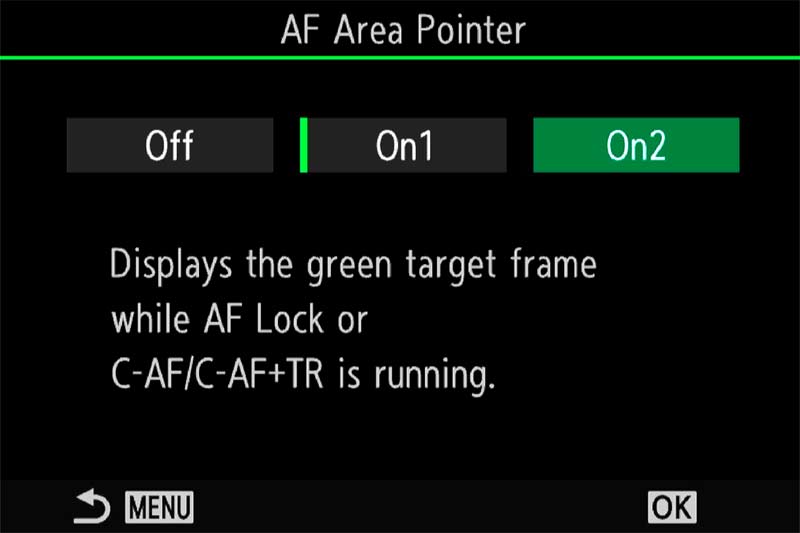
Menu>AF>3.AF>Area Pointer
AF-LIMITER
There may be times when the lens struggles to gain focus or focusses on a background or foreground element instead of the subject.
AF Limiter allows you to save three presets with a minimum and maximum distance to control the range the AF will try to focus in. Make sure a wide enough range is set. I have 5-50m, 50-100m, 100-300m.
You have to guess the distance or use the PRE-MF ‘hack’.
Go to PRE-MF, press info and focus on the area you want to exclude such as the background. The screen will show the distance instead of guessing it. Do the same for the foreground if needed. Now in AF Limiter set a range between these distances.
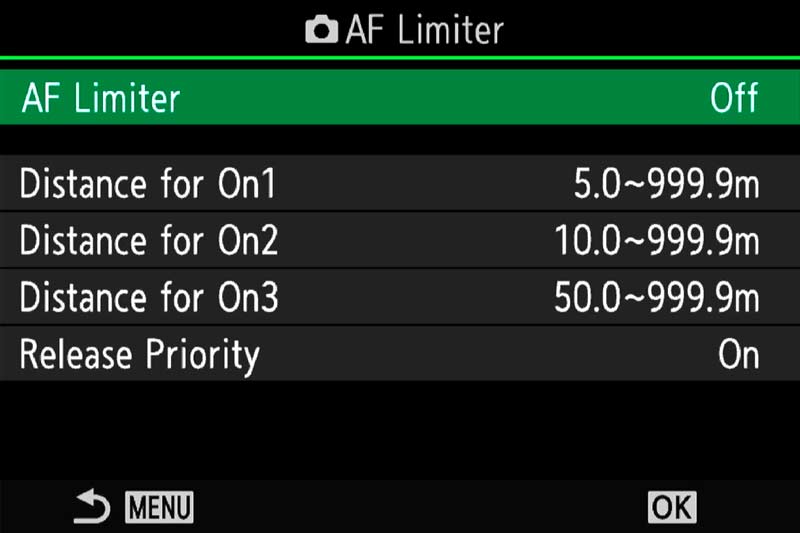
Menu>AF>4.AF>AF Limiter
An advantage of having this saved to a button in a CM not just for quick access is it will not be active for your next session once the camera is turned off and on again, thus avoiding problems wondering why your AF is limited. Do remember if you set up ON1, ON2 and ON3 and want to save them as part of your CM you must resave the CM again. As with all CM’s any changes you want to make permanently must be resaved.
PRESET MF DISTANCE
Preset MF is exactly what it says and is used for setting a fixed distance for focus. If for example you’re taking images in a fixed spot it can be useful to program the focus to the exact distance and prevent the lens from hunting.
Remember this is manual Focus. Ensure you have set AF-ON to ‘AF on in MF’ to allow for AF still to be used Menu>AF 1.AF>AF-ON in MF>Yes
In the menu select:
Menu>AF> 6.MF>Preset MF Distance and enter manually.
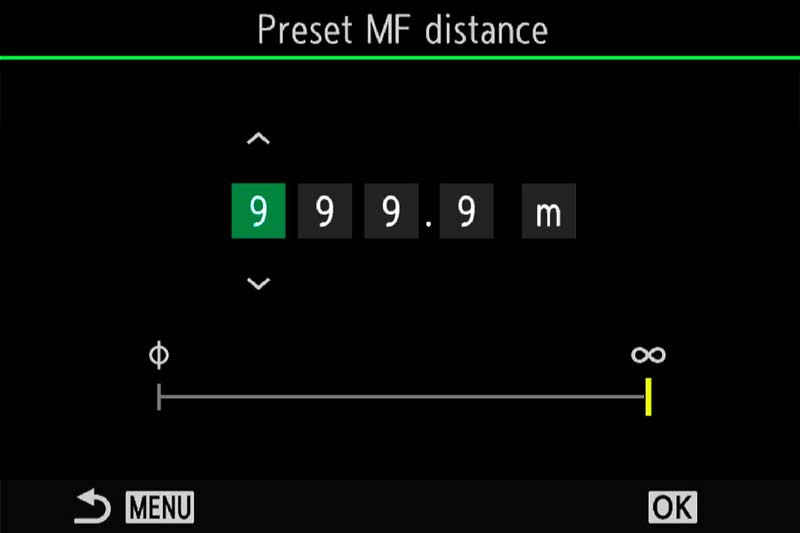
Menu>AF>7.MF>Preset MF Distance
I personally do not find much of a need for Pre-MF. If I do want to lock focus on a particular area I can just manually focus or auto focus and then lock it into MF, but I can imagine situations when the ability to have it saved on a button and immediately recall it would be useful. Note that recalling from a button only switches Pre-MF on or off. To change the distance saved you can actually press/hold the button and turn the front dial.
AF SCANNER
Longer lenses can sometimes struggle when contrast is low. AF Scanner will force the AF to try and rescan to acquire focus. It can lead to the lens ‘hunting’ where it scans from near to far focus, but disabling it can mean out of focus images. I tend to leave it on by default and revert to MF if there is an issue.
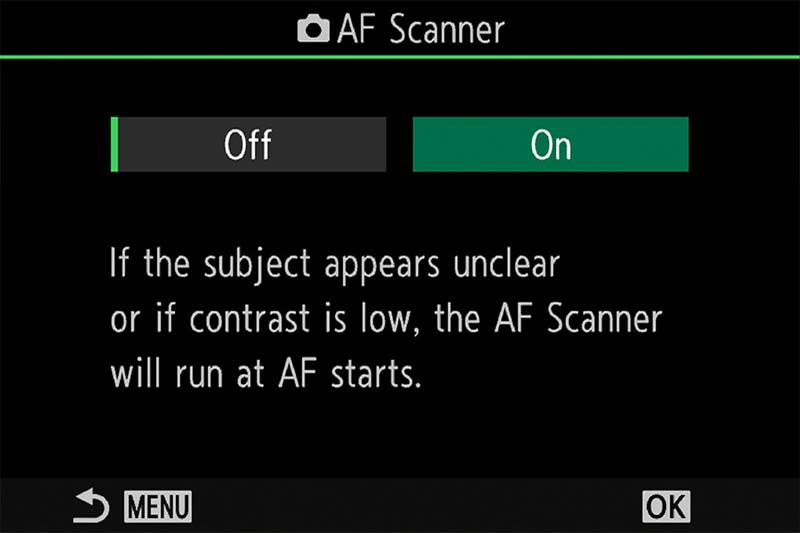
Menu>AF>4.AF>AF Scanner
RELEASE PRIORITY
Release Priority determine whether the camera will take an image even if focus has not been confirmed. Set to off means it will be set to ‘Focus Priority’ which is much more sensible. It is strange, Off means Release Priority is off, so it has S-AF Priority. You’d expect it the other way around. The camera will not take an image if focus is not confirmed, but in continuous drive modes it is effective on the first frame only.
C-AF CENTRE PRIORITY
Similarly AF Targets Cross, Mid and Large and Custom Targets can be set to give priority towards the centre of the target area. I prefer to set these ON and use a smaller target if I find an issue.
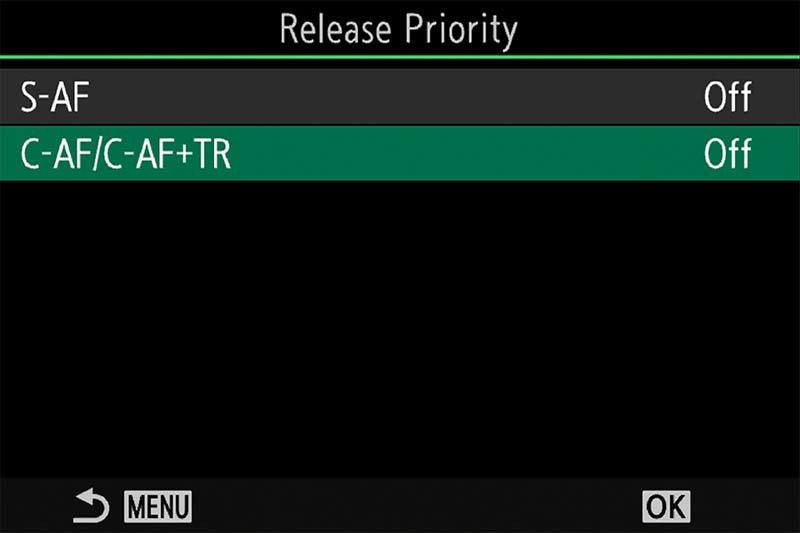
Menu>AF>1.AF>Release Priority
SEQUENTIAL SHOOTING
When considering AF Modes for use with any of the A.I Subject Detection Modes it’s also important to consider which drive mode to use. Drive Modes are easy to access when enabled to the rear Arrow Pad or SCP, and saving one as a CM is useful. I tend to use Silent SH2 but it is important to understand each.
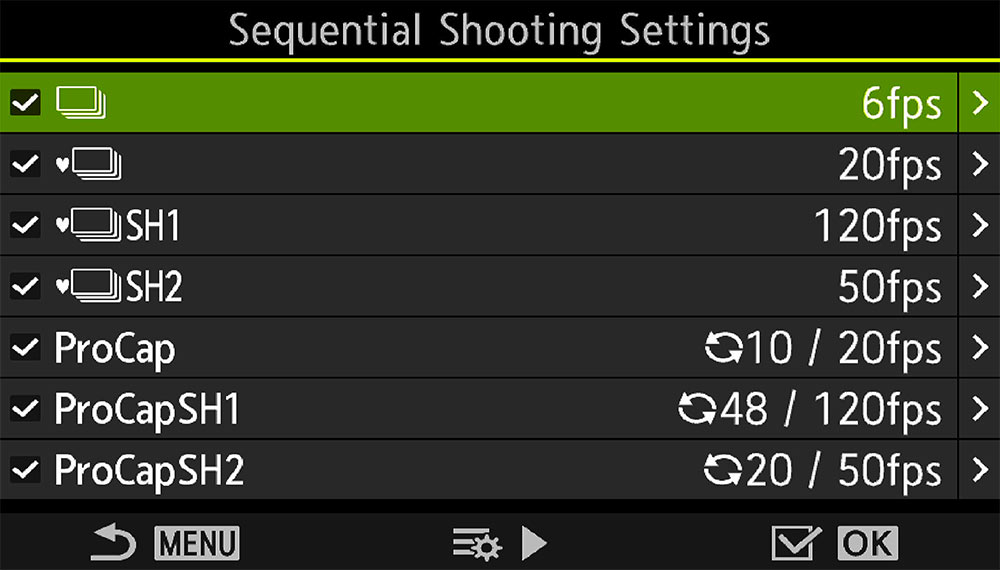
Menu>Camera1>7.Drive Mode>Sequential
Sequential Shooting settings, or Drive Mode will affect your chances of getting the shot just at the right time obviously, but there is no point setting a drive mode that will capture too many images, your card will quickly fill and the scene may not warrant it. Equally a drive too slow means you miss the shot. Birds in flight for example, some dart all over whilst others are more sedate; a perched bird may be relatively still whilst a Kingfisher diving for food would need precise timing. With birds in flight a general rule is the smaller the bird the faster the shutter speed and frames per second.
The same is true for other subjects, how you choose the drive mode can affect your keeper rate.
DRIVE MODE COMPARISON
| SEQUENTIAL | SILENT SEQUENTIAL | SH-2 | SH-1 |
|---|---|---|---|
| 1 to 6 fps (Mechanical) | 5/10/15/20 fps (Electronic) | 12.5/16.7/25/50 fps (Electronic) | *30/60/100/120 fps (Electronic) |
| Continuous AF | Continuous AF | Continuous AF | AF 1st Frame Only |
| Metering | Metering | Metering | Metering 1st Frame Only |
| Live View | Live View | Live View | Live View |
| Blackout Between Frames | Blackout Between Frames | No Blackouts (with min shutter below)* | No Blackouts (with min shutter below)* |
| No Minimum Shutter | No Minimum Shutter | 1/160 @ up to 25fps – 1/640 @ 50fps | Min Shutter 1/15 |
| Frame Count Limit 2-99 | Frame Count Limit 2-99 | Frame Count Limit 2-99 | Frame Count Limit 2-99 |
* 30fps has now been added in SH1 and Pro-Capture SH1.
Blackouts between frames (when the EVF will go black between frames) has been maintained at 1/160th shutter speed in SH2 as on the OM1-MKII, previously 1/320 on the OM1 which is a big help for seeing and tracking the subject. SH1 has a minimum shutter of 1/15th which is pretty much irrelevant, if you are using the high fps of SH1 you won’t be using a shutter as low as that anyway. Blackout is still present in Sequential, but that is largely because there is no minimum shutter speed which is obvious. You may want to use sequential with slow shutters on a landscape, or if bracketing with slow shutters the camera will set Sequential but there will be blackouts from the slow shutters. Silent Sequential also has blackouts for the same reasons, but look at SH2, if you need blackout free you are probably using faster shutter speeds, so use SH2 instead which will shoot 12.5fps, just a little more than the 10fps / Silent Sequential. The caveat is the shutter has to be a min of 1/160th.
Listing out the different drive modes in a table and we can clearly see the pros and cons of each. Sequential uses a mechanical shutter and has the slowest FPS obviously because it is a physical shutter which has to open and close. AF is continuous for each frame and exposure will be metered for each. Silent Sequential is the same but with an electronic shutter it can double the FPS rate. SH2 can increase FPS up to 50 and with no blackouts, whilst SH1 can go to a huge 120 FPS with no blackouts but at the expense of AF and exposure metering being for the first frame only. This leaves us with plenty of options but also decisions to make.
NOTE- SH1 is never Continuous AF. If you do need the higher frames be aware the consequence is AF is only performed for the first frame.
To avoid taking too many images the Frame Count Limit can be set from 2-99. This is a great option when speed is of the essence but you want to avoid filling your memory card. Once the limit is reached shooting will end. Also note frames per second will be a little lower if ISO is set to 16,000 or higher.
PRO CAPTURE
In addition to the drive mode options we also have Pro-Capture. This feature has similar settings to the Sequential drive modes but also user set pre-capture frames that are recorded before the main frames. The maximum number of pre-frames that can be set is 70, not the 99 of the OM1-MkII, which is still plenty. Using the Kingfisher diving into water situation again, how well could you anticipate and press the shutter at the exact moment its beak is mm’s away from the water? Not easily. Pro-Capture aims to assist by capturing a set number of frames the moment the shutter is half pressed and thus reduce the delayed reaction between a half press and full press. Images are stored in the camera buffer and then written to the card.
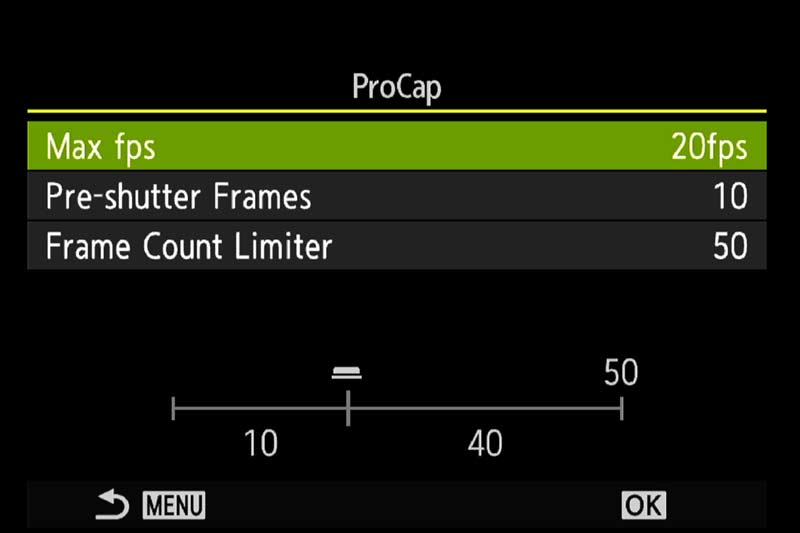
Menu>Camera1>7.Drive Mode>Sequential
PRO-CAPTURE COMPARISON
| PRO CAPTURE | PRO CAPTURE – SH2 | PRO CAPTURE – SH1 |
|---|---|---|
| 5/10/15/20 fps (Electronic) | 12.5/16.7/25/50 fps (Electronic) | *30/60/100/120 fps |
| Continuous AF | Continuous AF | AF 1st Frame |
| Metering | Metering | Metering 1st Frame |
| Live View | Live View | Live View |
| Blackout Between Frames | No Blackout | No Blackouts |
| Pre Frames 70 Max | Pre Frames 70 Max | Pre Frames 70 Max |
| Frame Count Limit 2-99 | Frame Count Limit 2-99 | Frame Count Limit 2-99 |
| No Min Shutter * | 1/160 @ 25 FPS – 1/640 @ 50 FPS | Min Shutter 1/15 |
We can see here Pro-Capture is very similar, in fact the same as the Sequential settings, the difference being the ability to set how many frames will be taken as soon as you half press the shutter button and achieve AF. It is an ingenious solution to reducing the risk of missing a shot through slow reactions times. Remember in Pro-Capture SH1 AF is not Continuous, it will only be for the first frame and it will default to S-AF. Therefore SH1 is best to use on subjects that do not move from the focal plane too much. There are some limitations to be aware of:
LIMITATIONS
MINUMUM SHUTTER SPEED – As noted in the tables SH1 has a minimum of 1/15s shutter speed, and SH2 1/320s @ 25FPS or 1/640s @ 50 FPS. This could limit the usefulness depending on what you are shooting. Having said that you would only need high frame rates with a fast moving subject and would want a fast shutter speed.
NO Min Shutter* – There is no minimum shutter speed where indicated but bear in mind there is still an inherent minimum speed. If you are shooting at 20 fps and have a slow shutter speed of 1/2s the camera simply cannot shoot at that frame rate. How you are warned of this depends on the shooting mode used:
- Aperture Priority – Shutter Speed will blink. Image can be taken but will be under-exposed
- Shutter Priority – Lower shutter cannot be selected and Aperture will blink.
- Manual – Lower shutter cannot be selected and Exposure Meter will blink
REDUCED FRAME RATE – The buffer where pre-frames are temporarily stored is very good, however in Pro Capture it can slow down and do require the fastest UHS-II cards you can obtain. Kingston 300/260 MB/s Read/Write speed or the more expensive Sony 300/299 cards are best for speed. And you may need 64 or even 128GB. Even so you can expect the buffer to affect the maximum time high speeds can be used. With 25FPS you may achieve 8 or 9 seconds of full bust before the frame rate drops whereas at 120FPS you may only achieve a few seconds. Frame rate also decreases over 16000 ISO. Bear in mind high frame rates are designed for fast action to capture a brief moment in time and not for continued shooting over many seconds.
SH2 REDUCED AF OVER f8 – Focus accuracy can be impacted when using SH2 and an aperture smaller than f8.
LENS COMPATIBILITY – Only selected lenses are compatible with SH2 50FPS and Continuous AF. Other lenses will have FPS reduced to 25.
12-40mm F2.8 PRO
12-40mm F2.8 PRO Ⅱ
12-100mm F4.0 IS PRO
40-150mm F2.8 PRO
150-400mm F4.5 PRO
300mm F4.0 IS PRO
HUMAN DETECTION
Human detection was added to the OM1-MKII replacing Face & Eye detection and it has been maintained with the OM3
Face Detect was replaced with Human Detection on the OM1-MKII and therefore the OM3 and I for one am glad. Where previously it was separate to the Detection Modes, there was a Face Detect option on the Super Control Panel which had to be off because it would sometimes see face which didn’t exist, such as in rocks in a landscape. It will also detect human shapes, the back of heads and figures walking away or towards the camera.
AF>2.AF>Subject Detection
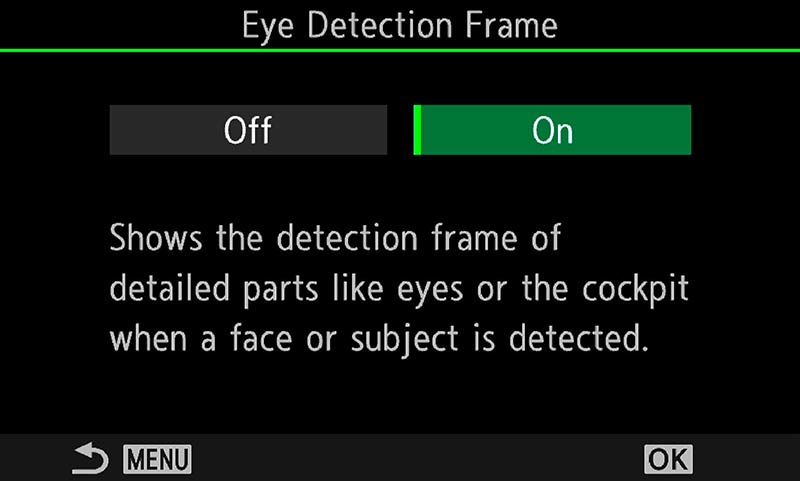
AF>2.AF>Eye Detection Frame
HUMAN/EYE/FACE SELECTION
Along with Human Detection we can also enable the Eye Detection option. Using the Subject Selection feature when it is assigned to a button means we swap between selected humans, faces or eyes. The subject selected can be locked by pressing the Subject Selection button. Once locked on the word “Lock” shows the screen and the selection can then be altered using the Jog lever or rear Arrow Pad. To unlock press the Subject Selection button or OK button. Obviously you want to have the Eye Detection Frame enabled so you know it has found the eye.
CARS TRAINS AND PLANES
Using Cars Trains and Planes Detection.
CARS TRAINS AND PLANES
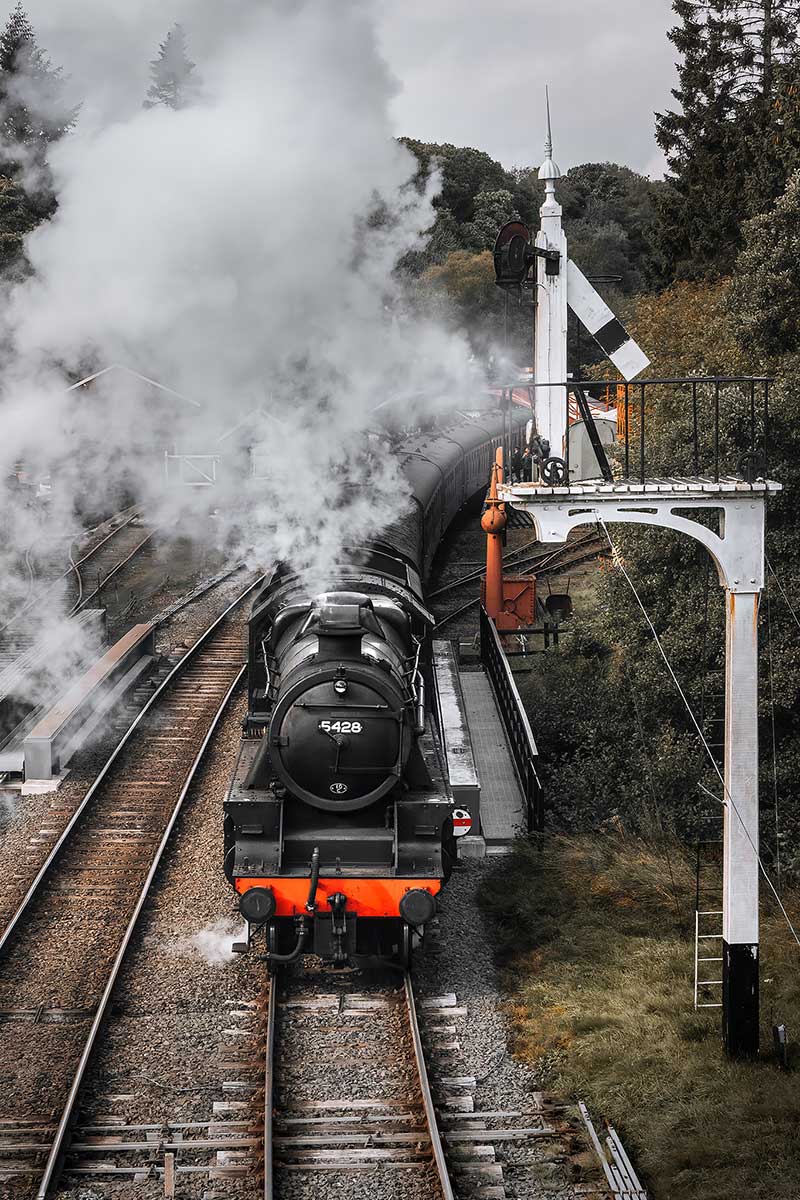
In all of these modes the body/fuselage is detected along with the cockpit or driver. You may find these useful if you are an aviation photographer, or motorsports, in which case you could set up a Custom Mode dedicated to it. But consider whether one is needed. A general CM with settings appropriate for moving subjects could suffice, with quick access to just change the subject the camera is looking for.
This image taken in North Yorkshire hardly justified using Subject Detection. With a slow moving steam train heading towards me just simply using CAF+Tracking was enough, or even just a shutter speed fast enough would have been enough.
A fast moving train, plane or motorsports would be different. Consider your requirements and what your main subjects are and priorities.
ANIMALS
Using Dogs and Cats Detection.
DOGS & CATS DETECTION
Whilst we do not have an animal detection we do have Dogs & Cats. Why is a puzzle, maybe the engineers didn’t have enough squirrels to test it on. It does work surprising well though, perhaps it is limited to smaller animals.
Both of these images were taken with the 40-150 Pro using Dogs & Cats Detection and the detection did pick up the eye.
I’d followed the Stag for some time keeping a distance, and he was keeping an eye on me; he knew. Shutter speed was only 1/500, it did not need faster.
The squirrel was a case of watching what he did and waiting for him to go on the tree stump which he did a few times. A fast shutter of 1600 was suitable to freeze the movement.
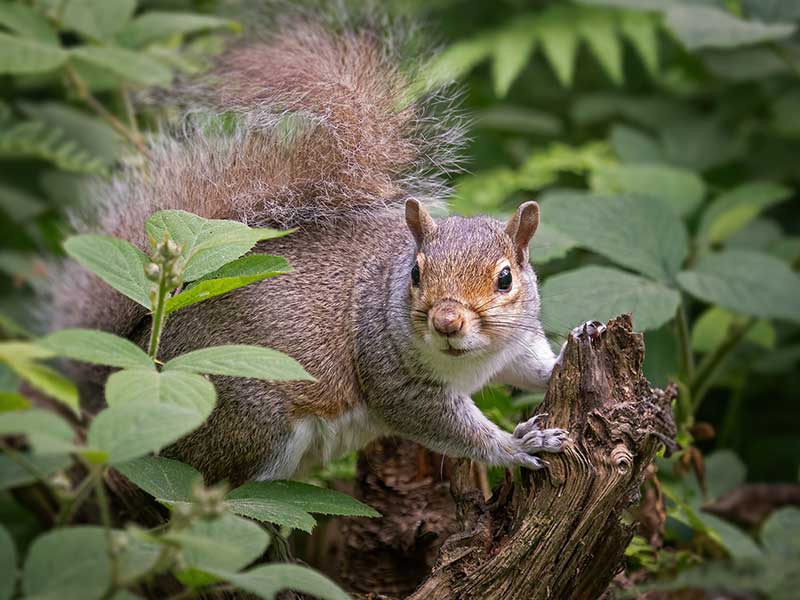
This detection mode is a little ‘hit and miss’ because it doesn’t detect all animals. I was lucky with the stag. You may find C-AF+Tracking is better if the Subject Detection mode fails, one reason why quick access to C-AF+Tracking is important. Surprisingly Bird Detection does work well too.
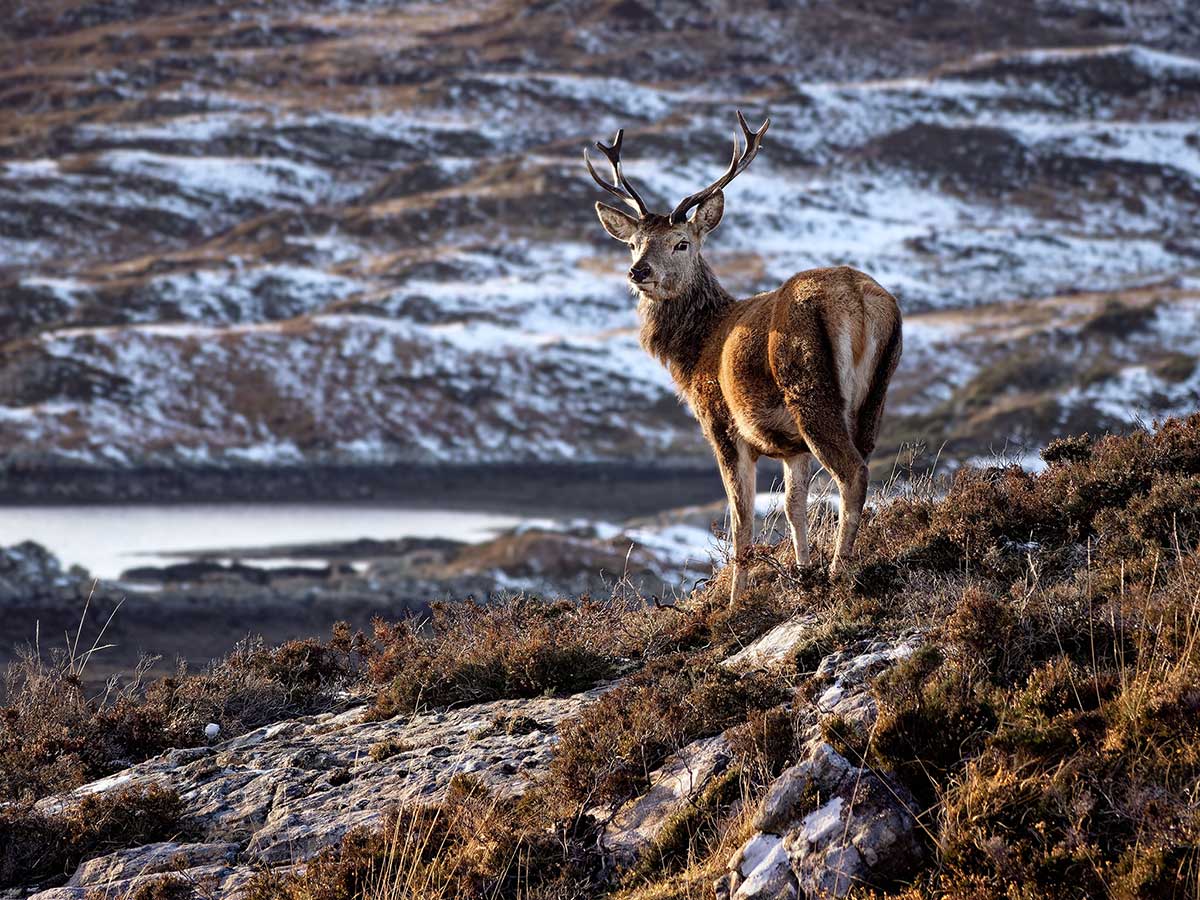
40-150 Pro at 110mm, f4, 1/500s ISO200
I had followed this fellow for some distance, keeping downwind, even so he knew I was there. I’d had four or five shots but was not quite happy with them, standing on the crest of the hill against the sky, the composition and context could have been better. Some time later this was the final shot, with a loch in the background. The loch was all important to give context and place him in the location. And the high view looking down over the loch makes him the young Monarch of the Glen.
COMPOSITION
Composition with wildlife can be a real challenge, especially with fast moving subjects; it’s all we can do just to get it in the frame and get it sharp. As your skill improve it is worth being aware that composition matters for wildlife too.
CROPPING
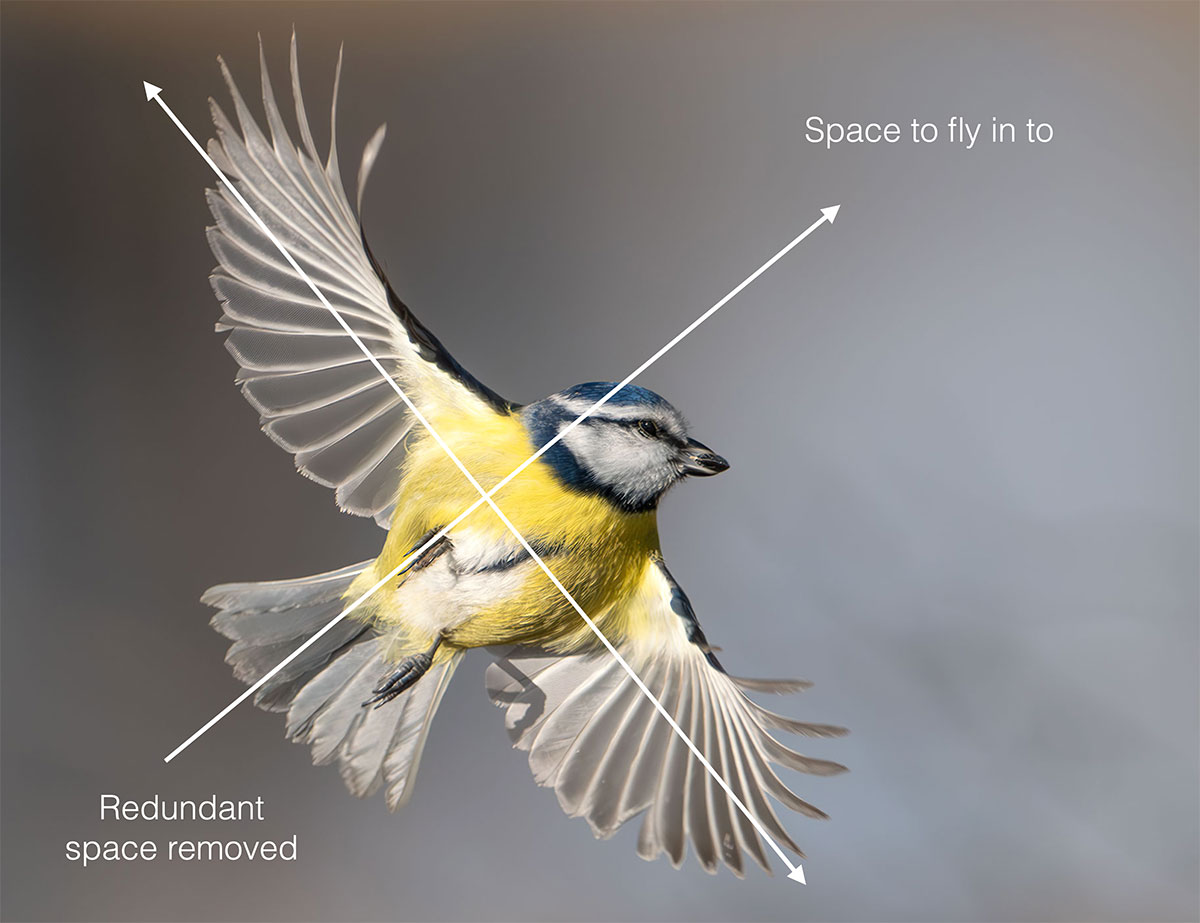
Luckily we have the advantage of being able to crop and reframe images, something we don’t do with landscapes, and don’t need to; we have the time to get it right. Obviously with any image we should avoid cropping, but sometimes needs must.
The Blue Tit had a little too much space around it. I was at 300mm with the 100-400 so could have gone in a little more, but the framing felt ok at the time. Afterwards I decided to crop around 20% away, placing the bird on the right into the bottom corner, giving it space to fly into. The crop makes the composition more dynamic.
300 Pro+1.4 TC @ 420mm Bird Detect ISO 640 f5.6 1/2000s
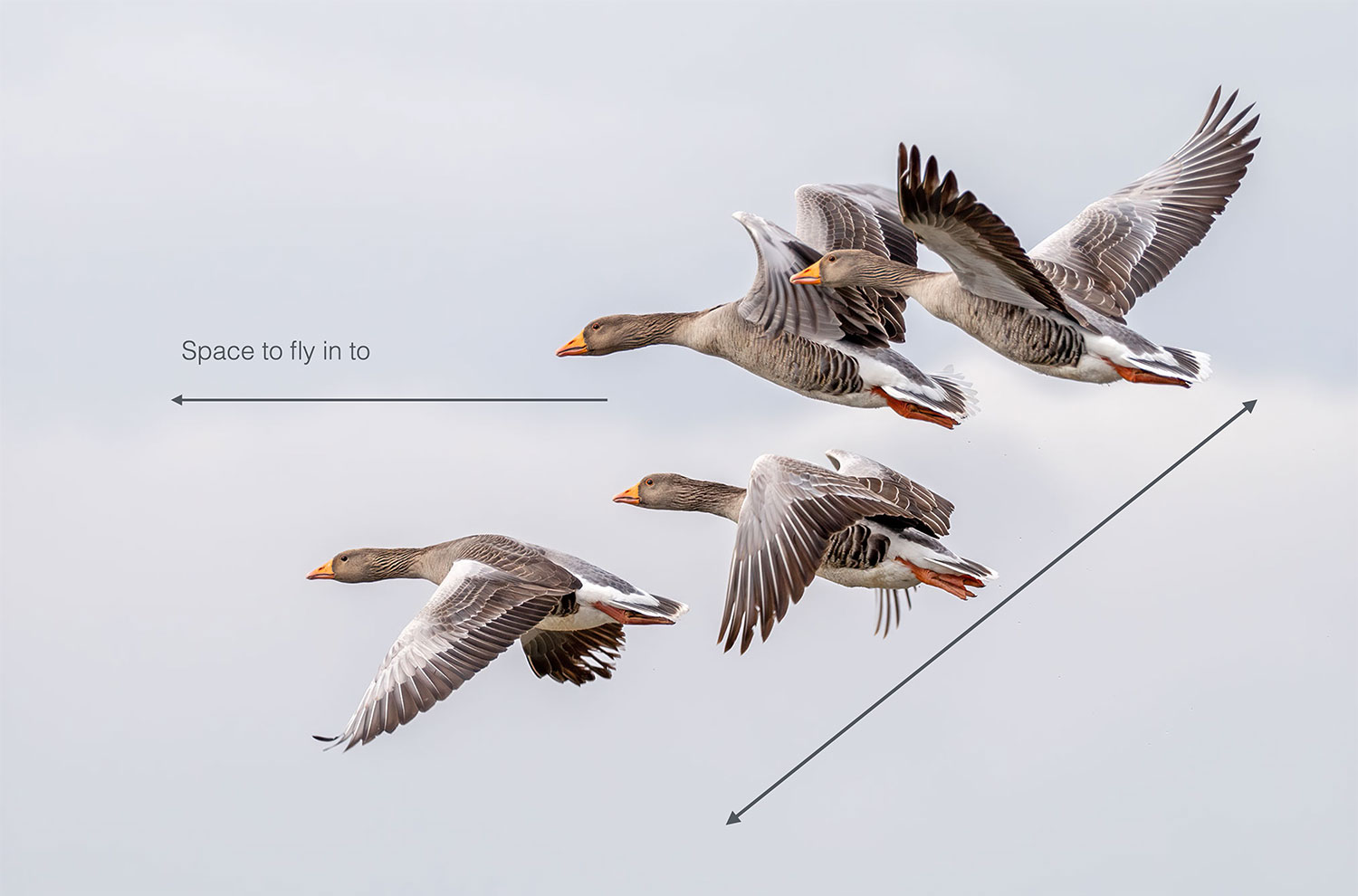
Another crop, this time just changing the image from 4/3 to 3/2 to remove a little space top and bottom. I noticed these geese flying in formation and had the time to track them. The stacked angle of them was so good, meaning the eye moves diagonally across the image. Again giving space on the left was important, with any subject, people, animals, even a rock, space should always be given for them to look in to, or fly into in this case.
12-100 Pro @ 12mm ISO 200 f6.3 1/100s
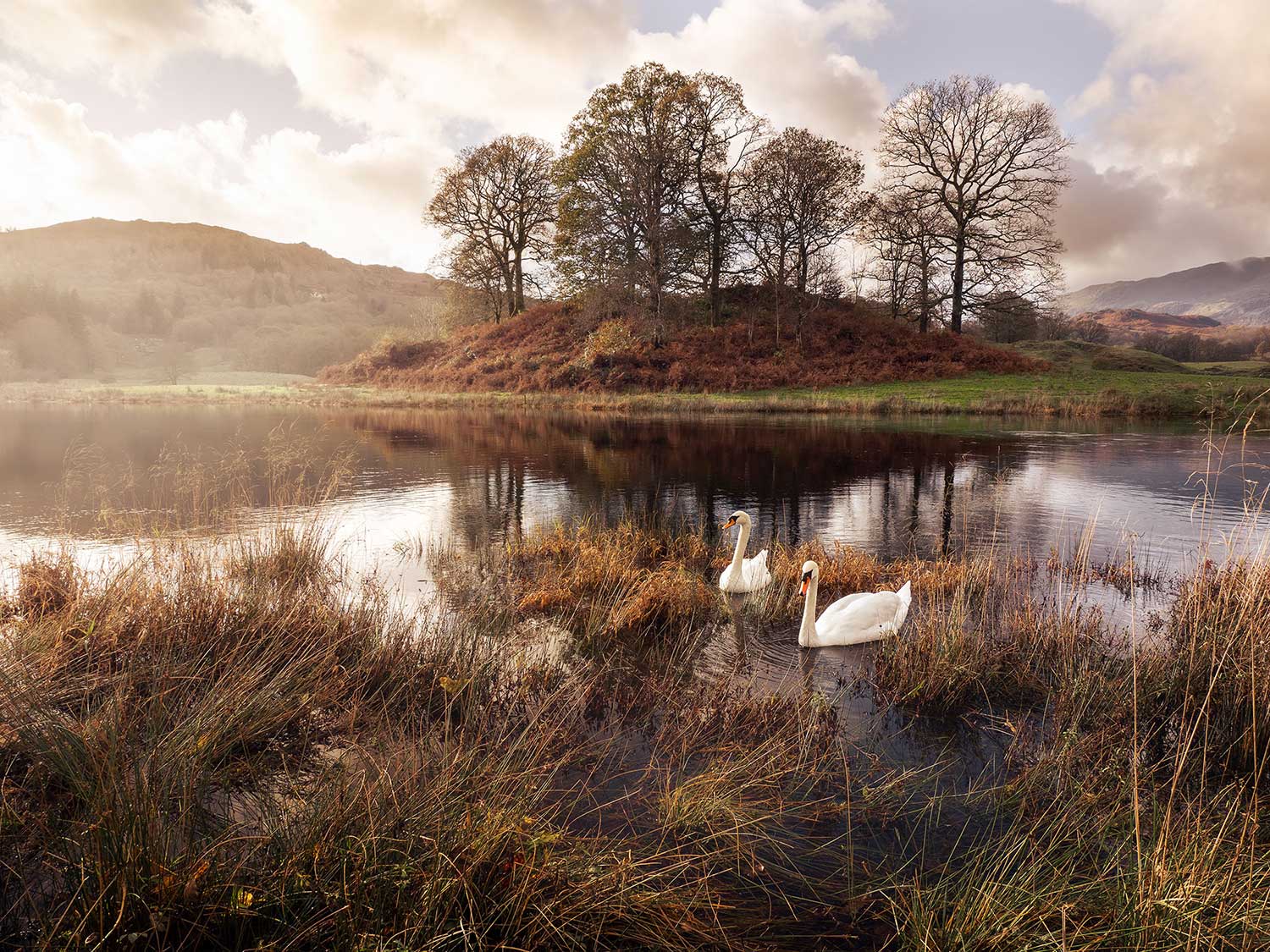
If you are a general wildlife photographer or a bird photographer don’t forget to shoot some images with the subject in the scene, just as with the stag image above, they can make beautiful landscape images and gives context. These two swans on the River Brathy in the Lake District had been swimming around for some time; a twig thrown in and the came to investigate. My framing on a tripod was already set, all I had to do was wait for them to be in a good position.
EXAMPLES
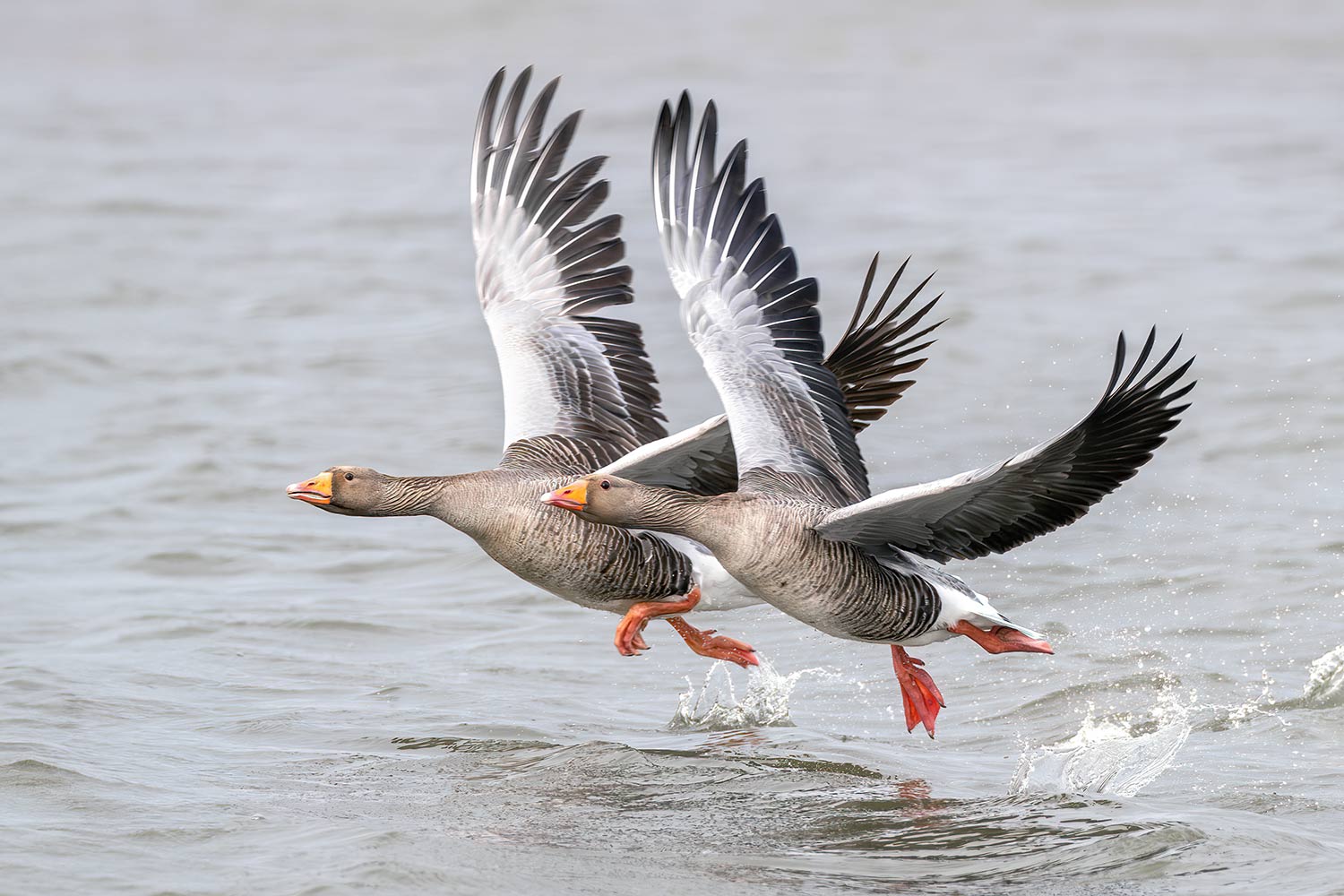
300 Pro+1.4 TC @ 420mm Bird Detect ISO 640 f5.6 1/2000s
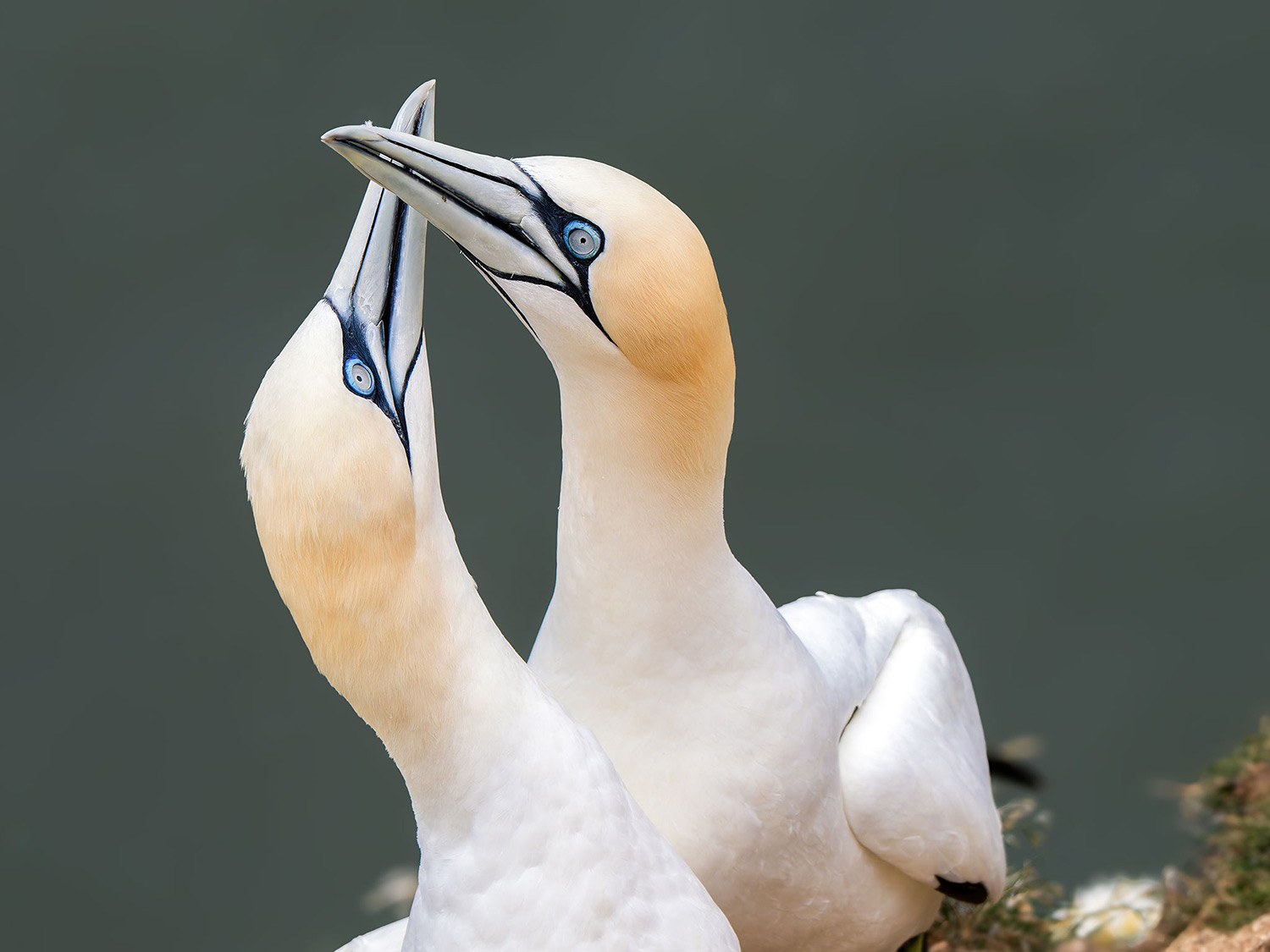
150-600mm @ 600mm Bird Detect ISO 800 f6.3 1/1600s
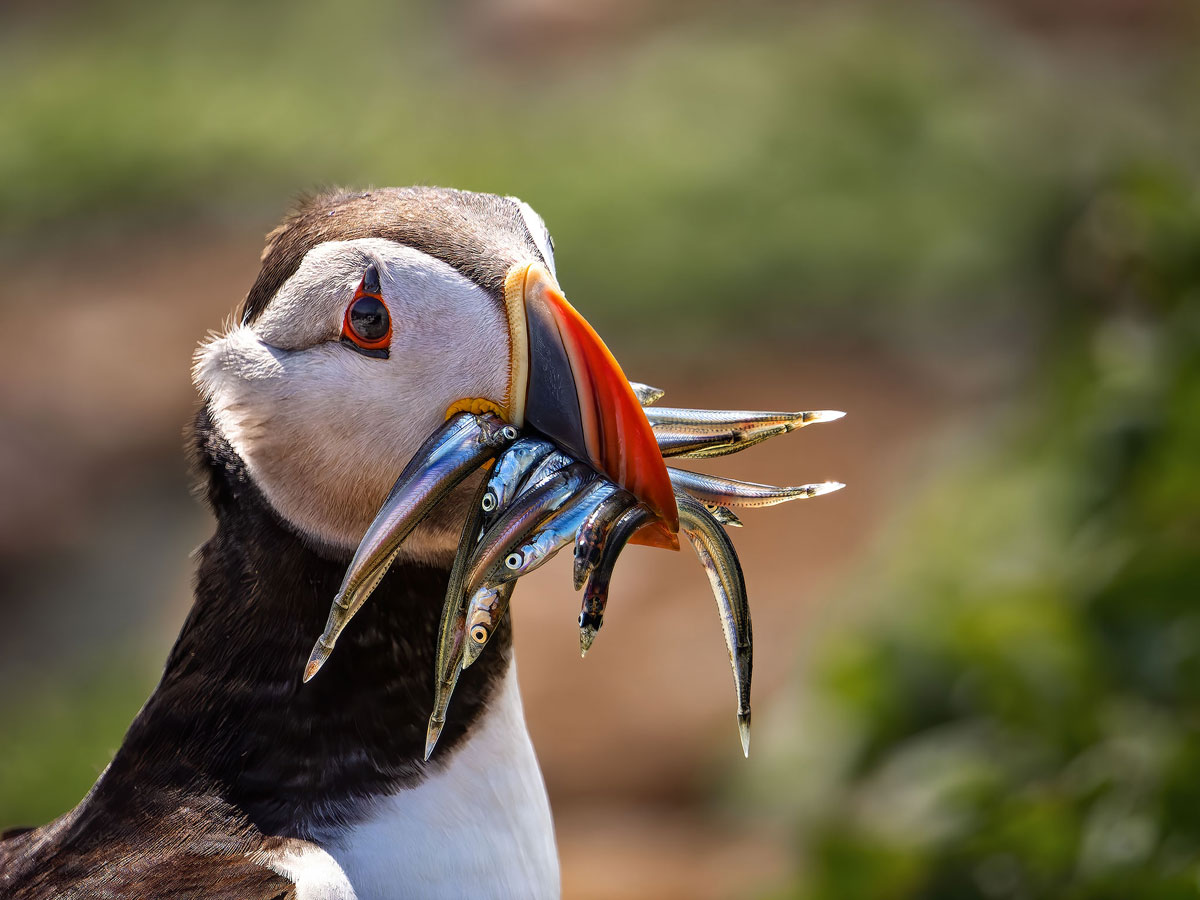
100-400 @ 400mm Bird Detect ISO 640 f6.3 1/3200s
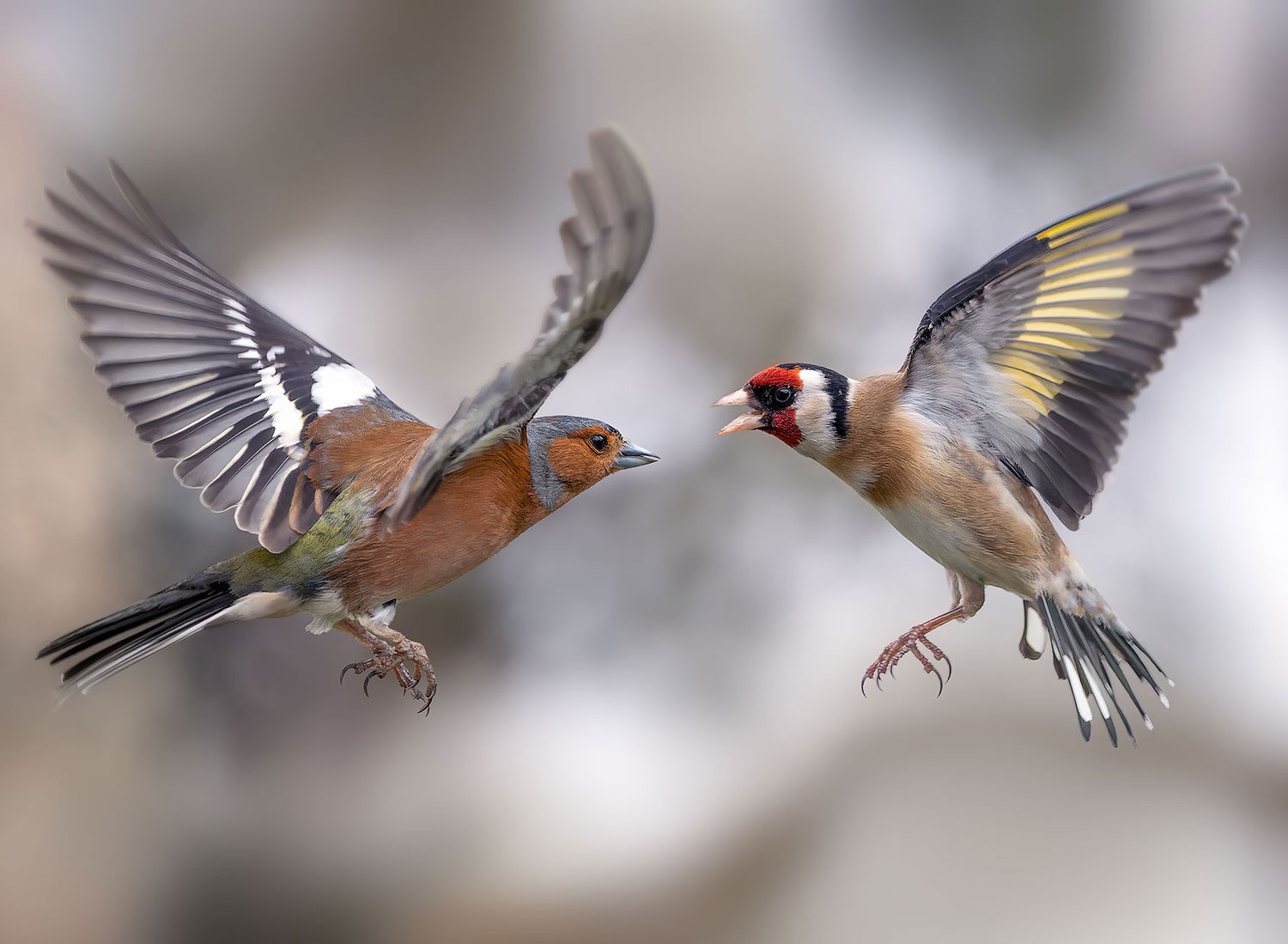
300mm Pro Bird Detect ISO 3200 f6.3 1/3200s
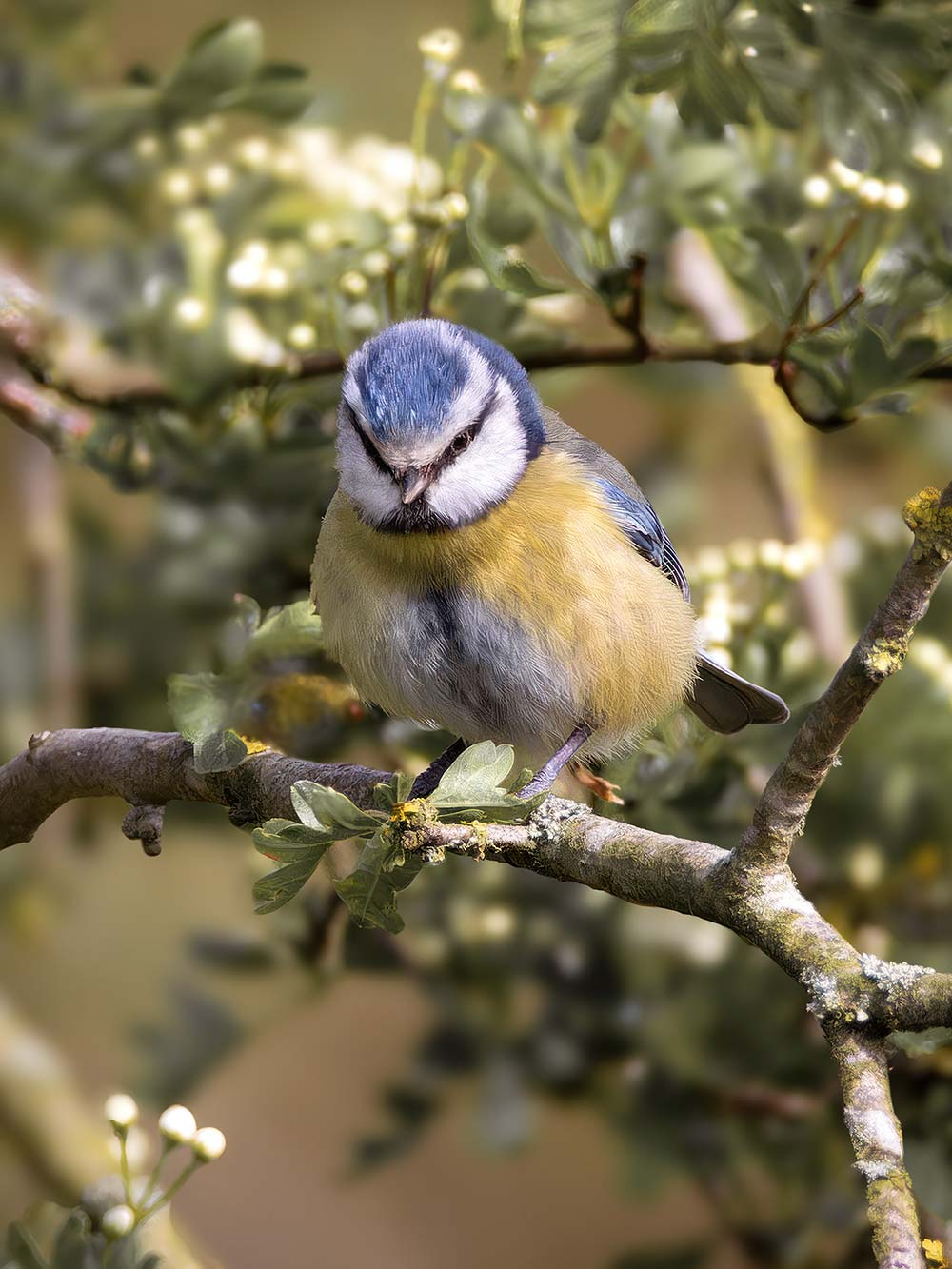
300 Pro+1.4TC Bird Detect ISO 800 f5.6 1/1250s
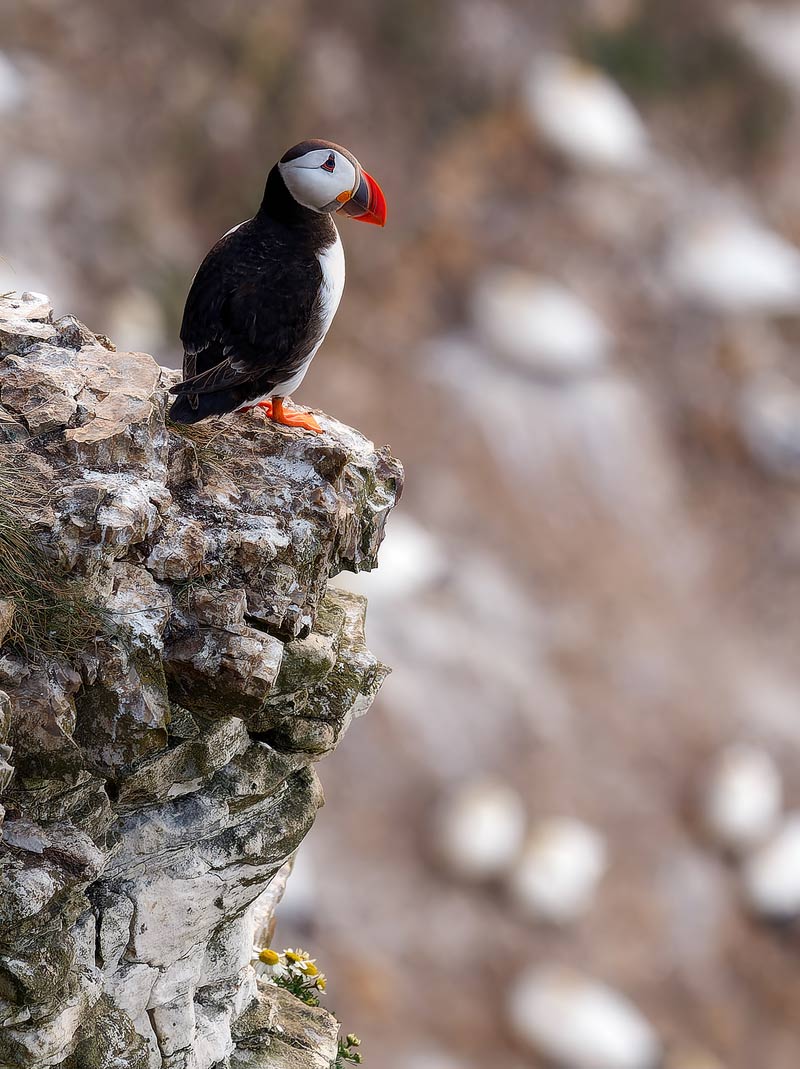
40-150mm Pro @ 150mm Bird Detect f4 1/640s ISO1000
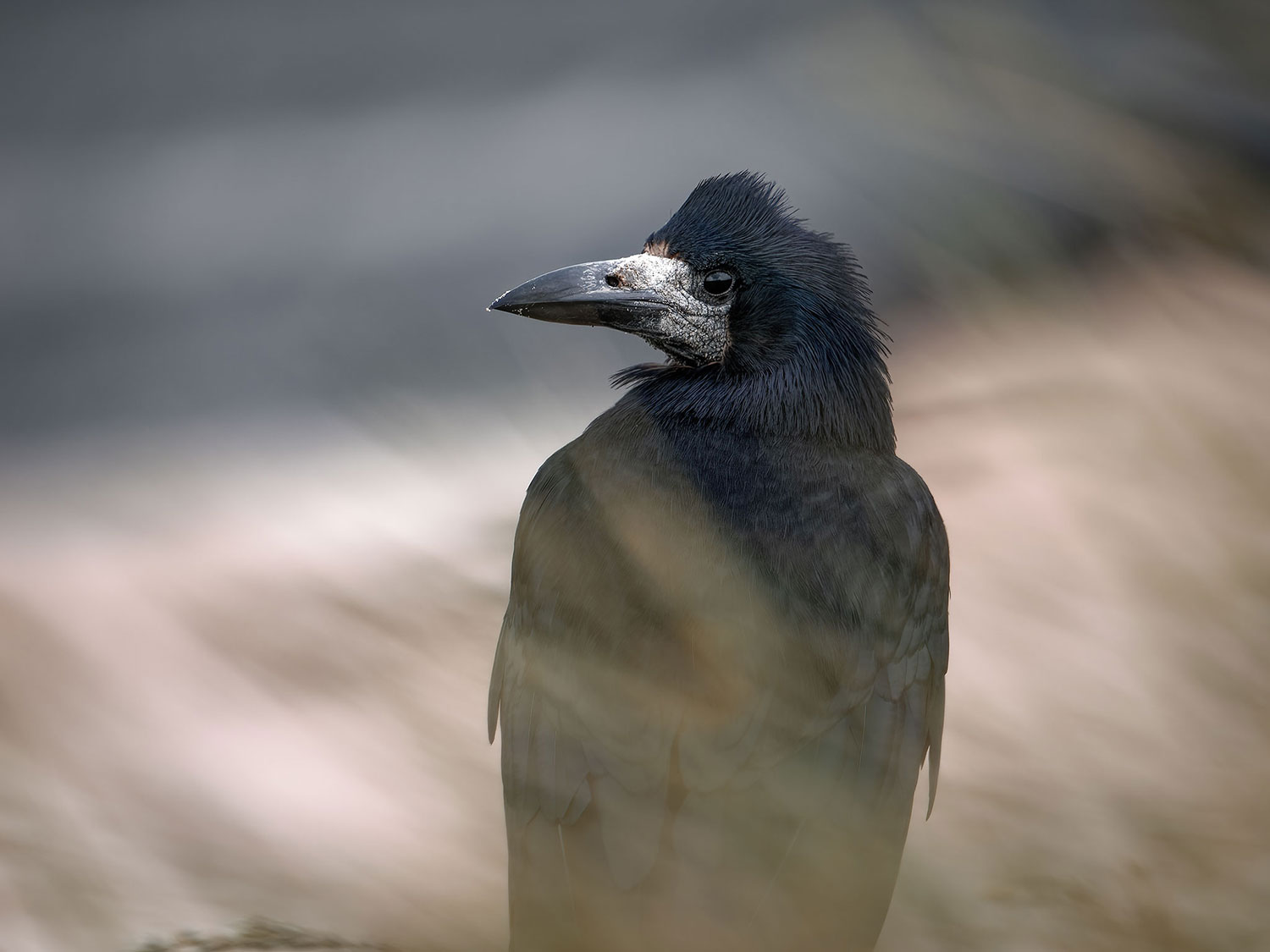
40-150mm @ 150 f2.8 ISO 400 1/320s
CONCLUSION
Subject Detect certainly does perform well on the OM3. Despite the OM3 not being a wildlife camera it still has all of the features carried over from the OM1-MKII. It is not foolproof and as with everything there is still a lot of skill required but it should open up a genre many would not previously have considered.