

CUSTOMISING BUTTONS
Setting up your first set of buttons on the OM3
In the previous section we went through the main menu and set it up accordingly. Now we will look at how to set up the various buttons on the OM3, the options available, and how to change them. They will form the defaults for the standard PASM modes and the base for your Custom Modes.
FAMILIARISE YOURSELF
Buttons on the OM3 are a little different to the OM1-MKII, in that there are less. There are 5 buttons (plus the Arrow Pad) OMS call Direct Buttons, those that can be changed. However these include The AF-ON and CP (Computational Photography) Button which in many cases are most useful as they are. It also includes the Monitor button which is in a less than desirable place on the far left shoulder. That brings it down to a measly two, Record and Fn. It means we have to really think hard about what it will be used for and what buttons we can repurpose in different ways.
→ TIP Despite the OM3 being an OM1-MKII internally the form factor is completely different. See how comfortable you are with the buttons, the red Record button is one I find a little challenging because it is so close to the rear dial. Changing it to a function which requires a long-press/turn front dial is not as comfortable as on the MKII, but you may find it fine. Despite that I still change it later to a more useful function.
First get to know which buttons can be changed and how to do it, it is actually very easy.
→Cog Menu 1. Operations/Button Settings.
From here you will see buttons we can change. Note the Lens Fn button can be changed although thought needs to be given to which lenses you will use that has an Lfn button.
Also important to note are buttons and functions which are not available. Some would make little sense to change and others would be dangerous. Imagine changing “Menu” and then not being able to access it?
⊗ ITEMS NOT AVAILABLE TO CHANGE
Menu
‘OK’ Button
Info
Playback
Trash
Arrow Pad Up
Arrow Pad Left
CP BUTTON
The new CP Button (computational photography) is genius. It allows direct access to all Computational Modes, Hi Res, Live ND, Live GND, Live Composite, Focus Stacking, HDR and Multiple Exposure. It does in many ways save the need for 2 or even three customised buttons so all is not lost. It has been implemented very well too:
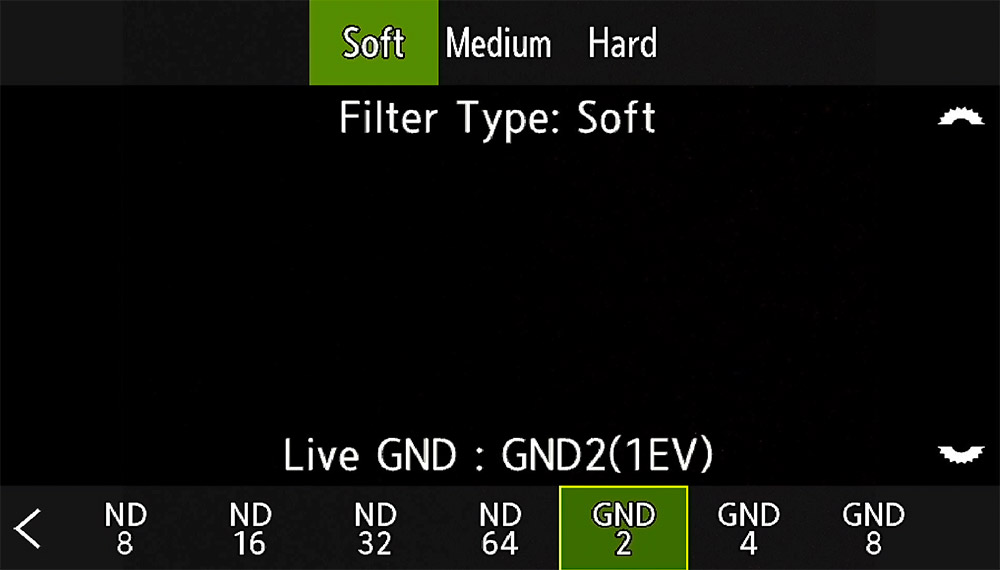
Press to activate and deactivate the last used CP Mode.
Long-Press/Turn Front Dial to scroll through CP Modes.
Some CP Modes have selectable options such as the number of frames etc in Focus Stacking. When active, Long-Press CP again to open the settings. Press Menu to quit out.
When Live-GND is selected release the CP Button, the front wheel becomes available to select filter type, and rear wheel to select ND density.
DIRECT BUTTONS
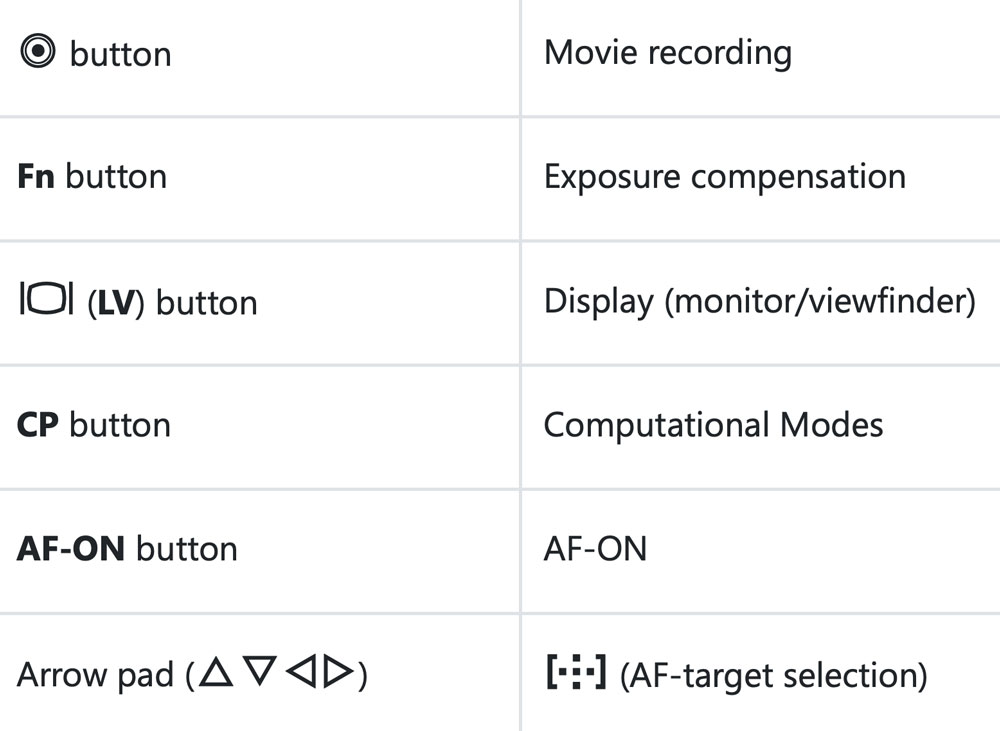
We can see here what the default Direct Buttons are and what function they perform. Setting out a plan for Custom Modes first really helps so we can identify which buttons can change and which buttons should stay as they are to maximise their potential. One button is immediately obvious, the Fn button, set at Exposure Compensation. We can access Ex Comp with the front dial and by changing the rear Arrow Pad so this is obviously a button OMS fully intended to change, hence the Fn Name.
The Record button allows quick access to recording movies whilst in any mode, but we now have a dedicated Movie Dial so it is better repurposed for something else. It would only be a loss if you frequently shoot images and movies at the same time, otherwise just change to movie mode on the dedicated dial.
Similarly the Monitor button has better uses, although it can be awkward to use being left hand access only. Still, I have better uses for it. Presumably you have set the Screen/EVF to auto switch, so the only use it has is to switch the Super Control panel Live background off.
The Arrow Pad by default uses all arrows to move the focus point. We can change that to provide two more functions with no loss to moving focus points.
FIRST BUTTON SET
The first Button Set is going to be very simple, with no great complicated changes. From this we will then make additional changes for other Custom Modes.
When making changes to buttons it is important to understand that changes made in any PASM mode will update them all. Change Record in Manual and it will also change in A too. The only way to change buttons in different sets is through Custom Modes. Perhaps now is a good time to have a quick peak at the Custom Mode section if you are new to this, and come back again.
View this first set as a starting point and remember that they are the buttons that will be active in standard modes such as A and S, before any Custom Modes are set. Also see the Notes below. Set the dial mode to A, S or M and starting going through the button menu. We will set these as the default across all modes to make them more useful. In the Cog Menu>1 Operations>Buttons select the button you want to change, then scroll through the options for the desired function. Press OK when complete.

Cog Menu>1.Operations>Button Settings. Make a note of the default button settings just in case you want to reinstate them without doing a reset. There is no way to go back.
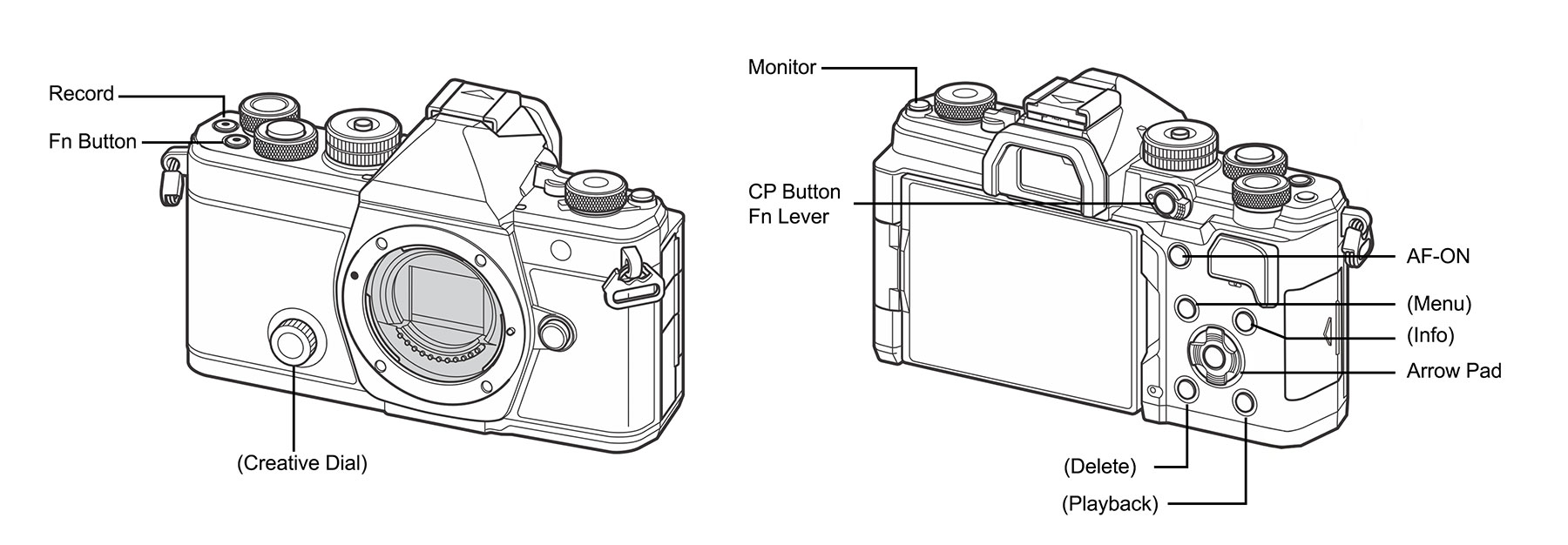
Buttons shown in (Brackets) are default and cannot be changed.
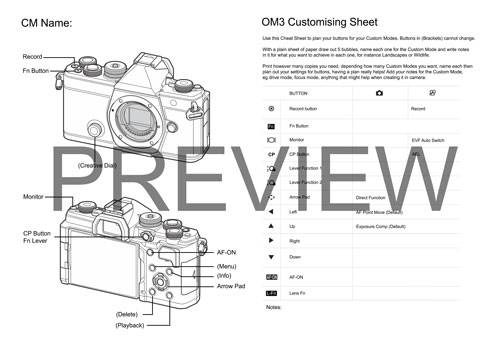
BUTTONS AND CUSTOM MODE PLANNER
I produced a Planner to help you gather thoughts and plan out your Custom Modes and Buttons as a printable download. Download and print it, and read through the notes for guidance.
Also available is a spreadsheet for CMs. Download both from the ‘About” page of the guide.
Save both and print them out to plan out your settings.
Most of these settings below are very straight forward and we will change them more to suite the Custom Mode they apply to. See the notes below for more information. Once set, save it as C1 in the Custom Mode menu.
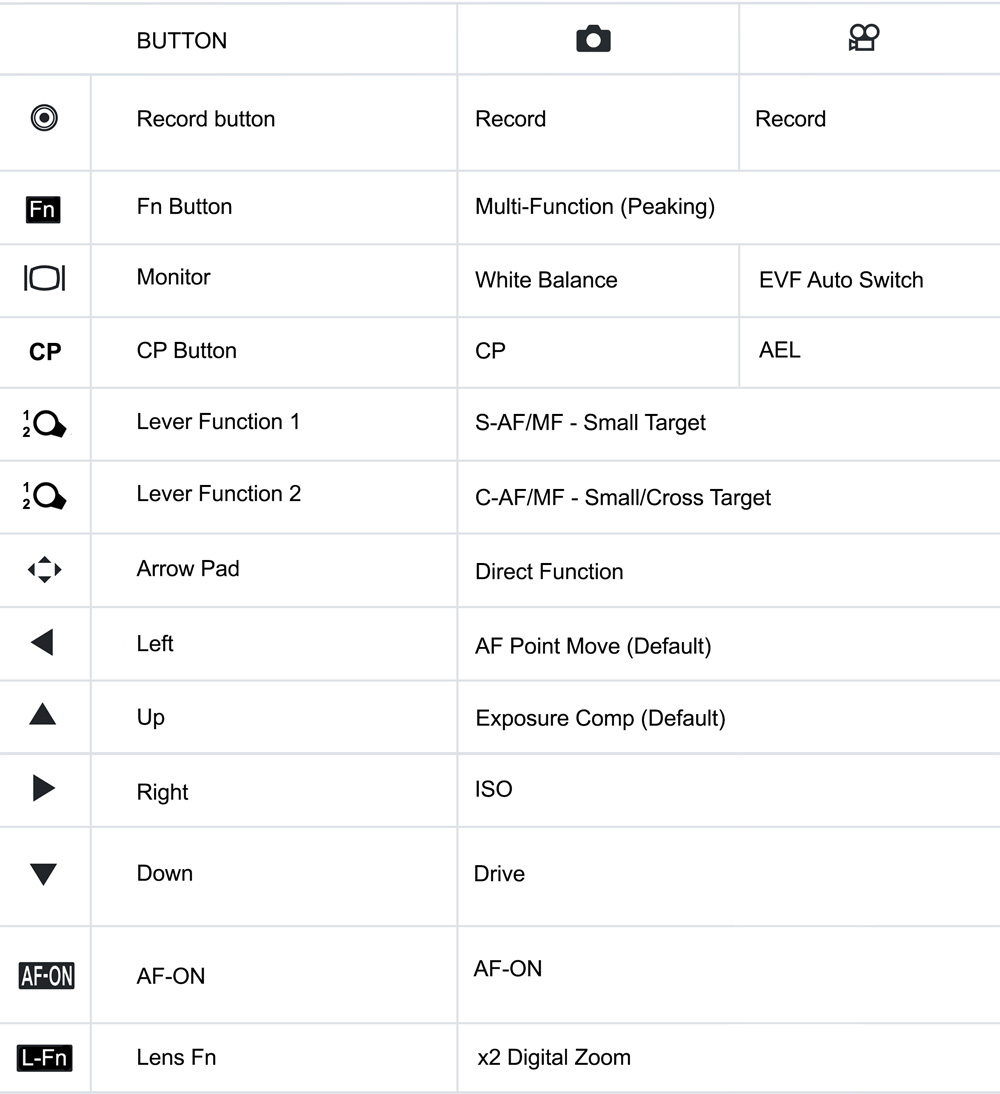
RECORD
This will stay at the default for now. Bear in mind that there is a dedicated Movie dial now and recording can be started with the shutter button so changing it later will not lose anything. The only benefit this has is for very quick recording without changing modes, which would suit content creators. I presume you are not a hard core content creator through.
Fn > PEAKING
Peaking is very useful for showing what edges are in focus. When MF Assist is enabled in the Menu we can set Peaking, along with Magnify so the view is temporarily zoomed in for inspection, and set the colour of choice for the outlines. Set the button to Multi Function and then Peaking. It will provide an opportunity to switch to the other functions with a long press and rotation of the front wheel to select other options if needed. Functions available are Highlight/Shadow, ISO, WB, Magnify, Image Aspect Ratio, S-OVF, and Peaking. Peaking is both a blessing and a curse. It is so useful to check what is in focus (actually not, it shows what edges have high contrast and should be sharp). After spending time ensuring I have good focus I sometimes want to check Peaking again without disturbing the focus, so having it mapped to a button means I can enable it any time in MF or AF. Note-In the AF menu under AF.7.MF>MF Assist Magnify can be enabled, which is very useful. However sometimes magnify is a curse when you want to see the full frame; press the Peaking button first and the frame will not be magnified. Cool!
MONITOR > WHITE BALANCE
Despite shooting raw I often find I want to change White Balance. Light temperature changes drastically at different times of the day and I want the image to look like it should even though I can change it. Shooting in creative modes which will produce a jpeg means WB cannot be changed so it become more important to get it right. The Monitor Button is redundant to me so I use that.
CP BUTTON
The Computation Photography Button will stay at default because it is too valuable to change and gives access to all the computational modes as described above. It will only change in the Wildlife CM when it becomes redundant.
LEVER FUNCTION
The Fn Lever can be set to two different options, first to swap the functions of the front/rear wheel to other functions such as ISO and WB, or to change the AF Modes. It can also be set to the power on/off which is a waste of a function. I find setting the AF modes much more useful. This is actually a powerful feature, you could actually set different functions for the wheels and AF on L-1 and L2, but trust me it gets very confusing. Keep it simple and avoid scratching your head wondering what has happened. The only time I swap wheel functions is in Wildlife and it is easy to adapt to because it is a very dedicated Custom Mode with many changes.
First to allow changes to the LFn, set Menu Cog>1.Operations>Fn Lever Settings>Function>Mode2.
In the Super Control Panel on the rear screen set the AF mode to your preference, I set Single-AF on L1 and Continuos-AF on L2. Whilst setting each one also set the AF Target size of preference. The settings here are remembered by the camera independent of a Custom Mode and can be changed by a Custom Mode too. The Focus Mode set in the SCP changes to the mode set on the lever.
Note that I have the AF Mode set also with /MF, meaning Manual Focus can also be used at the same time as AF, but it needs to be enabled if you haven’t already.
Menu AF>1. AF>AF+MF> On.
It is useful to set the focus mode together with /MF. Keeping the focus held with the shutter half pressed or AF-ON held allows fine tuning with the MF ring to over-ride the autofocus. If the shutter or AF-ON is released and the MF ring is turned it is effectively manual focus and will be disturbed again when the shutter or AF-ON is again pressed. The key here is to hold the AF focus. whilst using the MF ring. No Back Button Focus is enabled yet even though the AF-ON (this performs AF) is active because we need to be in MF (via the camera, not a lens clutch ring). We will set up CM’s which will utilise MF and BBF.
REAR ARROW PAD
The rear Arrow Pad is wasted at the default settings so after setting it to Direct Function which you should have already done in the Menu Walkthrough the > and ∨ can be set to more useful items such as ISO and Drive. Pressing < still activates the focus point position and the other arrows temporarily default back to AF Move. The ^ arrow is unfortunately set to exposure compensation by default and cannot be changed.
Menu Cog>1. Operations>Button Settings>Button Function>Arrow Pad>Direct
ARROW RIGHT > ISO
We do not have a dedicated ISO button unlike on the OM1-MKII, and it is a useful function. Rather than using the SCP set it to this button.
ARROW DOWN ∨ DRIVE
Similarly we do not have access to changing the drive mode quickly other than from the SCP. The point of changing buttons is to be able to access most needed functions quickly and fluidly without having to disrupt the shooting process. Drive mode is important to change from single to continuous on demand, so set it to this button.
AF-ON
We will leave AF-ON as default. The main purpose of AF-ON is to provide auto focus when the camera is in manual focus, in other words Back Button Focus. We do not have a way to put the camera in MF yet other than with the SCP, but we will utilise it fully in the next CMs and button sets. There are a few important settings that can also be configured for AF-ON, see the Wildlife CM section.
Lens Fn
This is a difficult one to specify simply because of the nature of the camera. It is clearly aimed at users who will use primes and smaller lenses more than bigger lenses, and yet it has all the functionality to be able to use all lenses. The only smaller lenses that have an LFn button are the 12-40 and some Pro primes like the 17mm and 45mm, so setting a function to this button has to be a function that will not be missed when using a lens without an LFn button.
x2 Digital Zoom is an obvious choice and it effectively does just what it says, increasing your image by x2. It does not actually increase anything, rather it will crop the image and it can be useful when in a situation that I do not have the focal reach. Note that the Raw image will still be the full image with a frame showing the zoom level. These days with so many apps providing good upscaling such as Lightroom and Topaz Gigapixel even a 20mp image cropped so much can still yield a decent image.
Note that there is a difference between Digital Zoom and Magnify, which zooms the view to an increased magnification for inspection.
OTHER SETTINGS
We can leave other settings at default for now other than those we already changed in the Menu walkthrough. These buttons are now the default for the standard PASM modes.
COMPLETE
That’s your first set of customised buttons applied and saved. Now it’s time to look at Custom Modes, what these are, how you can define them and how to further customise the camera button settings.