
THE PHOTOSHOP WORKSPACE
A brief tour of the Photoshop Workspace
If you are familiar with Photoshop you can completely skip this section.
If you are completely new to it, welcome to the daunting world of PS and its confusing Workspace. The biggest problem most have when starting out with PS is knowing where to start. Unlike Lightroom which has a logical workflow starting at the top and working down, PS has no such thing. Tools and filters are all over the place, accessed from many different places or hidden under different tools. There is no logical place to start, and there is no right and wrong; there are always multiple ways to perform the same task.
The good news is as photographers we do not need to understand or use every single tool and feature. Many Tools you will never use. 3D Material Drop Tool?
This is not an exhaustive PS Tutorial, rather an overview of the Workspace, how you can set it and tools you absolutely need to have available. Please note this is Photoshop 2024, the latest version as of January 2024. Older versions will differ a little with available tools.
WORKSPACE OVERVIEW
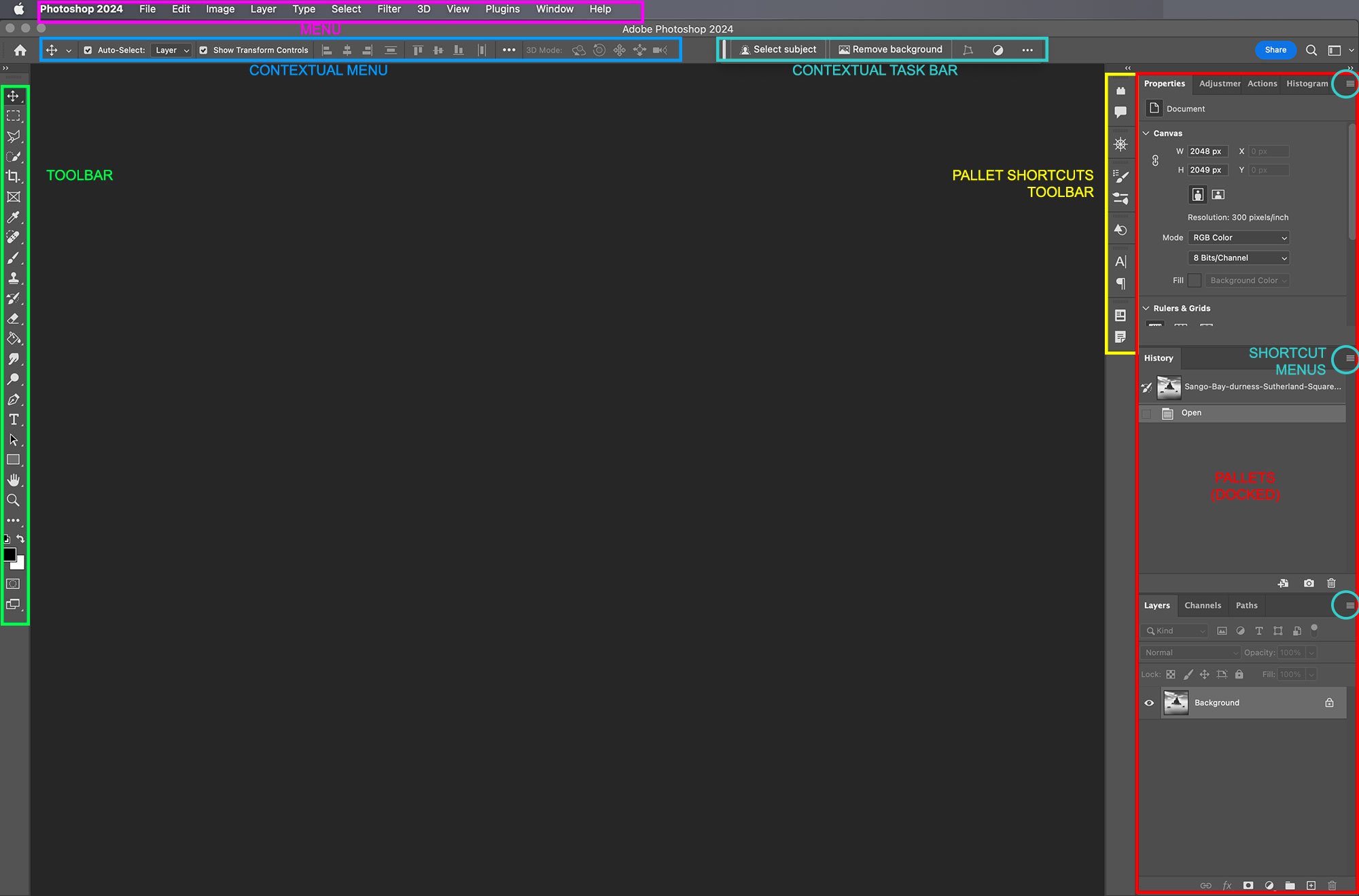
Below is an overview of the Workspace and the main areas. Taking a little time to study it and then make a few changes to suit you will really help.
Photoshop Workspace
MENU
As with all Apps there is a Main Menu at the top. All functions, tools and features can be found here including application options and customisations. Many functions and tools have keyboard icons shown next to them which are Keyboard Shortcuts. These can be reprogrammed to suit you.
CONTEXTUAL MENU

A second menu is contextual, in that it changes the information and tools displayed according to the tool being used. For instance, use the Paint Brush and the Contextual Menu changes to show other selectable options such as type of brush, size, softness, blend mode and opacity. It is very very useful.
CONTEXTUAL TASK BAR
A floating bar that can be repositioned or locked where you want on the screen. Very similar to the Contextual Menu in that the options it presets change according to the tool being used, however importantly this is where options for using AI Tools such as Generative Fill are presented.
TOOL BAR
The main Toolbar with all the PS tools. There are many and to save space they are grouped into sets accessed by Click/Holding a tool to reveal other tools as a flyout. You will soon get used to where tools are. Tool Tips will show keyboard shortcuts and in Settings>Tools enabling Rich Tool Tips will show links to helpful video tutorials where available. The Toolbar can be customised to rearrange groups, hide tools never used and rearrange order. I leave at default and get used to it.
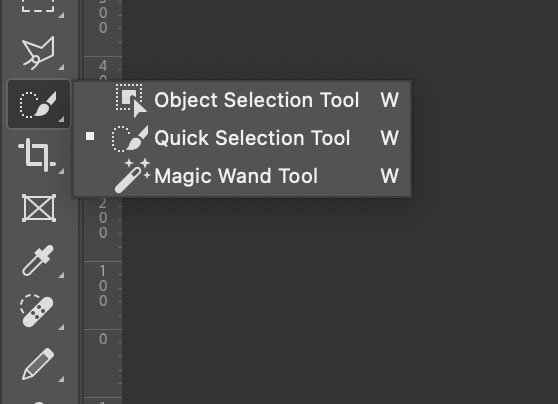
Toolbar with stacked tools. Click and hold to reveal and swap tools
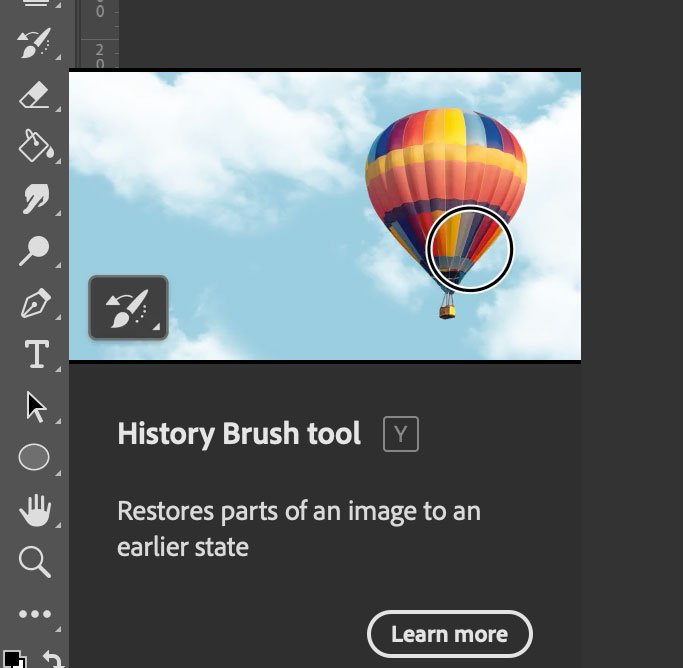
Rich Tool Tips with short help videos.
PALLETS & SHORTCUT TOOLBAR
The Pallets are essential and can be customised to suit you. Drag to rearrange, increase in size by dragging borders, stack into tabs as shown. To set the Pallets go to Window> and set a tick mark in option, then drag and dock as you wish. I recommend what you absolutely should have are Layers, History, Properties and Histogram. I also have Actions and Adjustments.
Other Pallets can be enabled, and then collapsed with the double>> at the top corner of each, and then dragged and docked into another shortcut toolbar. I use it for features I seldom need but want to have them located conveniently.
The top right corner of each pallet has a Shortcut Menu, indicated with four horizontal lines. Click for access to relevant items.
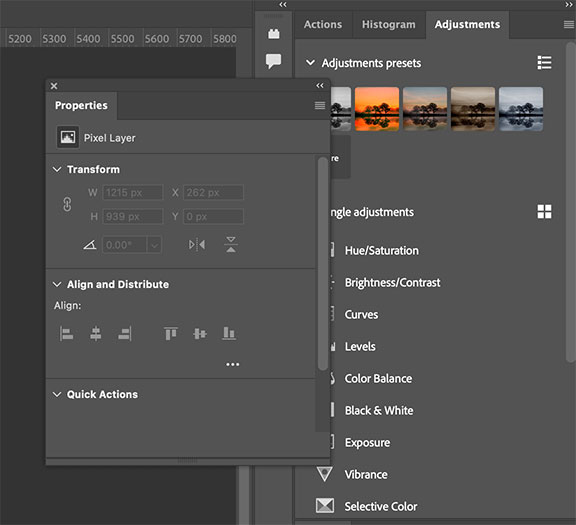
Dragging a Pallet to undock and rearrange to your preference.
BACKGROUND COLOUR
Right click on the workspace and set your background colour, I use Dark Grey. It is important because a white background is just too bright to work with, although it is useful to swap between dark grey and white when working with black and white images. We will explore this later.
KEYBOARD SHORTCUTS
Keyboard shortcuts are absolutely a time saver, press your keyboard keys instead of finding items and dragging sliders. For example why drag sliders for brush sizes when you can just hit the [ or ] keys? PS already has many predefined keys set, view them in Window>Keyboard Shortcuts or Edit>Keyboard Shortcuts. Customise them to suit you and if PS gives a warning that is is already in use decide if you need another option or if you can lose the previous setting. I have many keys set and use them all the time, after a while you start to remember them. Without an exhaustive list below are the keys you should set (some are default) and write down for use in this tutorial.
On Microsoft Windows the ‘Windows’ key acts as Cmd (Command). Your Windows keyboard may show the Windows Icon or Cmd. A key that is different is the Mac Option Key which is Alt on Windows.
- Save Cmd+S (Windows Cmd+S)
- Copy F3
- Paste F4
- Brush Size [ and ]
- Brightness/Contrast Ctrl+Cmd+B
- Levels Ctrl+Cmd+L
- Curves Cmd+C
- Invert Cmd+I
- Shadows/Highlights Ctrl+Cmd+S
- Auto Tone Ctrl+Cmd+T
- Merge Visible Shift+Cmd+E
- Stamp Visible Shift+Option(Alt)+Cmd+E
- Flatten Image Ctrl+Cmd+F
- Select Inverse Shift+Cmd+I
- Deselect Selection Cmd+D
- Zoom In Cmd++
- Zoom Out Cmd+-
- Zoom 100% Shift+Cmd+W
- Fit to Window Cmd+W
There is absolutely no point trying to be too clever and set shortcuts for everything, too many key combinations would be needed, you won’t remember them all and you will not learn where things are. Setting the tools you use the most does help a great deal.
SAVE YOUR WORKSPACE
PS has a number of predefined Workspaces which you can check but it is better to set your own. In Window>Workspace>New Workspace give it and name and save it. It will be set as your default every time you start PS.
COMPLETED
After exploring the PS works a little you can now proceed to the Processing Section where we will process an image from start to finish step by step.
Go to next section.