

EM1-MK3 MAIN SETTINGS
Set up the main settings in the Menu.
Before setting up any Custom Modes it’s important to set all the main settings first in the menu. These will be the default settings and will save a lot of work getting them correct to start with.
There are settings which are very simple such as Image Quality (Raw/Jpeg), whilst others can be quite confusing and are hidden away in the menu. Some of these may change depending on what you want for Custom Modes, but setting basics first is good management and will save a ton of work later. They will also be recalled to your main shooting modes (PASM).
SUPER CONTROL PANEL
The Super Control Panel (SCP) is your quick overview of all your main settings. It is useful for quickly changing settings without going into the menu.
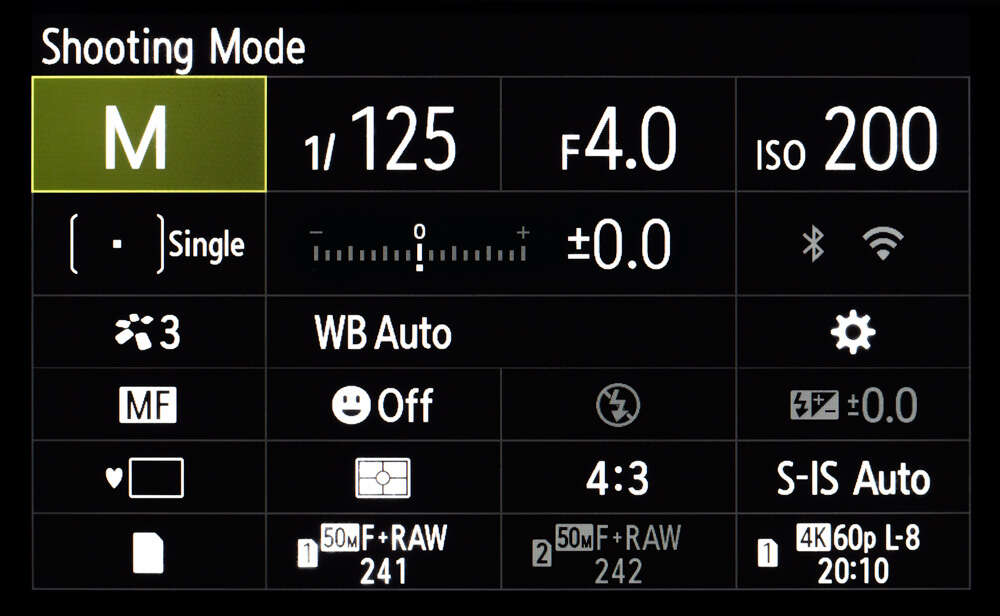
There are two ways to access settings, through the Menu and through the Super Control panel. The SCP is a quick overview of settings and has two modes, one by pressing the ‘Monitor’ button (next to Menu) which disables Live View and can be useful to save battery life, the other is an overlay on Live View accessed by pressing ‘OK’.
→ TIP Both are touch enabled. Tap to select, use the Rear Direction Pad to move, and the dial to change setting.
Access settings using the SCP and the Menu to set Basic Settings. Many are only found in the Menu.
Let’s start setting things up. Some options are personal preference. Items omitted are because default settings are fine and we can ignore them. Items marked ‘Leave Default’ are to draw attention to default settings being acceptable. Go through your menu and starting making changes as shown below. This may look daunting but you’ll be surprised how quick it is to do, and you’ll learn the menu at the same time.
1 SHOOTING MENU 1
Basic Settings/Image Quality
Reset/Custom Mode
Picture Mode
Image Quality
Image Aspect
Digital Tele-converter
Sequential Drive/Timer
Intervl. Sh/Time Lapse
Leave for now-See Custom Modes
#3 Natural
4:3
Off
Single Shot
Off
This section is all self explanatory and there’s little we need to dive deep into.
Custom Modes are dealt with in the relevant section. Picture Mode is best set at Natural. Colour settings for Picture Modes do not affect Raw images, only the Jpegs, however exposure settings do affect Raw, so stick with Natural. If you want to use Jpegs feel free to experiment but remember to change it back, or use one of your Custom Modes when they are set, it will default back to natural when you switch off.
I always have Image Quality set to Large Super Fine + Raw, just in case I do want the Jpeg, which usually get deleted but digital film is cheap.
2 SHOOTING MENU 2
Computational/Bracketing/Anti Shock
Bracketing
HDR
Multiple Exposure
Keystone Comp.
Anti Shock/Silent
High Res Shot
Live ND Shooting
Off
Off
Off
Off (jpeg only)
Set 0 for Anti Shock/Silent Mode>Not Allow
—
Off
Most of these are Off for obvious reasons, we are not using them yet.
For Anti-Shock set 0 which sets a delay to prevent any shutter shock. 0 is actually a fraction of a second so it’s worth setting.
Silent Mode Settings set all to Not Allow. This disables the focus ‘Beep’ confirmation, AF Illuminator and flash mode so Silent is completely unobtrusive.
High Res set 1/4th second delay which is enough to let the camera settle when using a tripod and shutter release, but not enough to impede hand holding. Max is 30 seconds, useful if you want to use High Res and forgot a release cable. The phone App can be used too.
VIDEO
Leave all at Default – Video is not something I ever use.
PLAYBACK
Playback Menu
Rotate
Off
Set Rotate to Off, it’s super annoying. This is the option which rotates portrait orientation images to fit landscape orientation. Far better to be able to rotate the camera for a larger image.
All other settings in this menu can be ignored, there’s nothing that needs to be set.
CUSTOM MENU
A1-AF/MF Settings
AF Mode
AF+MF
AEL/AFL
AF Scanner
CAF Sensitivity
CAF Centre Start
CAF Centre Priority
S-AF+MF
On
S1/C1/M3/Star3
Mode 2
0
Yes All
Yes All
Set basic AF settings, SingleAF+MF, which will be changed later to suit Custom Modes. AF+MF allows the lens focus ring to be used.
AEL/AFL determine how the AEL interacts with focus modes and is needed for Back Button Focus. Set as shown and see Buttons Section for more detail on BBF. CAF Sensitivity set to 0, it can be changed to suit in a Custom Mode, plus or minus. Centre Start and Priority can be enabled and changed later as needed.
A2-AF/MF Settings
Target Mode Settings
AF Area Pointer
Set Home
Select Screen Settings
Loop Settings
Target Mode Settings
Orientation Linked
Personal Choice
On1
Select All
Set 1
Off
Personal Choice. See Notes
Off
Target means the focus point, whether 1, 3×3 etc, that is the target. Target Mode settings allows which different sets of AF Target Points can be recalled. When switching between a small, medium, cross, 5×5 etc, this setting dictates which are available to select including the 4 custom targets that can be created. There are 9 in total. Some feel it is too much choice so deselect some. I enable the default first 4, and one custom with a smaller step size. See below.
Area Pointer On1 which displays a momentary green focus point when focus is achieved. On2 shows all focus points when a grid is selected which can jump around and can be confusing. On1 is simpler.
Set Home determines if the focus point is returned to a home position when the centre jog button is pressed. Set all and set the point to the centre.
Select Screen Settings looks confusing but it is quite simple. It dictates what function the front/rear wheels and the Direction Pad arrows perform when the focus target is active. Nudge the Joystick and the target is active. There are two Sets that can be created. Choose between selecting the target size options, and moving the position. I set Set 1 with wheels altering Target size, and arrow buttons moving the position. The Joystick still moves focus position too.
Loop, target mode will move off the screen one one side and appear on the opposite side. Off because its annoying.
Target Mode Settings can be used to create Custom Target Groups (which is what it should be called). You can set any you like. Personally I don’t use any, the default small single target suffices for me.
Orientation Linked sets different target modes for portrait or landscape. I leave off, I have no need for it.
A3-AF/MF Settings
AF Target Pad
AF Limiter
AF Illumination
Face Priority
AF Focus Adj
Off
Off
Off
Off
Off
AF Target Pad allows the Four position to be set by touch on the rear screen. I leave Off because it can be enabled on the rear screen when needed. It is useful sometime although I never enable the shutter too.
AF Illumination Off although it can be useful in some situations such as low light and macro. Remember the AF Illuminator will shine a red light on the subject from the front of the camera, so if you want to be in stealth mode for candid portraits with silent shutter also switch off the illuminator.
AF Focus Adjust allows fine tuning of the focus. I would not mess with this, focus is factory set and you risk messing the settings up.
Other settings are off because we do not need them and we will enable them in Custom Modes when needed.
A4-AF/MF Settings
Starry Sky AF
Preset MF Distance
MF Assist
MF Clutch
Focus Ring
Bulb/Time Focusing
Reset Lens
Accuracy
See Note
Magnify On, Peaking On
Operative
Default
Default On
Off
I set Starry Sky AF to Accuracy because it is obviously more important than speed. Add it to My Menu if you want to switch between the two. Starry Sky is a good option to set as a default AF for an Astro Custom Mode.
Preset MF allows the distance to be set, we do not need it for general settings. See Custom Modes for setting it to a button in a Wildlife CM.
Setting AF Assist Magnify and Peaking On is very useful. You can change the colour of Peaking is Menu D3. Magnify is best but can be annoying when you don’t see the full frame. Adding Peaking to a button is a hack to get around this, see Buttons, but for now enable it.
Reset Lens, when On the lens is reset to infinity which could be useful when you want the lens to be at infinity, for astro for example. But it is approx, so I set it off, forcing me to find something to focus on for accuracy, I would not rely this.
B1-Button/Dial/Lever
Button Function
Joystick Centre Function
Direction Key (Rear D Pad)
Dial Function
Dial Direction
Fn Lever Function
Fn Lever/ Power Lever
Customise Buttons. See Button Section.
[AF] Home
[AF]
Leave Default
Leave Default
Mode 2
Default Fn
We will look at customising buttons in detail in the Buttons Section. Have a look at the settings and how they are applied but there’s no need to change anything now.
Set Joystick centre to AF Home, then when moving the focus point it can be returned to the centre (or anywhere you like) quickly with a press.
Make sure the Rear D Pad is set to [AF], we will further customise it in Buttons Section.
Dial Function/Direction leave default unless you want to change them. If you use more than on body make sure any changes are the same on both or you create a headache for yourself.
*FN Lever Mode 2-This appears quite complicated at first. Setting this allows additional options:
1/Changes the front and rear dial to access WB/ISO
2/ Changes Auto Focus Target Modes 3/Swaps between the mode set on the top mode dial (eg PASM) or video mode.
1/ is redundant because we will set buttons to do this and there is an ISO button we won’t change. 3/ is redundant because there is a Video Mode on the dial. Select Mode 2 because it is more useful to set different focus modes and we will need it in Custom Menus and Buttons.
B2-Button/Dial/Lever
Elec. Zoom Speed
Playback/record Function
PBH Lock
(Top Left Buttons) Lock
Default Normal
Default Tick
Default Off
Default Off
Nothing to be concerned with here. Elec Zoom Speed only applies to power zoom lenses like the Olympus Pancake Zoom. Playback Tick allows multiple options to be selected in playback, eg protect or delete. PBH (Power Battery Holder, or the external grip) and Buttons lock allows functions to be locked against accidental pressing.
C1-Release/Continous/Image Stabiliser
S-AF Release Priority
C-AF Release Priority
Cont. L Settings
Cont. H Settings
Flicker Reduction
Off
Off
Default – See Notes
Default – See Notes
Auto
C2-Release/Continous/Image Stabiliser
Image Stabiliser
Cont. Image Stabiliser
Half Way Rls With IS
Lens IS Priority
S-IS Auto
Fps Priority
On
On-SEE NOTE
This is an item which confuses many.
S-IS Auto is fine and will detect what stabilisation is required, whether utilising the full 5-axis, or just partial. IS1 forces all, however in my experience Auto works fine. IS2 and 3 is for panning and invokes stabilisation up/down or left/right. It is effective but you are best with IS off and using a good panning technique, although do your owns tests. Lenses with Dual IS such as the 12-100 and 300 which have lens IS built in will also sync with the body IS for improved stabilisation, using the lens switch to switch it off switches both body and lens IS off. Do longer lenses need to have IS off on a tripod? My experience is yes. I have tended to leave IS Auto enabled using the 12-100 and 40-150 on a tripod successfully, but on a very few occasions have noticed some images not being sharp. the only factor was IS, so I now switch it off. Other lenses (12-40, 7-14, 8-25) do not need IS Off on a tripod.
Cont. IS I set to Fps Priority, which gives priority to the number of frames. Stabilisation is achieved for the first image but will not reset the sensor to centre to reanalyse stabilisation required for each shot so it will not impact frame rate, and it seems to be the most effective setting for me.
Lens IS Priority only affects Panasonic lenses with an IS Button and need not be worried about for Olympus lenses. As the in-body IS and lens IS on Panasonic lenses can’t sync, giving priority to the lens IS is better. The Olympus 100-400 will use the body roll axis IS and the lens pitch and yaw axis together.
D1-Display/Sound/PC
Control Settings
Info Settings
Picture Mode Settings
Drive/Timer Settings
Multi Function Settings
Enable Live Control/Live SPC
User Defined-See Notes
Enable All
User Defined-See Notes
Enable All
Info Settings are user defined and will need some consideration.
Playback Info – defines what screens and info will be presenter when Info is pressed when viewing recorded images on the card (Playback). Each press of Info cycles through each screen. I enable Image Only, Overall, Histogram, Hightlights & Shadows. Lightbox I don’t need.
Playback Magnify Info – All are selected.
LV Info – defines what screens and info are selected when info is pressed during live view on the screen, it is a great way to set different options.
Image Only > On. Screen is cleared for an uncluttered view. Exposure info only is displayed when the shutter is pressed.
Custom 1> Histogram. Main Screen with all info is shown together with Histogram.
Custom 2> Levels and Shadows/Highlights. Main screen is shown with all info together with the Levels (electronic spirit level) and shadows/highlights warning.
Setting these up gives information you can cycle through with a press of the Info button, worth paying attention to, if you set these and then set Custom Modes, then decide to change them you’ll need to change the Custom Modes too.
LV Off – Enable Shooting Info. When pressing the monitor button to display only the Super Control Panel shooting info (shutter speed, aperture) will still be displayed.
Grid Settings – For Playback, defines the thumbnails displayed or ‘zoomed out’ in Playback when the front wheel is turned, I use 4, 25 and calendar. To scroll though different images on the memory card I can ‘zoom out’ to a grid of 4, 25 or see different days.
Drive/Timer Settings – Defines which drive and self timer options are displayed when the Drive (Continuous) Button is selected. It’s tempting just to set all, but then you have many to scroll through.
Diamond Symbol = Anti Shock which we have already set
Heart Symbol = Silent Shooting.
Enable all on the first screen. On the second and third screen I enable 2 and 12s Timer for Anti Shock and Silent and omit the standard modes (non Anti-Shock/Silent). MAKE SURE YOU ENABLE PRO RES AND HIGH RES OR THEY WILL NOT BE AVAILABLE FROM THE DRIVE BUTTON.
D2-Display/Sound/PC
Off for all-Bulb/Time On1
Mode2
Frame Rate
LV Close Up Settings
Playback Default Settings
DOF Settings
Off for all – Bulb/Time On1
Mode 2
Normal
Mode 2/LV Boost Off
Recently
Default
4-Exposure-All Default
5-Metering
Metering
Metering AEL
AEL Auto Reset
AEL By Half-Press Shutter
Metering Multi Shot
Spot Metering
Evaluative
Auto
No
Yes
Yes
Enable All
6-Flash-All Default
7-Drive Mode
Drive
Sequential Shooting Settings
Single
***Enable All-Leave fps at Default.
We will change these in C Functions)
Self Timer Settings
Anti Shock Settings
Silent Settings
Enable All
****On
Set as desired
→Waiting Time 0
→Noise Auto
8-Image Stabilisation
Image Stabilisation
Image Stabiliser
Half Press Stabiliser
Handheld Assist
Lens IS Priority
S-IS AUTO
Fps Priority
On
¹On
Off
sRGB v AdobeRGB-These are two different colour spaces and you will find many conflicting opinions about them, not to be confused with Color Profiles, Vivid, Natural etc. AdobeRGB has a wider gamut of colours and some prefer to use this, however sRGB is the standard used by nearly all print labs. The internet doesn’t have a colour space as such although most websites use sRGB as do mobile devices. Processing an image in one colour space and then outputting to a different colour space can lead to colour shift. As there is so little difference between the two you will actually see I always use sRGB.
*Image Review Seconds-Controls how many seconds an image displays on the screen or Viewfinder when taken. This is personal Preference, I set to max 20s because the image will display in the viewfinder without having to press the ‘Play’ button and I don’t have to move my eye from the viewfinder. A quick half press of the shutter will dismiss it.
** ISO Upper and Default-Set the upper ISO limit for Auto ISO. This is personal choice and you can set whatever you like. I don’t need ISO so high so set 12800. ISO 200 should be default. Don’t set the lower limit below 200 as these are computational and result in reduced dynamic range.
**Noise Filter and Noise Reduction are two very different things. Noise Filter reduces noise in an image but will only affect Jpeg images. Noise Reduction reduces hot pixels in long exposures and does apply to RAW images. Leave at Standard and Auto for now.
**Low ISO Processing is best set to Detail. In most cases we want to preserve detail over drive speed. The obvious situation when drive speed is more important is Wildlife etc. You may want to change this to Drive when you save a Custom Mode for Wildlife, however you are unlikely to be using a low ISO.
***Sequential Shooting Settings-Enabling all gives access to all choices. Leaving the default fps means we can edit them later in Custom Functions.
****Anti Shock-If enabled the shutter will always default to electronic first curtain shutter when under 1/320s to prevent shutter shock. Make sure it is set to 0 seconds to avoid delays.
¹Handheld Assist-Displays a box which shows how steady you are holding the camera. A centre point moves to show steadiness and bars move to show levels. Test first because you may find it obtrusive, but I find it useful. Adding this item to MyMenu gives quick access if you would prefer to enable on the fly.
SETUP MENU
*Card Slot Settings-This can be quite confusing because of the options. In→Save Settings there are 6 options to choose from:
- Record to Assigned card only
- Auto Switch-Rolls over from card 1 to card 2 when 1 is full.
- Saves to both cards with (*)individual settings. When card 1 is full card 2 cannot be used.
- Same as 3 but card 2 will be used when card 1 is full if there is free space.
- Saves to both cards with same settings, effectively a backup copy. When card 1 is full card 2 cannot be used.
- Same as 5 but card 2 can be used when 1 is full if there is free space.
My preference is for 2. Auto Switch. However using individual settings can be useful. You could save Raw to one card and Jpeg to another, or even save a different size Jpeg to card 2 if you want smaller images you can share online immediately. You could even set Custom Modes and have Long Exposure images with Live Time, or sequential images from Pro capture saved to card 2. Obviously it isn’t a good idea to have Jpeg saved to one card, then set a Custom Mode with for instance Pro Capture shots saved to a specific card, it would defeat the object with images being mixed up and get complicated. A way around this would be to assign a saved folder. Set the preferences you want when setting a Custom Mode. Personally I always suggest keeping it simple, have one card roll over to the next, have Raws save to one and Jpeg to another, or have the second card as a backup of the first. Do remember you need equally fast cards if you intend to write raws to both slots. I use Kingston SDR2 V90 300mb/s and have found these to be excellent.
(*) Individual Settings – Select Mode 3 in Save Settings. Then go to to the first menu (Green) Camera 1 (1. Basic Settings) item 2 Camera Image Quality. Select the settings you want for Card 1 and 2. In Detailed settings you can set 4 sets of sizes for Jpeg images.
**Edit File Name– Optional, default is fine however if if you have multiple bodies it can be useful to edit the file name so you know instantly which body the file came from. For instance I set OMS1 for the OM-1 and EM13 for the EM-1 MKIII.
***Lens Info Settings – Used for non-m43 lenses when the camera cannot read the built in chip and stabilise effectively. Adding info for a lens will provide stabilisation. 10 lenses can be added. I have both of my Helios manual lenses added.
****Copyright Info-Amateur or Pro is irrelevant, you absolutely should have your name here. It is saved in Exif and proves copyright ownership of an image.
!Reset Settings-Caution. This will reset the camera. Select to reset all or leave basic info such as date and time. Use only if you need to reset camera.
¹Recalibrate Level-The in camera level can go out of true and does need recalibrating from time to time.
²Remove Dead Pixels-It is possible for the rear screen/EVF to develop dead pixels which you will notice. Running this utility generally removes them.
MY MENU
A custom menu that is user created. For more information see the previous section “Menus”
You should treat this as a place to save most frequently used items, items you do not use frequently but have difficulty locating, and as a way to supplement Custom Modes.
COMPLETE
We have set up all of the items in the menu, now we need to set each of the camera buttons to more flexible options.